1
EPSON Stylus Photo 875DC
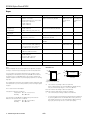
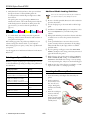
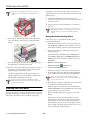
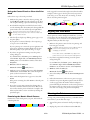
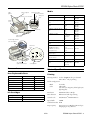
Each staggered horizontal and straight vertical line should be
complete, with no gaps in the dot pattern. If your printout
looks okay, you’re done. If any dots are missing, as shown
below, clean the print head again.
Using the Control Panel to Clean the Print
Head
Follow these steps to clean the print head:
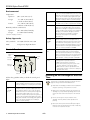
1. Make sure the printer is turned on but not printing, and
both the B black and A color ink out lights are off. (If an
ink out light is flashing, replace the ink cartridge instead.)
missing dots
2. Press the R cleaning button and hold it down for three
seconds. Cleaning takes about 30 seconds, during which the
printer makes some noise and the Ppower light flashes.
Aligning the Print Head
Never turn off the printer while the Ppower light is
flashing, unless the printer hasn’t moved or made noise
for more than 5 minutes.
If your printouts contain misaligned vertical lines, you may
need to align the print head. Your printer must be connected
to a local port, not on a network, to use the Print Head
Alignment utility. Follow these steps:
3. After the Ppower light stops flashing, print a page to test
the print quality.
If your printer is connected directly to the computer, go
to step 4 to run a nozzle check.
1. Make sure the printer is turned on but not printing, and
letter-size paper is loaded.
If you’re printing over a network, open an application and
print a short document containing black and color data.
Check the quality of your printout, then go to step 8.
Load paper that’s at least 8.27 inches (210 mm) wide to
prevent ink from spraying inside the printer and
smudging your printouts.
4. If you have an application running, access the printer
settings dialog box.
For the best results, load EPSON ink jet paper in the
printer whenever you check the print head alignment.
Or, with Windows, click Start, point to Settings, then
select Printers. Right-click your EPSON Stylus Photo
875DC printer icon in the Printers window. Then select
Properties.
2. If you have an application running, access the printer
settings dialog box.
Or, with Windows, click Start, point to Settings, then
select Printers. Right-click the EPSON Stylus Photo
875DC icon in the Printers window. Select Properties.
5. Windows: Click the Utility tab.
Macintosh: Click the
missing dots
missing dots
Utility button.
3. Windows: Click the Utility tab.
6. Make sure paper is loaded in the printer, click the Nozzle
Check button, and click Next. The nozzle check pattern
prints (see the next section for details).
Macintosh: Click the
Utility button.
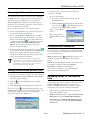
4. You see the Utility menu. Click the Print Head Alignment
button.
7. If the nozzle check pattern has no gaps in its dots, click
Finish.
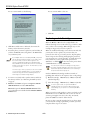
5. Follow the instructions on the screen to print a test page.
If the pattern is missing dots, click Clean to clean the print
head again.
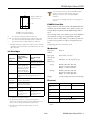
6. Select the most precise alignment pattern from the choices
on the test page. Enter the number of the best aligned
pattern following the instructions on the screen (pattern 8 is
the current setting). You may need to repeat steps 5 and 6
more than once to align your print head completely.
8. If you don’t see any improvement after cleaning three or
four times, check the solutions in the Printer Basics book.
You can also turn the printer off and wait overnight—this
allows any dried ink to soften—and then try cleaning the
print head again.
Cleaning the Printer
Examining the Nozzle Check Pattern
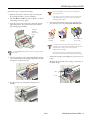
To keep your printer working at its best, you should clean it
several times a year. Follow these steps:
Examine the nozzle check pattern you print. It should look
something like this:
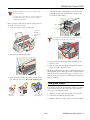
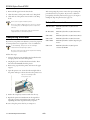
1. Turn off the printer and wait for the P power light to go
out.
2. Unplug the power cord and disconnect the USB cable.
4/00
EPSON Stylus Photo 875DC - 12