1
RADEON™ 8500
RADEON™ 8500LE
RADEON™ 7500
User’s Guide
Version 5.0
P/N 137-40282-50 Rev. D
Copyright © 2002, ATI Technologies Inc. All rights reserved.
ATI and all ATI product and product feature names are trademarks and/or registered
trademarks of ATI Technologies Inc. All other company and/or product names are
trademarks and/or registered trademarks of their respective owners. Features,
performance and specifications are subject to change without notice. Product may not
be exactly as shown in the diagrams.
Reproduction of this manual, or parts thereof, in any form, without the express written
permission of ATI Technologies Inc. is strictly prohibited.
i
Disclaimer
While every precaution has been taken in the preparation of this document, ATI
Technologies Inc. assumes no liability with respect to the operation or use of ATI
hardware, software or other products and documentation described herein, for any act
or omission of ATI concerning such products or this documentation, for any
interruption of service, loss or interruption of business, loss of anticipatory profits, or
for punitive, incidental or consequential damages in connection with the furnishing,
performance, or use of the ATI hardware, software, or other products and
documentation provided herein.
ATI Technologies Inc. reserves the right to make changes without further notice to a
product or system described herein to improve reliability, function or design. With
respect to ATI products which this document relates, ATI disclaims all express or
implied warranties regarding such products, including but not limited to, the implied
warranties of merchantability, fitness for a particular purpose, and non-infringement.
Product Notice
MACROVISION
A.Apparatus Claims of U.S. Patent Nos. 4,631,603, 4,577,216, 4,819,098, and
4,907,093 licensed for limited viewing users only.
B.In the printed collateral material that accompanies the Product, the following notice
must be printed in an appropriate place in such materials:
This product incorporates copyright protection technology that is protected by method
claims of certain U.S. patents and other intellectual property rights owned by
Macrovision Corporation and other rights owners. Use of this copyright protection
technology must be authorized by Macrovision Corporation, and is intended for home
and other limited viewing uses unless otherwise authorized by Macrovision
Corporation. Reverse engineering or disassembly is prohibited.
ii
Table of Contents
Introduction. . . . . . . . . . . . . . . . . . . . . . . . . . . . . . . . . . 1
Features At A Glance .................................................................................. 2
RADEON 7500 ...................................................................................... 2
RADEON 8500 and RADEON 8500LE ................................................ 2
ATI’s CATALYST™ Software Suite ........................................................ 3
Multiple Displays and 3D Gaming Experience...................................... 3
Direct 3D® and OpenGL® .................................................................... 3
HydraVision™ ....................................................................................... 3
Multiple Displays . . . . . . . . . . . . . . . . . . . . . . . . . . . . . 4
Connecting Your Monitor(s) ...................................................................... 4
CATALYST Software Suite . . . . . . . . . . . . . . . . . . . . . 5
ATI Displays Tab......................................................................................... 5
Enabling/Disabling Secondary Displays ................................................ 6
Enabling Extended Desktop Mode......................................................... 6
Dynamic Display Reassignment ............................................................ 6
Virtually Repositioning Your Displays .................................................. 8
Ratiometric Expansion ........................................................................... 8
ATI Color Tab ............................................................................................. 9
ATI Options Tab........................................................................................ 11
ATI Overlay Tab ....................................................................................... 12
Direct 3D® Control Panel. . . . . . . . . . . . . . . . . . . . . . 14
Main and Custom Settings........................................................................ 14
Direct 3D® Compatibility Settings .......................................................... 17
OpenGL® Control Panel . . . . . . . . . . . . . . . . . . . . . . 19
Main and Custom Settings........................................................................ 19
OpenGL® Compatibility Settings............................................................ 22
Using TV Out. . . . . . . . . . . . . . . . . . . . . . . . . . . . . . . . 23
View your PC’s display on a TV.......................................................... 23
Connecting to a TV or a VCR .................................................................. 23
Starting Windows® with TV Display Enabled .................................... 25
Using SCART Connectors for European TVs ..................................... 25
How To Enable/Disable The TV Display ............................................ 25
Using and Adjusting TV Out................................................................ 26
How TV Display Cannot Be Used ....................................................... 26
Using a Monitor vs. Using the TV Display.......................................... 26
Adjusting Monitor Display................................................................... 27
iii
Viewing Text on a TV.......................................................................... 27
Reducing Edge Distortion .................................................................... 28
Changing Display Configurations ........................................................ 29
Using Games and Applications ............................................................ 29
iv
1
Introduction
The RADEON family of graphic accelerators
delivers ground breaking 3D graphics performance.
• Designed and built by ATI Technologies Inc.
• Powered by the RADEON Visual Processing Unit
(VPU).
• Awesome 3D gaming performance.
• Support for OpenGL® applications.
• Support for Direct 3D® applications.
• High resolution in 3D up to 2048x1536.
• Best performance for today’s and tomorrow’s
applications.
• Supports TV-out to connect your PC to your TV or
VCR.
2
Features At A Glance
RADEON 7500
The RADEON 7500 provides high performance
acceleration for today's demanding 3D graphic
applications. Its main features are:
• VIDEO IMMERSION™ which provides industryleading DVD playback and digital TV decode
capability
• CHARISMA ENGINE™ which is the main VPU,
providing the necessary power to accelerate
today’s 3D games and applications
• PIXEL TAPESTRY™ which can apply 3 textures
at once to a complex 3D gaming scene
• TV output support
RADEON 8500 and RADEON 8500LE
In addition to the features of the RADEON 7500, the
RADEON 8500 series also provides:
• TRUFORM™ technology which makes the curved
surfaces of 3D objects look smoother and more
life-like
• SMARTSHADER™ technology which can
realistically create the visual properties of any
material, like glass, metal, wood, and produce 3D
depth by rendering the object’s shadows
• SMOOTHVISION™ which provides users with
various degrees of jagged edge removal from 3D
images, allowing users to configure their own high
quality or high performance gaming experience
• PIXEL TAPESTRY™ II which provides even
greater 3D rendering power
• Digital flat panel support (RADEON 8500 only)
3
ATI’s CATALYST™ Software Suite
Multiple Displays and 3D Gaming Experience
ATI’s CATALYST Software Suite provides multiple
display functionality, and the advanced graphic
features, such as TRUFORM, for the ultimate 3D
gaming experience. For help on installing the
CATALYST Software Suite, refer to the Getting
Started Guide.
The CATALYST Software Suite installs the ATI
display tabs. These tabs are accessed through the
Windows® Display Control Panel, through the
Advanced... button located on the Settings tab. For a
detailed explanation of each ATI tab, refer to
CATALYST Software Suite on page 5.
Direct 3D® and OpenGL®
The CATALYST Software Suite supports the latest
versions of Direct 3D® and OpenGL®. Your 3D
game titles will come to life, as you can tweak the
game’s settings for maximum 3D image quality or
3D gaming performance.
ATI’s Direct 3D® and OpenGL® tabs are available
through the Windows® Display Control Panel,
through the Advanced... button located on the
Settings tab.
For a detailed explanation of the Direct 3D® and
OpenGL® tabs, refer to Direct 3D® Control Panel
on page 14, and OpenGL® Control Panel on
page 19.
HydraVision™
You can also use HydraVision for advanced multimonitor management. For more information please
refer to the HydraVision User’s Guide PDF located
on your ATI Installation CD.
4
Multiple Displays
Connecting Your Monitor(s)
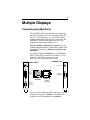
The RADEON 8500 provides hardware support for
one DVI-I monitor or two VGA monitors using the
DVI-I-to-VGA adapter. A TV can also be used to
expand your desktop by using the S-Video out. The
RADEON 7500 provides support for one VGA
monitor and Composite output to a TV.
Plug the monitor cable into your card (if you are
running multiple monitors, connect their cables to the
appropriate connectors), then turn on the PC and
monitor(s).
To connect a flat panel directly to your RADEON
8500, use the DVI-I connector. To connect a VGA
monitor to the DVI-I connector, use the
DVI-I-to-VGA adapter as shown below.
S-VID OUT
RADEON 7500
RADEON 8500
COMP OUT
COMPOSITE OUT
S-VIDEO OUT
DVI
CRT
DVI-I
CONNECTOR
STANDARD VGA
MONITOR
CONNECTOR
AVAILABLE ON
RADEON 8500
ONLY
DVI-I-TO-VGA
ADAPTER
CRT
VGA
CONNECTOR
FROM
MONITOR
STANDARD VGA
MONITOR
CONNECTOR
When you use multiple monitors with your card, one
monitor will always be Primary. Any additional
monitor(s) will be designated as Secondary.
5
CATALYST Software Suite
The following section provides an explanation of
each ATI tab available after installing the
CATALYST Software Suite.
i
Features presented in the following pages may not
be supported in all operating systems and/or may
appear differently.
ATI Displays Tab
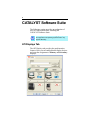
The ATI Displays tab provides the multi monitor
features. Here you can enable/disable display devices
and swap the assignment of Primary and Secondary
displays.
6
Enabling/Disabling Secondary Displays
1
Access the Windows® Control Panel. Doubleclick Display.
2
Click on the Settings tab and then the
Advanced... button.
3
Click on the ATI Displays tab.
4
Click the enable/disable button
for the
display device you want to enable/disable.
5
Click OK or Apply to save the changes.
Enabling Extended Desktop Mode
1
Access the Windows® Control Panel. Doubleclick Display.
2
Click on the Settings tab.
3
Click the monitor icon for the display onto which
you want to extend your desktop.
4
Click Yes to enable the selected display.
5
Checkmark the Extend my Windows desktop
onto this monitor check box (Windows® may
automatically place it there).
6
Click OK or Apply to save the changes.
Dynamic Display Reassignment
You can change the assignment of your Primary and
Secondary display on the fly, without rebooting.
However, before you can change the assignment of
the Primary display, at least one Secondary display
must be enabled, and Extended Desktop mode must
be enabled.
To enable a Secondary display, refer to the section
Enabling/Disabling Secondary Displays.
7
To enable Extended Desktop Mode, refer to the
section Enabling Extended Desktop Mode.
1 Access the Windows® Control Panel. Doubleclick Display.
2
Click on the Settings tab and then the
Advanced... button.
3
Click on the ATI Displays tab.
The ATI Displays tab shows you the display(s) that
are active. The Primary display has the
button
depressed. To change the display assignment, you
can click the Primary display’s
button or you can
click the
button of the other display device.
In Windows® 2000 and Windows® NT4.0, clicking
on the
button will reassign the Primary and
Secondary monitors. Clicking on the
button
creates a clone or mirror image of the Primary
display onto the Secondary display. Clicking on the
button extends your desktop to a Secondary
display located to the right of the Primary display.
Clicking on the
button extends your desktop to a
Secondary display located below the Primary
display.
4 Click OK or Apply to save the changes.
8
Virtually Repositioning Your Displays
1
On the Settings tab, click and drag the
appropriate monitor icon to the desired position.
For example, the secondary display can be
dragged to the left of the primary display,
allowing it to be virtually on the left, as shown
below.
2
Click OK or Apply to save the changes.
Ratiometric Expansion
Your RADEON card offers ratiometric expansion (or
digital panel scaling as it is commonly known). This
expands a low resolution image to fill a higher
resolution panel. However, ratiometric expansion is
only available on the Primary display. Therefore, if
a flat panel display (FPD) is set as Secondary, the
Extended Desktop mode is disabled and the
resolution is less than the FPD’s native resolution.
This causes the FPD to default to center mode.
9
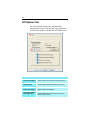
ATI Color Tab
The ATI Color tab is used to adjust the color settings.
You can change the red, green and blue display
colors. Desktop brightness and Game Gamma
(brightness) can also be changed.
ATI Color Tab
Desktop
Brightness
This increases or decreases the brightness of your
desktop. The higher the gamma value, the higher the
brightness of your display.
Color Curve
This adjusts the selected color (red, green or blue check
button) by moving the color curve with your mouse.
Game Gamma
button
This accesses Game Gamma Properties.
Defaults
button
This allows you to reset the desktop brightness and
color settings to default values.
10
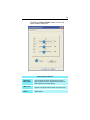
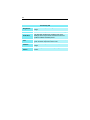
Clicking the Game Gamma button accesses the
Game Gamma Properties.
Game Gamma Properties
Red Green
Blue sliders
These controls allow you to increase or decrease the
color brightness of Direct 3D and OpenGL games
played in fullscreen mode. (NOTE: Game Gamma is
NOT supported in Windows NT4.0)
RGB Lock
Uncheck this to adjust the RGB sliders individually.
Check this to adjust all three sliders at the same time.
Defaults
button
This allows you to reset the Game Gamma settings to
default values.
11
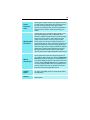
ATI Options Tab
The ATI Options tab provides detailed driver
information and access to the card’s specifications.
You can also enable or disable the ATI taskbar icon.
ATI Options Tab
Version Information
Provides the CATALYST version number, 2D
version number and the driver build information.
Details button
Provides access to the Details tab which lists the
card’s hardware details and driver information.
Reactivate all
warning messages
This allows you to reactivate any disabled
graphics warning messages.
Enable ATI taskbar
icon application
Unchecking this allows you to disable the ATI
taskbar applications and removes the ATI icon
from your system tray.
12
Show ATI icon on
taskbar
Unchecking this allows you to remove the ATI icon
from your system tray without disabling the ATI
icon applications.
Disable quick
resolution feature
Quick resolution feature is accessible by leftclicking the ATI icon in the system tray. Checking
this option disables the feature.
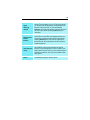
ATI Overlay Tab
The ATI Overlay tab allows you to configure the
brightness, contrast, saturation, hue and gamma
properties of your video overlay.
Video Overlay
Video overlay allows for the viewing of full-motion
video on your PC. However, there is only one video
overlay, which is only available on the Primary
display. The video overlay controls are automatically
activated during playback of any video file type that
supports overlay adjustments.
13
ATI Overlay Tab
Brightness
Use this slider to adjust the brightness of the video
image.
Contrast
Use this slider to adjust the contrast in the video image.
Saturation
Use this slider to adjust the vividness of the color.
Sliding it all the way to the left removes all color and
produces a black and white picture.
Hue
Use this slider to adjust the pureness or tint of the red,
green and blue components of the color.
Gamma
Use this slider to adjust the overall intensity of the video
image.
Defaults
button
This allows you to reset the Overlay settings to default
values.
14
Direct 3D® Control Panel
Using this tab, gamers can tweak the settings of their
Direct 3D® games.
Main and Custom Settings
In the Main Settings you can maximize overall
performance by moving the slider to the left, or you
can enhance overall image quality by moving the
slider to the right.
15
Main Settings
slider
This allows you to emphasize what kind of application
experience you’d like to have. Moving the slider to the
left will maximize application performance, while moving
the slider to the right will provide excellent 3D image
quality. Moving this slider from one position to the next
changes the individual Custom Settings sliders found
below.
Custom
Settings
checkbox
When Custom Settings is checked, the Main Settings
slider is disabled, allowing you to move each individual
slider in the Custom Settings section below. Setting the
individual sliders gives you complete control over your
application experience. Using Custom Settings is
recommended for advanced users only.
Anisotropic
Filtering
checkbox
Anisotropic filtering uses a texture filtering technique
that blends multiple texture samples together. Selecting
Application Preference will result in high quality
textures, with a negligible reduction in the application’s
performance.
Anisotropic
Filtering slider
The number of samples taken when anisotropic filtering
is performed can vary. By moving this slider to the right,
as the number of samples taken increases, the quality
of the final image increases significantly. 16X provides
extremely detailed, crisp-looking images as a result of
the largest number of texture samples possible.
SMOOTH
VISION
checkbox
SmoothVision (Anti-Aliasing) improves image quality by
removing jagged edges from 3D images, resulting in
smoother, more natural-looking objects. Selecting
Application Preference will result in high quality
images, with a negligible reduction in the application’s
performance.
SMOOTH
VISION
Performance
button
Select Performance for the best possible 3D gaming
performance at a slight reduction in 3D image quality.
The maximum screen resolution possible will
automatically be indicated.
SMOOTH
VISION
Quality button
Select Quality for the best possible 3D image quality at
a slight reduction in 3D gaming performance. The
maximum screen resolution possible will automatically
be indicated.
SMOOTH
VISION slider
SmoothVision (Anti-Aliasing) can be applied using
different sample patterns and sample points such as 2X
or 4X. Moving this slider to the right increases sampling
to provide the most realistic 3D image.
16
Texture
Preference
slider
Selecting this decides whether your application should
use high quality or high performance textures. Moving
the slider to the right delivers the highest quality
experience. Moving the slider to the left emphasizes a
high performance solution while still providing good
visuals.
Mipmap Detail
Level slider
This will allow you to choose the texture quality of the
mipmaps the application will use. Mipmaps are a
collection of different sized textures of the same image.
As the user moves closer to a 3D object the image
quality should increase, requiring a higher quality
texture of the same image. The base mipmap is the
highest quality texture, and all subsequent mipmaps are
smaller sized textures of the same image. Moving the
slider to the right selects a higher quality base mipmap,
delivering the highest quality application experience.
Moving the slider to the left selects a lower quality
mipmap, delivering the highest application performance.
Wait for
Vertical Sync
Wait for vertical sync will lower the frame rate of full
screen games but reduce the image tearing that can
occur with the higher frame rate. Selecting Application
Preference allows the application to decide whether or
not it should display its frames at the refresh rate of the
monitor. Selecting Always Off allows the application to
run at its highest possible frame rate, regardless of the
monitor’s refresh rate which is typically less than the
frame rate at which the application will run.
Compatibility
Settings
button
This button allows you to access advanced settings that
can solve compatibility issues for a few specific Direct
3D applications.
Defaults
This button allows you to reset the Direct3D settings to
default values.
17
Direct 3D® Compatibility Settings
Support
W-buffer
This will enable W-Buffer support for 3D games. It is
recommended to disable this for games that do not
support this feature. Certain applications require the
increased precision of W-Buffering and will exhibit
artifacts unless the W-Buffer is enabled.
Support 32-bit
Z-buffer depth
Z-Buffer Bit Depth can be 16 bits, 24 bits, or 32 bits. 16
and 24 are selected by default to achieve optimum
performance. Very few applications require a 32 bit ZBuffer, so in most cases this feature should be disabled.
18
Alpha
dithering
method
When applications use both dithering and alpha
blending, visual artifacts can occur. This option allows
you to select how the application should handle both
features at the same time. In most cases Error
Diffusion will handle this situation quite well, but there
are a few cases where selecting Ordered may be
necessary.
Support DXT
texture
formats
Enabling this allows applications to use this kind of
texture format. There are a few applications that can
only support a limited number of texture formats. By
selecting Disabled, the driver will not support DXT
texture formats, thus reducing the number of texture
formats supported.
Alternate pixel
center
This may eliminate problems with some D3D games
which display vertical and horizontal lines around
textures, or text that appears incorrect. However, this
setting should only be used if you are experiencing the
symptoms mentioned, as it may cause problems with
other games.
Defaults
button
This button allows you to reset the Direct 3D
Compatibility Settings to default values.
19
OpenGL® Control Panel
Using this tab, gamers can tweak the settings of their
OpenGL® games.
Main and Custom Settings
In the Main Settings you can maximize overall
performance by moving the slider to the left, or you
can enhance overall image quality by moving the
slider to the right.
20
Main Settings
slider
This allows you to emphasize what kind of application
experience you’d like to have. Moving the slider to the
left will maximize application performance, while moving
the slider to the right will provide excellent 3D image
quality. Moving this slider from one position to the next
changes the individual Custom Settings sliders found
below.
Custom
Settings
checkbox
When Custom Settings is checked, the Main Settings
slider is disabled, allowing you to move each individual
slider in the Custom Settings section below. Setting the
individual sliders gives you complete control over your
application experience. Using Custom Settings is
recommended for advanced users only.
Anisotropic
Filtering
checkbox
Anisotropic filtering uses a texture filtering technique
that blends multiple texture samples together. Selecting
Application Preference will result in high quality
textures, with a negligible reduction in the application’s
performance.
Anisotropic
Filtering slider
The number of samples taken when anisotropic filtering
is performed can vary. By moving this slider to the right,
as the number of samples taken increases, the quality
of the final image increases significantly. 16X provides
extremely detailed, crisp-looking images as a result of
the largest number of texture samples possible.
SMOOTH
VISION
checkbox
SmoothVision (Anti-Aliasing) improves image quality by
removing jagged edges from 3D images, resulting in
smoother, more natural-looking objects. Selecting
Application Preference will result in high quality
images, with a negligible reduction in the application’s
performance.
SMOOTH
VISION
Performance
button
Select Performance for the best possible 3D gaming
performance at a slight reduction in 3D image quality.
The maximum screen resolution possible will
automatically be indicated.
SMOOTH
VISION
Quality button
Select Quality for the best possible 3D image quality at
a slight reduction in 3D gaming performance. The
maximum screen resolution possible will automatically
be indicated.
SMOOTH
VISION slider
SmoothVision (Anti-Aliasing) can be applied using
different sample patterns and sample points such as 2X
or 4X. Moving this slider to the right increases sampling
to provide the most realistic 3D image.
21
Texture
Preference
slider
Selecting this decides whether your application should
use high quality or high performance textures. Moving
the slider to the right delivers the highest quality
experience. Moving the slider to the left emphasizes a
high performance solution while still providing good
visuals.
Mipmap Detail
Level slider
This will allow you to choose the texture quality of the
mipmaps the application will use. Mipmaps are a
collection of different sized textures of the same image.
As the user moves closer to a 3D object the image
quality should increase, requiring a higher quality
texture of the same image. The base mipmap is the
highest quality texture, and all subsequent mipmaps are
smaller sized textures of the same image. Moving the
slider to the right selects a higher quality base mipmap,
delivering the highest quality application experience.
Moving the slider to the left selects a lower quality
mipmap, delivering the highest application performance.
Wait for
Vertical Sync
Wait for vertical sync will lower the frame rate of full
screen games but reduce the image tearing that can
occur with the higher frame rate. Selecting Application
Preference allows the application to decide whether or
not it should display its frames at the refresh rate of the
monitor. Selecting Always Off allows the application to
run at its highest possible frame rate, regardless of the
monitor’s refresh rate which is typically less than the
frame rate at which the application will run.
Compatibility
Settings
button
This button allows you to access advanced settings that
can solve compatibility issues for a few specific OpenGL
applications.
Defaults
This button allows you to reset the OpenGL settings to
default values.
22
OpenGL® Compatibility Settings
Force Z-buffer
depth
This allows you to explicitly set the Z-Buffer depth. Most
applications will work best when Disabled is selected
Alpha
dithering
method
When applications use both dithering and alpha
blending, visual artifacts can occur. This option allows
you to select how the application should handle both
features at the same time. In most cases Error
Diffusion will handle this situation quite well, but there
are a few cases where selecting Ordered may be
necessary
Support KTX
buffer region
extension
Enabling this feature allows rapid updates of those
portions of your screen that have changed. Note that
most applications will not be affected by activating this
feature
Defaults
button
This button allows you to reset the OpenGL
Compatibility Settings to default values.
23
Using TV Out
View your PC’s display on a TV
Your RADEON card has TV Out capability. You can
attach your card to a TV and monitor at the same
time. Or you can connect it to your VCR and record
your monitor’s display.
TV display is ideal for playing games, giving
presentations, watching movies, and browsing the
Internet. The following tips will help you get the
most out of your TV Out feature.
IMPORTANT INFORMATION
for European Customers
Some PC monitors in Europe cannot be used
simultaneously with TV display. When you enable TV
display in Europe, the refresh rate for the monitor and TV is
set to 50Hz. Some monitors may not support this refresh
rate and could be damaged.
•
Please check the documentation supplied with your
monitor to see if your monitor supports a refresh rate of
50Hz.
If your monitor does not support 50 Hz (or if you
are not sure), then turn off your monitor before
turning on your PC when using your TV as a
display.
For information on disabling TV display, see How To
Enable/Disable The TV Display on page 25.
Some TVs in Europe may use a SCART connection. If you
use SCART, please read Using SCART Connectors for
European TVs on page 25 before attempting to connect
your PC to your European TV.
Connecting to a TV or a VCR
To connect your RADEON 8500 to a TV or a VCR,
use an S-Video cable. To connect your RADEON
24
7500 to a TV or a VCR, use a Composite (RCA)
cable. If your TV has cable input only, you can
connect your card to your TV through your VCR or
an RF modulator (available in most electronics
stores).
Connecting Your Video Out to a TV or VCR
1
Turn off your PC and your TV (or VCR).
2
Ensure your card was installed correctly as per
the Getting Started Guide.
3
Determine if your TV (or VCR) has an S-Video
or Composite video connection.
4
Looking at the back of your PC, locate your
S-Video Out or Composite Out. Using an
appropriate cable, attach one end of the cable to
your video out and the other to your TV (or
VCR). Refer to the illustration for further help.
5
Turn on your PC and your TV (or VCR).
RADEON 8500
S-Video Out
S-Video In
OR
Composite In
TV or VCR
NOTE: Newer TVs may have
the Video Input on the front
panel
RADEON 7500
Composite Out
PC
S-Video Cable
OR
Composite Cable
25
Starting Windows® with TV Display Enabled
The TV screen may become scrambled during the
initial Windows® logo display. This is only a
temporary effect and your screen will be restored
within a few seconds.
During start up, your RADEON card will go through
a sequence of mode settings, during which your TV
display will remain blank. This process takes only a
few seconds and helps program the TV display.
Using SCART Connectors for European TVs
Audio In
Connect to
TV or VCR
(Right = red)
(Left = white)
Audio Cable
Connect to PC
Audio Out
Video Adapter Cable
SCART
CONNECTOR
Composite Video-In (yellow)
Connect to
RADEON 8500
S-Video Out
The above illustration shows how to connect your
RADEON 8500 to a European TV using the SCART.
The SCART connector supports only the Composite
video format, which means you will have to use an
S-Video-to-Composite Video Adapter Cable. If
your European TV does support S-Video input, you
should connect directly to the TV with an S-Video
cable rather than through the SCART.
For the RADEON 7500 you can use a Composite
(RCA) cable to connect directly to the SCART.
How To Enable/Disable The TV Display
1
Access the Windows® Control Panel. Doubleclick Display.
2
Click on the Settings tab and then the
Advanced... button.
26
3
Click on the ATI Displays tab. Click on the TV
button.
4
Click the enable/disable button.
5
Click OK or Apply to save the changes.
Using and Adjusting TV Out
For information about how to use TV display, right
click the ATI taskbar icon, point to Help, then point
to ATI Television Display.
How TV Display Cannot Be Used
A TV cannot be left connected to the graphics card if
two analog monitors are connected to your
RADEON card, even if the TV is off and not enabled
in the software.
An analog monitor connected to the DVI-I connector
cannot be left connected to your RADEON card
when TV out is enabled. In both cases, your
RADEON card will become overloaded, resulting in
a dim image on all devices.
Using a Monitor vs. Using the TV Display
Using your TV for your PC’s display is ideal for
playing games, giving presentations, watching
movies, and browsing the Internet. However, the
display on your monitor may change or looked
squashed. This occurs because the display adjusts to
fit the dimensions of your TV. To correct the
monitor’s display, use the monitor’s control buttons
to adjust its display size and position.
Some single frequency monitors may not work with
TV display enabled. If you experience problems
when TV display is enabled, disable TV display to
restore your monitor’s display.
27
Adjusting Monitor Display
The size of the display on your monitor may be
smaller and not perfectly centered when you have TV
display enabled. These effects are caused by the
changes required to provide a proper display on the
TV.
Use the controls available on the Adjustments tab on
the Monitor Properties page (accessible by clicking
on the Monitor button on the ATI Displays tab) to
adjust the display on your monitor only. Click on the
TV button to adjust the TV display only.
Viewing Text on a TV
A TV is designed primarily to show moving, rather
than static, images. The large dot pitch of a TV
(which is fine for moving video) will yield poor
quality static images such as text.
The small text sizes commonly used for PC desktops
can appear blurred or unclear on a TV. You can
compensate for this by using larger fonts.
To Use Larger Display Fonts
1 Access the Windows® Control
Panel. Double-
click Display.
2
For Windows® XP, click the Appearance tab.
For Windows® 98, Windows® Me, Windows®
2000, click the Settings tab, the Advanced...
button, then the General tab. For Windows® NT
click the Settings tab.
3
In the Font Size box, select the size you want
your displayed fonts to be.
4
Click Apply. If prompted, click Yes to restart
your PC.
28
Reducing Edge Distortion
When using a TV for your PC’s display, you may see
some edge distortion on the left and right side of your
TV screen. This effect depends on your TV and the
PC application you are running.
To reduce edge distortion, you can increase the TV
display’s horizontal size.
To Increase the Horizontal Size
1 Access the Windows® Control
Panel. Double-
click Display.
2
Click on the Settings tab and then the
Advanced... button.
3
Click on the ATI Displays tab.
4
Click on the TV button.
5
Click the Adjustments tab.
6
In the Screen Size section, click on the plus (+)
button beside the horizontal arrowheads
to
increase the horizontal size of the TV display.
7
Click OK or Apply to save the changes you have
made.
You can also reduce edge distortion by increasing the
TV’s contrast.
To Increase the TV Contrast
1 Access the Windows® Control
Panel. Double-
click Display.
2
Click on the Settings tab and then the
Advanced... button.
3
Click on the ATI Displays tab.
4
Click on the TV button.
29
5
Drag the Contrast slider to the right to increase
the contrast.
6
Click OK or Apply to save the changes you have
made.
Changing Display Configurations
If you move your PC to a place where you are using
TV display only, make sure that you have the TV
display feature enabled.
You can set your display resolution as high as
1024x768. However, higher resolutions will result in
a virtual desktop. If a TV is your only display device
and a higher mode is selected, the display on your
TV will disappear.
Using Games and Applications
Some older games and applications may program
your RADEON card directly, to run under a specific
display mode. This may cause your TV display to
turn off automatically or become scrambled (the PC
monitor will not be affected). Your TV display will
be restored once you exit the game or if you restart
your PC.