1
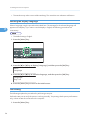
Operating Instructions
Hardware Guide
1
2
Guide to the Printer
Installing the Printer and Options
3
Connecting the Printer
4
Configuration
5
Paper and Other Media
6
Replacing Consumables
7
Cleaning the Printer
8
Troubleshooting
9 Removing Misfed Paper
10
Appendix
Read this manual carefully before you use this machine and keep it handy for future reference. For safe and correct use, be sure to read "Safety
Information" before using the machine.
Introduction
This manual contains detailed instructions and notes on the operation and use of this machine. For your safety and
benefit, read this manual carefully before using the machine. Keep this manual in a handy place for quick reference.
Do not copy or print any item for which reproduction is prohibited by law.
Copying or printing the following items is generally prohibited by local law:
bank notes, revenue stamps, bonds, stock certificates, bank drafts, checks, passports, driver's licenses.
The preceding list is meant as a guide only and is not inclusive. We assume no responsibility for its completeness or
accuracy. If you have any questions concerning the legality of copying or printing certain items, consult with your
legal advisor.
Important
Contents of this manual are subject to change without prior notice.
In no event will the company be liable for direct, indirect, special, incidental, or consequential damages as a result
of handling or operating the machine.
For good print quality, the manufacturer recommends that you use genuine toner from the manufacturer.
The manufacturer shall not be responsible for any damage or expense that might result from the use of parts
other than genuine parts from the manufacturer with your office products.
Some illustrations in this manual might be slightly different from the machine.
TABLE OF CONTENTS
How to Read This Manual.................................................................................................................................4
Symbols...........................................................................................................................................................4
Machine Types...............................................................................................................................................4
Notes...............................................................................................................................................................4
Model-Specific Information...............................................................................................................................5
Positions of
WARNING and
CAUTION labels.......................................................................................7
Power Switch Symbols...................................................................................................................................9
Manuals for This Printer...................................................................................................................................10
List of Option.....................................................................................................................................................11
Operating Instructions......................................................................................................................................12
Reading the HTML Manuals on the CD-ROMs.........................................................................................12
Reading the HTML Manuals That You Install on the Computer...............................................................12
1. Guide to the Printer
Exterior: Front View..........................................................................................................................................15
Exterior: Rear View...........................................................................................................................................17
Inside.................................................................................................................................................................18
Control Panel....................................................................................................................................................20
2. Installing the Printer and Options
Installing the Printer..........................................................................................................................................23
Where to Put the Printer...............................................................................................................................23
Unpacking....................................................................................................................................................26
Turning the Power On..................................................................................................................................33
Selecting the Display Language.................................................................................................................36
Test Printing...................................................................................................................................................36
Installing Option...............................................................................................................................................38
Attaching Paper Feed Unit..........................................................................................................................38
3. Connecting the Printer
Network Connection........................................................................................................................................41
Reading the LED Lamps...............................................................................................................................42
USB Connection...............................................................................................................................................44
4. Configuration
Ethernet Configuration.....................................................................................................................................47
Specifying an IP Address for IPv4 (No DHCP)..........................................................................................49
1
Receiving an IP Address for IPv4 Automatically (DHCP).........................................................................50
Specifying an IP Address for IPv6 (No DHCP)..........................................................................................52
Receiving an IP Address for IPv6 Automatically (DHCP).........................................................................54
Setting the Ethernet Speed..........................................................................................................................55
5. Paper and Other Media
Paper and Other Medias Supported by This Printer.....................................................................................57
Paper Recommendations.................................................................................................................................61
Loading Paper..............................................................................................................................................61
Storing Paper................................................................................................................................................61
Types of Paper and Other Media..............................................................................................................61
Specifications of Paper Types.....................................................................................................................62
Paper Not Supported by This Printer..........................................................................................................68
Paper Storage Precautions..........................................................................................................................69
Print Area......................................................................................................................................................69
Loading Paper..................................................................................................................................................71
Loading Paper in Tray 1..............................................................................................................................71
Loading Paper in the Bypass Tray..............................................................................................................84
Loading Paper in Tray 2..............................................................................................................................90
Loading Envelopes.......................................................................................................................................92
6. Replacing Consumables
Replacing the Print Cartridges.........................................................................................................................99
Replacing the Waste Toner Bottle................................................................................................................105
Replacing the Intermediate Transfer Unit (for Type 2)................................................................................111
Replacing the Fusing Unit and Transfer Roller (for Type 2)........................................................................112
7. Cleaning the Printer
Cautions to Take When Cleaning................................................................................................................113
Cleaning the Toner Density Sensor..............................................................................................................114
Cleaning the Friction Pad and the Paper Feed Roller.................................................................................116
Cleaning the Registration Roller and the Paper Tray..................................................................................119
8. Troubleshooting
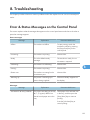
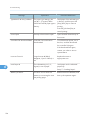
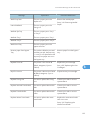
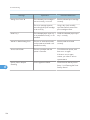
Error & Status Messages on the Control Panel............................................................................................123
Panel Indicator...............................................................................................................................................127
Printer Does Not Print....................................................................................................................................128
2
When the Printer is Directly Connected to a Computer via USB Cable...............................................129
Other Printing Problems.................................................................................................................................132
Additional Troubleshooting...........................................................................................................................142
9. Removing Misfed Paper
When Paper is Jammed.................................................................................................................................143
When "Internal Misfeed" Appears...........................................................................................................144
When "Misfeed: PprTray", "Misfeed: Tray 1", or "Misfeed: Tray 2" Appears.....................................147
When "Misfd: Dupl Unit" Appears...........................................................................................................148
When "Misfd: Stnd Tray" Appears...........................................................................................................149
10. Appendix
If the Printer is Not Going to Be Used for a Long Time...............................................................................151
Preparing the Printer For a Long Period of Inactivity..............................................................................151
Using the Printer Again after it has been Inactive for a Long Period.....................................................152
Moving and Transporting the Printer............................................................................................................154
Moving the Printer.....................................................................................................................................155
Consumables..................................................................................................................................................156
Print Cartridge............................................................................................................................................156
Waste Toner Bottle....................................................................................................................................157
Specifications.................................................................................................................................................158
Main Unit...................................................................................................................................................158
Options.......................................................................................................................................................161
Trademarks.....................................................................................................................................................162
INDEX...........................................................................................................................................................165
3
How to Read This Manual
Symbols
This manual uses the following symbols:
Indicates points to pay attention to when using the machine, and explanations of likely causes of paper
misfeeds, damage to originals, or loss of data. Be sure to read these explanations.
Indicates supplementary explanations of the machine's functions, and instructions on resolving user
errors.
This symbol is located at the end of sections. It indicates where you can find further relevant information.
[]
Indicates the names of keys on the machine's display or control panels.
(mainly Europe and Asia)
(mainly North America)
Differences in the functions of Region A and Region B models are indicated by two symbols. Read the
information indicated by the symbol that corresponds to the region of the model you are using. For
details about which symbol corresponds to the model you are using, see p.5 "Model-Specific
Information".
Machine Types
The model names of the machines do not appear in the following pages.
Check the type of your machine before reading this manual.
• Type 1: SP C240DN
• Type 2: SP C242DN
Certain types might not be available in some countries. For details, please contact your local dealer.
Notes
Contents of this manual are subject to change without prior notice.
Some illustrations in this manual might be slightly different from the machine.
4
Model-Specific Information
This section explains how you can identify the model type and region of your machine.
This machine comes in two models which vary in printer drivers they support. Check the label of the
printer driver CD-ROM for the supported printer driver.
When describing procedures that are model-specific, this manual refers to the different machine models
as Type 1 or Type 2. The following table describes the model types.
Model types
Model type
Supported printer driver
Type 1
DDST driver
Type 2
PCL and PostScript 3 drivers
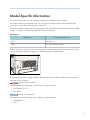
Furthermore, there is a label on the rear of the machine, located in the position shown below. The label
contains details that identify the region your machine belongs to. Read the label.
CER068
The following information is region-specific. Read the information under the symbol that corresponds to
the region of your machine.
(mainly Europe and Asia)
If the label contains the following, your machine is a region A model:
• CODE XXXX -22, -27
• 220-240V
(mainly North America)
If the label contains the following, your machine is a region B model:
• CODE XXXX -17
• 120 V
5
• Dimensions in this manual are given in two units of measure: metric and inch. If your machine is a
Region A model, refer to the metric units. If your machine is a Region B model, refer to the inch
units.
6
Positions of
labels
WARNING and
CAUTION
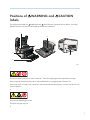
This machine has labels for WARNING and CAUTION at the positions shown below. For safety,
please follow the instructions and handle the machine as indicated.
1
5
4
2
6
3
CER069
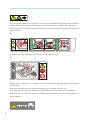
1
Do not incinerate used toner or toner containers. Toner dust might ignite when exposed to an open
flame. Disposal should take place at an authorized dealer or an appropriate collection site.
Store toner (new or used), toner containers, and components that have been in contact with toner out of
reach of children.
2
Do not touch labelled gray areas.
The areas can get very hot.
3
7
Do not incinerate spilled toner or used toner. Toner dust is flammable and might ignite when exposed to
an open flame. Disposal should take place at an authorized dealer or an appropriate collection site.
Store toner (new or used), toner containers, and components that have been in contact with toner out of
reach of children.
4
Be careful not to trap your fingers when opening or closing the top cover.
5
Do not incinerate spilled toner or used toner. Toner dust is flammable and might ignite when exposed to
an open flame.
Disposal should take place at an authorized dealer or an appropriate collection site.
If you dispose of the used toner containers yourself, dispose of them according to local regulations.
Store toner (new or used), toner containers, and components that have been in contact with toner out of
reach of children.
6
8
The printer weighs approximately 23.8 kg (52.5 lb). When moving the printer, use the inset grips on
both sides, and lift slowly in pairs.
Power Switch Symbols
The meanings of the symbols for the switches on this machine are as follows:
•
: POWER ON
•
: POWER OFF
9
Manuals for This Printer
Read this manual carefully before you use this printer.
Refer to the manuals that are relevant to what you want to do with the printer.
• Media differ according to manual.
• The printed and electronic versions of a manual have the same contents.
• Adobe Acrobat Reader/Adobe Reader must be installed in order to view the manuals as PDF files.
• A Web browser must be installed in order to view the html manuals.
Safety Information
Contains information about safe usage of this printer.
To avoid injury and prevent damage to the printer, be sure to read this.
Quick Installation Guide
Contains procedures for removing the printer from its box, and connecting it to a computer.
Hardware Guide (This manual)
Contains information about paper; names and functions of the parts of this printer; and procedures
such as installing options, replacing consumables, responding to error messages, and resolving
jams.
Driver Installation Guide
Contains procedures for installing the PCL and DDST printer drivers. This manual is included on the
driver CD-ROM.
PostScript 3 Installation Guide (Type 2 only)
Contains procedures for installing the PostScript 3 printer driver. This manual is included on the
driver CD-ROM.
Software Guide
Contains information about using this printer, its software, and its security functions.
10
List of Option
This section provides a list of option for this printer, and how it is referred to as in this manual.
Option List
Paper Feed Unit TK1010
Referred to as
Paper feed unit
• For details about the specifications of this option, see "Specifications".
• p.158 "Specifications"
11
Operating Instructions
This section explains how to use HTML format manuals.
Reading the HTML Manuals on the CD-ROMs
This section describes how to read the HTML manuals on the supplied manual CD-ROMs.
1. Insert the CD-ROM into the CD-ROM drive of your computer.
2. Select a language and a product, and then click [OK].
3. Click [Read HTML manuals].
4. Click the title of manual you want to read.
The browser opens, and then the manual appears.
• The browsers we recommend are Internet Explorer 6 or later, Firefox 3.5 or later, and Safari 4.0 or
later.
• Non-recommended browsers can display the simplified manual only.
• If you are using an earlier or non-recommended browser and the simplified version of the
documentation does not appear automatically, open index.htm, which can be found in the
following folder on the CD-ROM: MANUAL_HTML\LANG\(language)\(manual)\unv
• Depending on your computer's operating environments, you can select the HTML manual from the
following two versions:
• Standard version
• Simplified version
• If you want to read the HTML manuals on a Macintosh, insert the CD-ROM into the CD-ROM
drive, and then click [Read HTML manuals].
• If JavaScript is disabled or unavailable in your browser, you will not be able to search or use
certain buttons in the HTML documentation.
Reading the HTML Manuals That You Install on the Computer
This section describes how to install and read the HTML manuals on your computer.
For easy access, we recommend you install the manuals on your computer.
1. Insert the CD-ROM into the CD-ROM drive of your computer.
2. Select a language and a product, and then click [OK].
3. Click [Install manuals].
12
4. Install the HTML manuals following the on-screen instructions.
5. When the installation is complete, click [Finish].
6. Click [Exit].
7. Open the HTML manuals that you installed.
When opening the manuals from an icon, double-click the manual icon on the desktop. When
opening the manuals from the [Start] menu, point to [All Programs], and then [Product Name].
8. Click the title of the manual you want to read.
• You need administrator permissions to install the manuals. Log in as an Administrators group
member.
• The system requirements for installing the manuals are as follows:
• Operating system: Windows XP/Vista/7, Windows Server 2003/2003 R2/2008/2008
R2
• Minimum display resolution: 800 × 600 pixels
• If you cannot install a manual, copy the "MANUAL_HTML" folder to your computer's hard drive,
and then run "Setup.exe".
• To delete an installed manual, on the [Start] menu, click [All Programs], then [Product Name], and
then uninstall the data.
• Depending on the settings made during installation, menu folder names may differ.
13
14
1. Guide to the Printer
This chapter explains the names and functions of the printer's components.
1
Exterior: Front View
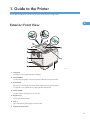
CER020
1. Top Cover
Open this cover to replace the print cartridge.
2. Control Panel
Contains keys for printer control and indicators that shows the printer status.
3. Front Cover
Open this cover to replace the waste toner bottle or remove jammed paper.
To open this cover, pull the lever on the right side of the printer.
4. Power Switch
Use this switch to turn the power on and off.
5. Bypass Tray
Load paper sheet by sheet.
6. Tray 1
Up to 250 sheets of plain paper can be loaded.
7. Top Cover Open Lever
15
1. Guide to the Printer
8. Standard Tray Extension
Use this to support sheets that come out curled after they are printed.
1
Flip open the extension by pushing down on the end that is toward the rear of the machine.
9. Stop Fences
Use these to stop legal-size or A4-size/letter-size prints falling behind the machine.
For legal-size prints, raise the rear fence.
For A4-size prints, raise the forward fence.
10. Standard Tray
Output is stacked here with the print side down.
16
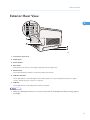
Exterior: Rear View
Exterior: Rear View
1
CER021
1. Front Cover Open Lever
2. Cable Cover
3. Power Socket
4. Rear Cover
Remove this cover when you load paper larger than A4 in the paper tray.
5. Ethernet Port
Use a network interface cable to connect the printer to the network.
6. USB Host Interface
Use a USB cable to connect the digital camera to the printer. You can print images directly from a digital
camera, without having to connect to a computer.
7. USB Port
Use a USB cable to connect the printer to the host computer.
• Make sure the digital camera you connect to the printer for PictBridge and direct printing supports
PictBridge.
17
1. Guide to the Printer
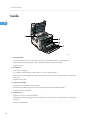
Inside
1
CER022
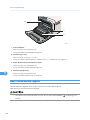
1. Print Cartridge
Loads from the printer rear, in the order of cyan (C), magenta (M), yellow (Y), and black (K).
If the following message appears on the control panel, replace the print cartridge:
"Replace Toner:"
2. Fusing Unit
Fuses toner to the paper.
You might have to handle this unit to check for or remove jammed paper.
If the following message appears on the control panel, contact your service representative to replace the
fusing unit:
"Replace Fusing Unit"
3. Waste Toner Bottle
Collects toner that is wasted during printing.
If the following message appears on the control panel, replace the waste toner bottle:
"Replace Waste Toner Bottle"
4. Transfer unit
Removes to change a waste toner bottle.
If the following message appears on the control panel, contact your service representative to replace the
fusing unit.
"Replace Transfer Roller"
18
Inside
• For details about the messages which appear on the screen to prompt you to replace the units, see
p.123 "Error & Status Messages on the Control Panel".
1
19
1. Guide to the Printer
Control Panel
1
1
2
10
9
3
4
8
5
7
6
CER019
1. [Stop/Start] key
If you press this key, the printer stops receiving data, and printing is not possible.
2. [Job Reset] key
Press this key to cancel a job that is printing out.
3. [Menu] key
Press this key to make and check the current printer settings.
Press the [Menu] key again to return to the ready condition.
4. Display
Displays current printer status and error message.
5. [Escape] key
Press this key to cancel an operation or to return to the previous display.
6. [OK] key
Press this key to confirm settings and setting values, or move to the next menu level.
7. Scroll Keys
Press to move the cursor in each direction, step by step.
8. Data In Indicator
Flashes when the printer is receiving data from a computer. The data indicator is lit if there is data to be
printed.
9. Alert Indicator
Lights up in red whenever printer error occurs. Use display to check the error. Flashes in yellow when toner is
nearly empty.
10. Power Indicator
Remains lit while the power is on. It is unlit when the power is off.
20
Control Panel
• The actual control panel may look different from the illustration, depending on the country of use or
model type.
1
21
1. Guide to the Printer
1
22
2. Installing the Printer and Options
This chapter explains how to set up, configure the printer for operation, and install the optional paper
feed unit for this printer.
Installing the Printer
This section describes how to install the printer and perform settings after installation.
2
Where to Put the Printer
The printer's location should be carefully chosen because environmental conditions greatly affect its
performance.
• The supplied power cord is for use with this equipment only. Do not use with other appliances.
Doing so may result in fire, electric shock, or injury.
• Keep the machine away from flammable liquids, gases, and aerosols. A fire or an electric
shock might occur.
• The wall outlet shall be installed near the machine and shall be easily accessible.
• Connect the machine only to the power source described in this manual. Connect the power
cord directly into a wall outlet and do not use an extension cord. Do not damage, break or
make any modifications to the power cord. Do not place heavy objects on it. Do not pull it hard
nor bend it more than necessary. These actions could cause an electric shock or fire.
• Do not use flammable sprays or solvents in the vicinity of this machine. Doing so could result in
fire or electric shock.
23
2. Installing the Printer and Options
• Do not place vases, plant pots, cups, toiletries, medicines, small metal objects, or containers
holding water or any other liquids, on or close to this machine. Fire or electric shock could result
from spillage or if such objects or substances fall inside this machine.
2
• Keep the machine away from humidity and dust. Otherwise a fire or an electric shock might
occur.
• Do not place the machine on an unstable or tilted surface. If it topples over, an injury might
occur.
• Do not place heavy objects on the machine. Doing so can cause the machine to topple over,
possibly resulting in injury.
• Keep the machine in an area that is within optimum environmental conditions. Operating the
machine in an environment that is outside the recommended ranges of humidity and
temperature can cause an electrical fire hazard. Keep the area around the socket free of dust.
Accumulated dust can become an electrical fire hazard.
• Make sure the room where you are using the machine is well ventilated and spacious. Good
ventilation is especially important when the machine is used heavily.
• Do not obstruct the machine's vents. Doing so risks fire caused by overheated internal
components.
• Machine sound levels exceeding [Sound Power Level (Black and White)] > 63dB (A) are not
suitable for desk work environments, so place the machine in another room.
24
Installing the Printer
• Keep the machine away from salt-bearing air and corrosive gases. Also, do not install the
machine in places where chemical reactions are likely (laboratories, etc.), as doing so will
cause the machine to malfunction.
Space Required for Installation
The recommended (or minimum) space requirements are as follows:
2
CER118
Optimum Environmental Conditions
Permissible and recommended temperature and humidity ranges are as follows:
CER119
• White area: Permissible Range
• Blue area: Recommended Range
Environments to Avoid
25
2. Installing the Printer and Options
• Areas exposed to direct sunlight or strong light
• Dusty areas
• Areas with corrosive gases
2
• Areas that are excessively cold, hot, or humid
• Areas directly exposed to currents of hot, cold, or room-temperature air from air conditioners
• Areas directly exposed to radiant heat from heaters
• Locations near air conditioners or humidifiers
• Locations near other electronic equipment
• Locations subject to frequent strong vibration
Ventilation
When you use this machine in a confined space without good ventilation for a long time or print
large quantities, you might detect an odd smell.
This might cause the output paper to also have an odd smell.
When you detect an odd smell, regularly ventilate in order to keep the workplace comfortable.
• Set up the machine so that it does not directly ventilate towards people.
• Ventilation should be more than 30 m3/hr/person.
New machine smell
When a machine is new, it might have a unique smell. This smell will subside in about one week.
When you detect an odd smell, sufficiently ventilate and circulate the air in the room.
Power Source
•
: 220 - 240 V, 6 A, 50/60 Hz
•
: 120 V, 11 A, 60 Hz
Please be sure to connect the power cord to a power source as above.
Unpacking
To protect it from shock and vibration during transit, this printer comes packaged in cushioning foam and
secured with tape. Remove these protective materials after bringing the machine to where it will be
installed.
• Be sure to locate the machine as close as possible to a wall outlet. This will allow easy
disconnection of the power cord in the event of an emergency.
26
Installing the Printer
• If the machine emits smoke or odours, or if it behaves unusually, you must turn off its power
immediately. After turning off the power, be sure to disconnect the power cord plug from the
wall outlet. Then contact your service representative and report the problem. Do not use the
machine. Doing so could result in fire or electric shock.
2
• If metal objects, or water or other fluids fall inside this machine, you must turn off its power
immediately. After turning off the power, be sure to disconnect the power cord plug from the
wall outlet. Then contact your service representative and report the problem. Do not use the
machine. Doing so could result in fire or electric shock.
• Do not touch this machine if a lightning strike occurs in the immediate vicinity. Doing so could
result in electric shock.
• Keep the polythene materials (bags, gloves, etc.) supplied with this machine away from babies
and small children at all times. Suffocation can result if polythene materials are brought into
contact with the mouth or nose.
• Do not incinerate toner (new or used) or toner containers. Doing so risks burns. Toner will ignite
on contact with naked flame.
• Do not store toner (new or used) or toner containers anywhere near naked flames. Doing so
risks fire and burns. Toner will ignite on contact with naked flame.
• Do not crush or squeeze toner containers. Doing so can cause toner spillage, possibly resulting
in dirtying of skin, clothing, and floor, and accidental ingestion.
• Store toner (new or used), toner containers, and components that have been in contact with
toner out of reach of children.
27
2. Installing the Printer and Options
• If toner or used toner is inhaled, gargle with plenty of water and move into a fresh air
environment. Consult a doctor if necessary.
2
• If toner or used toner gets into your eyes, flush immediately with large amounts of water. Consult
a doctor if necessary.
• If toner or used toner is swallowed, dilute by drinking a large amount of water. Consult a doctor
if necessary.
• When moving the machine, use the inset grips on both sides. The machine will break or cause
injury if dropped.
• Do not look into the lamp. It can damage your eyes.
• During operation, rollers for transporting the paper and originals revolve. A safety device has
been installed so that the machine can be operated safety. But take care not to touch the
machine during operation. Otherwise, an injury might occur.
• Removed tape is dirty. Be careful not to let it touch your hands or clothes.
• Leave the tape holding the paper feed tray and cover in place while moving the printer.
• Lower the printer slowly and carefully to prevent trapping your hands.
• Do not grip on the tray area when lifting the printer.
• Do not allow paper clips, staples, or other small metallic objects to fall inside the machine.
• Keep the uncovered print cartridge away from direct sunlight.
• Do not touch the print cartridge's photo conductor.
28
Installing the Printer
2
CER088
Do not touch the ID chip on the side of the print cartridge.
CES032
1. Remove the plastic bag.
2. Lift the printer with two people by using the inset grips on both sides of the printer.
CER245
29
2. Installing the Printer and Options
3. Pull the opening lever on the front cover, and then carefully lower the front cover.
2
CER095
4. Pull both tapes gently upward to remove them from the printer at the same time.
CER097
5. Pull up the fusing unit levers with thumb fingers.
CER242
30
Installing the Printer
6. Close the front cover with both hands carefully.
2
CER099
7. Pull up top cover open lever to open the top cover.
CER100
8. Remove the protection tape.
CER098
9. Lift out print cartridges and shake them from side to side. The black print cartridge comes
with a protection sheet that you must remove before shaking.
Carefully lift out the print cartridge vertically, holding its center.
31
2. Installing the Printer and Options
2
CER240
Place the black print cartridge on a flat surface and remove the protection sheet before shaking.
CES031
10. Hold the print cartridge and shake it from side to side five or six times.
CER101
32
Installing the Printer
11. Check the toner color and location correspond, and then carefully insert the print
cartridge vertically.
2
CER011
12. Close the top cover with both hands carefully. Be careful not to trap your fingers.
CER012
13. Apply the indicated sticker as in the illustration below.
CER243
Turning the Power On
Follow the procedure below to turn the power on.
33
2. Installing the Printer and Options
• Do not use any power sources other than those that match the specifications shown in this
manual. Doing so could result in fire or electric shock.
2
• Do not use any frequencies other than those that match the specifications shown. Doing so could
result in fire or electric shock.
• Do not use multi-socket adaptors. Doing so could result in fire or electric shock.
• Do not use extension cords. Doing so could result in fire or electric shock.
• Do not use power cords that are damaged, broken, or modified. Also, do not use power cords
that have been trapped under heavy objects, pulled hard, or bent severely. Doing so could
result in fire or electric shock.
• Touching the prongs of the power cable's plug with anything metallic constitutes a fire and
electric shock hazard.
• The supplied power cord is for use with this machine only. Do not use it with other appliances.
Doing so could result in fire or electric shock.
• It is dangerous to handle the power cord plug with wet hands. Doing so could result in electric
shock.
• Be sure to push the plug of the power cord fully into the wall outlet. Partially inserted plugs
create an unstable connection that can result in unsafe buildup of heat.
34
Installing the Printer
• If this machine is not going to be used for several days or longer at a time, disconnect its power
cord from the wall outlet.
• When performing maintenance on the machine, always disconnect the power cord from the
wall outlet.
2
• Make sure the power cable is plugged securely into the wall outlet.
• Turn the power switch off when plugging and unplugging the power plug.
• Do not turn off the power switch until initializing is completed. Doing so results in malfunction.
1. Plug in the power cable.
CER065
2. Insert the plug of the power cord into the wall socket securely.
3. Turn the power switch to On.
CER066
The Power indicator on the control panel lights up.
• Wait until the Power indicator turns on.
35
2. Installing the Printer and Options
• The machine may make a noise while initializing. This noise does not indicate a malfunction.
Selecting the Display Language
2
Select a language using the procedure described here. The message for the selected language will
appear on the display. If you want to use the display in English, the following procedures are
unnecessary.
• The default setting is English.
1. Press the [Menu] key.
CER408
2. Press the [ ] or [ ] key to display [Language], and then press the [OK] key.
Menu:
Language
3. Press the [ ] or [ ] key to select the language, and then press the [OK] key.
Language:
English
4. Press the [Menu] key to return to the initial screen.
Test Printing
The following explains the procedure for performing a test print.
Perform the test print to verify the printer is working normally. Test printing checks printer performance
only; it does not test the connection to the computer.
1. Press the [Menu] key.
36
Installing the Printer
2. Press the [ ] or [ ] key to display [List/Test Print], and then press the [OK] key.
Menu:
List/Test Print
3. Press the [ ] or [ ] key to display [Config. Page], and then press the [OK] key.
List/Test Print:
Config. Page
2
The configuration page will be printed.
4. Press the [Menu] key to return to the initial screen.
• If printing is not normal, check to see if an error message appears on the display.
• If there is an error message, see p.123 "Error & Status Messages on the Control Panel".
37
2. Installing the Printer and Options
Installing Option
This section describes how to install option.
By installing option, you can improve the printer performance and have an expanded variety of features
to use. For the specifications of each option, see p.158 "Specifications".
2
Attaching Paper Feed Unit
• Touching the prongs of the power cable's plug with anything metallic constitutes a fire and
electric shock hazard.
• It is dangerous to handle the power cord plug with wet hands. Doing so could result in electric
shock.
• Before installing or removing options, always disconnect the power cord plugs from the wall
outlet and allow time for the main unit to fully cool. Failing to take these precautions could result
in burns.
• The printer weighs approximately 23.8 kg (52.5 lb.). When moving the printer, use the inset
grips on both sides, and lift slowly in pairs. The printer will break or cause injury if dropped.
• Lifting the paper feed unit carelessly or dropping may cause injury.
• Before moving the printer, unplug the power cord from the wall outlet. If the cord is unplugged
abruptly, it could become damaged. Damaged plugs or cords can cause an electrical or fire
hazard.
• Tray 1 is required to print using the optional paper feed unit. Without Tray 1, paper jams will occur.
• The printer should always be lifted by two people.
• Do not grip on the tray area when lifting the printer.
38
Installing Option
1. Check the package contains Paper Feed Unit.
2
CER004
2. Turn off the printer's power switch, and then unplug the printer's power cord from the
wall outlet.
3. Remove the adhesive tape from the optional paper feed unit.
CER023
4. Lift the printer using the inset grips on both sides of the printer.
CER047
39
2. Installing the Printer and Options
5. There are three upright pins on the optional paper feed unit. Align them with the holes on
the underside of the printer, and then carefully lower the printer.
2
CER005
6. After installing the option, print the configuration page to confirm the installation.
• When moving the printer, remove the optional paper feed unit.
• Before using the optional paper feed unit, you can make settings in the printer driver.
• If the new device is listed in the column of configuration options, then it has been properly installed.
• If the optional paper feed unit is not installed properly, reinstall it following this procedure. If you
cannot install it properly even after attempting reinstallation, contact your sales or service
representative.
• For printing the configuration page, see Software Guide.
• For loading paper into the paper tray, see p.71 "Loading Paper".
• When adjusting the printing position, see Software Guide.
40
3. Connecting the Printer
This chapter explains how to connect network and USB cables.
Network Connection
Follow the procedure below to connect the printer to the computer through the network. Prepare a hub,
straight-through Ethernet cable, and any other necessary network devices before connecting the
10BASE-T or 100BASE-TX cable to the printer's Ethernet port.
3
• Connect only an approved network interface board to this printer. A voltage overload can
occur if you connect an incorrect network interface board, such as a telephone line interface, to
the printer.
• For users outside the United States of America: properly shielded and grounded cables and
connectors must be used for connections to a host computer (and/or peripheral) in order to
meet emission limits.
• For users in the United States of America: properly shielded and grounded cables and
connectors must be used for connections to a host computer (and/or peripheral) in order to
meet FCC emission limits.
• The Ethernet cable is not supplied with this printer. Select your cable according to the network
environment.
1. Remove the cable cover.
CER080
41
3. Connecting the Printer
2. Connect the Ethernet cable to the Ethernet port.
3
CER048
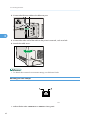
3. Connect the other end of the cable to the printer's network, such as a hub.
4. Attach the cable cover.
CER081
• For details about network environment settings, see Software Guide.
Reading the LED Lamps
CER002
1. Yellow: flashes when 100BASE-TX or 10BASE-T is being used.
42
Network Connection
2. Green: comes on when the printer is properly connected to the network.
3
43
3. Connecting the Printer
USB Connection
• For users outside the United States of America: properly shielded and grounded cables and
connectors must be used for connections to a host computer (and/or peripheral) in order to
meet emission limits.
3
• For users in the United States of America: properly shielded and grounded cables and
connectors must be used for connections to a host computer (and/or peripheral) in order to
meet FCC emission limits.
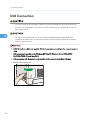
• USB2.0 interface cable is not supplied. Obtain it separately, according to the computer you are
using.
• USB connection is possible under Windows XP/Vista/7, Windows Server 2003/2003
R2/2008/2008 R2, and Mac OS X.
• USB connection with Macintosh is only possible via the computer's standard USB port.
1. Remove the cable cover.
CER080
44
USB Connection
2. Connect the square-shaped connector of the USB2.0 cable to the USB port.
3
CER049
3. Connect the opposite end's flat connector to devices such as your computer's USB
interface.
4. Attach the cable cover.
CER081
• For details about settings for USB connection printing, see Software Guide.
45
3. Connecting the Printer
3
46
4. Configuration
This chapter explains supported network connections and settings for the IP addresses.
Ethernet Configuration
If connecting the printer to a network using an Ethernet cable, set the necessary settings, depending on
the network environment, on the control panel.
Web Image Monitor can be used for the settings related to the IP address.
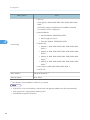
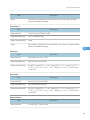
• The following table shows the control panel settings and their default values. These items appear in
the [Network Setting] under [Host Interface] menu.
Setting Name
IPsec
4
Value
Off
• DHCP: Active
IPv4 Config.
• IP Address: XXX.XXX.XXX.XXX *1
• Subnet Mask: XXX. XXX. XXX. XXX *1
• Gateway Address: XXX.XXX.XXX.XXX *1
47
4. Configuration
Setting Name
Value
• IPv6: On
• IP Ad. (DHCP): XXXX: XXXX: XXXX: XXXX: XXXX: XXXX: XXXX:
XXXX *1
If the DHCP setting is enabled, the IPv6 address obtained
from a DHCP server is displayed.
• Manual Address:
• Manual Address: 0000:0000:0000
• Prefix Length: (0-128) 0
4
• Gateway Address: 0000:0000:0000:
IPv6 Config.
• Stateless Ad.:
• Address 1: XXXX: XXXX: XXXX: XXXX: XXXX: XXXX: XXXX:
XXXX *1
• Address 2: XXXX: XXXX: XXXX: XXXX: XXXX: XXXX: XXXX:
XXXX *1
• Address 3: XXXX: XXXX: XXXX: XXXX: XXXX: XXXX: XXXX:
XXXX *1
• Address 4: XXXX: XXXX: XXXX: XXXX: XXXX: XXXX: XXXX:
XXXX *1
• Link-local Ad.: XXXX: XXXX: XXXX: XXXX: XXXX *1
• DHCP: Off
MAC Address
XX-XX-XX-XX-XX-XX *1
Ethernet Speed
Auto Select
*1 "X" indicates a unique address number for your printer.
• If [DHCP] is in use, the IP address, subnet mask, and gateway address are all set automatically.
• Each printer has a unique [MAC Address] value.
• Set the Ethernet speed if necessary.
48
Ethernet Configuration
Specifying an IP Address for IPv4 (No DHCP)
Use the following procedure to assign a specific IP address to the printer with IPv4 protocol. This
procedure is only necessary if you want to use the printer on a network without DHCP, or want to
prevent the printer's IP address from changing.
Before beginning this procedure, make sure you have the IP address, subnet mask, and gateway
address that the printer will use.
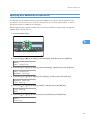
1. Press the [Menu] key.
4
CER408
2. Press the [ ] or [ ] key to display [Host Interface], and then press the [OK] key.
Menu:
Host Interface
3. Press the [ ] or [ ] key to display [Network Setting], and then press the [OK] key.
Host Interface:
Network Setting
4. Press the [ ] or [ ] key to display [IPv4 Config.], and then press the [OK] key.
Network Setting:
IPv4 Config.
5. Press the [ ] or [ ] key to display [DHCP], and then press the [OK] key.
IPv4 Config.:
DHCP
6. Press the [ ] or [ ] key to select [Inactive], and then press the [OK] key.
DHCP:
Inactive
49
4. Configuration
7. Press the [ ] or [ ] key to display [IP Address], and then press the [OK] key.
IPv4 Config.:
IP Address
8. Press the [ ] or [ ] key to enter the address, and then press the [OK] key.
IP Address:
0.0.0.0
Press the [ ] or [ ] key to enter the left most entry field of the address. After entering the left field,
press the [OK] key, and then you can enter the next field. After completing to enter in the all field,
press the [OK] key.
4
9. Use this method to assign Subnet Mask and Gateway Address.
10. Press the [Menu] key.
11. If you are requested to restart the printer, turn off the printer, and then turn it back on.
12. Print a configuration page to confirm the settings made.
• For details about printing the configuration page using control panel, see p.36 "Test Printing".
Receiving an IP Address for IPv4 Automatically (DHCP)
• When you use this printer protocol in the DHCP environment with IPv4 protocol, select [DHCP]
following this procedure.
• When [DHCP] is selected, you cannot make settings for the following items:
• IP Address
• Subnet Mask
• Gateway Address
• Consult your network administrator for information about making network settings.
50
Ethernet Configuration
1. Press the [Menu] key.
CER408
2. Press the [ ] or [ ] key to display [Host Interface], and then press the [OK] key.
Menu:
Host Interface
4
3. Press the [ ] or [ ] key to display [Network Setting], and then press the [OK] key.
Host Interface:
Network Setting
4. Press the [ ] or [ ] key to display [IPv4 Config.], and then press the [OK] key.
Network Setting:
IPv4 Config.
5. Press the [ ] or [ ] key to display [DHCP], and then press the [OK] key.
IPv4 Config.:
DHCP
6. Press the [ ] or [ ] key to select [Active], and then press the [OK] key.
DHCP:
Active
The address will be detected by the printer
7. Press the [Menu] key.
8. If you are requested to restart the printer, turn off the printer, and then turn it back on.
9. Print a configuration page to confirm the settings made.
• For details about printing the configuration page using control panel, see p.36 "Test Printing".
51
4. Configuration
Specifying an IP Address for IPv6 (No DHCP)
Use the following procedure to assign a specific IP address to the printer with IPv6 protocol. This
procedure is only necessary if you want to use the printer on a network without DHCP, or want to
prevent the printer's IP address from changing.
Before beginning this procedure, make sure you have the IP address, subnet mask, and gateway
address that the printer will use.
1. Press the [Menu] key.
4
CER408
2. Press the [ ] or [ ] key to display [Host Interface], and then press the [OK] key.
Menu:
Host Interface
3. Press the [ ] or [ ] key to display [Network Setting], and then press the [OK] key.
Host Interface:
Network Setting
4. Press the [ ] or [ ] key to display [IPv6 Config.], and then press the [OK] key.
Network Setting:
IPv6 Config.
5. Press the [ ] or [ ] key to display [IPv6], and then press the [OK] key.
IPv6 Config.:
IPv6
6. Press the [ ] or [ ] key to display [On], and then press the [OK] key.
IPv6
On
52
Ethernet Configuration
7. Press the [ ] or [ ] key to display [DHCP], and then press the [OK] key.
IPv6 Config.:
DHCP
8. Press the [ ] or [ ] key to display [Off], and then press the [OK] key.
DHCP
Off
9. Press the [ ] or [ ] key to display [Manual Address], and then press the [OK] key.
IPv6 Config.:
Manual Address
10. Press the [ ] [ ] keys to display [Prefix Length], and then press the [OK] key.
4
Manual Address:
Prefix Length
11. Press the [ ] [ ] keys to enter the value, and then press the [OK] key.
Prefix Length:
(0 - 128) 0
12. Press the [ ] or [ ] key to display [Manual Address], and then press the [OK] key.
Manual Address:
Manual Address
13. Press the [ ] or [ ] key to enter the address, and then press the [OK] key.
Manual Address:
0000:0000:0000:
Press the [ ] or [ ] key to enter the left most entry field of the address. After entering the left field,
press the [OK] key, and then you can enter the next field. After completing to enter in the all field,
press the [OK] key.
14. Use this method to assign Gateway Address.
15. Press the [Menu] key.
16. If you are requested to restart the printer, turn off the printer, and then turn it back on.
17. Print a configuration page to confirm the settings made.
• For details about printing the configuration page using control panel, see p.36 "Test Printing".
53
4. Configuration
Receiving an IP Address for IPv6 Automatically (DHCP)
• When you use this printer in the DHCP environment with IPv6 protocol, select [DHCP] following this
procedure.
• Consult your network administrator for information about making network settings.
1. Press the [Menu] key.
4
CER408
2. Press the [ ] or [ ] key to display [Host Interface], and then press the [OK] key.
Menu:
Host Interface
3. Press the [ ] or [ ] key to display [Network Setting], and then press the [OK] key.
Host Interface:
Network Setting
4. Press the [ ] or [ ] key to display [IPv6 Config.], and then press the [OK] key.
Network Setting:
IPv6 Config.
5. Press the [ ] or [ ] key to display [IPv6], and then press the [OK] key.
IPv6 Config.:
IPv6
6. Press the [ ] or [ ] key to display [On], and then press the [OK] key.
IPv6
On
54
Ethernet Configuration
7. Press the [ ] or [ ] key to display [DHCP], and then press the [OK] key.
IPv6 Config.:
DHCP
8. Press the [ ] or [ ] key to select [On], and then press the [OK] key.
DHCP:
On
The address will be detected by the printer
9. Press the [Menu] key.
10. If you are requested to restart the printer, turn off the printer, and then turn it back on.
11. Print a configuration page to confirm the settings made.
4
• For details about printing the configuration page using control panel, see p.36 "Test Printing".
Setting the Ethernet Speed
You can set the speed that the printer will use for Ethernet communication. For normal usage, the default
setting [Auto Select] is suitable and does not need to be changed. This setting allows two connected
interfaces to automatically determine the optimum speed that they will communicate at.
Router/HUB
Printer
[10Mbps
Half D.]
[10Mbps Full
D.]
[100Mbps
Half D.]
[100Mbps
Full D.]
[Auto Select]
10Mbps Half
Duplex
10Mbps Full
Duplex
100Mbps Half
Duplex
100Mbps Full
Duplex
autonegotiation
(auto selection)
55
4. Configuration
• Connection cannot be established if the selected Ethernet speed does not match your network's
transmission speed.
• The use of this feature is recommended. To use it, select [Auto Select].
1. Press the [Menu] key.
4
CER408
2. Press the [ ] or [ ] key to display [Host Interface], and then press the [OK] key.
Menu:
Host Interface
3. Press the [ ] or [ ] key to display [Network Setting], and then press the [OK] key.
Host Interface:
Network Setting
4. Press the [ ] or [ ] key to display [Ethernet Speed], and then press the [OK] key.
Network Setting:
Ethernet Speed
5. Press the [ ] or [ ] key to select the Ethernet speed, and then press the [OK] key.
6. Press the [Menu] key.
7. Print a configuration page to confirm the settings made.
• For details about printing the configuration page using control panel, see p.36 "Test Printing".
56
5. Paper and Other Media
This chapter explains the paper sizes and types supported by this printer, and how to load paper into
the paper trays.
Paper and Other Medias Supported by This
Printer
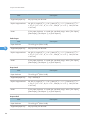
This section describes the type, size, and weight of paper that can be loaded in each tray. The capacity
of each paper tray is also provided.
• All paper must be set vertically, regardless of the paper size.
5
57
5. Paper and Other Media
Tray 1
Type
5
Size
Capacity
Thin Paper
A4
60 to 160 g/m2
250
Plain Paper
B5 JIS
(16 to 43 lb.)
(80 g/m2, 20 lb.)
Middle Thick
A5
Thick Paper 1
B6 JIS
Thick Paper 2
A6
Recycled Paper
Legal (81/2 " × 14 ")
Color Paper
Letter (81/2 " × 11 ")
Preprinted
Half Letter-S (51/2" × 81/2")
Prepunched
Executive (71/4 " × 101/2 ")
Letterhead
8 " × 13 "
Bond Paper
81/2" × 13 "
Cardstock
Folio (81/4 " × 13 ")
Label Paper
16K (195 × 267 mm)
Envelope
Com 10 (41/8" × 91/2")
Monarch (37/8" × 71/2")
C5 Env (162 × 229 mm)
C6 Env (114 × 162 mm)
DL Env (110 × 220 mm)
Custom size:
90 to 216 mm in width,
148 to 356 mm in length
(3.54 to 8.50 inches in width,
5.83 to 14.0 inches in length)
58
Weight
Paper and Other Medias Supported by This Printer
Tray 2 (option)
Type
Size
Weight
Capacity
Thin Paper
A4
60 to 105 g/m2
500
Plain Paper
Letter (81/2 " × 11 ")
(16 to 28 lb.)
(80 g/m2, 20 lb.)
Middle Thick
Thick Paper 1
Recycled Paper
Color Paper
Preprinted
Prepunched
Letterhead
5
59
5. Paper and Other Media
Bypass tray
Type
5
Size
Weight
Thin Paper
A4
60 to 160 g/m2
Plain Paper
B5 JIS
(16 to 43 lb.)
Middle Thick
A5
Thick Paper 1
B6 JIS
Thick Paper 2
A6
Recycled Paper
Legal (81/2 " × 14 ")
Color Paper
Letter (81/2 " × 11 ")
Prepunched
Half Letter-S (51/2" × 81/2")
Letterhead
Executive (71/4 " × 101/2 ")
Bond Paper
8 " × 13 "
Cardstock
81/2 " × 13 "
Label Paper
Folio (81/4 " × 13 ")
Envelope
16K (195 mm × 267 mm)
Com 10 (41/8" × 91/2")
Monarch (37/8" × 71/2")
C5 Env (162 × 229 mm)
C6 Env (114 × 162 mm)
DL Env (110 × 220 mm)
Custom size:
90 to 216 mm in width,
148 to 356 mm in length
(3.54 to 8.50 inches in width,
5.83 to 14.0 inches in length)
• You cannot print on Legal size paper in the following cases:
• PCL/DDST printer driver
When [Gradation:] in [Print Quality] is set to [Fine]
• PostScript 3 printer driver
When [Print Quality:] in [Printer Features] is set to [Best Quality]
60
Capacity
1
Paper Recommendations
Paper Recommendations
Loading Paper
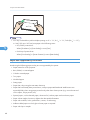
• Do not use ink-jet printer paper because it may stick to the fusing unit and cause a paper misfeed.
• Do not load OHP transparencies. Load translucent media only.
• Set the paper as described below
• Tray 1: Print side facing up
• Paper Feed Unit (Tray 2): Print side facing up
• Bypass Tray: Print side facing down
• Print quality cannot be guaranteed if paper other than the ones recommended is used. For more
information about recommended paper, contact your sales or service representative.
5
• Do not use paper that has already been printed onto by other printers.
• When loading the paper, take care not to touch the surface of the paper.
• Do not use dirty or damaged paper.
• Specify the paper size and type using control panel.
• The remaining paper indicator on the right front side of the paper tray shows approximately how
much paper is remaining.
Storing Paper
• Paper should always be stored properly. Improperly stored paper might result in poor print quality,
paper misfeeds, or printer damage. Recommendations are as follows:
• Avoid storing paper in humid areas.
• Avoid exposing paper to direct sunlight.
• Store on a flat surface.
• Keep paper in the package in which the paper came.
Types of Paper and Other Media
This section provides information about the type of paper supported by this printer and cautions for use.
61
5. Paper and Other Media
Setting the paper type
Use the printer driver or control panel to specify the paper type you want to use.
Printer driver
On the printer driver screen, click the [Paper] tab, and then select a paper type under [Paper
Type:].
For details about the printer driver, see Help for the driver.
Control Panel
Press the [Menu] key, and then specify the paper type that you want to use by selecting a [Paper
Type] at [Paper Input].
For details, see p.83 "Specifying a paper type for Tray 1 and Tray 2" and p.88 "Specifying a
paper type for the bypass tray".
5
Specifications of Paper Types
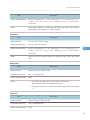
The following tables describe the types of paper that can be used with this printer.
• Depending on the paper type, the toner may take a while to dry. Before handling, make sure
printed sheets have fully dried. Otherwise, the toner may smudge.
• Print quality can be guaranteed only if recommended paper is used. For more information about
recommended paper, contact your sales or service representative.
Middle Thick
Item
Description
Paper thickness
75 to 90 g/m2 (20 to 24 lb.)
Supported paper tray
Any input tray can be used.
Duplex supported size
A4, B5 JIS, Legal (81/2 " × 14 "), Letter (81/2 " × 11 "), Executive (71/4 "
× 101/2 "), 8 " × 13 ", 81/2 " × 13 ", Folio (81/4 " × 13 "), 16K (195 mm
× 267 mm)
Thick Paper 1
Item
62
Description
Paper thickness
91 to 105 g/m2 (24 to 28 lb.)
Supported paper tray
Any input tray can be used.
Duplex supported size
None
Paper Recommendations
Item
Notes
Description
The number of sheets that can be printed in one minute is approximately
half that of middle thick paper.
Thick Paper 2
Item
Description
Paper thickness
106 to 160 g/m2 (28 to 43 lb.)
Supported paper tray
Tray 1 and bypass tray
Duplex supported size
None
Notes
The number of sheets that can be printed in one minute is approximately
half that of middle thick paper.
5
Thin Paper
Item
Description
Paper thickness
60 to 65g/m2 (16 to 17 lb.)
Supported paper tray
Any input tray can be used.
Duplex supported size
A4, B5 JIS, Legal (81/2 " × 14 "), Letter (81/2 " × 11 "), Executive (71/4 "
× 101/2 "), 8 " × 13 ", 81/2 " × 13 ", Folio (81/4 " × 13 "), 16K (195 mm
× 267 mm)
Plain Paper
Item
Description
Paper thickness
66 to 74 g/m2 (18 to 20 lb.)
Supported paper tray
Any input tray can be used.
Duplex supported size
A4, B5 JIS, Legal (81/2 " × 14 "), Letter (81/2 " × 11 "), Executive (71/4 "
× 101/2 "), 8 " × 13 ", 81/2 " × 13 ", Folio (81/4 " × 13 "), 16K (195 mm
× 267 mm)
Recycled Paper
Item
Paper thickness
Description
75 to 90 g/m2 (20 to 24 lb.)
63
5. Paper and Other Media
Item
Description
Supported paper tray
Any input tray can be used.
Duplex supported size
A4, B5 JIS, Legal (81/2 " × 14 "), Letter (81/2 " × 11 "), Executive (71/4 "
× 101/2 "), 8 " × 13 ", 81/2 " × 13 ", Folio (81/4 " × 13 "), 16K (195 mm
× 267 mm)
Notes
If the paper thickness is outside the specified range, select [Thin Paper],
[Plain Paper], [Thick Paper 1], or [Thick Paper 2].
Color Paper
Item
5
Description
Paper thickness
75 to 90 g/m2 (20 to 24 lb.)
Supported paper tray
Any input tray can be used.
Duplex supported size
A4, B5 JIS, Legal (81/2 " × 14 "), Letter (81/2 " × 11 "), Executive (71/4 "
× 101/2 "), 8 " × 13 ", 81/2 " × 13 ", Folio (81/4 " × 13 "), 16K (195 mm
× 267 mm)
Notes
If the paper thickness is outside the specified range, select [Thin Paper],
[Plain Paper], [Thick Paper 1], or [Thick Paper 2].
Preprinted
Item
Description
Paper thickness
75 to 90 g/m2 (20 to 24 lb.)
Supported paper tray
Tray 1 and tray 2
Duplex supported size
A4, B5 JIS, Legal (81/2 " × 14 "), Letter (81/2 " × 11 "), Executive (71/4 "
× 101/2 "), 8 " × 13 ", 81/2 " × 13 ", Folio (81/4 " × 13 "), 16K (195 mm
× 267 mm)
Notes
If the paper thickness is outside the specified range, select [Thin Paper],
[Plain Paper], [Thick Paper 1], or [Thick Paper 2].
Prepunched
Item
64
Description
Paper thickness
75 to 90 g/m2 (20 to 24 lb.)
Supported paper tray
Any input tray can be used.
Paper Recommendations
Item
Description
Duplex supported size
A4, B5 JIS, Legal (81/2 " × 14 "), Letter (81/2 " × 11 "), Executive (71/4 "
× 101/2 "), 8 " × 13 ", 81/2 " × 13 ", Folio (81/4 " × 13 "), 16K (195 mm
× 267 mm)
Notes
If the paper thickness is outside the specified range, select [Thin Paper],
[Plain Paper], [Thick Paper 1], or [Thick Paper 2].
Letterhead
Item
Description
Paper thickness
75 to 90 g/m2 (20 to 24 lb.)
Supported paper tray
Any input tray can be used.
Duplex supported size
A4, B5 JIS, Legal (81/2 " × 14 "), Letter (81/2 " × 11 "), Executive (71/4 "
× 101/2 "), 8 " × 13 ", 81/2 " × 13 ", Folio (81/4 " × 13 "), 16K (195 mm
× 267 mm)
Notes
Paper that has a thickness outside the specified range cannot be printed
onto.
5
Bond paper
Item
Description
Paper thickness
106 to 160 g/m2 (28 to 43 lb.)
Supported paper tray
Tray 1 and bypass tray
Duplex supported size
None
Notes
• The number of sheets that can be printed in one minute is
approximately half that of middle thick paper.
• If the paper thickness is outside the specified range, select [Thick Paper
1].
Cardstock
Item
Description
Paper thickness
106 to 160 g/m2 (28 to 43 lb.)
Supported paper tray
Tray 1 and bypass tray
Duplex supported size
None
65
5. Paper and Other Media
Item
Notes
Description
• The number of sheets that can be printed in one minute is
approximately half that of middle thick paper.
• Paper thicker than 160 g/m2 cannot be printed onto.
Label paper
Item
Description
Supported paper tray
Tray 1 and bypass tray
Duplex supported size
None
Notes
• The number of sheets that can be printed in one minute is
approximately half that of middle thick paper.
5
• Avoid using adhesive label paper on which glue is exposed. Glue
may stick to the inner parts of the machine, which can cause paper
feed problems, deterioration in print quality, or premature wear of the
print cartridge's photo conductor unit.
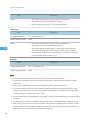
Envelope
Item
Description
Supported paper tray
Tray 1 and bypass tray
Duplex supported size
None
Notes
• Avoid using self-adhesive envelopes. They may cause machine malfunctions.
• The number of envelopes that can be printed in one minute is approximately half that of middle
thick paper.
• Paper can be loaded only up to the lower of the two paper limit marks of the tray.
• If printed envelopes come out badly creased, load the envelopes in the opposite direction. Also,
configure the printer driver to rotate the print object 180 degrees. For details about changing the
loading orientation, see the printer driver Help.
• Environmental factors can degrade the print quality on both recommended and non-recommended
envelopes.
• If envelopes are severely curled after printing, flatten them by bending them back against the curl.
• After printing, envelopes sometimes have creases along their long edges and toner smear on their
unprinted sides. Their print images might also be blurred. When printing large, black-solid areas,
striping can occur as a result of the envelopes overlapping.
66
Paper Recommendations
• To correctly specify the length of an envelope whose flap opens along its short edge, be sure to
include the open flap when measuring.
CER112
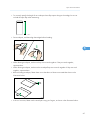
• Fan envelopes, and then align their edges before loading.
5
CER108
• When fanning envelopes, make sure they are not stuck together. If they are stuck together,
separate them.
• When fanning envelopes, make sure the envelope flaps are not stuck together. If they are stuck
together, separate them.
• Before loading envelopes, flatten them out so that their curl does not exceed that shown in the
illustration below.
CER109
• If the curl is severe, flatten out the envelopes using your fingers, as shown in the illustration below.
67
5. Paper and Other Media
CER110
• You may not be able to perform duplex printing on 8 " × 13 ", 81/2 " × 13 ", Folio (81/4 " × 13 "),
or 16K (195 mm × 267 mm) size paper in the following cases:
5
• PCL/DDST printer driver
When [Gradation:] in [Print Quality] is set to [Fine]
• PostScript 3 printer driver
When [Print Quality:] in [Printer Features] is set to [Best Quality]
Paper Not Supported by This Printer
Avoid using the following paper as they are not supported by this printer.
• Paper meant for an ink-jet printer
• Bent, folded, or creased paper
• Curled or twisted paper
• Torn paper
• Wrinkled paper
• Damp paper
• Paper that is dry enough to emit static electricity
• Paper that has already been printed onto, except a preprinted letterhead. Malfunctions are
especially likely when using paper printed on by other than a laser printer (e.g. monochrome and
color copiers, ink-jet printers, etc.)
• Special paper, such as thermal paper, aluminum foil, carbon paper and conductive paper
• Paper whose weight is heavier or lighter than the specified limitation
• Paper with windows, holes, perforations, cutouts, or embossing
• Adhesive label paper on which glue or base paper is exposed
• Paper with clips or staples
68
Paper Recommendations
• Do not use ink-jet printer paper because it may stick to the fusing unit and cause a paper jam.
• Do not load OHP transparencies. Load translucent media only.
• Do not use paper that has already been printed onto by other printers.
• Even supported types of paper may cause paper jams or malfunctions if the paper is not in good
condition.
Paper Storage Precautions
Paper should always be stored properly. Improperly stored paper might result in poor print quality,
paper jams, or printer damage.
Recommendations are as follows:
• Avoid storing paper in areas that are excessively cold, hot, humid, or dry.
• Avoid exposing paper to direct sunlight.
5
• Store on a flat surface.
• Keep paper in its original packaging.
Print Area
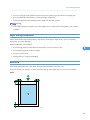
The following diagrams show the areas of paper that the machine can print onto.
Be sure to set the print margins correctly using the settings of the application in which it was created.
Paper
2
4
4
3
1
3
CER001
69
5. Paper and Other Media
1. Print area
2. Feed direction
3. Approx. 4.2 mm (0.17 inches)
4. Approx. 4.2 mm (0.17 inches)
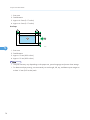
Envelope
4
3
3
1
2
3
5
CER117
1. Print area
2. Feed direction
3. Approx. 10 mm (0.39 inches)
4. Approx. 15 mm (0.59 inches)
• The print area may vary depending on the paper size, printer language and printer driver settings.
• For better envelope printing, we recommend you set the right, left, top, and bottom print margins to
at least 15 mm (0.59 inches) each.
70
Loading Paper
Loading Paper
This describes how to load paper into the paper tray and bypass tray.
• Do not pull out the paper tray forcefully. If you do, the tray might fall and cause an injury.
• When loading paper, take care not to trap or injure your fingers.
Loading Paper in Tray 1
The following example explains loading procedure for the standard paper tray (Tray 1).
5
• Before printing on paper other than envelopes, make sure that the fusing unit levers inside the front
cover are pulled up. Leaving the levers lowered can cause print quality problems when printing on
paper other than envelopes.
• Make sure paper is not stacked above the limit mark inside the tray. Misfeeds might occur.
• After loading paper in the tray, specify the paper type and size using control panel to avoid
printing problems. This printer does not detect the paper size automatically.
• Do not mix different types of paper in the same paper tray.
• Do not move the side paper guides forcefully. Doing so can damage the tray.
• Do not move the end paper guide forcefully. Doing so can damage the tray.
• When inserting the tray, make sure it is not slanted. Inserting it at a slant can damage the printer.
• Curled paper may jam. Straighten curled paper before loading.
1. Pull out tray 1 carefully with both hands.
CER030
71
5. Paper and Other Media
Place the tray on a flat surface.
2. Push the metal plate down until it clicks into place to lock.
CER031
3. Pinch the clip on the side paper guide and slide it to match the standard size.
5
CER032
CER082
When loading custom size paper, position the paper guide slightly wider than the actual paper
size.
72
Loading Paper
4. Pinch the front end paper guide and slide it inward to match the standard size.
CER034
5
CER113
When loading custom size paper, position the paper guide slightly wider than the actual paper
size.
5. Load the new paper stack print side up.
Make sure paper is not stacked higher than the upper limit (upper line) marked inside the tray.
CER033
Slide the guides inward, until they are flush against the paper's sides.
Make sure the paper is not stacked higher than the projection on the side paper guides.
73
5. Paper and Other Media
CER083
6. Check there are no gaps between the paper and the paper guides; both side and front
end paper guides.
5
CER076
If there is a gap between the paper and the front end paper guide, as in the example below, the
paper might not feed in correctly.
CER077
74
Loading Paper
7. Carefully push Tray 1 straight into the printer.
CER035
To avoid paper jams, make sure the tray is securely inserted.
• The upper limit differs depending on paper type; thin paper or thick paper. Check the label inside
the tray to confirm the upper limit.
5
• The remaining paper indicator on the right front side of the paper tray shows approximately how
much paper is remaining.
• For details about paper types supported by the printer, see p.61 "Paper Recommendations".
• For details about the paper settings, see Software Guide.
Loading paper longer than A4
This section explains how to load paper longer than A4 (297 mm) into the printer.
• Make sure paper is not stacked above the limit mark inside the tray. Misfeeds might occur.
• After loading paper in the tray, specify the paper type and size using the control panel to avoid
printing problems. This machine does not detect the paper size automatically.
• Do not mix different types of paper in the same paper tray.
• Do not move the side paper guides forcefully. Doing so can damage the tray.
• Do not move the end paper guide forcefully. Doing so can damage the tray.
• When inserting the tray, make sure it is not slanted. Inserting it at a slant can damage the printer.
75
5. Paper and Other Media
1. Remove the rear cover using a coin.
CER064
2. Pull out tray 1 carefully with both hands.
5
CER030
Place the tray on a flat surface.
3. Push the metal plate down until it clicks into place to lock.
CER031
76
Loading Paper
4. Pinch the extender in the PUSH direction, and then pull out the extender until it stops (you
will hear a click).
CER084
After extension, make sure the arrows on the extender and tray are aligned.
5
CER085
5. Pinch the clip on the side paper guide, and then slide it to match the paper size.
CER102
77
5. Paper and Other Media
CER082
6. Pinch the front end paper guide and slide it inward to match the legal paper size.
5
CER104
CER235
7. Load the new paper stack print side up.
Make sure paper is not stacked higher than the upper limit (upper line) marked inside the tray.
78
Loading Paper
CER103
Slide the guides inward until they are flush against the paper's sides.
Make sure the paper is not stacked higher than the projection on the side paper guides.
5
CER083
8. Check there are no gaps between the paper and the paper guides; both side and front
end paper guides.
CER105
If there is a gap between the paper and the front end paper guide, as in the example below, the
paper might not feed in correctly.
79
5. Paper and Other Media
CER106
9. Carefully push Tray 1 straight into the printer.
5
CER035
To avoid paper jams, make sure the tray is securely inserted.
• To reinsert the extender, you might have to push it with moderate force.
• The upper limit differs depending on paper type; thin paper or thick paper. Check the label inside
the tray to confirm the upper limit.
• The remaining paper indicator on the right front side of the paper tray shows approximately how
much paper is remaining.
• For details about paper types supported by the printer, see p.61 "Paper Recommendations".
• For details about the paper settings, see Software Guide.
Setting a paper size using the control panel
To load paper whose size cannot be selected automatically, set the paper size on the control panel.
Follow the procedure described below to set the paper size.
80
Loading Paper
1. Press the [Menu] key.
CER408
2. Press the [ ] or [ ] key to display [Paper Input], and then press the [OK] key.
Menu:
Paper Input
3. Press the [ ] or [ ] key to display [Paper Size], and then press the [OK] key.
5
Paper Input:
Paper Size
4. Press the [ ] or [ ] key to display the target paper tray, and then press the [OK] key.
In this example, [Tray 1] is selected.
Paper Size:
Tray 1
5. Press the [ ] or [ ] key to display the loaded paper size, and then press the [OK] key.
Tray 1 Ppr Size:
A4
Tray 1 Ppr Size:
8 1/2 x 11
6. Press the [Menu] key.
• If the [Auto Continue] setting under [System] is enabled, the printer ignores the paper type and size
settings and prints on whatever paper is loaded. Printing stops temporarily when the error is
detected, and restarts automatically after about ten seconds using the settings made on the control
panel.
81
5. Paper and Other Media
Specifying custom size paper for Tray 1
• When printing on custom size paper, specify the paper size using the control panel or printer
driver.
• Paper sizes between 90 - 216 mm (3.54 - 8.5 inch) in width and 148 - 356 mm (5.83 - 14 inch)
in length can be loaded in the tray 1.
• The printer cannot print from applications that do not support custom size paper.
1. Press the [Menu] key.
5
CER408
2. Press the [ ] or [ ] key to display [Paper Input], and then press the [OK] key.
Menu:
Paper Input
3. Press the [ ] or [ ] key to display [Paper Size], and then press the [OK] key.
Paper Input:
Paper Size
4. Press the [ ] or [ ] key to display [Tray 1], and then press the [OK] key.
Paper Size:
Tray 1
In this example, [Tray 1] is selected.
5. Press the [ ] or [ ] key to display [Custom Size], and then press the [OK] key.
Tray 1 Ppr Size:
Custom Size
6. Press the [ ] or [ ] key to select a unit, and then press the [OK] key.
Custom Size:
mm
82
Loading Paper
7. Press the [ ] or [ ] key to enter the horizontal value, and then press the [OK] key.
Custom Size:
Horiz. 216.0 mm
8. Press the [ ] or [ ] key to enter the vertical value, and then press the [OK] key.
Custom Size:
Vert. 356.0 mm
9. Press the [Menu] key.
• If the [Auto Continue] setting under [System] is enabled, the printer ignores the paper type and size
settings and prints on whatever paper is loaded. Printing stops temporarily when the error is
detected, and restarts automatically after about ten seconds using the settings made on the control
panel.
5
Specifying a paper type for Tray 1 and Tray 2
Improve printer performance by selecting the optimum paper type for the tray.
You can select from the following paper types:
• [Thin Paper], [Plain Paper], [Middle Thick], [Thick Paper 1], [Recycled Paper], [Color Paper],
[Preprinted], [Prepunched], [Letterhead]
1. Press the [Menu] key.
CER408
2. Press the [ ] or [ ] key to display [Paper Input], and then press the [OK] key.
Menu:
Paper Input
3. Press the [ ] or [ ] key to display [Paper Type], and then press the [OK] key.
Paper Input:
Paper Type
83
5. Paper and Other Media
4. Press the [ ] or [ ] key to select the paper tray, and then press the [OK] key.
In this example, [Tray 1] is selected.
Paper Type:
Tray 1
5. Press the [ ] or [ ] key to select the paper type, and then press the [OK] key.
Tray 1:
Plain Paper
6. Press the [Menu] key.
• [Thick Paper 1] cannot be printed on both sides.
5
• If the [Auto Continue] setting under [System] is enabled, the printer ignores the paper type and size
settings and prints on whatever paper is loaded. Printing stops temporarily when the error is
detected, and restarts automatically after about ten seconds using the settings made on the control
panel.
Loading Paper in the Bypass Tray
• Before printing on paper other than envelopes, make sure that the fusing unit levers inside the front
cover are pulled up. Leaving the levers lowered can cause print quality problems when printing on
paper other than envelopes.
• Set the size of the loaded paper using the control panel or the printer driver. Make sure the settings
do not conflict. Otherwise, the paper may jam or the print quality may be affected.
• Load paper with the print side down and in the short-edge feed direction.
• Duplex printing is not possible.
• You cannot use the bypass tray to feed in paper that requires a specified printing position (such as
preprinted paper). Use Tray 1 for such paper.
• If paper is curled, straighten it before loading, by bending the paper in the opposite direction to the
curl, for example.
• Do not load paper while the printer is printing.
• Tray 1 and 2 are unavailable while paper is being loaded in the Bypass Tray.
• You cannot load paper when the printer is in Energy Saver mode. To disable Energy Saver mode,
click the [Stop/Start] key on the control panel.
84
Loading Paper
1. Insert the top edge of the paper into the printer.
CER052
2. Adjust the paper guides to the paper size.
5
CER053
3. Support the paper with your hands, and insert it carefully until it stops.
CER054
After the paper is inserted until it stops, the paper will be automatically fed into the printer a little.
4. Set the printer driver and specify the paper size.
• For details about specifying the paper sizes, see printer driver help.
85
5. Paper and Other Media
Specifying standard size paper for the bypass tray
This describes how to load standard size paper into the bypass tray.
• When you specify the bypass tray as the input tray on the printer driver and perform printing, if you
set [Bypass Priority] to [Any Size/Type] under [Paper Input] on the control panel, the printer
ignores the paper type and size settings made on the control panel. Printing is performed with the
settings made on the printer driver.
• If you set [Bypass Priority] to [Machine Setting] under [Paper Input], paper size settings made on
the printer driver must match those made on the control panel. If they do not match, an error
message appears and printing stops if [Auto Continue] is not set to [On] under [System].
1. Press the [Menu] key.
5
CER408
2. Press the [ ] or [ ] key to display [Paper Input], and then press the [OK] key.
Menu:
Paper Input
3. Press the [ ] or [ ] key to display [Paper Size], and then press the [OK] key.
Paper Input:
Paper Size
4. Press the [ ] or [ ] key to display [Bypass Tray], and then press the [OK] key.
Paper Size:
Bypass Tray
5. Press the [ ] or [ ] key to select the paper size you want to set, and then press the [OK]
key.
Bypass Ppr Size:
A4
86
Loading Paper
Bypass Ppr Size:
8 1/2 x 11
6. Press the [Menu] key.
• The number of pages that can be loaded in the bypass tray differs depending on the paper type.
Make sure paper is not stacked above the paper guides inside the bypass tray.
Specifying custom size paper for the bypass tray
• When you specify a custom size paper and specify the bypass tray as the input tray on the printer
driver, and perform printing with [Bypass Priority] set to [Any Custom S/T] under [Paper Input] on
the control panel, the printer ignores the paper type and size settings made on the control panel.
Printing is performed with the settings made on the printer driver.
5
• If you set [Bypass Priority] to [Machine Setting] under [Paper Input], paper size settings made on
the printer driver must match those made on the control panel. If they do not match, an error
message appears and printing stops if [Auto Continue] is not set to [On] under [System].
• When loading custom size or special paper, specify the paper size using the control panel or
printer driver.
• You cannot print on custom size paper with an application that does not support the custom size
setting.
• Paper sizes between 90 - 216 mm (3.54 - 8.5 inches) in width and 148 - 356 mm (5.83 - 14
inches) in length can be loaded in the bypass tray.
1. Press the [Menu] key.
CER408
87
5. Paper and Other Media
2. Press the [ ] or [ ] key to display [Paper Input], and then press the [OK] key.
Menu:
Paper Input
3. Press the [ ] or [ ] key to display [Paper Size], and then press the [OK] key.
Paper Input:
Paper Size
4. Press the [ ] or [ ] key to display [Bypass Tray], and then press the [OK] key.
Paper Size:
Bypass Tray
5. Press the [ ] or [ ] key to display [Custom Size], and then press the [OK] key.
5
Bypass Ppr Size:
Custom Size
6. Press the [ ] or [ ] key to select a unit, and then press the [OK] key.
Custom Size:
mm
7. Press the [ ] or [ ] key to enter the horizontal value, and then press the [OK] key.
Custom Size:
Horiz. 216.0 mm
8. Press the [ ] or [ ] key to enter the vertical value, and then press the [OK] key.
Custom Size:
Vert. 356.0 mm
9. Press the [Menu] key.
• For details about the printer driver, see the printer driver Help.
Specifying a paper type for the bypass tray
By selecting the paper type you want to load, the printer performs better. You can select from the
following paper types:
• [Thin Paper], [Plain Paper], [Middle Thick], [Thick Paper 1], [Recycled Paper], [Color Paper],
[Preprinted], [Prepunched], [Letterhead]
88
Loading Paper
• When you specify the bypass tray as the input tray on the printer driver, and perform printing, if
you set [Bypass Priority] to [Any Size/Type] under [Paper Input] on the control panel, the printer
ignores the paper type and size settings made on the control panel. Printing is performed with the
settings made on the printer driver.
• When you specify a custom size paper and specify the bypass tray as the input tray on the printer
driver, and perform printing with [Bypass Priority] set to [Any Custom S/T] under [Paper Input] on
the control panel, the printer ignores the paper type and size settings made on the control panel.
Printing is performed with the settings made on the printer driver.
• If you set [Bypass Priority] to [Machine Setting] under [Paper Input], paper type settings made on
the printer driver must match those made on the control panel. If they do not match, an error
message appears and printing stops if [Auto Continue] is not set to [On] under [System].
1. Press the [Menu] key.
5
CER408
2. Press the [ ] or [ ] key to display [Paper Input], and then press the [OK] key.
Menu:
Paper Input
3. Press the [ ] or [ ] key to display [Paper Type], and then press the [OK] key.
Paper Input:
Paper Type
4. Press the [ ] or [ ] key to display [Bypass Tray], and then press the [OK] key.
Paper Type:
Bypass Tray
5. Press the [ ] or [ ] key to select the paper type, and then press the [OK] key.
Bypass Tray:
Plain Paper
6. Press the [Menu] key.
89
5. Paper and Other Media
Loading Paper in Tray 2
The following example explains the loading procedure for Tray 2.
• Before printing on paper other than envelopes, make sure that the fusing unit levers inside the front
cover are pulled up. Leaving the levers lowered can cause print quality problems when printing on
paper other than envelopes.
• Make sure paper is not stacked above the limit mark inside the tray. Misfeeds might occur.
• After loading paper in the tray, specify the paper type and size using the control panel to avoid
printing problems. This machine does not detect the paper size automatically.
• Do not mix different types of paper in the same paper tray.
• Do not move the side paper guides forcefully. Doing so can damage the tray.
5
• Do not move the end paper guide forcefully. Doing so can damage the tray.
• When inserting the tray, make sure it is not slanted. Inserting it at a slant can damage the machine.
1. Lift and pull Tray 2 carefully, and then pull it out with both hands.
CER070
Place the tray on a flat surface.
2. Press down on the bottom plate until it clicks.
CER071
90
Loading Paper
3. Pinch the clips on the side paper guide, and then adjust the guide to the paper size.
CER072
4. Pinch the clip on the end paper guide and align the arrow with the paper size.
5
CER086
5. Load the new paper stack print side up.
Make sure paper is not stacked higher than the upper limit (upper line) marked inside the tray.
CER073
91
5. Paper and Other Media
6. Lift and slide the tray, then push it all the way in.
CER074
To avoid paper jams, make sure the tray is securely inserted.
5
• The upper limit differs depending on paper type; thin paper or thick paper. Check the engraved
line inside the tray to confirm the upper limit.
• The remaining paper indicator on the right front side of the paper tray shows approximately how
much paper is remaining.
• For details about paper types supported by the machine, see p.57 "Paper and Other Media".
• For details about the paper settings, see p.80 "Setting a paper size using the control panel" and
p.83 "Specifying a paper type for Tray 1 and Tray 2".
Loading Envelopes
The following explains how to load envelopes into Tray 1 and Bypass Tray.
• The inside of this printer becomes very hot. Do not touch parts labelled " " (indicating a hot
surface).
• Before printing on envelopes, make sure to lower the fusing unit levers inside the front cover to
avoid envelopes coming out creased. Also, pull up the levers back to their original positions after
printing. Leaving the levers lowered can cause print quality problems when printing on paper other
than envelopes.
• Since the temperature around the guide is high, wait for it to cool before touching the fusing unit
levers.
Lowering the fusing unit levers
92
Loading Paper
1. Pull the opening lever on the front cover, and then carefully lower the front cover.
CER013
2. Lower the fusing unit levers with thumb fingers.
5
CER042
3. Close the front cover with both hands carefully.
CER061
Loading Envelopes in Tray 1
• Avoid using self-adhesive envelopes. They may cause machine malfunctions.
• Check there is no air in the envelopes before loading.
• Load only one size and type of envelope at a time.
93
5. Paper and Other Media
• Before loading envelopes, flatten their leading edges (the edge going into the printer) by running a
pencil or ruler across them.
• Some kinds of envelope might cause misfeeds, wrinkles or print poorly.
• Print quality on envelopes may be uneven if parts of an envelope have different thicknesses. Print
one or two envelopes to check print quality.
• In a hot and humid environment, the envelope might be output creased or improper printing
quality.
1. Pull out tray 1 carefully with both hands.
Place the tray on a flat surface.
2. Take out paper from Tray 1.
3. Push the metal plate down until it clicks into place to lock.
5
CER031
4. Pinch the clip on the side paper guide, and then adjust the guides to the envelope.
CER032
5. Pinch the clip on the front end paper guide to match the envelope size.
94
Loading Paper
6. Set the envelopes in Tray 1 with the printing side facing up.
CER111
Make sure envelopes are not stacked higher than the upper limit (lower line) mark inside the tray.
5
CER050
7. Carefully push Tray 1 straight into the machine.
CER051
To avoid paper jams, make sure the tray is securely inserted.
• Be sure to load envelopes so that their flaps are on the right or rear. If you do not, the envelopes
will become creased.
• If printed envelopes come out badly creased, load the envelopes in the opposite direction, and
then rotate the print object by 180 degrees using the printer driver before printing. For details, see
the printer driver Help.
95
5. Paper and Other Media
• For details about paper types supported by the machine, see p.57 "Paper and Other Media".
• For details about the paper settings, see p.80 "Setting a paper size using the control panel" and
p.83 "Specifying a paper type for Tray 1 and Tray 2".
Loading Envelopes in Bypass Tray
• Check there is no air in the envelopes before loading.
• Load only one size and type of envelope at a time.
• Before loading envelopes, flatten their leading edges (the edge going into the printer) by running a
pencil or ruler across them.
5
• Some kinds of envelope might cause misfeeds, wrinkles or print poorly.
• Print quality on envelopes may be uneven if parts of an envelope have differing thicknesses. Print
one or two envelopes to check print quality.
• In a hot and humid environment, the envelope might be output creased or improper printing
quality.
1. Insert the top edge of the paper into the printer.
CER237
96
Loading Paper
2. Set the envelope in bypass tray with the printing side facing down.
CER238
3. Adjust the paper guide both sides to fit the envelope width.
5
CER239
• Be sure to load envelopes so that their flaps are on the right or front. If you do not, the envelopes
will become creased.
• If printed envelopes come out badly creased, load the envelopes in the opposite direction, and
then rotate the print object by 180 degrees using the printer driver before printing. For details, see
the printer driver Help.
• For details about paper types supported by the machine, see p.57 "Paper and Other Media".
• For details about the paper settings, see p.80 "Setting a paper size using the control panel" and
p.88 "Specifying a paper type for the bypass tray".
97
5. Paper and Other Media
5
98
6. Replacing Consumables
This chapter explains how to replace consumables.
Replacing the Print Cartridges
• Do not incinerate toner (new or used) or toner containers. Doing so risks burns. Toner will ignite
on contact with naked flame.
• Do not store toner (new or used) or toner containers anywhere near naked flames. Doing so
risks fire and burns. Toner will ignite on contact with naked flame.
• Keep the polythene materials (bags, gloves, etc.) supplied with this machine away from babies
and small children at all times. Suffocation can result if polythene materials are brought into
contact with the mouth or nose.
6
• Do not crush or squeeze toner containers. Doing so can cause toner spillage, possibly resulting
in dirtying of skin, clothing, and floor, and accidental ingestion.
• Store toner (new or used), toner containers, and components that have been in contact with
toner out of reach of children.
• If toner or used toner is inhaled, gargle with plenty of water and move into a fresh air
environment. Consult a doctor if necessary.
• When removing jammed paper or replacing toner, avoid getting toner (new or used) on your
clothing. If toner comes into contact with your clothing, wash the stained area with cold water.
Hot water will set the toner into the fabric and make removing the stain impossible.
99
6. Replacing Consumables
• When removing jammed paper or replacing toner, avoid getting toner (new or used) on your
skin. If toner comes into contact with your skin, wash the affected area thoroughly with soap and
water.
• If toner or used toner gets into your eyes, flush immediately with large amounts of water. Consult
a doctor if necessary.
• If toner or used toner is swallowed, dilute by drinking a large amount of water. Consult a doctor
if necessary.
• Store print cartridges in a cool dark place.
6
• Actual printable numbers vary depending on image volume and density, number of pages printed
at a time, paper type and size, and environmental conditions such as temperature and humidity.
Toner quality degrades over time. Early replacement of the print cartridge might be necessary.
Therefore, we recommend you always keep a new print cartridge ready.
• For good print quality, the manufacturer recommends that you use genuine toner from the
manufacturer.
• The manufacturer shall not be responsible for any damage or expense that might result from the use
of parts other than genuine parts from the manufacturer with your office products.
When to replace the print cartridge
If the Alert indicator on the control panel lights up and the following message appears on the
display, replace the print cartridge:
"Replace Toner:"
• If cyan, magenta, or yellow toner runs out, you can print in black and white using black toner.
Change the color mode setting to Black and White using the printer driver.
• If black toner runs out, you cannot print in black and white or color until the black print
cartridge is replaced.
• Do not allow paper clips, staples, or other small metallic objects to fall inside the machine.
• Do not expose the print cartridge without its cover to direct sunlight for a long time.
• Do not touch the print cartridge's photo conductor unit.
100
Replacing the Print Cartridges
CER088
• Do not touch the ID chip on the side of the print cartridge.
6
CES032
• When removing print cartridges, be careful not to touch the Laser Scanning Unit on the underside
of the top cover.
CER094
• If cyan, magenta, or yellow toner runs out, you can print in black and white using just the black
toner. Change the color mode setting to Black and White using the printer driver.
• If black toner runs out, you cannot print in black and white or color until the black print cartridge is
replaced.
101
6. Replacing Consumables
1. Pull up top cover open lever to open the top cover.
CER006
2. Gripping its center, carefully pull the print cartridge upward and out.
From the rear, the print cartridges are installed in the order of cyan (C), magenta (M), yellow (Y),
and black (K).
6
CER007
• Do not shake the removed print cartridge. Remaining toner may leak.
• Place the old print cartridge on paper or some other material to avoid dirtying your
workspace.
• Color is labeled on each print cartridge.
3. Take the new print cartridge out of the box, and then take it out of the plastic bag.
CBK123
102
Replacing the Print Cartridges
4. Hold the print cartridge and shake it from side to side five or six times.
CER236
Even distribution of toner within the bottle improves print quality.
5. Remove the cover from the print cartridge.
6
CER010
6. Check the toner color and corresponding location, and then carefully insert the print
cartridge vertically.
CER241
103
6. Replacing Consumables
7. Using both hands, hold the center of the top cover and close the cover carefully. Be
careful not to trap your fingers.
CER012
Wait while the toner loads.
To avoid malfunction, do not turn off the power while "Replace Toner:" appears on the display.
8. Put the cover that you removed in step 5 on the old print cartridge. Then, put the old print
cartridge into the bag, and then put it into the box.
6
CER055
• Make sure to cover the old print cartridge with the protective cover for recycling and environmental
purposes.
• Comply with the print cartridge Recycling Program, whereby used print cartridges are collected for
processing. For details, ask your sales or service representative.
104
Replacing the Waste Toner Bottle
Replacing the Waste Toner Bottle
• Do not incinerate spilled toner or used toner. Toner dust might ignite when exposed to an open
flame.
• Wait at least 30 minutes after disconnecting the power plug before removing the transfer unit.
• Do not incinerate toner (new or used) or toner containers. Doing so risks burns. Toner will ignite
on contact with naked flame.
• Keep the polythene materials (bags, gloves, etc.) supplied with this machine away from babies
and small children at all times. Suffocation can result if polythene materials are brought into
contact with the mouth or nose.
6
• The inside of this machine becomes very hot. Do not touch the parts labeled " " (indicating a
hot surface).
• Store toner (new or used), toner containers, and components that have been in contact with
toner out of reach of children.
When to replace the waste toner bottle
If the Alert indicator lights up and the following message appears on the display, replace the waste
toner bottle:
"Replace Waste Toner Bottle"
• Waste toner bottles cannot be reused.
• Purchasing and storing extra waste toner bottles are recommended.
• When removing the waste toner bottle, make sure not to tilt it.
• Make sure the transfer unit is installed. If the transfer unit is not installed, install it before turning the
power on.
105
6. Replacing Consumables
• Comply with the waste toner bottle Recycling Program, whereby used waste toner bottles are
collected for processing. For details, ask your sales or service representative.
• Before removing the waste toner bottle from the machine, spread paper or similar material around
the area to keep toner from dirtying your workspace.
1. Pull the opening lever on the front cover, and then carefully lower the front cover.
CER013
6
2. Slide both levers on the front cover forward.
CER014
3. Hold the tabs on both green ends of the transfer unit, and then lift it up.
CER015
106
Replacing the Waste Toner Bottle
4. Hold the center of the waste toner bottle, and then carefully pull it out horizontally.
CER036
5. Pull the waste toner bottle halfway out, grab the bottle, and then pull it straight out.
6
CER075
CER037
To prevent the waste toner bottle touching the intermediate transfer unit, do not lift the bottle while
pulling it out.
107
6. Replacing Consumables
CER038
6. Close the bottle cap.
6
CER039
CER089
7. Hold the center of the new waste toner bottle, and then carefully insert it halfway into the
printer body.
Leave the bottle cap open.
108
Replacing the Waste Toner Bottle
CER040
To prevent the waste toner bottle touching the intermediate transfer unit, do not lift the bottle while
inserting it.
6
CER041
8. Push in the waste toner bottle until it clicks into place.
Push the middle part all the way in.
CER016
109
6. Replacing Consumables
9. Place the transfer unit down on the front cover.
CER018
10. Slide the transfer unit along the guide rails into the printer. When it stops, push on the
PUSH mark until it clicks into place.
6
CER017
11. Close the front cover with both hands carefully.
CER061
• When closing the front cover, push the upper area of the cover firmly.
110
Replacing the Intermediate Transfer Unit (for Type 2)
Replacing the Intermediate Transfer Unit (for
Type 2)
If the Alert indicator on the control panel lights up and the "Replace Intermdt Transfer Belt" message
appears on the display, contact your sales or service representative.
6
111
6. Replacing Consumables
Replacing the Fusing Unit and Transfer Roller
(for Type 2)
If the Alert indicator on the control panel lights up and the "Replace Fusing Unit" or "Replace Transfer
Roller" message appears on the display, contact your sales or service representative.
6
112
7. Cleaning the Printer
This chapter explains how to clean the printer.
Cautions to Take When Cleaning
• Do not remove any covers or screws other than those explicitly mentioned in this manual. Inside
this machine are high voltage components that are an electric shock hazard and laser
components that could cause blindness. Contact your sales or service representative if any of the
machine's internal components require maintenance, adjustment, or repair.
• Do not attempt to disassemble or modify this machine. Doing so risks burns and electric shock.
Note again that exposure to the laser components inside this machine risks blindness.
• The inside of this machine becomes very hot. Do not touch the parts labeled " " (indicating a
hot surface).
• Be sure to disconnect the plug from the wall outlet and clean the prongs and the area around
the prongs at least once a year. Allowing dust to build up on the plug constitutes a fire hazard.
7
Clean the printer periodically to maintain fine printing.
Dry wipe the exterior with a soft cloth. If dry wiping is not enough, wipe with a soft, wet cloth that is
wrung out well. If you still cannot remove the stain or grime, use a neutral detergent, and then wipe over
with a well-wrung wet cloth, dry wipe, and let it dry.
• To avoid deformation, discoloration, or cracking, do not use volatile chemicals, such as benzine
and thinner, or spray insecticide on the printer.
• If there is dust or grime inside the printer, wipe with a clean, dry cloth.
• You must disconnect the plug from the wall outlet at least once a year. Clean away any dust and
grime from the plug and outlet before reconnecting. Accumulated dust and grime pose a fire
hazard.
• Do not allow paper clips, staples, or other small metallic objects to fall inside the machine.
113
7. Cleaning the Printer
Cleaning the Toner Density Sensor
Clean the toner density sensor when the following message appears on the control panel.
"Density Sensor Require Cleaning"
• The inside of this printer becomes very hot. Do not touch parts labelled “ ” (indicating a hot
surface).
1. Pull up top cover open lever to open the top cover.
7
CER006
2. Lift out the cyan print cartridge.
CER093
114
Cleaning the Toner Density Sensor
3. Slide the toner density sensor lever once to the left.
CER056
Slide the lever only once.
4. Carefully insert the print cartridge removed in step 2 vertically.
7
CER057
5. Using both hands, hold the center of the top cover and close the cover carefully. Be
careful not to trap your fingers.
CER012
115
7. Cleaning the Printer
Cleaning the Friction Pad and the Paper Feed
Roller
If the friction pad or paper feed roller is dirty, a multi-feed or misfeed might occur. In this case, clean the
friction pad and paper feed roller as follows:
• Unplug the power cord from the wall outlet before you move the machine. While moving the
machine, take care that the power cord is not damaged under the machine. Failing to take
these precautions could result in fire or electric shock.
• Do not pull out the paper tray forcefully. If you do, the tray might fall and cause an injury.
• Do not put your hands inside the printer when the input tray is removed. Some internal parts
become hot and are a burn hazard.
7
• Do not use chemical cleaner or organic solvent such as thinner or benzine.
1. Turn off the power switch.
2. Unplug the power cord from the wall outlet. Remove all the cables from the printer.
3. Pull out tray 1 carefully with both hands.
CER030
Place the tray on a flat surface. When there is paper in the tray, remove paper.
116
Cleaning the Friction Pad and the Paper Feed Roller
4. Wipe the friction pad with a damp cloth.
CER058
5. Wipe the rubber part of the roller with a soft damp cloth. After that, wipe it with a dry
cloth to remove moisture.
7
CER059
6. Push the metal plate down until it clicks into place to lock.
CER031
117
7. Cleaning the Printer
7. Reload the removed paper into the tray, and then push the tray carefully into the printer
until it clicks into place.
CER035
8. Insert the plug of the power cord into the wall socket securely. Connect all the interface
cables that were removed.
9. Turn on the power switch.
• If jams or multi-sheet feeds occur after cleaning the friction pad, contact your sales or service
representative.
7
118
• If the optional tray 2 is installed, clean its friction pad and paper feed roller in the same way as you
did for tray 1.
Cleaning the Registration Roller and the Paper Tray
Cleaning the Registration Roller and the Paper
Tray
The surrounding registration roller or paper tray might get dirty with paper dust when using paper other
than standard paper.
If white spots appear on the printout due to paper dust, wipe the paper tray and registration roller.
• Unplug the power cord from the wall outlet before you move the machine. While moving the
machine, take care that the power cord is not damaged under the machine. Failing to take these
precautions could result in fire or electric shock.
• The inside of this machine becomes very hot. Do not touch the parts labeled " " (indicating a
hot surface).
• Do not pull out the paper tray forcefully. If you do, the tray might fall and cause an injury.
7
• Do not put your hands inside the printer when the input tray is removed. Some internal parts
become hot and are a burn hazard.
• Do not use chemical cleaner or organic solvent such as thinners or benzine.
• Do not touch the transfer roller.
1. Turn off the power switch.
2. Unplug the power cord from the wall outlet. Remove all the cables from the printer.
119
7. Cleaning the Printer
3. Pull out tray 1 carefully with both hands.
CER030
Place the tray on a flat surface. When there is paper in the tray, remove paper.
4. Wipe the inside of the paper tray with a cloth.
7
CER217
5. Push the metal plate down until it clicks into place to lock.
CER031
120
Cleaning the Registration Roller and the Paper Tray
6. Slide Tray 1 along the rails, and push it carefully all the way into the printer.
CER035
7. Pull the opening lever on the front cover, and then carefully lower the front cover.
7
CER013
Be sure to set the registration roller in the position shown by the arrow in the illustration below.
CER060
Clean the registration roller if prints are smeared after a paper jam is cleared.
8. Clean the registration roller by applying a soft damp cloth while turning it.
121
7. Cleaning the Printer
9. Using both hands, carefully push up the front cover until it closes.
CER061
10. Plug in the power cord securely. Connect all the interface cables that were removed.
11. Turn on the power switch.
• When closing the front cover, push the upper area of the cover firmly.
7
122
8. Troubleshooting
This chapter provides solutions to common problems and it also explains how to correct unwanted print
results.
Error & Status Messages on the Control Panel
This section explains what the messages that appear on the control panel mean and what to do when a
particular message appears.
Status messages
Message
Explanation
Recommended Action
Offline
The machine is Offline.
To start printing, switch the
machine to online by pressing
the [Stop/Start] key on the
control panel.
Processing...
The machine is printing.
Wait a while.
Ready
This is the default ready
message.
The machine is ready for use.
Calibrating...
The machine is calibrating.
Wait a while.
Printing...
The machine is printing.
Wait a while.
Please wait
The machine is waiting for the
next data to print.
Wait a while.
Warming up...
The printer is warming up or
toner is being supplied.
Wait until "Ready" appears on
the display.
No action is required.
8
Messages
Message
Explanation
Recommended Action
Size Msmtch: # Start/JobReset
The paper size setting in the tray
# (1, 2, bypass) differs from
that of actual paper size in the
tray.
Load paper of the selected size
in the tray, and then press the
[Stop/Start] key to continue
printing.
Press the [Job Reset] key to
cancel printing.
123
8. Troubleshooting
Message
Explanation
Recommended Action
TypeMsmtch: # Start/JobReset
The paper type setting in the
tray # (1, 2, bypass) differs
from that of actual paper type in
the tray.
Load paper of the selected type
in the tray, and then press the
[Stop/Start] key to continue
printing.
Press the [Job Reset] key to
cancel printing.
Cover Open
The top or front cover is open.
Open and then close the top or
front cover.
Controller FW download failed
Controller FW could not be
downloaded.
Turn off the main power, turn it
back on, and then download
the controller FW again.
If the download fails again,
contact your sales or service
representative.
8
Incorrect Toner: #
Irregular toner # (Black,
Magenta, Cyan or Yellow) is
set.
Replace the toner to
appropriate one.
Load Paper #
The indicated tray # (1, 2,
bypass) is out of paper.
Load paper into the indicated
paper tray.
See p.71 "Loading Paper".
Memory Overflow
124
This error occurs when FW
memory is not enough to save
the printing page.
Reduce the size of the data, and
then try the operation again.
Error & Status Messages on the Control Panel
Message
Misfd: Dupl Unit
Explanation
There is a paper jam in the
duplex unit.
Recommended Action
Remove the misfed paper.
See p.143 "Removing Misfed
Paper".
Internal Misfeed
There is a paper jam in the
fusing unit.
Misfeed: PprTray
There is a paper jam in Tray 1
or Tray 2.
Misfeed: Tray 1
There is a paper jam in Tray 1.
Misfeed: Tray 2
There is a paper jam in Tray 2.
Misfd: Stnd Tray
There is a paper jam in the
paper exit area.
Remove paper from Bypass
Tray
The machine failed to proceed
with the print job, because tray
1 or tray 2 was specified as the
input tray but paper was set in
the bypass tray.
Remove paper from the bypass
tray.
Replace Toner: #
The printer is out of toner #
(Black, Magenta, Cyan or
Yellow).
Replace the print cartridge.
Repl Tnr soon: #
The printer is almost out of toner
# (Black, Magenta, Cyan or
Yellow).
Prepare a new print cartridge.
Replace Fusing Unit
It is time to replace the Fusing
unit.
Contact your sales or service
representative.
Replace Intermdt Transfer Belt
It is time to replace the transfer
belt.
Contact your sales or service
representative.
Replace Transfer Roller
It is time to replace the transfer
roller.
Contact your sales or service
representative.
Replace Waste Toner Bottle
It is time to replace the waste
toner bottle.
Replace the waste toner bottle
with a new one.
See, p.99 "Replacing the Print
Cartridges".
8
See p.105 "Replacing the
Waste Toner Bottle".
125
8. Troubleshooting
Message
Setting Error Toner: #
Explanation
Recommended Action
The indicated print cartridge is
not set correctly, or not set.
Set the indicated print cartridge
correctly.
The error message appears
even though the print cartridge
is set correctly.
Using a dry cloth, carefully
wipe the interface area on the
print cartridge surface.
Reset Tray 1
The indicated paper input tray 1 Install the indicated paper input
is not installed correctly, or not
tray 1 correctly.
installed.
Waste Tnr Bottle Setting Error
There is no waste toner bottle,
or the waste toner bottle is not
installed correctly.
Set the waste toner bottle
correctly.
Service call SCXXX
There is a problem with the
printer's controller.
Turn off the main power, and
then turn it on again.
If the error occurs again,
contact your sales or service
representative.
8
126
Density Sensor Require
Cleaning
Color registration failed.
Clean the toner density sensor.
See p.114 "Cleaning the Toner
Density Sensor".
Panel Indicator
Panel Indicator
The following table explains the meaning of the various indicator patterns that the printer alerts to users
about its conditions.
Indicator patterns
Cause
The Alert indicator is lit.
The printer cannot be used normally. Check the
error on the control panel.
The Alert indicator is flashing in yellow.
Toner is nearly empty.
The Data In indicator is flashing.
The printer is receiving print data from a
computer.
The Data In indicator is lit.
There is data to be printed.
The Power indicator is lit.
The printer is ready for use.
8
127
8. Troubleshooting
Printer Does Not Print
Possible Cause
Is the power on?
Solutions
Confirm that the cable is securely plugged into the power outlet and the
printer.
Turn on the power.
Does the Alert indicator
stay red?
If so, check the error message on the control panel and take the required
action.
Is paper loaded?
Load paper into the paper tray or the bypass tray.
See p.71 "Loading Paper".
Can you print a
configuration page?
If you cannot print a configuration page, it probably indicates a printer
malfunction. Contact your sales or service representative.
For details about printing the configuration page using control panel,
see p.36 "Test Printing".
8
Is the interface cable
connected securely to the
printer and the computer?
Connect the interface cable securely. If it has a fastener, fasten it
securely as well.
Are you using the correct
interface cable?
The type of interface cable you should use depends on the computer you
use. Be sure to use the correct one.
If the cable is damaged or worn, replace it with a new one.
See p.158 "Specifications".
Is the Data In indicator
blinking or lit after starting
the print job?
If not blinking or lit, the data is not being sent to the printer.
If the printer is connected to the computer using the interface
cable
Check the port connection setting is correct. For details about
checking the port connection, see p.129 "When the Printer is
Directly Connected to a Computer via USB Cable".
Network Connection
Contact your network administrator.
If printing still does not start, contact your sales or service representative. Consult with the store where the
printer was purchased for information about the location of sales or service representatives.
128
Printer Does Not Print
When the Printer is Directly Connected to a Computer via USB Cable
Windows
When the printer is directly connected via a USB cable to a computer but the Data In indicator does not
flash or light up, use the following method to check the port connection:
• For a USB port connection, port USB00 (n) *1 should be set.
*1 (n) is the number of printers connected.
Windows XP Professional and Windows Server 2003/2003 R2
1. Access the [Printers and Faxes] window from [Start] on the taskbar.
2. Click to select the icon of the printer. Next, on the [File] menu, click [Properties].
3. Click the [Port] tab.
4. Check the [Print to the following port(s).] box to confirm that the correct port is
selected.
If the port (such as LPT1) is not correct, reinstall the driver.
• For details about installation and port settings, see Software Guide.
Windows XP Home Edition
1. Access the [Control Panel] window from [Start] on the taskbar.
2. Click [Printers and Other Hardware].
8
3. Click [Printers and Faxes].
4. Click to select the icon of the printer. Next, on the [File] menu, click [Properties].
5. Click the [Port] tab.
6. Check the [Print to the following port(s).] box to confirm that the correct port is
selected.
If the port (such as LPT1) is not correct, reinstall the driver.
• For details about installation and port settings, see Software Guide.
Windows Vista and Windows Server 2008
1. Click [Control Panel] on the [Start] menu, and then click [Printer] in the “Hardware
and Sound”.
2. Click to select the icon of the printer. Next, on the [File] menu, click [Properties].
3. Click the [Port] tab.
129
8. Troubleshooting
4. Check the [Print to the following port(s).] box to confirm that the correct port is
selected.
If the port (such as LPT1) is not correct, reinstall the driver.
• For details about installation and port settings, see Software Guide.
Windows 7 and Windows Server 2008 R2
1. Click [Start] button, and then click [Devices and Printers].
2. Right-click the printer icon you want to check, and then click [Printer Properties].
3. Click the [Port] tab.
4. Check the [Print to the following port(s)] list to confirm the correct port is selected.
• For details about installation and port settings, see Software Guide.
Mac OS X
When the printer is connected to Mac OS X and the Data In indicator does not flash or light up, try the
following procedures to check the port connection.
• Use [About This Mac] to check the USB information.
8
• Use the printer browser to check if the printer is displayed.
Using [About This Mac]
1. Click Apple Menu, and then select [About This Mac].
2. Click [More Info...].
3. Under [Contents], for [Hardware], Select [USB].
Using the printer browser - Mac OS X 10.4 or earlier
1. On the desktop, double-click the hard drive icon.
2. Double-click [Application], and then double-click the [Utilities] folder.
3. Double-click [Printer Setup Utility].
4. Click [Add].
Check that the printer appears in the browser. If it does not, reinstall the driver.
Using the printer browser - Mac OS X 10.5
1. On the desktop, double-click the hard drive icon.
2. Double-click [Applications], and then open the [System Preferences] folder.
3. In the [Hardware] category, double-click [Print & Fax].
130
Printer Does Not Print
4. Click [+], and then click [Default].
5. Select the name of the printer you are using, and then click [Add].
Check that the printer appears in the browser. If it does not, reinstall the driver.
8
131
8. Troubleshooting
Other Printing Problems
Status
Toner smears appear on the
print side of the page.
Possible Causes, Descriptions, and Solutions
• The paper setting may not be correct. For example, although
you are using thick paper, the setting for thick paper may not
be set.
Check the printer driver's paper settings.
See the printer driver Help.
• Confirm that the paper is not curled or bent. Envelopes can be
curled easily. Flatten paper before loading.
See p.57 "Paper and Other Media".
8
132
Other Printing Problems
Status
Paper jams occur frequently.
Possible Causes, Descriptions, and Solutions
• Number of paper set in the tray exceeds the limit. Confirm that
the top of the stack is not higher than the limit mark inside the
tray.
See p.71 "Loading Paper".
• There may be a gap between the front end paper guide and
the paper, or between the paper guide both side and the
paper in the paper tray. Make sure there are no gaps.
See p.71 "Loading Paper".
• Paper is either too thick or too thin.
See p.57 "Paper and Other Media".
• Paper is bent or wrinkled. Use paper that have no bents or
wrinkles.
See p.57 "Paper and Other Media".
• Paper has already been printed on.
See p.57 "Paper and Other Media".
• Paper is damp. Use paper that has been stored properly.
See p.57 "Paper and Other Media".
• The friction pad, paper feed roller or registration roller may be
dirty. Clean the pertinent section as necessary.
See p.116 "Cleaning the Friction Pad and the Paper Feed
Roller" and p.119 "Cleaning the Registration Roller and the
Paper Tray".
8
• The paper setting may not be correct. For example, although
you are using thick paper, the setting for thick paper may not
be set.
Check the printer driver's paper settings.
See the printer driver Help.
Prints fall behind the machine
when they are output.
• Raise the appropriate stop fence (forward fence for A4, rear
fence for legal size prints).
See, p.15 "Exterior: Front View".
133
8. Troubleshooting
Status
Prints do not stack properly.
Possible Causes, Descriptions, and Solutions
• Paper is damp. Use paper that has been stored properly.
See p.57 "Paper and Other Media".
• Pull out the extender.
• Perform the following operation.
1. Press the [Menu] key on the control panel, select
[Maintenance], and then press the [OK] key.
2. Press the [ ] or [ ] key and select [Anti-Humid Lvl], and
then press the [OK] key.
3. Press the [ ] or [ ] key and select [Level 2] or [Level 3],
and then press the [OK] key.
Note that the first print takes longer than subsequent
prints to complete.
See the printer driver help.
• Raise the appropriate stop fence (forward fence for A4, rear
fence for legal size prints).
See, p.15 "Exterior: Front View".
8
134
Other Printing Problems
Status
Multiple pages are fed at once.
Possible Causes, Descriptions, and Solutions
• There may be a gap between the front end paper guide and
paper, or between the paper guide both side and paper in the
paper tray. Make sure there are no gaps.
See p.71 "Loading Paper".
• Paper is either too thick or too thin.
See p.57 "Paper and Other Media".
• Paper has already been printed on.
See p.57 "Paper and Other Media".
• Number of paper set in the tray exceeds the limit. Confirm that
the top of the stack is not higher than the limit mark inside the
tray.
See p.57 "Paper and Other Media".
• Paper is static. Use paper that has been stored properly.
See p.57 "Paper and Other Media".
• The friction pad, paper feed roller, or registration roller may
be dirty. Clean the pertinent section as necessary.
See p.116 "Cleaning the Friction Pad and the Paper Feed
Roller" and p.119 "Cleaning the Registration Roller and the
Paper Tray".
• Check that paper has not been added while there is still some
left in the tray.
8
Only add paper when there is none left in the tray.
• Fan the paper before loading.
Paper gets wrinkles.
• Paper is damp. Use paper that has been stored properly.
See p.57 "Paper and Other Media".
• Paper is too thin.
See p.57 "Paper and Other Media".
• There may be a gap between the front end paper guide and
the paper, or between the paper guide both side and the
paper in the paper tray. Make sure there are no gaps.
See p.71 "Loading Paper".
135
8. Troubleshooting
Status
Images are not printed in the
right position
Possible Causes, Descriptions, and Solutions
• Adjust the front end paper guide and both side paper guides
to match the paper size. See p.71 "Loading Paper".
CER090
Images are printed diagonally
to the pages
Adjust the front end paper guide and both side paper guides to
match the paper size.
See p.71 "Loading Paper".
CER091
8
White lines appear.
The intermediate transfer belt is dirty.
Follow the procedure below to clean the belt:
1. Open the top cover while the power is on.
2. Remove all print cartridges from the printer.
3. Close the top cover with both hands carefully.
CER092
4. When cleaning finishes, open the top cover and reinsert all
the print cartridges.
If this procedure does not resolve the problem, contact your sales
or service representative.
Horizontal lines appear on the
printed paper.
• Impact can cause lines to appear on printed paper and other
malfunctions.
Protect the printer from impact at all times, especially while it is
printing.
• If lines appear on prints, turn the printer off, wait a few
moments, and then turn it back on again.
Then, perform the print job again.
136
Other Printing Problems
Status
White spots appear.
Possible Causes, Descriptions, and Solutions
• The surrounding registration roller or paper tray can become
dirty with paper dust if you use other than standard paper.
Wipe any paper dust off both the paper tray and registration
roller.
See p.119 "Cleaning the Registration Roller and the Paper
Tray".
Colorless dots appear in solid
color printouts.
Change the paper type currently selected in the Paper Type
settings, and then print.
Eg. [Recycled Paper] to [Thin Paper] to [Plain Paper].
See p.83 "Specifying a paper type for Tray 1 and Tray 2"and p.88
"Specifying a paper type for the bypass tray".
Speckling occurs in areas of
solid black print.
Select [CMY + K] for [Gray Reproduction (Text/Line Art):] in the
printer driver's dialog box.
See the printer driver Help.
Paper is not fed from the
selected tray.
• Make sure that the settings made on the printer driver match
the settings made on the control panel.
A printed image is different
from the image on the
computer's display.
• When you use some functions, such as enlargement and
reduction, the layout of the image might be different from that
displayed in the computer display.
It takes too much time to resume
printing.
• The data is so large or complex that it takes time to process it.
If the Data In indicator is blinking, the data is being processed.
Just wait until it resumes.
8
• The printer was in the Energy Saver mode. To resume from the
Energy Saver mode, the printer has to warm up, and this takes
time until printing starts. To disable Energy Saver mode:
1. Press the [Menu] key on the control panel, select
[System], and then press the [OK] key.
2. Press the [ ] or [ ] key, and then select [Energy Saver
2].
3. Press the [ ] or [ ] key, and then select [Off].
137
8. Troubleshooting
Status
It takes too much time to
complete the print job.
Possible Causes, Descriptions, and Solutions
• Photographs and other data intensive pages take a long time
for the printer to process, so simply wait when printing such
data.
Changing the settings with printer driver may help to speed up
printing.
See the printer driver Help.
• The data is so large or complex that takes time to process.
If the Data In indicator is blinking, the data is being processed.
Just wait until it resumes.
• If the Data In indicator on the control panel is flashing, the
printer is warming up. Wait for a while.
• The printer is adjusting the color registration. Wait for a while.
Images are cut off, or excess
pages are printed.
If you are using paper smaller than the paper size selected in the
application, use the same size paper as that selected in the
application. If you cannot load paper of the correct size, use the
reduction function to reduce the image, and then print.
See the printer driver Help.
8
The color of the printout is
different from the color on the
computer's display.
• The colors made using color toner are different from colors
displayed on the display in its production system.
• Color gradation might appear differently if [On] is selected for
[Economy Color] on the [Print Quality] tab in the printer
driver's dialog box.
See the printer driver Help.
• Turn off the main power, and then turn it back on.
If the color still appears differently on the printout, perform the
following operation.
1. Press the [Menu] key on the control panel, select
[Maintenance], and then press the [OK] key.
2. Press the [ ] or [ ] key, select [Color Dens/Reg], and
then press the [OK] key.
3. Press the [OK] key.
If this procedure fails to resolve the problem, contact your sales or
service representative.
138
Other Printing Problems
Status
Possible Causes, Descriptions, and Solutions
The color of the printout is
different from the color
specified.
If a specific color is missing, turn the power switch off and on. If this
does not solve the problem, contact your sales or service
representative.
Color changes extremely when
adjusted with the printer driver.
Do not make extreme settings for the color balance under the [Print
Quality] tab in the printer driver's dialog box.
See the printer driver Help.
Photo images are coarse.
Color documents are printed in
black and white.
Some applications lower the resolution for making prints.
• The printer driver is not set up for color printing.
See the printer driver Help.
• Some applications print color files in black and white.
Fine dot pattern does not print.
Change the [Dithering:] setting in the printer driver's dialog box.
See the printer driver Help.
Solid areas, lines or text are
Select [K (Black)] for [Gray Reproduction (Text/Line Art):] in the
shiny or glossy when created as printer driver's dialog box.
a mixture of cyan, magenta,
See the printer driver Help.
yellow.
Black gradation is not natural.
Select [CMY + K] for [Gray Reproduction (Text/Line Art):] in the
printer driver's dialog box.
8
See the printer driver Help.
Solid lines are printed as
broken lines.
A color is missing or partially
blurred.
Change the [Dithering:] setting in the printer driver's dialog box.
See the printer driver Help.
• Paper is damp. Use paper that has been stored properly.
See p.57 "Paper and Other Media".
• Toner is nearing empty. If the following message appears on
the control panel, replace the print cartridge: "Replace
Toner:".
See p.99 "Replacing the Print Cartridges".
• Condensation may have collected. If rapid change in
temperature or humidity occurs, use this printer only after it has
acclimatized.
139
8. Troubleshooting
Status
Color shift occurs.
Possible Causes, Descriptions, and Solutions
1. Press the [Menu] key on the control panel, select
[Maintenance], and then press the [OK] key.
2. Press the [ ] or [ ] key, select [Color Dens/Reg], and then
press the [OK] key.
3. Press the [OK] key.
The whole printout is blurred.
• Paper is damp. Use paper that has been stored properly.
See p.57 "Paper and Other Media".
• Perform the following operation.
1. Press the [Menu] key on the control panel, select
[Maintenance], and then press the [OK] key.
2. Press the [ ] or [ ] key and select [Anti-Humid Lvl], and
then press the [OK] key.
3. Press the [ ] or [ ] key and select [Level 2] or Level [3],
and then press the [OK] key.
• If you select [On] for [Economy Color] in the [Print Quality]
tab in the printer properties dialog box, print will be at lower
density.
See the printer driver Help.
8
• If the Alert indicator on the control panel lights up and the
following message appears on the display, replace the print
cartridge: "Replace Toner:"
See p.99 "Replacing the Print Cartridges".
• Condensation may have collected. If rapid change in
temperature or humidity occurs, use this printer only after it has
acclimatized.
White streaks or color streaks
appear.
• Toner is almost depleted. If an error message appears on the
control panel, replace the print cartridge of the color
indicated.
See p.99 "Replacing the Print Cartridges".
140
Other Printing Problems
Status
Possible Causes, Descriptions, and Solutions
The backs of printed sheets are
blemished.
• When removing a jammed sheet, the inside of the printer may
have become dirtied. Print several sheets until they come out
clean.
• If document size is larger than paper size, e.g. A4 document
on B5 paper, the back of the next printed sheet may be
dirtied.
If rubbed with your finger, it
smears out.
The setting of the paper may not be correct. For example, although
thick paper is used, the setting for thick paper may not be set.
• Check the paper settings of this printer.
See p.61 "Types of Paper and Other Media".
• Check the paper settings of the printer driver.
See the printer driver Help.
The toner has run out and
printing has stopped.
When the toner runs out, pressing the [Stop/Start] key allows you
to print a few more pages, but the print quality of those pages
cannot be guaranteed.
The toner is powdery and
comes away from the paper, or
the printed image has a matt
appearance.
Check if the fusing unit levers are lowered. Raise the fusing unit
levers.
Printed envelopes come out
creased.
Check if the fusing unit levers are properly set.
8
If the problem cannot be solved, contact your sales or service representative.
141
8. Troubleshooting
Additional Troubleshooting
Problems
Strange noise is heard.
No e-mail is received when an Alert
occurs, and after resolving an Alert.
Solutions
If a supply was recently replaced or an option attached in
the area the strange noise is coming from, check the supply
or option is properly attached. If the strange noise persists,
contact your sales or service representative.
• Confirm the setting using Web Image Monitor.
Confirm that [Auto E-mail Notification] setting is
specified.
• When the power is turned off before the e-mail is
transmitted, the e-mail will not be received.
• Check the e-mail address set for the destination. If the
email was sent but not received, it is possible the
destination was incorrect. Also check error mail
information from the e-mail server.
8
No e-mail notification is received even
though advance auto e-mail
notification was set using Web Image
Monitor or the control panel.
After changing the setting, turn the main unit's power off and
then back on again.
When no date information is included
in sent e-mail, the mail server has a
malfunction.
Make the setting for obtaining time information from the
SMTP server. For details, see “Printer Status Notification by
E-Mail”, Software Guide.
• If the printer is still not operating satisfactorily, contact your sales or service representative. Consult
with the store where the printer was purchased for information about the location of sales or service
representatives.
142
9. Removing Misfed Paper
This chapter explains how to remove misfed paper.
When Paper is Jammed
If a paper jam occurs, the Alert indicator on the control panel flashes and one of the following messages
appears on the control panel:
"Internal Misfeed"
"Misfeed: PprTray"
"Misfeed: Tray 1"
"Misfeed: Tray 2"
"Misfd: Dupl Unit"
"Misfd: Stnd Tray"
Open the front cover, and check the following locations for the paper jam.
• The inside of this printer becomes very hot. Do not touch parts labelled " " (indicating a hot
surface).
• Some of this machine's internal components get very hot. For this reason, take care when
removing misfed paper. Not doing so could result in burns.
9
• Misfed paper may be covered in toner. Be careful not to get toner on your hands or clothes.
• Toner on prints made after removing misfed paper may be loose (inadequately fused). Make a few
test prints until smudges no longer appear.
• Do not forcefully remove misfed paper, it will tear. Torn pieces remaining inside the printer will
cause further misfeeds and possibly damage the printer.
• Paper jams can cause pages to be lost. Check your print job for missing pages and reprint any
pages that did not print out.
143
9. Removing Misfed Paper
1,4
2
3
CER067
1. Internal Misfeed
There is a paper jam in the fusing unit.
See p.144 "When "Internal Misfeed" Appears".
2. Misfeed: Paper Tray
There is a paper jam in Tray 1 or Tray 2.
See p.147 "When "Misfeed: PprTray", "Misfeed: Tray 1", or "Misfeed: Tray 2" Appears".
3. Paper Misfeed: Duplex Unit Remove Paper
There is a paper jam in the duplex unit.
See p.148 "When "Misfd: Dupl Unit" Appears".
9
4. Misfeed: Standard Tray
There is a paper jam in the fusing unit.
See p.149 "When "Misfd: Stnd Tray" Appears".
When "Internal Misfeed" Appears
"Internal Misfeed" appears when a paper jam has occurred in the fusing unit.
Open the front cover and remove the paper.
• The inside of this printer becomes very hot. Do not touch parts labelled " " (indicating a hot
surface).
144
When Paper is Jammed
• Some of this machine's internal components get very hot. For this reason, take care when
removing misfed paper. Not doing so could result in burns.
• Since the surrounding temperature is high around the guide, check for jammed paper when it gets
a little cooler.
1. Pull the opening lever on the front cover, and then carefully lower the front cover.
CER013
2. Lower the fusing unit levers with thumb fingers, and then pull out the jammed paper
carefully.
9
CER042
CER043
145
9. Removing Misfed Paper
Pull the paper downward to remove it. Do not pull it upward.
If it is difficult to locate the paper, check for jammed paper by pulling down the guide.
CER044
3. Pull up the fusing unit levers with thumb fingers.
CER242
4. Close the front cover with both hands carefully.
9
CER061
• When closing the front cover, push the upper side of the cover firmly. After closing the cover, check
that the error is cleared.
146
When Paper is Jammed
When "Misfeed: PprTray", "Misfeed: Tray 1", or "Misfeed: Tray 2" Appears
"Misfeed: PprTray", "Misfeed: Tray 1", or "Misfeed: Tray 2" appears when a paper jam has occurred in
Tray 1 or Tray 2.
Open the front cover and remove the paper.
1. Pull the opening lever on the front cover, and then carefully lower the front cover.
CER013
2. Carefully pull the jammed paper upward and out.
9
CER062
If paper has jammed inside the transfer unit, holding both sides of the paper, pull the paper
carefully forward and out.
CER063
147
9. Removing Misfed Paper
3. Close the front cover with both hands carefully.
CER061
• Do not pull out the paper tray (Tray 1).
• If paper is jammed in Tray 2 but is difficult to locate, pull out Tray 2 to remove it. After removing the
paper, carefully push Tray 2 all the way back inside the printer.
• When closing the front cover, push the upper side of the cover firmly. After closing the cover, check
that the error is cleared.
When "Misfd: Dupl Unit" Appears
"Misfd: Dupl Unit" appears when a paper jam has occurred in the duplex unit.
Open the front cover and remove the paper.
9
1. Pull the opening lever on the front cover, and then carefully lower the front cover.
CER013
148
When Paper is Jammed
2. Carefully remove misfed paper under the transfer unit.
CER046
If you cannot find the misfed paper, look inside the printer.
3. Close the front cover with both hands carefully.
CER061
• When closing the front cover, push the upper side of the cover firmly. After closing the cover, check
that the error is cleared.
9
When "Misfd: Stnd Tray" Appears
"Misfd: Stnd Tray" appears when a paper jam has occurred in the fusing unit.
Open the front cover and remove the paper following the same procedure as for internal path.
• For details about the procedure, see p.144 "When "Internal Misfeed" Appears".
149
9. Removing Misfed Paper
9
150
10. Appendix
This section explains maintenance and operation procedures for this printer. It also describes the
specifications of the printer and its options.
If the Printer is Not Going to Be Used for a
Long Time
If the printer is going to be inactive for a long time, follow the procedure shown here.
• It is dangerous to handle the power cord plug with wet hands. Doing so could result in electric
shock.
• The inside of this machine becomes very hot. Do not touch the parts labeled " " (indicating a
hot surface).
• Unplug the power cord from the wall outlet before you move the machine. While moving the
machine, take care that the power cord is not damaged under the machine. Failing to take these
precautions could result in fire or electric shock.
Preparing the Printer For a Long Period of Inactivity
Use this procedure to prepare the printer for a long period of inactivity with its power switch turned to
off.
10
Note that not using the following procedure could result in unusual noises when use of this printer is
resumed.
• Do not switch off the printer during printing.
1. Turn off the power switch.
2. Pull out the plug from the socket.
151
10. Appendix
3. Pull the opening lever on the front cover, and then carefully lower the front cover.
CER013
4. Lower the fusing unit levers with thumb fingers.
CER042
5. Close the front cover with both hands carefully.
10
CER234
• This step is not necessary if the printer's power switch is on but the printer has been inactive for a
long time.
Using the Printer Again after it has been Inactive for a Long Period
Use the following procedure to start using the printer again after it has been inactive for a long period.
152
If the Printer is Not Going to Be Used for a Long Time
1. Plug in the power cable.
2. Pull the opening lever on the front cover, and then carefully lower the front cover.
CER013
3. Pull up the fusing unit levers with thumb fingers.
CER242
4. Close the front cover with both hands carefully.
10
CER234
5. Turn the power switch to On.
153
10. Appendix
Moving and Transporting the Printer
• If you have to move the machine when the optional paper tray unit is attached, do not push on
the main unit's top section. Doing so can cause the optional paper tray unit to detach, possibly
resulting in injury.
• The printer weighs approximately 23.8 kg (52.5 lb.). When moving the printer, use the inset
grips on both sides, and lift slowly in pairs. The printer will break or cause injury if dropped.
• Unplug the power cord from the wall outlet before you move the machine. While moving the
machine, take care that the power cord is not damaged under the machine. Failing to take these
precautions could result in fire or electric shock.
• When disconnecting the power cord from the wall outlet, always pull the plug, not the cord.
Pulling the cord can damage the power cord. Use of damaged power cords could result in fire
or electric shock.
• When moving the printer after use, do not take out any of the toners, nor the waste toner bottle
to prevent toner spill inside the machine.
10
Repack the printer in its original packing materials for transporting.
• Be sure to disconnect all cables from the printer before transporting it.
• The printer is a precision piece of machinery. Be sure to handle it carefully when moving it.
• Make sure to move the printer horizontally. Take extra caution when carrying the printer up or
down stairs.
• If Tray 2 is installed, remove it from the printer, and then move them separately.
• Do not grip on the tray area when lifting the printer.
154
Moving and Transporting the Printer
Moving the Printer
Moving the printer in a short distance
• Do not remove the print cartridges when moving the printer.
1. Be sure to check the following points:
• The power switch is turned off.
• The power cable is unplugged from the wall outlet.
• The interface cable is unplugged from the printer.
2. If Tray 2 is installed, remove it.
3. Lift the printer with two people by using the inset grips on both sides of the printer, and
then move it horizontally to the place where you want to install it.
CER047
4. If you have removed Tray 2, reinstall it.
• Be sure to move the printer horizontally. To prevent toner from scattering, move the printer
carefully.
10
155
10. Appendix
Consumables
Our products are engineered to meet high standards of quality and functionality, and we recommend
that you use only the expendable supplies available at an authorized dealer.
Print Cartridge
Print cartridge
Average printable number of pages per cartridge *1
• For Type 1 model:
Black
2,300 pages
• For Type 2 model:
2,500 pages, 6,500 pages
• For Type 1 model:
Cyan
2,300 pages
• For Type 2 model:
2,500 pages, 6,000 pages
• For Type 1 model:
Magenta
2,300 pages
• For Type 2 model:
2,500 pages, 6,000 pages
• For Type 1 model:
10
Yellow
2,300 pages
• For Type 2 model:
2,500 pages, 6,000 pages
*1 The printable number of pages is based on pages that are compliant with ISO/IEC 19798 and the
image density set as the factory default. ISO/IEC 19798 is an international standard on measurement
of printable pages, set by the International Organization for Standardization.
• If print cartridges are not changed when necessary, printing will become impossible. We
recommend keeping a stock of bottles or purchasing them soon.
• The actual number of printable pages varies depending on the image volume and density, number
of pages to be printed at a time, paper type and paper size used, and environmental conditions
such as temperature and humidity.
156
Consumables
• Print cartridges may need to be changed sooner than indicated above due to deterioration over
the period of use.
• Print cartridges (consumables) are not covered by warranty. However, if there is a problem,
contact the store where they were purchased.
• When you first use this printer, use the four print cartridges packaged with the printer.
• The supplied print cartridge is good for approximately 1,000 pages.
• This printer routinely performs cleaning and uses toner during this operation to maintain quality.
• To prevent a cleaning malfunction, you may need to replace a print cartridge even if it is not empty.
• If the toner has run out but you urgently need to continue printing, see p.132 "Other Printing
Problems".
Waste Toner Bottle
Name
Waste Toner Bottle SP C220
Average printable number of pages *1
25,000 pages
*1 A4/letter 5% test chart, 3 pages / job, printing in 50% monochrome/color.
• The actual number of printable pages varies depending on the image volume and density, number
of pages to be printed at a time, paper type and paper size used, and environmental conditions
such as temperature and humidity.
• If the waste toner bottles are not changed when necessary, printing will become impossible. We
recommend keeping a stock of bottles or purchasing them soon.
10
157
10. Appendix
Specifications
• The supplied power cord is for use with this equipment only. Do not use with other appliances.
Doing so may result in fire, electric shock, or injury.
Main Unit
Configuration
Desktop
Print Process
Laser beam scanning & Electrophotographic printing
4 drums tandem method
First Print Speed
Monochrome: 14 sec or less (A4 /8 1/2 × 11 )
Color: 14 sec or less (A4 /8 1/2 × 11 )
• If the printer has not been used for a while, there may be a short delay before the first page starts
printing.
Printing Speed
• Type 1:
Monochrome: maximum 16 pages per minute (A4 /8 1/2 × 11 )
10
Color: maximum 16 pages per minute (A4 /8 1/2 × 11 )
• Type 2:
Monochrome: maximum 20 pages per minute (A4 ), 21 pages per minute (8 1/2 × 11 )
Color: maximum 20 pages per minute (A4 ), 21 pages per minute (8 1/2 × 11 )
Printing speed may vary depending on the setting up environment.
Resolution
600 dpi (Maximum: 2400 × 600 dpi)
Paper size
See p.57 "Paper and Other Media"
Paper Weight
See p.57 "Paper and Other Media"
158
Specifications
Media Type
See p.57 "Paper and Other Media"
Paper Output Capacity
Standard 150 sheets (80 g/m2, 20 lb.)
Paper Input Capacity
Standard Paper Tray
250 sheets *1
Bypass Tray
1 sheet *1
Optional Paper Feed Units
500 sheets *1
*1 Paper weight: 80 g/m2 (20 lb. bond)
Power Source
•
220-240 V, 6A, 50/60 Hz
•
120 V, 11 A, 60 Hz
Power Consumption
Printing
1300 W
Energy Saver mode 1
80 W
Type 1: 5 W
Energy Saver mode 2
Type 2: 10 W
10
Warm-up Time
Less than 30 seconds (23 °C, 71.6 F) *1
*1 When no error is occurred.
Dimensions
Printer only (tray not
extended)
Width
Depth
Height
400 mm (15.8
inches)
450 mm (17.8
inches)
320 mm (12.8
inches)
Weight
Approximately 23.8 kg (52.5 lb.) (print cartridges included)
159
10. Appendix
Noise Emission *1
Sound Power Level (Main unit only)
Type 2
Stand-by
Printing
Type 1
Less than 40 dB (A)
Less than 40 dB (A)
Monochrome: Less than 63 dB (A)
Monochrome: Less than 62.8 dB (A)
Color: Less than 64 dB (A)
Color: Less than 62.8 dB (A)
Sound Power Level (Complete system)
Type 2
Type 1
Stand-by
Less than 40 dB (A)
Less than 40 dB (A)
Printing
Less than 68 dB (A)
Less than 66.8 dB (A)
Sound Pressure Level *2 (Main unit only)
Type 2
Stand-by
Printing
Type 1
Less than 31 dB (A)
Less than 31 dB (A)
Monochrome: Less than 51.5 dB (A)
Monochrome: Less than 51 dB (A)
Color: Less than 52 dB (A)
Color: Less than 51.5 dB (A)
Sound Pressure Level *2 (Complete system)
Type 2
10
Type 1
Stand-by
Less than 30 dB (A)
Less than 30 dB (A)
Printing
Color: Less than 55.5 dB(A)
Color: Less than 53.5 dB(A)
*1 The preceding measurements made in accordance with ISO7779 are actual values.
*2 Measured at the position of a bystander.
Memory
• Type 1:
Standard 64MB
• Type 2:
Standard 256 MB
Interface
• Ethernet (10 Base-T/100 Base-TX)
160
Specifications
• USB2.0
It requires a USB computer port and cable that support USB 2.0.
• USB Host (2.0)
Printer Language
• Type 1:
DDST, PictBridge
• Type 2:
PJL, PCL 5c/6, PostScript Level 3, PictBridge
Fonts
• Type 2:
80 fonts
Options
Paper Feed Unit TK1010
Paper size
A4 and Letter (81/2 × 11 inches)
Dimensions (W × D × H)
400 × 450 × 127 mm (15.8 × 17.8 × 5 inches)
Paper weight
60 - 105 g/m2, (16 - 28 lb.)
Weight
Less than 4 kg (8.8 lb.)
10
161
10. Appendix
Trademarks
Adobe, Acrobat, PostScript, and Reader are either registered trademarks or trademarks of Adobe
Systems Incorporated in the United States and/or other countries.
Apple, Macintosh, Mac OS, TrueType, and Safari are trademarks of Apple Inc., registered in the U.S.
and other countries.
Firefox® is a registered trademark of the Mozilla Foundation.
Microsoft®, Windows®, Windows Server®, Windows Vista®, and Internet Explorer® are either
registered trademarks or trademarks of Microsoft Corporation in the United States and/or other
countries.
The proper names of Internet Explorer 6 is Microsoft® Internet Explorer® 6.
“PageManager” and “NewSoft” are trademarks and/or registered trademarks of NewSoft Technology
Corporation subject to trademark protection of domestic trademark laws and international trademark
conventions.
PCL® is a registered trademark of Hewlett-Packard Company.
PictBridge is a trademark.
Other product names used herein are for identification purposes only and might be trademarks of their
respective companies. We disclaim any and all rights to those marks.
The proper names of the Windows operating systems are as follows:
• The product names of Windows XP are as follows:
Microsoft® Windows® XP Professional Edition
Microsoft® Windows® XP Home Edition
Microsoft® Windows® XP Professional x 64 Edition
10
• The product names of Windows Vista are as follows:
Microsoft® Windows Vista® Ultimate
Microsoft® Windows Vista® Business
Microsoft® Windows Vista® Home Premium
Microsoft® Windows Vista® Home Basic
Microsoft® Windows Vista® Enterprise
• The product names of Windows 7 are as follows:
Microsoft® Windows® 7 Starter
Microsoft® Windows® 7 Home Premium
Microsoft® Windows® 7 Professional
Microsoft® Windows® 7 Ultimate
Microsoft® Windows® 7 Enterprise
162
Trademarks
• The product names of Windows Server 2003 are as follows:
Microsoft® Windows Server® 2003 Standard Edition
Microsoft® Windows Server® 2003 Enterprise Edition
Microsoft® Windows Server® 2003 Web Edition
Microsoft® Windows Server® 2003 Datacenter Edition
• The product names of Windows Server 2003 R2 are as follows:
Microsoft® Windows Server® 2003 R2 Standard Edition
Microsoft® Windows Server® 2003 R2 Enterprise Edition
Microsoft® Windows Server® 2003 R2 Datacenter Edition
• The product names of Windows Server 2008 are as follows:
Microsoft® Windows Server® 2008 Foundation
Microsoft® Windows Server® 2008 Standard
Microsoft® Windows Server® 2008 Enterprise
Microsoft® Windows Server® 2008 Datacenter
Microsoft® Windows Server® 2008 for Itanium-based Systems
Microsoft® Windows® Web Server 2008
Microsoft® Windows® HPC Server 2008
Microsoft® Windows Server® 2008 Standard without Hyper-VTM
Microsoft® Windows Server® 2008 Enterprise without Hyper-VTM
Microsoft® Windows Server® 2008 Datacenter without Hyper-VTM
• The product names of Windows Server 2008 R2 are as follows:
Microsoft® Windows Server® 2008 R2 Foundation
Microsoft® Windows Server® 2008 R2 Standard
Microsoft® Windows Server® 2008 R2 Enterprise
10
Microsoft® Windows Server® 2008 R2 Datacenter
Microsoft® Windows Server® 2008 R2 for Itanium-based Systems
Microsoft® Windows® Web Server R2 2008
Microsoft® Windows® HPC Server R2 2008
• PostScript® 3 in this manual stands for “Adobe PostScript 3 Emulation”.
163
10. Appendix
10
164
INDEX
A
G
Additional troubleshooting.................................142
Alert indicator........................................................20
Attaching Paper Feed Unit TK1010....................38
Guide to the printer
B
Bond paper............................................................62
Bypass tray.............................................................96
C
Cardstock...............................................................62
CAUTION labels.....................................................7
CD-ROM................................................................12
Cleaning the friction pad....................................116
Cleaning the paper feed roller..........................116
Cleaning the printer............................................113
Cleaning the registration roller and the paper tray
..............................................................................119
Cleaning the toner density sensor......................114
Color paper...........................................................62
Configuration.........................................................47
Connecting the printer
network connection...........................................................41
USB connection..................................................................44
Consumables.......................................................156
Control panel.........................................................20
D
exterior - front view............................................................15
exterior - rear view............................................................17
inside...................................................................................18
H
How to read this manual.........................................4
HTML manuals.......................................................12
I
Installing the printer...............................................23
Intermediate transfer unit....................................111
IP address...............................................................47
IPv4 Address...................................................49, 50
IPv6 Address...................................................52, 54
J
Job reset key..........................................................20
L
Label paper............................................................62
LED Lamps..............................................................42
Letterhead..............................................................62
List of options.........................................................11
Loading envelopes................................................92
Loading paper.......................................................61
Bypass tray.........................................................................84
Legal size paper................................................................75
Paper longer than A4........................................................75
tray 1...................................................................................71
Tray 2..................................................................................90
Data In indicator....................................................20
DHCP...............................................................50, 54
Display...................................................................20
E
M
Envelope...................................................62, 93, 96
Error messages....................................................123
Escape key.............................................................20
Ethernet...................................................................47
Ethernet configuration...........................................47
Ethernet port...........................................................42
Ethernet speed.......................................................55
Machine types.........................................................4
Manuals.................................................................12
Manuals for this printer.........................................10
Menu key...............................................................20
Messages.............................................................123
Middle thick...........................................................62
Model types.............................................................5
Model-specific information.....................................5
Moving
F
Friction pad..........................................................116
Fusing Unit...........................................................112
Printer...............................................................................155
Moving and transporting the printer.................. 154
165
Moving in a short distance
Printer...............................................................................155
Paper tray........................................................................149
tray 1................................................................................147
tray 2................................................................................147
Network...........................................................41, 47
No DHCP.........................................................49, 52
Note..........................................................................4
Removing misfed paper......................................143
Replacing the Fusing Unit and Transfer Rollor. .112
Replacing the intermediate transfer unit............111
Replacing the print cartridge................................99
Replacing the waste toner bottle........................105
N
O
OK key...................................................................20
Operating instructions...........................................12
Options................................................................161
Other printing problems.....................................132
P
Panel indicator.....................................................127
Paper capacity.......................................................57
Paper feed roller.................................................116
Paper Feed Unit TK1010.............................38, 161
Paper recommendations.......................................61
Paper size...............................................................57
Paper storage........................................................69
Paper tray............................................................119
Paper type.......................................................57, 62
Paper weight..........................................................57
Plain paper............................................................. 62
Power indicator......................................................20
Power switch symbols..............................................9
Preparing the printer for a long period of inactivity
..............................................................................151
Preprinted...............................................................62
Prepunched............................................................62
Print area................................................................69
Print cartridge................................................99, 156
Printing configuration page..................................36
Printing test page...................................................36
R
Recycled paper.....................................................62
Region A model.......................................................5
Region B model........................................................5
Registration roller................................................119
Remove misfed paper
duplex unit.......................................................................148
fusing unit.........................................................................144
166
S
Scroll Keys.............................................................20
Selecting the display language............................36
Setting a paper size (tray 1).................................80
Setting a paper size (tray 2).................................80
Setting the paper type...........................................62
Specifications......................................................158
Specifying a paper type (bypass tray)................88
Specifying a paper type (tray 1)..........................83
Specifying a paper type (tray 2)..........................83
Specifying custom size paper (bypass tray).......87
Specifying custom size paper (tray 1).................82
Specifying standard size paper (bypass tray)....86
Status messages..................................................123
Stop/Start key.......................................................20
Storing paper.........................................................61
Symbols....................................................................4
T
Test printing............................................................36
Thick paper 1.........................................................62
Thick paper 2.........................................................62
Thin paper..............................................................62
Toner density sensor............................................114
Trademarks..........................................................162
Transfer Rollor.....................................................112
Tray 1.....................................................................93
Troubleshooting........................123, 127, 128, 132
Turning the power on............................................33
Type 1 model...........................................................5
Type 2 model...........................................................5
Types of paper and other media..........................61
U
Unpacking..............................................................26
Unsupported paper...............................................68
USB connection...................................................129
Using the printer again after it has been inactive
for a long period.................................................152
V
Viewing the HTML manuals..................................12
W
WARNING labels...................................................7
Waste toner bottle......................................105, 157
When printer does not print...............................128
Where to put the printer........................................23
167
MEMO
168
EN GB
EN US
M096
© 2011
Operating Instructions Hardware Guide
M096-8604A
US
EN