1
Quick Setup Guide
Start Here
DCP-585CW
Before you can use the machine, read this Quick Setup Guide for the correct setup and installation.
WARNING
Warnings tell you what to do to prevent possible personal injury.
Important
DO NOT connect the USB cable yet (if you are using a USB
cable).
1
Unpack the machine and check the components
Black
Yellow
Cyan
Magenta
2
Starter Ink
Cartridges
[x4]
User’s Guide
CD-ROM
Quick Setup Guide
Accessory Order
Form
WARNING
a
b
c
d
Plastic bags are used in the packaging of your machine. To avoid danger of suffocation, please keep
these bags away from babies and children.
Remove the protective tape and film covering the scanner glass.
Remove the green protective packing a by lifting the front of the
machine and then pulling down on the packing part.
Remove the plastic bag b containing the ink cartridges from on top of
the paper tray.
Make sure you have all components.
1
USA/CAN Version 0
1
c
Note
• The components included in the box may differ
depending on your country.
• Save all packing materials and the box in case
for any reason you must ship your machine.
• You need to purchase the correct interface
cable for the interface you want to use (for USB
or network connection).
USB cable
Please make sure you use a USB 2.0 cable (Type
A/B) that is no more than 6 feet (2 meters) long.
Network cable
Use a straight-through Category5 (or greater)
twisted-pair cable for 10BASE-T or 100BASE-TX
Fast Ethernet Network.
a
2
With both hands, gently press and slide the
paper side guides a and then the paper length
guide b to fit the paper size.
Make sure that the triangular marks c on the
paper side guides a and paper length guide b
line up with the mark for the paper size you are
using.
1
3
2
Load plain Letter/A4
paper
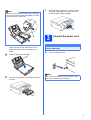
Pull the paper tray a completely out of the
machine.
3
1
d
e
b
Gently put the paper into the paper tray print
side down and top edge first. Check that the
paper is flat in the tray.
Important
Open the paper tray cover a.
1
2
Fan the stack of paper well to avoid paper jams
and misfeeds.
Do not push the paper in too far.
i
Note
While holding the paper tray in place, pull out
the paper support a until it clicks, and then
unfold the paper support flap b.
When you use Legal size paper, press and hold
the universal guide release button a as you slide
out the front of the paper tray.
2
1
3
1
f
g
Gently adjust the paper side guides to the
paper with both hands. Make sure that the
paper side guides touch the edges of the
paper.
Close the paper tray cover a.
Connect the power cord
Important
DO NOT connect the USB cable yet (if you are
using a USB cable).
a
Connect the power cord.
1
h
Note
Slowly push the paper tray completely into the
machine.
The control panel warning LED will stay on until
you have installed the ink cartridges.
3
4
Install the ink cartridges
e
Turn the green knob on the protective yellow
cap clockwise until it clicks to release the
vacuum seal, then remove the cap a.
WARNING
If ink gets in your eyes, wash them out with
water at once, and if irritation occurs consult a
doctor.
a
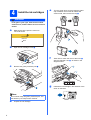
Make sure that the power is turned on.
The LCD shows:
No Cartridge
Install Ink
Black
b
1
Open the ink cartridge cover a.
f
1
c
Remove the green protective part a.
Take care to match the color of the lever a
with the cartridge color b, as shown in the
diagram below.
1
2
1
Note
Do not throw away the green protective part. You
will need it if you transport the machine.
d
4
Unpack the ink cartridge.
g
Install each ink cartridge in the direction of the
arrow on the label.
h
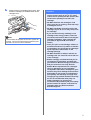
Gently push the ink cartridge until it clicks. After
all the ink cartridges are installed close the ink
cartridge cover.
Important
• DO NOT take out ink cartridges if you do not
need to replace them. If you do so, it may
reduce the ink quantity and the machine will
not know the quantity of ink left in the
cartridge.
• DO NOT shake the ink cartridges. If ink
stains your skin or clothing, wash with soap
or detergent at once.
• DO NOT repeatedly insert and remove the
cartridges. If you do so, ink may seep out of
the cartridge.
Note
The machine will prepare the ink tube system for
printing. This process will take approximately four
minutes. Do not turn off the machine.
• If you mix the colors by installing an ink
cartridge in the wrong position, clean the
print head several times after correcting the
cartridge installation. (See Cleaning the
print head in Appendix B of the User’s
Guide.)
• Once you open an ink cartridge, install it in
the machine and use it up within six months
of installation. Use unopened ink cartridges
by the expiration date written on the
cartridge package.
• DO NOT dismantle or tamper with the ink
cartridge, this can cause the ink to leak out
of the cartridge.
• Brother strongly recommends that you do
not refill the ink cartridges provided with
your machine. We also strongly recommend
that you continue to use only Genuine
Brother Brand replacement ink cartridges.
Using or attempting to use potentially
incompatible inks and/or cartridges in your
machine may cause damage to the machine
itself and/or it may result in unsatisfactory
print quality. Our warranty coverage does
not apply to any problem that was caused by
the use of unauthorized third party ink
and/or cartridges. To protect your
investment and guarantee your print quality
please continue to replace consumed ink
cartridges with only Genuine Brother
Branded Supplies.
5
a
5
d
Check the print quality
The LCD asks you if the print quality is OK for
black and color. Press
(Yes) or
(No).
Black OK?
When the preparation process has finished, the
LCD shows this message
Yes
No
.
Set Paper and Press
Start
Press
Press
After pressing
(Yes) or
(No) for both
black and color, the LCD shows:
Start Cleaning?
b
Press Color Start.
Yes
No
Check the quality of the four color blocks a on
the sheet. (black/yellow/cyan/magenta)
e
1
c
If all lines are clear and visible, press
to finish the quality check.
f
(Yes)
OK
a
b
If you can see missing short lines, press
(No) and go to d.
Poor
c
d
e
6
Press
Press
Press
(Yes), the machine will then start
cleaning the colors.
After cleaning is finished, press Color Start.
The machine starts printing the Print Quality
Check Sheet again. Go back to b.
6
Choose your language
(If needed)
Press Menu.
Press a or b to choose Initial Setup.
Press OK.
Press a or b to choose Local Language.
Press OK.
Press a or b to choose your language.
Press OK.
Press Stop/Exit.
7
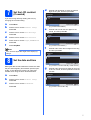
Set the LCD contrast
(If needed)
d
Date&Time
Year:20
08
If you are having difficulty reading the LCD, try
changing the contrast setting.
a
b
c
d
e
f
MENU
Input & Press
(e.g. Enter 0 8 for 2008.)
Press Menu.
Press a or b to choose General Setup.
Press OK.
e
Press a or b to choose LCD Settings.
Press OK.
Press d or c to choose Light, Med or Dark.
Press OK.
Press Stop/Exit.
f
c
OK
Press a or b to enter the two digits for the day,
and then press OK.
Date&Time
Day:
01
Set the date and time
Setting the date and time allows the machine to clean
the print head regularly and maintain optimum print
quality. It also allows the machine to name files
created when using the Scan to Media feature.
a
b
Press a or b to enter the two digits for the
month, and then press OK.
MENU
Input & Press
(e.g. Enter 0 3 for March.)
You can also adjust the angle of the display by
lifting it.
8
OK
Date&Time
Month:
03
Press a or b to choose LCD Contrast.
Note
Press a or b repeatedly to enter the last two
digits of the year, and then press OK.
Press Menu.
Press a or b to choose Initial Setup.
Press OK.
Press a or b to choose Date&Time.
Press OK.
MENU
Input & Press
OK
(e.g. Enter 0 1 for the first day of the month.)
g
Press a or b to enter the two digits for the hour
in 24-hour format, and then press c to enter the
minutes.
Date&Time
Time:
15:00
MENU
Input & Press
(e.g. Enter 1 5 for 3:00 P.M.)
OK
7
h
Press a or b to enter the two digits for the
minute, and then press OK.
Date&Time
Time:
15:25
MENU
Input & Press
(e.g. Enter 1 5, 2 5 for 3:25 P.M.)
i
OK
Press Stop/Exit.
Note
You can increase or decrease the number rapidly
by holding down a or b.
To confirm the current date and time, print
out the User Settings report. (See Printing
Reports in Chapter 3 of the User's Guide.)
8
9
Choose your connection type
Wireless Network
For Wireless Network
Macintosh®
Windows®, go to page 17
Macintosh®, go to page 22
Windows®
Wired Network
For Wired Network
Macintosh®
USB
Windows®, go to page 10
Macintosh®, go to page 14
Windows®
For USB interface cable
Windows® and Macintosh®,
go to page 25
9
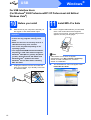
USB
Windows®
For USB Interface Users
(For Windows® 2000 Professional/XP/ XP Professional x64 Edition/
Windows Vista®)
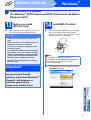
10
a
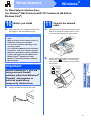
Before you install
Make sure that your computer is ON and you
are logged on with Administrator rights.
11
a
Important
Install MFL-Pro Suite
Put the supplied CD-ROM into your CD-ROM
drive. If the model name screen appears,
choose your machine. If the language screen
appears, choose your language.
• DO NOT connect the USB cable yet.
• If there are any programs running, close
them.
• Make sure there are no memory cards or a
USB Flash memory drive inserted.
• The screen may differ depending on the
operating system.
• The supplied CD-ROM includes ScanSoft™
PaperPort™ 11SE. This software supports
Windows® 2000 (SP4 or greater), XP (SP2 or
greater), XP Professional x64 Edition and
Windows Vista®. Update to the latest
Windows® Service Pack before installing
MFL-Pro Suite.
b
10
Unplug the machine from the AC outlet and
from your computer, if you already connected
an interface cable.
Note
If the Brother screen does not appear
automatically, go to My Computer (Computer),
double-click the CD-ROM icon, and then
double-click start.exe.
b
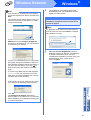
The CD-ROM main menu will appear. Click
Install MFL-Pro Suite.
USB
Note
Windows®
f
Choose Local Connection, and then click
Next. The installation continues.
• If this screen appears, click OK and restart
your computer.
• If the installation does not continue
automatically, open the main menu again by
ejecting and then reinserting the CD-ROM or
double-click the start.exe program from the
root folder, and continue from b to install MFLPro Suite.
g
When this screen appears, go to the next step.
• For Windows Vista®, when the User Account
Control screen appears, click Allow.
e
The installation of ScanSoft™ PaperPort™
11SE will automatically start and is followed by
the installation of MFL-Pro Suite.
When the Brother MFL-Pro Suite Software
License Agreement window appears, click
Yes if you agree to the Software License
Agreement.
11
Macintosh®
d
When the ScanSoft™ PaperPort™ 11SE
License Agreement window appears, click
Yes if you agree to the Software License
Agreement.
Windows®
USB
c
USB
12
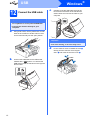
Connect the USB cable
Windows®
c
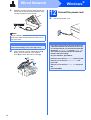
Carefully route the USB cable through the
trench and out the back of the machine as
shown below and connect the cable to your
computer.
Important
• DO NOT connect the machine to a USB port
on a keyboard or a non-powered USB hub.
• Connect the machine directly to your
computer.
a
Using both hands, use the plastic tabs on both
sides of the machine to lift the scanner cover
until it locks securely into the open position.
Important
Make sure that the cable does not restrict the
cover from closing, or an error may occur.
d
Lift the scanner cover to release the lock a.
Gently push the scanner cover support
down b and close the scanner cover c.
1
b
Connect the USB cable to the USB socket
marked with a
symbol. You will find the
USB socket inside the machine on the right as
shown below.
LAN
12
USB
2
3
USB
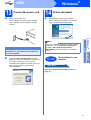
13
a
Connect the power cord
Connect the power cord.
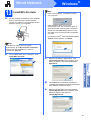
The installation will continue automatically.
The installation screens appear one after
another.
Windows®
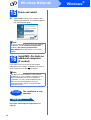
14
a
Finish and restart
Click Finish to restart your computer.
After restarting the computer, you must be
logged on with Administrator rights.
Important
When the On-Line Registration screen is
displayed, make your selection and follow the
on-screen instructions. Once you have
completed the registration process, close your
web browser to return to this window.
Then click Next.
Finish
The installation is now
complete.
Now go to
Proceed to Install Optional Applications on
page 38.
13
Macintosh®
b
USB
DO NOT cancel any of the screens during the
installation. It may take a few seconds for all
screens to appear.
If an error message appears during the software
installation, run the Installation Diagnostics
located in Start/All Programs/Brother/
DCP-XXXX (where DCP-XXXX is your model
name).
Windows®
Note
USB
Macintosh®
For USB Interface Users (For Mac OS® X 10.2.4 or greater)
10
a
Before you install
b
Make sure your machine is connected to the
power and your Macintosh® is ON. You must
be logged on with Administrator rights.
Connect the USB cable to the USB socket
marked with a
symbol. You will find the
USB socket inside the machine on the right as
shown below.
LAN
USB
Important
• For Mac OS® X 10.2.0 to 10.2.3 users,
upgrade to Mac OS® X 10.2.4 or greater. (For
the latest information for Mac OS® X, visit
http://solutions.brother.com/)
• Make sure there are no memory cards or a
USB Flash memory drive inserted.
11
Connect the USB cable
c
Carefully route the USB cable through the
trench and out the back of the machine as
shown below and connect the cable to your
Macintosh®.
Important
• DO NOT connect the machine to a USB port
on a keyboard or a non-powered USB hub.
• Connect the machine directly to your
Macintosh®.
a
Using both hands, use the plastic tabs on both
sides of the machine to lift the scanner cover
until it locks securely into the open position.
Important
Make sure that the cable does not restrict the
cover from closing, or an error may occur.
d
Lift the scanner cover to release the lock a.
Gently push the scanner cover support
down b and close the scanner cover c.
1
2
14
3
USB
12
a
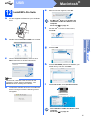
Install MFL-Pro Suite
Macintosh®
e
Put the supplied CD-ROM into your CD-ROM
drive.
f
For Mac OS® X 10.2.4 to 10.2.8 users,
click Add.
Double-click the Start Here OSX icon to install.
Choose USB.
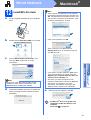
Choose Local Connection, and then click
Next. Follow the on-screen instructions.
h
Choose XXX-XXXX (where XXX-XXXX is your
model name), and then click Add.
Note
Please wait, it will take a few seconds for the
software to install. After the installation, click
Restart to finish installing the software.
d
i
Click Print Center, then Quit Print Center.
The Brother software will search for the Brother
device. During this time the following screen
will appear.
The installation of MFL-Pro Suite is now
complete.
Go to step 13 on page 16.
15
Macintosh®
USB
g
c
For Mac OS ® X 10.3.x or greater, the
installation of MFL-Pro Suite is now
complete.
Go to step 13 on page 16.
Windows®
b
When this screen appears, click OK.
USB
13
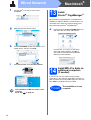
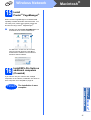
Install
Presto!® PageManager®
When Presto!® PageManager® is installed OCR
capability is added to Brother ControlCenter2. You
can easily scan, share and organize photos and
documents using Presto!® PageManager®.
a
Double-click the Presto! PageManager icon
and follow the on-screen instructions.
For Mac OS ® X 10.2.4 to 10.3.8 users,
when this screen appears, click Go to
download the software from the Brother
Solutions Center website.
Finish
16
The installation is now
complete.
Macintosh®
Wired Network
Windows®
For Wired Network Interface Users
(For Windows® 2000 Professional/XP/ XP Professional x64 Edition/
Windows Vista®)
10
a
Before you install
Make sure that your computer is ON and you
are logged on with Administrator rights.
11
a
Important
Connect the network
cable
Using both hands, use the plastic tabs on both
sides of the machine to lift the scanner cover
until it locks securely into the open position.
• If there are any programs running, close
them.
• Make sure there are no memory cards or a
USB Flash memory drive inserted.
• The screens may differ depending on the
operating system.
• The supplied CD-ROM includes ScanSoft™
PaperPort™ 11SE. This software supports
Windows® 2000 (SP4 or greater), XP (SP2 or
greater), XP Professional x64 Edition and
Windows Vista®. Update to the latest
Windows® Service Pack before installing
MFL-Pro Suite.
USB
Unplug the machine from the AC outlet.
17
Macintosh®
b
LAN
Wired Network
Before installation, if you are
using personal firewall
software (other than Windows®
Firewall), anti-spyware or
antivirus applications,
temporarily disable them.
Connect the network cable to the LAN socket
marked with a
symbol. You will find the
LAN socket inside the machine on the left as
shown below.
Windows®
Important
b
Wired Network
c
Carefully route the network cable through the
trench and out the back of the machine. Then,
connect the cable to your network.
Windows®
12
a
Connect the power cord
Connect the power cord.
Note
If both USB and LAN cables are being used,
guide both cables through the trench with one on
top of the other.
Important
Important
Make sure that the cable does not restrict the
cover from closing, or an error may occur.
d
Lift the scanner cover to release the lock a.
Gently push the scanner cover support
down b and close the scanner cover c.
1
2
If you have previously set up your machine for
a wireless network and then want to set it up
on a wired network, you should check that the
machine’s Network I/F is set to Wired LAN.
The wireless network interface will become
inactive with this setting.
On your machine, press Menu.
Press a or b to choose Network and press OK.
3
Press a or b to choose Network I/F and
press OK.
Press a or b to choose Wired LAN and press
OK.
Press Stop/Exit.
18
Wired Network
13
a
Install MFL-Pro Suite
Put the supplied CD-ROM into your CD-ROM
drive. If the model name screen appears,
choose your machine. If the language screen
appears, choose your language.
Windows®
Note
• If this screen appears, click OK and restart
your computer.
• If the installation does not continue
automatically, open the main menu again by
ejecting and then reinserting the CD-ROM or
double-click the start.exe program from the
root folder, and continue from b to install MFLPro Suite.
• For Windows Vista®, when the User Account
Control screen appears, click Allow.
Note
If the Brother screen does not appear
automatically, go to My Computer (Computer),
double-click the CD-ROM icon, and then
double-click start.exe.
b
The CD-ROM main menu will appear. Click
Install MFL-Pro Suite.
c
When the Brother MFL-Pro Suite Software
License Agreement window appears, click
Yes if you agree to the Software
License Agreement.
19
Macintosh®
The installation of ScanSoft™ PaperPort™
11SE will automatically start and is followed by
the installation of MFL-Pro Suite.
Windows®
e
Wired Network
d
When the ScanSoft™ PaperPort™ 11SE
License Agreement window appears, click
Yes if you agree to the Software License
Agreement.
Wired Network
f
g
Choose Wired Network Connection, and
then click Next.
For Windows ® XP SP2/Windows Vista ® users,
when this screen appears, choose Change the
Firewall port settings to enable network
connection and continue with the
installation. (Recommended) and click Next.
Windows®
Note
• If the machine is configured for your network,
choose the machine from the list, and then click
Next.
This window will not appear if there is only one
machine connected on the network, it will be
chosen automatically.
If your machine shows APIPA in the IP
Address field, click Configure IP Address
and enter an IP address for your machine that
is suitable for your network.
• If the machine is not yet configured for use on
your network, the following screen appears.
If you are using a firewall other than Windows®
Firewall or Windows ® Firewall is off, this screen
may appear.
Click OK.
The Configure IP Address window will
appear. Enter an IP address for your machine
that is suitable for your network by following the
on-screen instructions.
h
See the instructions provided with your firewall
software for information on how to add the
following network ports.
For network scanning, add UDP port 54925.
If you still have trouble with your network
connection, add UDP port 137.
20
The installation of the Brother drivers will
automatically start. The installation screens
appear one after another.
Important
DO NOT cancel any of the screens during the
installation. It may take a few seconds for all
screens to appear.
Wired Network
Note
For Windows Vista®, when this screen appears,
click the check box and click Install to complete
the installation correctly.
i
When the On-Line Registration screen is
displayed, make your selection and follow the
on-screen instructions. Once you have
completed the registration process, close your
web browser to return to this window.
Then click Next.
Windows®
14
a
Finish and restart
Click Finish to restart your computer. After
restarting the computer, you must be logged on
with Administrator rights.
Note
If an error message appears during the software
installation, run the Installation Diagnostics
located in Start/All Programs/Brother/
DCP-XXXX (where DCP-XXXX is your model
name).
15
Install MFL-Pro Suite on
additional computers
(If needed)
Finish
The installation is now
complete.
Now go to
Proceed to Install Optional Applications on
page 38.
21
Macintosh®
The MFL-Pro Suite Software License permits
installation on up to 2 network computers. if you
want to install MFL-Pro Suite on additional
computers, you can purchase additional NL-5
(five user) license agreements from your
authorized Brother dealer or contact Brother
customer service.
Windows®
Note
Wired Network
If you want to use your machine with multiple
computers on the network, install MFL-Pro Suite on
each computer. Go to step 13 on page 19. Also see
step 10-a on page 17 before you install.
Wired Network
Macintosh®
For Wired Network Interface Users (For Mac OS® X 10.2.4 or greater)
10
a
Before you install
b
Connect the network cable to the LAN socket
marked with a
symbol. You will find the
LAN socket inside the machine on the left as
shown below.
Make sure your machine is connected to the
power and your Macintosh® is ON. You must
be logged on with Administrator rights.
LAN
USB
Important
• For Mac OS® X 10.2.0 to 10.2.3 users,
upgrade to Mac OS® X 10.2.4 or greater. (For
the latest information for Mac OS® X, visit
http://solutions.brother.com/)
• Make sure there are no memory cards or a
USB Flash memory drive inserted.
• If you have previously set up your machine
for a wireless network and then want to set
it up on a wired network, you should check
that the machine’s Network I/F is set to
Wired LAN. The wireless network interface
will be inactive with this setting. On your
machine, press Menu.
Press a or b to choose Network and press
OK.
Press a or b to choose Network I/F and
press OK.
Press a or b to choose Wired LAN and press
OK.
Press Stop/Exit.
c
Carefully route the network cable through the
trench and out the back of the machine.Then,
connect the cable to your network.
Important
11
a
Connect the network
cable
Using both hands, use the plastic tabs on both
sides of the machine to lift the scanner cover
until it locks securely into the open position.
Make sure that the cable does not restrict the
cover from closing, or an error may occur.
Note
If both USB and LAN cables are being used,
guide both cables through the trench with one on
top of the other.
d
Lift the scanner cover to release the lock a.
Gently push the scanner cover support
down b and close the scanner cover c.
1
2
22
3
Wired Network
12
a
b
Install MFL-Pro Suite
Put the supplied CD-ROM into your CD-ROM
drive.
Double-click the Start Here OSX icon to install.
Macintosh®
Note
• If the machine is configured for your network,
choose the machine from the list, and then click
OK. This window will not appear if there is only
one machine connected on the network, it will
be chosen automatically. Go to e.
• If this screen appears click OK.
Enter a name for your Macintosh® in
Display Name up to 15 characters long and
click OK. Go to e.
c
Choose Wired Network Connection, and
then click Next. Follow the on-screen
instructions.
d
The Brother software will search for the Brother
device. During this time the following screen
will appear.
e
When this screen appears, click OK.
For Mac OS ® X 10.3.x or greater, the
installation of MFL-Pro Suite is now
complete.
Go to step 13 on page 24.
23
Macintosh®
Please wait, it will take a few seconds for the
software to install. After the installation, click
Restart to finish installing the software.
• The name you enter will appear on the
machine’s LCD when you press the Scan key
and choose a scan option. (For more
information, see Network Scanning in the
Software User’s Guide on the CD-ROM.)
Windows®
Note
Wired Network
• If you want to use the machine’s Scan key to
scan over the network you must check the
Register your computer with the “Scan To”
function on the machine box.
Wired Network
f
g
h
i
For Mac OS ® X 10.2.4 to 10.2.8 users,
click Add.
Macintosh®
13
Install
Presto!® PageManager®
When Presto!® PageManager® is installed OCR
capability is added to Brother ControlCenter2. You
can easily scan, share and organize photos and
documents using Presto!® PageManager®.
Make the selection shown below.
Choose XXX-XXXX (where XXX-XXXX is your
model name), and then click Add.
a
Double-click the Presto! PageManager icon
and follow the on-screen instructions.
For Mac OS® X 10.2.4 to 10.3.8 users,
when this screen appears, click Go to
download the software from the Brother
Solutions Center website.
Click Print Center, then Quit Print Center.
14
Install MFL-Pro Suite on
additional computers
(If needed)
If you want to use your machine with multiple
computers on the network, install MFL-Pro Suite on
each computer. Go to step 12 on page 23. Also see
step 10-a on page 22 before you install.
The installation of MFL-Pro Suite is now
complete.
Go to step 13 on page 24.
24
Finish
The installation is now
complete.
For Wireless Network Users
For Wireless Network Interface Users
10
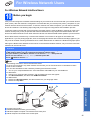
Before you begin
First you must configure the wireless network settings of your machine to communicate with your network access
point (router). After the machine is configured to communicate with your access point (router), computers on your
network will have access to the machine. To use the machine from these computers, you will need to install the
drivers and software. The following steps will guide you through the configuration and installation process.
To achieve optimum results with normal everyday document printing, place the Brother machine as close to the
network access point (router) as possible with minimal obstructions. Large objects and walls between the two
devices as well as interference from other electronic devices can affect the data transfer speed of your documents.
Due to these factors, wireless may not be the best method of connection for all types of documents and
applications. If you are printing large files, such as multi-page documents with mixed text and large graphics, you
may want to consider choosing wired Ethernet for a faster data transfer or USB for the fastest throughput speed.
Although the Brother DCP-585CW can be used in a both wired and wireless network, only one of the connection
methods can be used at a time.
Important
If you have previously configured the wireless settings of the machine you must reset the network
(LAN) settings before you can configure the wireless settings again.
On your machine, press Menu. Press a or b to choose Network and press OK.
Press a or b to choose Factory Reset, and then press OK.
Press
twice to choose Yes.
Note
The following instructions are for infrastructure mode.
To set up your machine in any other wireless environment you can find instructions in the Network User's
Guide on the CD-ROM.
You can view the Network User’s Guide by following the instructions below.
1 Turn on your computer/Macintosh®. Insert the Brother CD-ROM into your CD-ROM drive.
For Windows®:
2 Choose your model and the language. The CD-ROM main menu will appear.
3 Click Documentation, and then click HTML documents.
For Macintosh®:
2 Double-click Documentation, and then double-click your language folder.
3 Double-click top.html.
Infrastructure Mode
1
Wireless Network
4
2
3
a
b
c
d
Access Point (router)
Wireless Network machine (your machine)
Wireless capable computer connected to the access point
Wired computer connected to the access point
25
For Wireless Network Users
11
Confirm your network environment (Infrastructure Mode)
The following instructions will offer two methods for installing your Brother machine in a wireless network
environment. Both methods are for infrastructure mode, using a wireless router or access point that uses DHCP
to assign IP addresses. Choose a configuration method and proceed to the page indicated.
a
If your wireless router/access point does not support SecureEasySetup™, Wi-Fi Protected Setup™
or AOSS™, write down the wireless network settings of your access point or wireless router in the
area below.
Important
If you do not know this information (Network Name, WEP key or WPA2-PSK (Pre-Shared Key)),
you cannot continue the wireless setup. You should see the documentation provided with your
access point or wireless router, consult the router manufacturer, or your system administrator.
SSID (Service Set ID or Network name)
Authentication (Open System or Shared Key)/Encryption Type (None or WEP)
WEP Key (if needed) 1
WPA/WPA2-PSK Encryption type (TKIP or AES) (if needed) 2
WPA/WP2A-PSK (Pre-Shared Key) (if needed) 2
1
The WEP key is for 64-bit encrypted networks or 128-bit encrypted networks and can contain both numbers and letters. If you do
not know this information you should see the documentation provided with your access point or wireless router. This key is a 64bit or 128-bit value that must be entered in an ASCII or HEXADECIMAL format.
For example:
64-bit ASCII:
64-bit Hexadecimal:
128-bit ASCII:
128-bit Hexadecimal:
2
Uses 5 text characters e.g. “Hello” (this is case sensitive)
Uses 10 digits of hexadecimal data e.g. “71f2234aba”
Uses 13 text characters e.g.
“Wirelesscomms” (this is case sensitive)
Uses 26 digits of hexadecimal data e.g.
“71f2234ab56cd709e5412aa3ba”
WPA/WPA2-PSK is a Wi-Fi® Protected Access Pre-Shared Key, which lets the Brother wireless machine associate with access
points using TKIP or AES encryption (WPA-Personal). WPA/WPA2-PSK (TKIP or AES) uses a Pre-Shared Key (PSK) that is 8 or
more characters in length, up to a maximum of 63 characters.
Now go to
b
If your wireless router/access point supports automatic wireless (one-push) setup
(SecureEasySetup™, Wi-Fi Protected Setup™ or AOSS™)
Now go to
26
page 27
page 29
For Wireless Network Users
Connecting the Brother machine to the wireless network
Important
You must have the wireless setting you wrote
down for your network in step 11 on page 26
before you proceed.
12
a
e
f
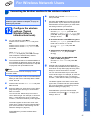
Configure the wireless
settings (Typical
Wireless Setup in
infrastructure mode)
No Authentication with WEP Encryption:
Choose Open System, press OK then use
the a or b to choose WEP for the
Encryption Type? and press OK.
Go to g.
On your machine, press Menu.
Press a or b to choose Network and press
OK.
Press a or b to choose WLAN and press OK.
Press a or b to choose Setup Wizard and
press OK.
The machine will search for available SSIDs. If
a list of SSIDs is displayed, use the a or b keys
to choose the SSID you wrote down in step 11
on page 26, then press OK. Go to f.
Note
It will take several seconds to display a list of
available SSIDs.
c
d
If your access point is set to not broadcast the
SSID you will have to manually add the SSID
name. Go to c.
Press a or b to choose <New SSID> and press
OK. Go to d.
Authentication with WEP Encryption:
Choose Shared Key and press OK.
Go to g.
You can use the d and c keys to move the
cursor left and right. For example, to enter the
letter a, press the a key once. To enter the
number 3, hold down the a key until it appears.
g
Authentication with WPA/WPA2-PSK
(TKIP or AES) Encryption:
Choose WPA/WPA2-PSK and press OK.
Go to h.
Press a or b to choose the appropriate key
number and press OK. Enter the WEP key you
wrote down in step 11 on page 26 using the a,
b keys to choose each letter or number.
You can use the d and c keys to move the
cursor left and right. For example, to enter the
letter a, press the a key once. To enter the
number 3, hold down the a key until it appears.
The letters appear in this order: lower case,
upper case, numbers and then special letters.
(For more information, see Entering Text for
Wireless Settings on page 42.)
Press OK when you have entered all the
characters, then press
Yes to apply your
settings. Go to i.
Wireless Network
Enter the SSID you wrote down in step 11 on
page 26 using the a, b keys to choose each
letter or number.
Use the a, b and OK keys to choose one of the
options below: If your network is configured for
Authentication and Encryption you must match
the settings used for your network.
No Authentication or Encryption:
Choose Open System, press OK then
choose None for Encryption Type? and
press OK. Then press
Yes to apply your
settings. Go to i.
When Network I/F switched to
Wireless is displayed, press OK to accept.
This will start the wireless setup wizard.
To cancel, press Clear/Back.
b
Press a or b to choose Infrastructure,
then press OK.
The letters appear in this order: lower case,
upper case, numbers and then special letters.
(For more information, see Entering Text for
Wireless Settings on page 42.)
Press OK when you have entered all the
characters.
27
For Wireless Network Users
h
Press a or b to choose TKIP or AES for
Encryption Type? and press OK.
Enter the WPA/WPA2-PSK password you
wrote down in step 11 on page 26 using the a,
b keys to choose each letter or number.
You can use the d and c keys to move the
cursor left and right. For example, to enter the
letter a, press the a key once. To enter the
number 3, hold down the a key until it appears.
The letters appear in this order: lower case,
upper case, numbers and then special letters.
(For more information, see Entering Text for
Wireless Settings on page 42.)
i
Press OK when you have entered all the
characters, then press
Yes to apply your
settings. Go to i.
Your machine will now try to connect to your
wireless network using the information you
have entered. If successful, Connected will
appear briefly on the LCD.
If your machine does not successfully connect
to your network, verify your network settings
collected in step 11 on page 26, then repeat a
to h to make sure you have entered the correct
information.
If your access point does not have DHCP
enabled you will need to manually configure
the IP address, subnet mask and gateway of
the machine to suit your network. See the
Network User’s Guide for details.
Wireless setup is now complete. A four
level indicator on the bottom of your
machine’s LCD will show the wireless
signal strength of your access point or
router.
To install MFL-Pro Suite, continue to
step 13.
For Windows® Users:
Now go to
Page 31
For Mac OS® Users:
Now go to
Page 35
28
For Wireless Network Users
12
a
b
c
d
Configure the wireless
settings using the
automatic wireless (onepush) method
Confirm your wireless router or access point
has the SecureEasySetup™, Wi-Fi Protected
Setup™ or AOSS™ symbol as shown below.
Place the Brother machine within range of a
SecureEasySetup™, Wi-Fi Protected Setup™
or AOSS™ access point/router. The range may
differ depending on your environment. Refer to
the instructions provided with your access
point/router.
Push the SecureEasySetup™, Wi-Fi Protected
Setup™ or AOSS™ button on your wireless
router or access point.
See the user’s guide for your wireless router or
access point for instructions.
On your machine, press Menu.
Press a or b to choose Network and press
OK.
Press a or b to choose WLAN and press OK.
Press a or b to choose SES/WPS/AOSS and
press OK.
When Network I/F switched to
Wireless is displayed, press OK to accept.
This will start the wireless setup wizard.
To cancel, press Clear/Back.
This feature will automatically detect which
mode (SecureEasySetup™, Wi-Fi Protected
Setup™ or AOSS™) your access point uses to
configure your machine.
e
If the LCD shows Connected, the machine
has successfully connected to your router or
access point. You can now use your machine
in a wireless network.
If the LCD shows Setting WLAN,
Connecting SES (Connecting WPS or
Connecting AOSS), then
Connection Failed, the machine has not
successfully connected to your router or
access point. Try starting from c again. If the
same message is indicated again, reset the
machine back to the default factory settings
and try again. For resetting, see Restore the
network settings to factory default on page 42.
If the LCD shows Setting WLAN, then
Connection Failed or Incorrect Mode,
a session overlap or connection failure was
detected. (see the table below), the machine
has detected 2 or more routers or access
points on your network that have the
SecureEasySetup™, Wi-Fi Protected Setup™
mode or AOSS™ mode enabled. Make sure
that only one router or access point has the
SecureEasySetup™, Wi-Fi Protected Setup™
mode or AOSS™ mode enabled and try
starting from c again.
LCD messages when using the
SES/WPS/AOSS control panel menu
Setting WLAN
Searching or accessing the
access point and downloading
settings from the access point.
Connecting
SES/WPS/AOSS
Connecting to the access
point.
Connection
Failed
Connection failed. If this is
shown after the LCD shows
Connecting
SES/WPS/AOSS, a session
overlap was detected.
Incorrect
Mode
A session overlap was
detected.
Connected
The machine has successfully
connected.
Note
Wireless Network
If your wireless access point supports Wi-Fi
Protected Setup™ (PIN Method) and you want to
configure your machine using the PIN (Personal
Identification Number) Method, see Using the PIN
Method of Wi-Fi Protected Setup™ in the Network
User’s Guide on the CD-ROM.
Note
If you encounter a problem during setup,
temporarily place your machine closer to the
wireless access point, and go back to c.
Wireless setup is now complete.
29
For Wireless Network Users
Wireless setup is now complete. To
install MFL-Pro Suite, continue to
step 13.
For Windows® Users:
Now go to
Page 31
For Mac OS® Users:
Now go to
Page 35
30
Wireless Network
Windows®
Install the Drivers & Software
(For Windows® 2000 Professional/XP/XP Professional x64 Edition/
Windows Vista®)
13
a
Before you install
MFL-Pro Suite
Make sure that your computer is ON and you
are logged on with Administrator rights.
14
a
Important
Install MFL-Pro Suite
Put the supplied CD-ROM into your CD-ROM
drive. If the model name screen appears,
choose your machine. If the language screen
appears, choose your language.
• If there are any programs running, close
them.
• Make sure there are no memory cards or a
USB Flash memory drive inserted.
• The screens may differ depending on the
operating system.
• The supplied CD-ROM includes ScanSoft™
PaperPort™ 11SE. This software supports
Windows® 2000 (SP4 or greater), XP (SP2 or
greater), XP Professional x64 Edition and
Windows Vista®. Update to the latest
Windows® Service Pack before installing
MFL-Pro Suite.
Important
Note
If the Brother screen does not appear
automatically, go to My Computer (Computer),
double-click the CD-ROM icon, and then
double-click start.exe.
b
The CD-ROM main menu will appear. Click
Install MFL-Pro Suite.
Before installation, if you are
using personal firewall
software (other than Windows®
Firewall), anti-spyware or
antivirus applications,
temporarily disable them.
Windows®
Macintosh®
Wireless Network
31
Wireless Network
Note
f
Windows®
Choose Wireless Network Connection, and
then click Next.
• If this screen appears, click OK and restart
your computer.
• If the installation does not continue
automatically, open the main menu again by
ejecting and then reinserting the CD-ROM or
double-click the start.exe program from the
root folder, and continue from b to install MFLPro Suite.
g
Click on Checked and confirmed check box,
and then click Next.
• For Windows Vista®, when the User Account
Control screen appears, click Allow.
h
c
d
e
32
When the ScanSoft™ PaperPort™ 11SE
License Agreement window appears, click
Yes if you agree to the Software License
Agreement.
For Windows® XP SP2/Windows Vista® users,
when this screen appears, choose Change the
Firewall port settings to enable network
connection and continue with the
installation. (Recommended) and click Next.
If you are using a firewall other than Windows®
Firewall or Windows® Firewall is off, this screen
may appear.
The installation of ScanSoft™ PaperPort™
11SE will automatically start and is followed by
the installation of MFL-Pro Suite.
When the Brother MFL-Pro Suite Software
License Agreement window appears, click
Yes if you agree to the Software License
Agreement.
See the instructions provided with your firewall
software for information on how to add the
following network ports.
For network scanning, add UDP port 54925.
If you still have trouble with your network
connection, add UDP port 137.
Wireless Network
Note
i
• If the machine is configured for your network,
choose the machine from the list, and then click
Next.
Windows®
The installation of the Brother drivers will
automatically start. The installation screens
appear one after another.
Important
This window will not appear if there is only one
machine connected on the network, it will be
chosen automatically.
DO NOT cancel any of the screens during the
installation. It may take a few seconds for all
screens to appear.
Note
For Windows Vista®, when this screen appears,
click the check box and click Install to complete
the installation correctly.
If your machine shows APIPA in the IP
Address field, click Configure IP Address
and enter an IP address for your machine that
is suitable for your network.
j
• If your wireless settings fail, an error message
will appear during the installation of MFL-Pro
Suite and the installation will be terminated. If
you encounter this failure, go to step 11 on
page 26 and setup the wireless connection
again.
When the On-Line Registration screen is
displayed, make your selection and follow the
on-screen instructions. Once you have
completed the registration process, close your
web browser to return to this window.
Then click Next.
• If you are using WEP and the LCD displayed
'Connected' but your machine is not found,
make sure you entered the WEP key correctly.
The WEP key is case sensitive.
• If the machine is not yet configured for use on
your network, the following screen appears.
Macintosh®
33
Windows®
Wireless Network
Click OK.
The Configure IP Address window will
appear. Enter an IP address for your machine
that is suitable for your network by following the
on-screen instructions.
Wireless Network
15
a
Finish and restart
Click Finish to restart your computer. After
restarting the computer, you must be logged on
with Administrator rights.
Note
If an error message appears during the software
installation, run the Installation Diagnostics
located in Start/All Programs/Brother/
DCP-XXXX (where DCP-XXXX is your model
name).
16
Install MFL-Pro Suite on
additional computers
(If needed)
If you want to use your machine with multiple
computers on the network, install MFL-Pro Suite on
each computer. Go to step 13 on page 31.
Note
The MFL-Pro Suite Software License permits
installation on up to 2 network computers. if you
want to install MFL-Pro Suite on additional
computers, you can purchase additional NL-5
(five user) license agreements from your
authorized Brother dealer or contact Brother
customer service.
Finish
The installation is now
complete.
Now go to
Proceed to Install Optional Applications on
page 38.
34
Windows®
Wireless Network
Macintosh®
Install the Drivers & Software
(For Mac OS® X 10.2.4 or greater)
13
a
Before you install
MFL-Pro Suite
c
Choose Wireless Network Connection, and
then click Next.
Make sure your machine is connected to the
power and your Macintosh ® is ON. You must
be logged on with Administrator rights.
Important
• For Mac OS® X 10.2.0 to 10.2.3 users,
upgrade to Mac OS® X 10.2.4 or greater. (For
the latest information for Mac OS® X, visit
http://solutions.brother.com/)
d
Click on the Checked and confirmed check
box, and then click Next.
Follow the on-screen instructions.
• Make sure there are no memory cards or a
USB Flash memory drive inserted.
14
a
Install MFL-Pro Suite
Put the supplied CD-ROM into your CD-ROM
drive.
Note
Please wait, it will take a few seconds for the
software to install. After the installation, click
Restart to finish installing the software.
e
b
The Brother software will search for the Brother
device. During this time the following screen
will appear.
Double-click the Start Here OSX icon to install.
Windows®
Macintosh®
Wireless Network
35
Wireless Network
Note
f
• If the machine is configured for your network,
choose the machine from the list, and then click
OK.
This window will not appear if there is only one
machine connected on the network, it will be
chosen automatically. Go to f.
g
Macintosh®
When this screen appears, click OK.
For Mac OS® X 10.3.x or greater, the
installation of MFL-Pro Suite is now
complete.
Go to step 15 on page 37.
For Mac OS® X 10.2.4 to 10.2.8 users,
click Add.
• If your machine is not detected, go to step 11
on page 26 and setup the wireless connection
again.
• If you are using WEP and the LCD displayed
'Connected' but your machine is not found,
make sure you entered the WEP key correctly.
The WEP key is case sensitive.
h
Make the selection shown below.
• If this screen appears click OK.
Enter a name for your Macintosh® in
Display Name up to 15 characters long and
click OK. Go to f.
• If you want to use the machine’s Scan key to
scan over the network you must check the
Register your computer with the “Scan To”
function on the machine box.
i
j
Choose XXX-XXXX (where XXX-XXXX is your
model name), and then click Add.
Click Print Center, then Quit Print Center.
• The name you enter will appear on the
machine’s LCD when you press the Scan key
and choose a scan option. (For more
information, see Network Scanning in the
Software User’s Guide on the CD-ROM.)
The installation of MFL-Pro Suite is now
complete.
Go to step 15 on page 37.
36
Wireless Network
15
Macintosh®
Install
Presto!® PageManager®
When Presto!® PageManager® is installed OCR
capability is added to Brother ControlCenter2. You
can easily scan, share and organize photos and
documents using Presto!® PageManager®.
a
Double-click the Presto! PageManager icon
and follow the on-screen instructions.
For Mac OS ® X 10.2.4 to 10.3.8 users,
when this screen appears, click Go to
download the software from the Brother
Solutions Center website.
16
Install MFL-Pro Suite on
additional computers
(If needed)
If you want to use your machine with multiple
computers on the network, install MFL-Pro Suite on
each computer. Go to step 13 on page 35.
The installation is now
complete.
Macintosh®
Wireless Network
37
Windows®
Finish
Install Optional Applications
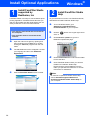
1
Install FaceFilter Studio
supported by
Reallusion, Inc
FaceFilter Studio is an easy-to-use borderless photo
printing application. FaceFilter Studio also lets you
edit your photo data and add photo effects such as
red eye reduction or skin tone enhancement.
2
• The computer must be connected to the
Internet.
a
b
a
b
c
To run FaceFilter Studio, go to
Start/All Programs/Reallusion/
FaceFilter Studio on your computer.
Click the
button on the upper right corner
of the screen.
Click Check for updates to go to the
Reallusion update web page.
Open the main menu again by ejecting and
then reinserting the CD-ROM or by doubleclicking the start.exe program from the root
folder.
The CD-ROM main menu will appear. Choose
your language and then click Additional
Applications.
d
e
c
Install FaceFilter Studio
Help
To get instructions on how to use FaceFilter Studio,
download and install FaceFilter Studio Help.
Important
• The machine must be ON and connected to
the computer.
Windows®
Click the FaceFilter Studio button to install.
Click the Download button and choose a folder
to save the file in.
Close FaceFilter Studio before you start the
installer for FaceFilter Studio Help.
Double-click the downloaded file from the
folder you specified and follow the on-screen
instructions for installation.
Note
To view the complete FaceFilter Studio Help,
choose Start/All Programs/Reallusion/
FaceFilter Studio/FaceFilter Studio Help on
your computer.
38
Install Optional Applications
3
Windows®
Install
BookScan&Whiteboard
Suite supported by
Reallusion, Inc
You can install BookScan&Whiteboard Suite.
The BookScan Enhancer software can correct your
scanned book images automatically.
The Whiteboard Enhancer software cleans up and
enhances text and images from photos taken of your
whiteboard. (Internet access required.)
Important
• The machine must be ON and connected to
the computer.
• The computer must be connected to the
Internet.
a
b
c
Open the main menu again by ejecting and
then reinserting the CD-ROM or by doubleclicking the start.exe program from the root
folder.
The CD-ROM main menu will appear. Choose
your language and then click Additional
Applications.
Click the BookScan&Whiteboard Suite
button to install.
39
For Network Users
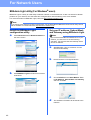
BRAdmin Light utility (For Windows® users)
BRAdmin Light is a utility for initial setup of Brother network connected devices. It also can search for Brother
products on your network, view the status and configure basic network settings, such as IP address.
For more information on BRAdmin Light, visit us at http://solutions.brother.com/.
Note
If you require more advanced printer management, use the latest Brother BRAdmin Professional utility version
that is available as a download from http://solutions.brother.com/.
Install the BRAdmin Light
configuration utility
a
Click Advanced and then Network Utilities on
the menu screen.
Set your IP address, Subnet Mask
and Gateway using BRAdmin Light
Note
If you have a DHCP/BOOTP/RARP server in your
network, you don’t have to do the following
operation. The machine will automatically obtain
its own IP address.
a
b
b
Click BRAdmin Light and follow the on-screen
instructions.
c
d
40
Start BRAdmin Light. It will search for new
devices automatically.
Double-click the unconfigured device.
Choose STATIC for the Boot Method. Enter
the IP Address, Subnet Mask and Gateway,
and then click OK.
The address information will be saved to the
machine.
For Network Users
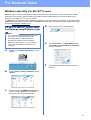
BRAdmin Light utility (For Mac OS® X users)
BRAdmin Light is a utility for initial setup of Brother network connected devices. It also can search for Brother
products on your network, view the status and configure basic network settings, such as IP address from a
computer running Mac OS® X 10.2.4 or greater.
The BRAdmin Light software will be installed automatically when you install the printer driver. If you have already
installed the printer driver, you don’t have to install BRAdmin Light again. For more information on BRAdmin Light,
visit us at http://solutions.brother.com/.
Set your IP address, Subnet Mask
and Gateway using BRAdmin Light
d
Double-click the unconfigured device.
Note
• If you have a DHCP/BOOTP/RARP server in
your network, you don’t have to do the
following operation. The machine will
automatically obtain its own IP address.
• Make sure that version 1.4.1_07 or later of
Java™ client software is installed on your
computer.
a
e
Double-click the Macintosh HD icon on your
desktop.
f
b
c
Choose STATIC for the Boot Method. Enter
the IP Address, Subnet Mask and Gateway,
and then click OK.
The address information will be saved to the
machine.
Choose Library, Printers, Brother and then
Utilities.
Double-click the file BRAdmin Light.jar and
run the software. BRAdmin Light will then
search for new devices automatically.
41
For Wireless Network Users
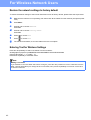
Restore the network settings to factory default
To restore all network settings of the internal Print/Scan server to factory default, please follow the steps below.
a
b
c
d
e
f
g
Make sure the machine is not operating, then disconnect all the cables from the machine (except the power
cord).
Press Menu.
Press a or b to choose Network.
Press OK.
Press a or b to choose Factory Reset.
Press OK.
Press
to choose Yes.
Press
to choose Yes.
The machine will restart, re-connect cables once this is complete.
Entering Text for Wireless Settings
Press a or b repeatedly to select a character from the list below:
abcdefghijklmnopqrstuvwxyzABCDEFGHIJKLMNOPQRSTUVWXYZ0123456789
(space)!"#$%&'() +,-./:;<=>?@[\]^_`{|}˜
Pressd or c repeatedly to move the cursor.
Note
Making corrections
If you entered an incorrect letter and want to change it, press d or c to position the cursor under the incorrect
letter. Use the a and b keys to change to the correct letter, then press c repeatedly to move the cursor back
to the end of the text.
42
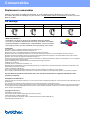
Consumables
Replacement consumables
When the time comes to replace ink cartridges, an error message will be indicated on the LCD. For more
information about the ink cartridges for your machine, visit http://www.brother.com/original/ or contact your local
Brother re-seller.
Ink cartridge
Black
Yellow
Cyan
Magenta
LC61BK
LC61Y
LC61C
LC61M
What is Innobella™?
Innobella™ is a range of genuine consumables offered by Brother.
The name "Innobella™" derives from the words "Innovation" and "Bella"
(meaning "Beautiful" in Italian) and is a representation of the "innovative"
technology providing you with "beautiful" and "long lasting" print results.
Trademarks
The Brother logo is a registered trademark of Brother Industries, Ltd.
Brother is a registered trademark of Brother Industries, Ltd.
Multi-Function Link is a registered trademark of Brother International Corporation.
Windows Vista is either a registered trademark or a trademark of Microsoft Corporation in the United States and other countries.
Microsoft, Windows and Windows Server are registered trademarks of Microsoft Corporation in the United States and/or other countries.
Macintosh and TrueType are registered trademarks of Apple Inc.
Nuance, the Nuance logo, PaperPort and ScanSoft are trademarks or registered trademarks of Nuance Communications, Inc. or its affiliates
in the United States and/or other countries.
Presto! PageManager is a registered trademark of NewSoft Technology Corporation.
PictBridge is a trademark.
FaceFilter Studio is a trademark of Reallusion, Inc.
BROADCOM, SecureEasySetup and the SecureEasySetup logo are trademarks or registered trademarks of Broadcom Corporation in the
United States and/or other countries.
AOSS is a trademark of Buffalo Inc.
Wi-Fi, WPA and WPA2 are registered trademarks and Wi-Fi Protected Setup is a trademark of Wi-Fi Alliance.
Each company whose software title is mentioned in this manual has a Software License Agreement specific to its proprietary programs.
All other brand and product names mentioned in this manual are trademarks or registered trademarks of their
respective companies.
Compilation and Publication
Under the supervision of Brother Industries, Ltd., this manual has been compiled and published, covering the latest product descriptions and
specifications.
The contents of this manual and the specifications of this product are subject to change without notice.
Brother reserves the right to make changes without notice in the specifications and materials contained herein and shall not be responsible for
any damages (including consequential) caused by reliance on the materials presented, including but not limited to typographical and other
errors relating to the publication.
Copyright and License
©2008 Brother Industries, Ltd.
This product includes software developed by the following vendors:
©1983-1998 PACIFIC SOFTWORKS, INC.
This product includes the “KASAGO TCP/IP” software developed by ELMIC WESCOM, Inc.
©2008 Devicescape Software, Inc.