1
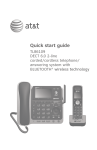
Quick start guide
TL92220/TL92270/TL92320/
TL92370/TL92420/TL92470
DECT 6.0 cordless telephone/
answering system with
BLUETOOTH® wireless technology
Installation
You must install and charge
the handset battery before
using the cordless handset.
See pages 4-5 for easy
instructions.
Install the telephone base close to a telephone jack and a power outlet
not controlled by a wall switch. The telephone base can be placed on a flat
surface or vertically mounted on the wall. For optimum range and better
reception, place the telephone base in a central and open location.
You may hear interference if your cellular phone is too close to the
telephone base during a CELLULAR call. Make sure that your Bluetooth
enabled cellular phone is within 15 feet of the telephone base in order to
maintain a clear and consistent connection between your Bluetooth cell
phone, telephone base and cell tower.
If you subscribe to high-speed Internet service (digital subscriber line DSL) through your telephone line, you must install a DSL filter between the
telephone line cord and the telephone wall jack (page 2). The filter prevents
noise and caller ID problems caused by DSL interference. Please contact your
DSL service provider for more information about DSL filters.
Your product may be shipped with a protective sticker covering the handset
or telephone base display - remove it before use.
For customer service or product information, visit our website at
www.telephones.att.com or call 1 (800) 222-3111. In Canada, dial
1 (866) 288-4268.
Avoid placing the telephone base too close to:
• Communication devices such as: television sets, VCRs, or other cordless
telephones.
• Excessive heat sources.
• Noise sources such as a window with traffic outside, motors, microwave
ovens, refrigerators, or fluorescent lighting.
• Excessive dust sources such as a workshop or garage.
• Excessive moisture.
• Extremely low temperature.
• Mechanical vibration or shock such as on top of the washing machine or
work bench.
Telephone base installation
If you subscribe to high-speed Internet service (digital subscriber line - DSL)
through your telephone line, you must install a DSL filter between the
telephone line cord and the telephone wall jack. The filter prevents noise and
caller ID problems caused by DSL interference. Please contact your DSL service
provider for more information about DSL filters.
Follow the steps below to install the telephone.
NOTE: The telephone base comes ready for tabletop use. If you want to mount your
telephone on a wall, refer to Installation options page in the user’s manual for details.
• Plug one end of
the telephone
line cord into a
telephone
wall jack.
• Plug the large end
of the larger power
adapter into an
electrical outlet not
controlled by a wall
switch.
DSL filter (not included) is
required if you have DSL
high-speed Internet service.
Telephone line cord
• Raise the antenna.
• Plug the other end
of the telephone
line cord into the
telephone jack on
the bottom of the
telephone base.
• Route the cord
through the guide.
• Plug the small
end of the larger
power adapter
into the power
jack on the
bottom of the
telephone base.
Charger installation
Plug the power adapter into an electrical outlet not
controlled by a wall switch.
IMPORTANT INFORMATION:
.
Use only the power adapter(s) provided with this product. To obtain a replacement, visit our
website at
www.telephones.att.com or call 1 (800) 222-3111. In
1 (866) 288-4268.
Canada, dial
2.
The power adapters are intended to be correctly oriented in a vertical or floor mount
position. The prongs are not designed to hold the plug in place if it is plugged into a ceiling,
under-the-table or cabinet outlet.
Battery installation and charging
Install the battery as shown below.
Step 1
Plug the battery connector securely
into the socket inside the handset
battery compartment, matching the
color-coded label. Insert the supplied
battery with the label THIS SIDE UP
facing up as indicated.
CHARGE light
Step 2
Align the cover flat against the
battery compartment, then slide it
upwards until it clicks into place.
Step 3
Charge the handset by placing it face up
in the telephone base or charger. The
CHARGE light is on when charging.
After you install your telephone or power
returns following a power outage, the
handset will prompt you to set the date
and time. For instructions, see
Set date/time in the user’s manual. To
skip setting the date and time,
press OFF/CLEAR.
SET DATE
--/--/-MM/DD/YY
SET TIME
--:-- --
To replace the battery, press the tab and slide the battery
compartment cover downwards. Lift out the old battery and
disconnect it from the handset. Follow the instructions above
to install and charge the new battery.
IMPORTANT INFORMATION:
. Use only the supplied rechargeable battery or replacement battery (model BT166342). To
www.telephones.att.com or call 1 (800) 2223111. In Canada, dial 1 (866) 288-4268.
order, visit our website at
2. If you do not use the handset for a long time, disconnect and remove the battery to prevent
possible leakage.
Battery charging
Once you have installed the battery, the screen indicates the battery status
(see table below). If necessary, place the handset in the telephone base or
charger to charge the battery. For best performance, keep the handset in
the telephone base or charger when not in use. The battery is fully charged
after 16 hours of continuous charging. See the table on the Technical
specifications page in the user’s manual for battery operating times.
If the screen shows Low battery, you need to charge the battery without
interruption for at least 30 minutes to give the handset enough charge to use
the telephone for a short time. The following table summarizes the battery
charge indicators and actions to take.
Battery indicators
Battery status
Action
The screen is blank or shows
Place in charger.
The battery has very little
or no charge. The handset
cannot be used.
Charge without interruption
until the screen shows
Low battery or HANDSET X
(at least 30 minutes).
The screen shows
Low battery and flashes.
Battery has enough charge to
be used for a short time.
Charge without interruption
until the screen shows
HANDSET X (at least 30
minutes).
The screen shows
HANDSET X.
Battery is charged.
To keep the battery charged,
place it in the telephone
base or charger when not
in use.
NOTE: If you are on a call in low battery mode, you hear four short beeps every minute.
Bluetooth setup
To use a Bluetooth enabled cellular phone with your telephone, you must
first pair and connect your Bluetooth cellular phone with the telephone base.
All TL92220/TL92270/TL92320/TL92370/TL92420/TL92470 handsets
can be used to make or answer calls on the cell phone line.
Bluetooth wireless technology operates within a short range (up to 30 feet).
When you pair a Bluetooth cell phone or Bluetooth headset to the telephone
base, keep the device within 15 feet of the telephone base for optimal
performance.
Pairing a cell phone
Before you begin, make sure that you have cellular coverage and your
Bluetooth enabled cell phone is not connected to any other Bluetooth
device. Refer to your cell phone user's manual to learn how to search for or
add new Bluetooth devices.
To pair and connect a cell phone:
.
Press MENU/SELECT in idle mode to enter the
main menu.
2.
Press CID or DIR to highlight Bluetooth, then press
MENU/SELECT.
.
Press CID or DIR to highlight Add cellular, then
press MENU/SELECT. The screen displays
ADD CELLULAR Place cell phone next to base. Press
SELECT.
•
4.
If there are already four devices on the paired
devices list, the screen displays Maximum of 4
devices can be paired and prompts you to replace
an existing paired device (page 13).
Press MENU/SELECT. The screen displays
Please set your cell phone to search for devices,
then press SELECT.
•
If a device is already connected to the telephone
base, the screen displays Connected device will
be temporarily disconnected. Press SELECT. Press
MENU/SELECT to temporarily disconnect the device
and continue the pairing process.
Answering sys
Directory
Call log
Intercom
Bluetooth
BLUETOOTH
Download dir
Add cellular
Add headset
Active devices
ADD
Place
phone
base.
Press
CELLULAR
cell
next to
SELECT
Please set your
cell phone to
search for
devices, then
press SELECT
5.
Turn on the Bluetooth feature of your cell phone and search for or add
new devices.
6.
Press
.
Once your cell phone finds AT&T DECT 6.0, press
MENU/SELECT
to set the telephone base to discoverable mode.
MENU/SELECT.
Bluetooth setup
.
.
Enter the PIN of the telephone base (the default PIN
is 0000) into your cell phone to continue the pairing
process.
When a device is successfully connected, the handset
displays Paired with cellular and then Cellular setup
completed Device connected. The corresponding status
icon ( 1 or 2) displays. The corresponding device light
on the telephone base (DEVICE1 or DEVICE2) turns on.
•
If you already have two devices on the active devices
list, the handset shows Maximum of 2 devices can
be connected. You are prompted to replace an
existing device on the active devices list (page 13).
Base name:
AT&T DECT 6.0
CODE:0000
Cellular setup
completed
Device
connected
NOTES:
. The pairing process may take up to one minute. If the pairing process fails, try again.
2. If you put the handset back in the telephone base or charger while pairing, the process
discontinues and the handset returns to idle mode.
Auto connection
When a device is successfully paired with the telephone
base but not connected, the handset displays
Cellular setup completed Device not connected and then
Auto-connect function enabled Press SELECT. You can
press MENU/SELECT to exit. You can also connect a device
manually (page 12).
Cellular setup
completed
Device not
connected
Auto-connect
function
enabled
Press SELECT
Bluetooth setup
Pair a headset
Before you begin, make sure that your Bluetooth enabled headset is not
connected to any other Bluetooth device. Refer to your headset user's
manual to learn how to search for or add new Bluetooth devices.
To pair and connect a headset:
. Press MENU/SELECT on the handset in idle mode to enter
the main menu.
2. Press CID or DIR to highlight Bluetooth, then press
MENU/SELECT.
. Press CID or DIR to highlight Add headset, then
press MENU/SELECT. The screen displays ADD HEADSET
Place Bluetooth headset next to base. Press SELECT.
• If there are already four devices on the paired devices
list, the screen displays Maximum of 4 devices can be
paired and prompts you to replace an existing paired
device (page 13).
4. Press MENU/SELECT. The screen displays Please set
your headset to discoverable mode, then
press SELECT.
• If a device is already connected to the telephone
base, the screen displays Connected device will
be temporarily disconnected. Press SELECT. Press
MENU/SELECT to temporarily disconnect the device
and continue the pairing process.
5. Set your headset to discoverable mode.
6. Press MENU/SELECT to set your telephone base to
discoverable mode and search for your headset.
. Once the telephone base finds your headset, press
MENU/SELECT.
. Enter the PIN of your headset (the PIN for most
Bluetooth devices is 0000), then press MENU/SELECT.
Answering sys
Directory
Call log
Intercom
Bluetooth
BLUETOOTH
Download dir
Add cellular
Add headset
Active devices
ADD HEADSET
Place Bluetooth
headset next to
base.
Press select
Please set your
headset to
discoverable
mode, then
press SELECT
Searching for
Bluetooth
headsets...
FOUND DEVICES
Heads
Headset
A
Headset B
ADD HEADSET
Enter PIN:
----
Bluetooth setup
When the handset displays Headset A paired to base.
Connect now? Press SELECT, then press MENU/SELECT Headset A
on the handset.
paired to base.
Connect now?
• When you already have two devices on the active
Press SELECT
devices list, the handset shows Maximum of 2
devices can be connected. You are prompted to
replace an existing headset on the active devices list Headset setup
completed
(page 13).
• When you already have one headset on the active
Device
connected
devices list, the handset shows Only 1 headset can
be connected. You are prompted to replace the
headset on the active devices list (page 13).
0. Headset setup completed Device connected and the corresponding
status icon ( 1 or 2) display when a device is successfully connected.
The corresponding light on the telephone base (DEVICE1 or DEVICE2)
turns on.
.
NOTES:
. The pairing process may take up to one minute. If the pairing process fails, try again.
2. If you put the handset back in the telephone base or charger while pairing, the process
discontinues and the handset returns to idle mode.
Auto connection
When a device is successfully paired with the telephone
base but not connected, the handset displays Headset
setup completed Device not connected and then
Auto-connect function enabled Press SELECT. You can
press MENU/SELECT to exit. You can also connect a device
manually (page 12).
Headset setup
completed
Device not
connected
Auto-connect
function
enabled
Press SELECT
Bluetooth setup
Paired devices
All paired devices are stored on the Paired devices list. Up to four devices
(cell phones and headsets) can be paired with the telephone base.
To use a paired device, it must be connected and on the active devices list
(page 12).
Once you have paired a device with the telephone base, you do not need
to repeat the pairing procedure again unless you delete the device from the
paired devices list.
NOTE: Only the first 15 characters of the device name are shown on the paired
devices list.
Rename a paired device
You can change the name of a paired device on the paired devices list.
. Press MENU/SELECT on the handset when it is not in use.
2. Press CID or DIR to highlight Bluetooth, then press
MENU/SELECT.
. Press CID or DIR to highlight Paired devices, then
press MENU/SELECT.
4. Press CID or DIR to highlight a device when
necessary, then press MENU/SELECT.
5. Press CID or DIR to highlight Rename, then press
MENU/SELECT. The screen displays ENTER NEW NAME.
6. Use the dialing keys to edit the name.
• Press MUTE/DELETE to erase a character.
• Press and hold MUTE/DELETE to erase all characters.
• Press CID to move the cursor to the left or DIR to
the right.
. Press MENU/SELECT to confirm. The handset displays
Device renamed.
Answering sys
Directory
Call log
Intercom
Bluetooth
BLUETOOTH
Add cellular
Add headset
Active devices
Paired devices
SELECT DEVICE
Headset A
Cell Phone AC
Disconnect
Rename
Remove paired
ENTER NEW NAME
Headset A _
10
Bluetooth setup
Remove a paired device
If you want to add another Bluetooth device and you already have the
maximum of four devices on the paired devices list, you must first delete a
device from the paired devices list.
To remove a paired device:
. Press MENU/SELECT on the handset in idle mode to enter
the main menu.
2. Press CID or DIR to highlight Bluetooth, then press
MENU/SELECT.
. Press CID or DIR to highlight Paired devices, then
press MENU/SELECT.
4. Press CID or DIR to highlight a selected device when
necessary, then press MENU/SELECT.
5. Press CID or DIR to highlight Remove paired, then
press MENU/SELECT. The handset displays Remove
device from paired list? Press SELECT.
6. Press MENU/SELECT to confirm. The handset displays
Device removed from paired list.
Answering sys
Directory
Call log
Intercom
Bluetooth
BLUETOOTH
Add cellular
Add headset
Active devices
Paired devices
SELECT DEVICE
Headset A
Cell Phone AC
Disconnect
Rename
Remove paired
Remove device
from paired
list?
Press SELECT
Device removed
from
paired list
11
Bluetooth setup
Active devices
Only devices on the active devices list can establish a Bluetooth connection
with the telephone base. Although two paired devices can be connected to
the telephone base, only one Bluetooth cell phone or a headset can be on a
call at a time.
NOTE: When adding, removing, or replacing a Bluetooth device on the active devices list, all
connected devices are temporarily disconnected until the procedure is complete. It may take
up to two minutes to reconnect.
Review the active devices list
. Press MENU/SELECT on the handset when it is not in use.
2. Press CID or DIR to highlight Bluetooth, then press MENU/SELECT.
. Press CID or DIR to highlight Active devices, then press
MENU/SELECT.
Connect/disconnect an active device
While in the active devices menu, you may connect or disconnect your
active device.
. Press MENU/SELECT on the handset when it is not in use.
2. Press CID or DIR to highlight Bluetooth, then press
Answering sys
Directory
MENU/SELECT.
Call log
Intercom
. Press CID or DIR to highlight Active devices, then
Bluetooth
press MENU/SELECT.
4. Press CID or DIR to highlight a device when
BLUETOOTH
necessary, then press MENU/SELECT.
Download dir
Add cellular
5. Press CID or DIR to highlight Connect/Disconnect
Add headset
(whichever is applicable), then press MENU/SELECT to
Active devices
confirm. The handset displays Device connected/Device
disconnected.
NOTE: When your active device is connected, you are prompted to
select Disconnect. When your active device is disconnected, you are
prompted to select Connect.
SELECT DEVICE
1 Headset A
2 Cell Phone AC
Disconnect
Remove active
12
Bluetooth setup
Replace an active device
You can replace an active device with a device on the paired devices list even
if you already have two devices on the active devices list.
To replace an active device:
. Press MENU/SELECT on the handset when it is not in use.
2. Press CID or DIR to highlight Bluetooth, then press
MENU/SELECT.
. Press CID or DIR to highlight Paired devices, then
press MENU/SELECT.
4. Press CID or DIR to highlight a device, then press
MENU/SELECT.
5. Press MENU/SELECT again to select Connect.
• When you already have two cell phones on the active
devices list, the handset shows Maximum of 2 devices
can be connected and then Replace an existing
active device with cellular/headset? Press SELECT.
• When you already have one headset on the active
devices list, the handset shows Only 1 headset can be
connected and then Headset A will be replaced from
Active list? Press SELECT.
6. Press MENU/SELECT. You are prompted to select a device
on the paired devices list.
. Press CID or DIR to highlight the device to be
replaced, then press MENU/SELECT. The handset displays
Device removed from active devices list and then
Connecting Cell Phone A to the base...
. Depending on your cell phone settings, you may
need to press a key on your cell phone to confirm the
connection. When you successfully replace and connect
an active device with a paired device, the handset
displays Device connected.
BLUETOOTH
Add cellular
Add headset
Active devices
Paired devices
SELECT DEVICE
1 Cell Phone A
2 Cell Phone B
Connect
Rename
Remove paired
Replace an
existing active
device with
cellular?
Press SELECT
REPLACE DEVICE
1 Headset A
2 Cell Phone BC
Device removed
from active
devices list
Connecting
Cell Phone A
to the base...
Device
connected
13
Bluetooth setup
Add an active device
You can have a maximum of two devices on the active devices list.
To add an active device:
. Press MENU/SELECT on the handset in idle mode to enter
the main menu.
2. Press CID or DIR to highlight Bluetooth, then press
MENU/SELECT.
. Press CID or DIR to highlight Active devices, then
press MENU/SELECT.
4. Press CID or DIR to highlight an empty position, then
press MENU/SELECT.
5. When Add displays, press MENU/SELECT. You are
prompted to select a device from the paired devices list.
6. Press CID or DIR to select a paired device, then press
MENU/SELECT. The handset displays Device added to
active list and then Connecting Cell Phone B to the
base... If there are no paired devices to add, the handset
displays All paired devices are already connected.
. Depending on your cell phone settings, you may
need to press a key on your cell phone to confirm the
connection. When you successfully add and connect an
active device, the handset displays Device connected.
Answering sys
Directory
Call log
Intercom
Bluetooth
BLUETOOTH
Download dir
Add cellular
Add headset
Active devices
SELECT DEVICE
1 Cell Phone A
2 Empty
Add
SELECT DEVICE
1 Cell Phone B
2 Cell Phone CC
14
Bluetooth setup
Remove an active device
You can remove an active device from the active
devices list.
To remove an active device:
. Press MENU/SELECT on the handset when it is not in use.
2. Press CID or DIR to highlight Bluetooth, then press
MENU/SELECT.
. Press CID or DIR to highlight Active devices, then
press MENU/SELECT.
4. Press CID or DIR to highlight the desired device, then
press MENU/SELECT.
5. Press CID or DIR to highlight Remove active, then
press MENU/SELECT. The handset displays Device
removed from active list.
NOTE: Even though the active device is removed from the active
devices list, it is still on the paired devices list.
Answering sys
Directory
Call log
Intercom
Bluetooth
BLUETOOTH
Download dir
Add cellular
Add headset
Active devices
SELECT DEVICE
1 Cell Phone B
2 Cell Phone CC
Disconnect
Remove active
Device removed
from
active list
Change PIN
You are required to enter a PIN when establishing a
Bluetooth connection. The default Pin of your telephone base is 0000.
To change the PIN:
. Press MENU/SELECT on the handset in idle mode to enter
the main menu.
BLUETOOTH
Add headset
2. Press CID or DIR to highlight Bluetooth, then press
Active devices
MENU/SELECT.
Paired devices
. Press CID or DIR to highlight Change PIN, then press Change PIN
MENU/SELECT. The handset displays ENTER NEW PIN
and the existing PIN.
ENTER NEW PIN
4. Use the dialing keys to enter a new four-digit code.
0000
• Press MUTE/DELETE to erase a digit.
• Press and hold MUTE/DELETE to erase all digits.
• Press CID to move the cursor to the left or DIR to the right.
5. Press MENU/SELECT to save.
15
Bluetooth setup
Download directory
You can download up to four cell phone directories (phonebooks) to your
TL92220/TL92270/TL92320/TL92370/TL92420/TL92470 telephone
system via Bluetooth wireless technology. Each downloaded directory can
store up to 1,500 entries with up to 30 digits for each phone number and
15 characters for each name.
Before downloading the directory, make sure the cell phone is paired to
your TL92220/TL92270/TL92320/TL92370/TL92420/TL92470 and on
the active devices list.
Place your cell phone next to the telephone base when you download
a cell phone directory to your TL92220/TL92270/
TL92320/TL92370/TL92420/TL92470.
Answering sys
To download a cell phone directory:
Directory
l log
. Press MENU/SELECT on the handset when it is not in use. Cal
Intercom
Bluetooth
2. Press CID or DIR to highlight Bluetooth, then press
MENU/SELECT.
BLUETOOTH
. Press MENU/SELECT to choose Download dir.
Download dir
• If there is no cell phone paired to the system, the
Add cellular
Add headset
handset displays No cellular device paired. Press
Active devices
SELECT to add cellular.
4. Press CID or DIR to select a desired device, then
SELECT DEVICE
press MENU/SELECT.
Cell Phone A
• If the selected device is on the paired devices list but Cell Phone BC
not on the active devices list, the handset displays No
cellular on active devices list. Press SELECT to add.
• If the selected device is on the active devices list but disconnected, the
handset displays Not connected. To connect cell place it next to the
base. Press SELECT.
• If the selected device’s directory has already been
downloaded to the TL92220/TL92270/TL92320/
Cell Phone A
TL92370/TL92420/TL92470 before, the handset
Last update:
XX/XX/XX
displays Cell Phone A Last update: MM/DD/YY To
To continue,
continue, press SELECT. If you press MENU/SELECT to
press SELECT
continue the download process, the stored directory
for that particular cell phone is erased and replaced with the current
cell phone directory. The handset then displays
Directory Cell Phone A will be erased. To download press SELECT.
Press MENU/SELECT to confirm. If you have edited the downloaded
entries, those changes are lost.
16
Bluetooth setup
• If you already have four downloaded directories, the handset displays
Memory is full. Replace current directory? Press SELECT when you
try to download another cell phone directory. Press MENU/SELECT and
the system prompts you to replace an existing directory.
5. Press CID or DIR to highlight one of the following
options:
DOWNLOAD FROM
• Phone memory - download all contacts stored in your Phone memory
SIM card only
phone memory.
Phone and SIMs
• SIM card only - download all contacts stored in your
SIM card.
• Phone and SIM - download all contacts stored in both Cell phone A
your phone memory and SIM card.
Downloading
entry #XXXX...
Press MENU/SELECT. During the download, the handset
displays the progress. All system handsets display
Downloading dir.
Download ended
6. When the downloading process is complete, the handset Total #XXXX
entries saved.
displays Download ended Total #XXXX entries saved.
Press SELECT. Press MENU/SELECT or OFF/CLEAR to
Press SELECT
return to the download directory menu.
NOTES:
. Certain cell phones do not support SIM card download. If this is the case, try
transferring the contacts from your SIM card to your cell phone memory first, then
download from your cell phone memory. For more information on how to transfer
contacts from your SIM card to your cell phone memory, see the user’s manual of your
cell phone.
2. If Phone memory is chosen but with no entries saved, the handset displays No entries
found. Try downloading from SIM only Press SELECT. If SIM card only is chosen but
with no entries saved, the handset displays No entries found. Try downloading from
Phone only Press SELECT. If Phone and SIM are chosen but with no entries saved
in either or both directories, the handset display No entries found. Try downloading
from Phone only Press SELECT.
. When downloading the directory from your Bluetooth enabled cell phone, some data
may not transfer. For example, if you have home, mobile and work numbers for a
particular contact, the three categories may not transfer to your TL92220/TL92270/
TL92320/TL92370/TL92420/TL92470.
4. On certain cell phones, you may need to press a key to confirm the directory download.
17
Bluetooth setup
Interruption to directory download
If you are downloading a directory from a cell phone and the cell phone
receives a call, the download process stops and all handsets display
Download dir aborted. When you try to view the downloaded directory, the
handset displays Last download aborted: MM/DD/YY Press SELECT. You
need to download the directory again (see page 16).
If you are downloading a directory from a cell phone and the telephone
base loses power, the download process stops. When the telephone base
regains power, the handset only displays the Home directory. You need to
download the directory again (see page 16).
When you are downloading a directory from a cell phone and you wish
to stop the download process, you may press MENU/SELECT to enter
DOWNLOAD DIR. Press CID or DIR to highlight Abort, then press
MENU/SELECT to confirm. You hear a confirmation tone. The download
process stops and all handsets display Download dir aborted.
The download progress screen may be replaced with Downloading dir. To
go back to the downloading progress screen, do steps one through four on
page 16. The download process continues even if any of the
following occur:
•
•
•
•
You receive or make calls on the home line.
You place the handset in the telephone base or charger.
You access your cell phone menu features.
The handset battery becomes depleted or the handset loses connection
with the telephone base.
NOTE: During the download process, do not attempt to make changes to your cell phone
directory.
View the directory download information
. Press MENU/SELECT on the handset in idle mode to enter
the main menu.
2. Press CID or DIR to highlight Directory, then press
MENU/SELECT.
. Press CID or DIR to choose the desired downloaded
directory, then press MENU/SELECT.
4. Press CID or DIR to highlight Last update, then press
MENU/SELECT.
18
DIRECTORY
HOME
Cell phone A
Review
Cell area code
Last update
Remove dir
Cell Phone A
Last update:
12/25/09
Total #XXXX
entries saved.
Quick reference guide - telephone base
/PLAY/STOP
Press to play messages.
Press to stop message
playback.
/REPEAT
Press to repeat a
message or press twice
to play the previous
message.
VOLUME
Press to adjust the
volume during playback.
When the phone is not
in use, press to adjust
the telephone base
ringer volume.
/HANDSET LOCATOR
Press to page all
system handsets.
/ANSWER ON
Press to turn the
answering system on
or off.
X/DELETE
Press to delete the
message currently
playing.
When the phone is not
in use, press twice to
delete all previously
reviewed messages.
/SKIP
Press to skip to the next
message.
Message counter
IN USE light
Number of messages
(or during playback,
message number
currently playing).
On when the handset
is in use, or when the
answering system is
answering an incoming
call, or when you are
registering a handset.
Flashes when another
telephone is in use on
the same line, or when
you are deregistering
handset(s) from the
telephone base.
DEVICE1/DEVICE2 lights
On when the telephone base
is paired and connected with
a Bluetooth device.
Flash alternately while
pairing a Bluetooth device.
Flashes when there is
an incoming call.
19
Quick reference guide - handset
CHARGE light (blue ring around
MENU/SELECT)
On when the handset is charging in the
telephone base or charger.
CID /-VOLUME
Press to scroll down while in menus.
Press to decrease the volume level during a call.
Press to show the caller ID history when the
telephone is not in use.
While entering names or numbers in the
directory, press to move the cursor to the left.
MENU/SELECT
Press to display the menu.
Once in the menu, press to select an item or
save an entry or setting.
CELLULAR
Press to make or answer a cell call.
During a cell call, press to answer an incoming
call when you hear a call waiting alert.
Flashes quickly when there is an incoming
cell call.
Flashes slowly when a cell call is on hold.
HOME/FLASH
Press to make or answer a home call.
During a home call, press to answer an
incoming call when you hear a call waiting
alert.
Flashes quickly when there is an incoming
home call.
Flashes slowly when a home call is on hold.
1
While reviewing a caller ID history entry, press
repeatedly to add or remove 1 in front of the
telephone number before dialing or saving it in
the directory.
TONE
Press to switch to tone dialing temporarily
during a call if you have pulse service.
20
Quick reference guide - handset
DIR/VOLUME+
Press to scroll up while in menus.
Press to increase the volume level during a call.
Press to show directory entries when the
telephone is not in use.
While entering names or numbers in the directory,
press to move the cursor to the right.
REDIAL/PAUSE
Press repeatedly to view the last 20 numbers
dialed.
While entering numbers, press and hold to insert a
dialing pause.
OFF/CLEAR
While using menus, press to cancel an operation,
back up to the previous menu, or exit the menu
display.
During a call, press to hang up.
Press and hold while the telephone is not in use to
erase the missed calls message.
HOLD
Press to put a
on hold.
HOME or
CELLULAR call
#
Press repeatedly to display other dialing options
when reviewing a caller ID history entry.
MUTE/DELETE
During a call, press to mute the microphone.
While predialing, press to delete digits.
While reviewing the redial list, directory or caller
ID history, press to delete an individual entry.
/SPEAKER
Press to turn on the handset speakerphone. Press
again to resume normal handset use.
21
Quick reference guide - handset
EQ
During an outside call, intercom call,
message or announcement playback, press
to change the quality of the audio to best
suit your hearing.
Feature menu
Play messages
Answering sys
Directory
Call log
Intercom
Bluetooth
Ringers
Settings
Website
Main menu
The selected menu item is
highlighted.
Using menus
Play messages
Answering sys
Directory
Call log
Intercom
. Press MENU/SELECT in idle mode
(when the telephone is not in use) to
enter the main menu.
2. Use CID or
menu items.
DIR to scroll through
. Press MENU/SELECT to select or save
the highlighted item.
-ORPress
OFF/CLEAR to cancel an
operation, back up to the previous menu
or exit the menu display.
-ORPress and hold
OFF/CLEAR to return
to idle mode.
Menu
NOTE: If no key is pressed, the handset
automatically returns to idle mode after
30 seconds.
22
www.telephones.att.com
The Bluetooth® word mark and logos are owned by Bluetooth SIG, Inc. and any use of such marks by Advanced
American Telephones and its parent, VTech Holdings Limited, is under license. VTech Holdings Limited is a
member of Bluetooth SIG, Inc. Other trademarks and trade names are those of their respective owners.
© 2009-2010 Advanced American Telephones. All Rights Reserved.
AT&T and the AT&T logo are trademarks of AT&T Intellectual Property licensed to
Advanced American Telephones, San Antonio, TX 78219.
Printed in China. Issue 4 AT&T 03/10.