1
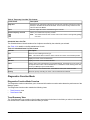
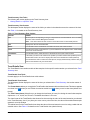
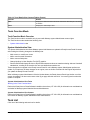
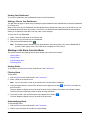
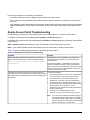
Table 17: Ready Access Portal UI Troubleshooting
Problem
Solution
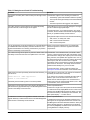
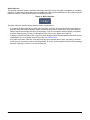
You use the Back button to log in multiple users at the same time The Back button does not log a user off of the system. If you
and devices on your Metasys network reset.
use the Back button to log in multiple users at one time,
Metasys system devices may exceed the number of
supported simultaneous logged in users. If this occurs, the
device may reset.
Do not use the Back button to log in multiple users at one
time. See Web Browser Interaction.
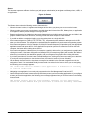
Event Action When Full attribute set to Stop has different
When forwarding events, this attribute set to Stop allows
consequences when forwarding to an ADS/ADX versus the Ready new incoming events to overwrite events already forwarded
Access Portal.
on to an ADS/ADX or Ready Access Portal computer.
When you forward events to the ADS/ADX, you have the
opportunity to see the forwarded events in the ADS/ADX
indefinitely.
But, when you forward events to the Ready Access Portal,
the Ready Access Portal computer purges forwarded events
after 10 days; however, only events from the last 5 days
appear by default.
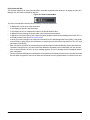
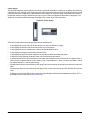
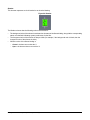
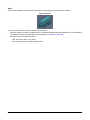
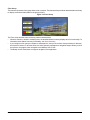
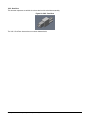
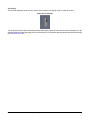
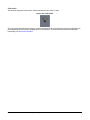
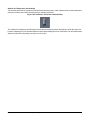
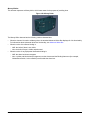
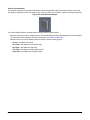
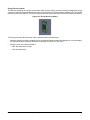
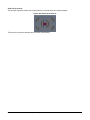
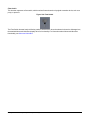
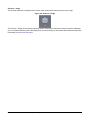
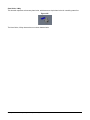
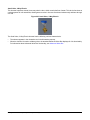
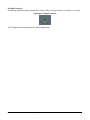
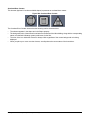
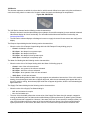
You attempt to view a graphic and instead see this message and
a Microsoft Silverlight plug-in button:
The Silverlight plug-in is required to view graphics in the
Ready Access Portal UI.
The proper version of Silverlight required to view To resolve this issue:
Metasys Graphics is not installed.
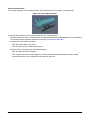
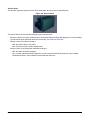
1. Click the button in the Ready Access Portal UI.
2. Follow the instructions on the screen.
3. Refresh the browser window.
For details on installation, refer to the Ready Access Portal
Software Installation Instructions (LIT-12011523).
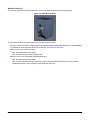
You attempt to view a graphic after installing or upgrading the
Microsoft Silverlight plug-in, but the graphic does not appear.
The Silverlight plug-in installation or upgrade process
requires you to restart the browser session to view graphics.
To restart the browser, close and reopen the Ready Access
Portal UI.
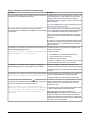
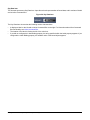
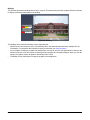
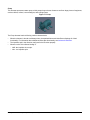
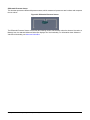
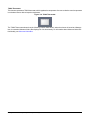
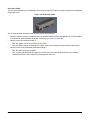
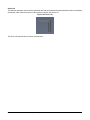
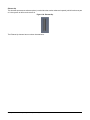
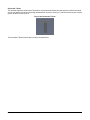
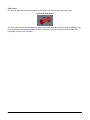
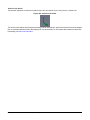
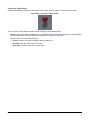
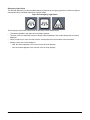
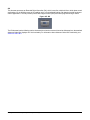
You attempt to view a graphic and the following message appears: This error appears when you attempt to view a graphic in a
function mode/view that does not support graphics.
This view is not supported for the selected item.
To display a graphic, use the Summary function mode.
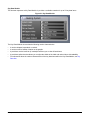
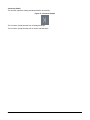
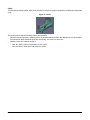
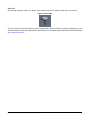
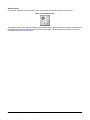
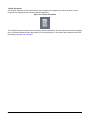
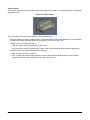
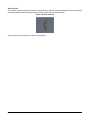
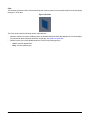
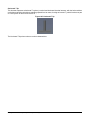
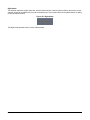
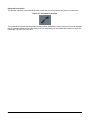
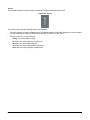
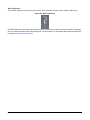
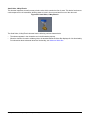
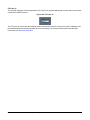
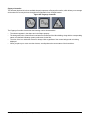
) appears next to the This problem occurs if there is a problem with the automatic
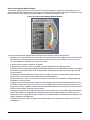
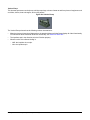
An orange triangle with exclamation point (
refresh. Possible reasons for this issue are heavy LAN
Logout button in the Ready Access Portal UI. When you place your
network traffic or a busy computer because too many
cursor over the triangle, the following text appears:
programs are open.
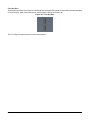
Automatic updates are currently unavailable.
To resolve this issue, click the web browser Refresh button
Refreshing your browser or displaying a different
or select another Ready Access Portal UI view.
view may correct the problem. If this condition
continues, contact a Metasys administrator for
If this action does not resolve the problem, the
assistance.
MetasysSysAgent user might have been selected as the
SQL Server login name when the Ready Access Portal
software was installed. To resolve this issue, uninstall, then
reinstall the Ready Access Portal using a new SQL Server
login name, such as MetasysRap.
Ready Access Portal Help
40