1
For Windows Vista/XP/Server 2003/2000
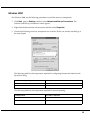
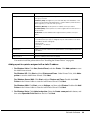
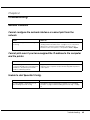
Follow the steps below to add a port using the Add Printer Wizard.
❏ If you want to add a port for a printer with its IP address assigned automatically by the DHCP
server or router, see “Adding a port for a printer assigned with a dynamic IP address,” below.
❏ If you want to add a port for a printer with its IP address assigned manually, see “Adding a
port for a printer assigned with a static IP address” on page 44.
❏ Be sure that the computer is connected to the network and TCP/IP is correctly set up.
❏ Be sure that the target Epson printer driver is installed on the computer.
❏ A valid IP address must be assigned to the printer.
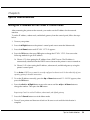
Adding a port for a printer assigned with a dynamic IP address
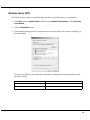
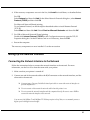
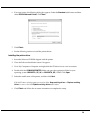
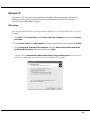
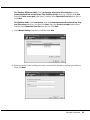
1. For Windows Vista: Click Start, Control Panel, and then Printer. Click Add a printer to start
the Add Printer wizard.
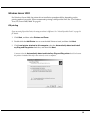
For Windows XP: Click Start and then Printers and Faxes. Under Printer Tasks, click Add a
printer to start the Add Printer Wizard. Click Next.
For Windows Server 2003: Click Start and then Printers and Faxes. Double-click Add
Printer in the Printers folder to start the Add Printer Wizard. Click Next.
For Windows 2000: Click Start, point to Settings, and then select Printers. Double-click Add
Printer in the Printers folder to start the Add Printer Wizard. Click Next.
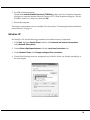
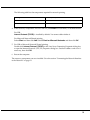
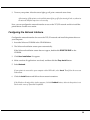
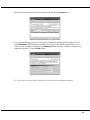
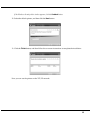
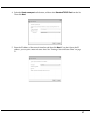
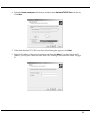
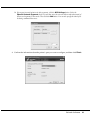
2. For Windows Vista: Click Add a local printer. Select the Create a new port radio button, and
then select EpsonNet Print Port from the list. Click Next.
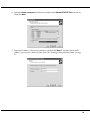
For Windows XP/Server 2003: Click Local printer attached to this computer, clear the
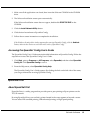
Automatically detect and install my Plug and Play printer check box, and then click Next.
Select the Create a new port radio button, and then select EpsonNet Print Port from the list.
Click Next.
Network Software
41