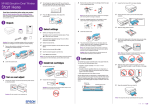
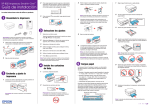
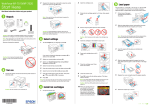
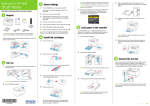
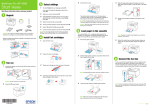
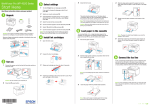
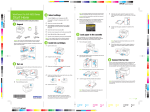
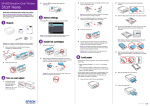
1
6 Connect the fax line
To fax, connect a phone cord to a telephone wall jack and
to the LINE port on the back of your product. To connect a
telephone or answering machine, use the EXT. port on your
product. See the Quick Guide for more details.
Connection options
Make sure it is securely connected as shown:
Wireless connection
You must install the software on every computer from which
you want to print. For the first installation, we recommend using
a temporary USB connection to simplify wireless setup. After
the printer is connected to the network, you will be prompted
to remove the cable.
If you’re using Mac OS X 10.6.x or 10.7, or you don’t have a
USB cable, you will need to use the control panel on the printer
to select wireless settings. Follow the instructions on your
computer screen during software installation; they will explain
how to connect the printer wirelessly this way.
Note: If you’re connecting to a DSL phone line, you must use a DSL
filter or you won’t be able to fax. Contact your DSL provider for the
necessary filter.
ake sure you know your network name (SSID) and network
M
password:
Any questions?
Quick Guide
Basic steps for copying, printing, faxing, and scanning.
• Network name
7 Install software
Setup is unable to find my printer after connecting it
with a USB cable.
Caution: Be sure to close your other programs, including any screen
savers and virus protection software, before beginning this software
installation.
Wired network connection
If you experience problems during setup, see below:
Network setup was unsuccessful.
Select Help or ? when you’re using your software.
User’s Guide
Click the icon on your desktop (or in the Applications/Epson
Software/Guide folder on Mac OS X) to access the online
User’s Guide, software downloads, Epson Supplies Central®,
and more (requires an Internet connection). If you don’t have
a User’s Guide icon, you can install it from the CD or go to the
Epson website, as described below.
• If you see a firewall alert message, click Unblock or Allow to
let setup continue.
3 W
indows: If you see the AutoPlay window, click Run
Setup.exe. If you see the User Account Control screen,
click Yes or Continue.
Mac OS® X: Double-click the
• If your network has security enabled, make sure you enter
your network password (WEP key or WPA passphrase)
correctly. If it has uppercase (ABC) or lowercase (abc)
letters, make sure you enter them correctly.
Visit epson.com/support (U.S.) or epson.ca/support
(Canada) where you can download drivers, view manuals, get
FAQs, or e-mail Epson.
4 Click Install (Windows) or Continue (Mac OS X) and
follow the instructions on your computer screen.
Artisan 837 ink cartridges
Color
Standard-capacity
High-capacity
Black
—
98
Cyan
99
98
Magenta
99
98
Yellow
99
98
Light Magenta
99
98
Light Cyan
99
98
Epson Connect
Epson technical support
Epson icon.
ook for the numbers below L
to find your cartridges. It’s as
easy as remembering your number!
On-screen help with your software
• Make sure you select the right network name (SSID).
2 Insert the product CD.
Instant-drying high gloss paper for long-lasting photos, suitable for framing.
Genuine Epson inks
Make sure you have a USB cable (not included).
Any problems?
Windows®: If you see a Found New
Hardware screen, click Cancel and
disconnect the USB cable. You can’t
install your software that way.
Epson offers a wide variety of papers to meet your needs;
visit Epson Supplies Central for more information.
Direct USB connection
Make sure you have an Ethernet network cable (not included).
You must install the software on every computer from which
you want to print.
NOT CONNECTED to your
computer.
Genuine Epson paper
If you don’t have this information, contact the person who set
up your network.
®
1 Make sure the printer is
Try Epson premium papers with Claria® ink for better than
photo lab quality results. For the right supplies at the right
time, you can purchase them at Epson Supplies Central
at www.epson.com/ink3 (U.S. sales) or www.epson.ca
(Canadian sales). You can also purchase supplies from an
Epson Authorized reseller. To find the nearest one, call
800-GO-EPSON (800-463-7766).
Ultra Premium Photo Paper Glossy
• Network password
Note: If your computer does not have a CD/DVD drive, you can
download the software from the Epson website (see “Epson technical
support”).
Need paper and ink?
et instant, wireless printing of photos and
G
attachments right from smartphones, iPads,
tablets, and other popular mobile devices.
See www.epson.com/connect for details.
To speak with a support specialist, call:
5 When you see the Select Your Connection screen, check
the “Connection options” section on this sheet for more
information. Then click Next (Windows) or Continue
(Mac OS X) and follow the instructions on your computer
screen.
Press the number buttons to select uppercase letters (ABC),
lowercase letters (abc), or numbers (123) and symbols
(*!#&).
U.S.: (562) 276-4382, 6 AM to 8 PM, Pacific Time, Monday
through Friday, and 7 AM to 4 PM, Saturday.
Canada: (905) 709-3839, 6 AM to 8 PM, Pacific Time, Monday
through Friday.
Press each button repeatedly until you see the character you
want.
Press
Press
to delete a character.
Software technical support
Press
to insert a space
Press OK when you’re finished entering your password.
You see error messages on the printer’s screen.
ABBYY® FineReader®
(408) 457-9777
www.abbyyusa.com
[email protected]
See your Quick Guide for troubleshooting information.
Recycling
or
to move the cursor.
Days and hours of support are subject to change without
notice. Toll or long distance charges may apply.
Epson offers a recycling program for end of life hardware
and ink cartridges. Please go to www.epson.com/recycle
for information on how to return your products for proper
disposal.
Epson, Artisan, Claria, and Supplies Central are registered trademarks and Epson Exceed
Your Vision is a registered logomark of Seiko Epson Corporation. Designed for Excellence is
a trademark of Epson America, Inc.
General Notice: Other product names used herein are for identification purposes only and
may be trademarks of their respective owners. Epson disclaims any and all rights in those
marks.
This information is subject to change without notice.
© 2011 Epson America, Inc. 8/11
Printed in XXXXXX
CPD-34217R1