1
GR-15
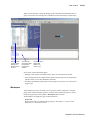
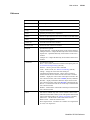
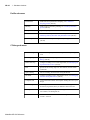
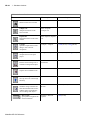
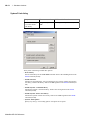
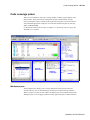
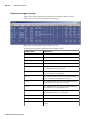
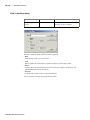
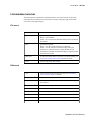
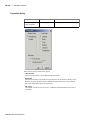
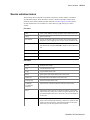
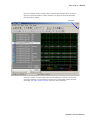
1 - Simulator windows
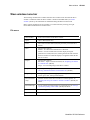
Window/pane name
Description
More details
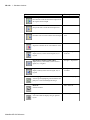
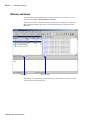
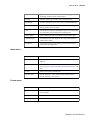
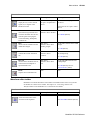
Memory
a Workspace tab and MDI windows that show
memories and their contents
"Memory windows" (GR-175)
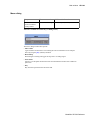
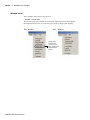
Watch
displays signal or variable values at the current
simulation time
"Watch pane" (GR-214)
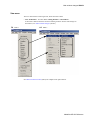
Objects
displays all declared data objects in the current
scope
"Objects pane" (GR-190)
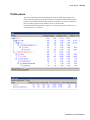
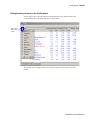
Profile
two panes that display performance and
memory profiling data
"Profile panes" (GR-198)
Source
a text editor for viewing and editing HDL,
SystemC, DO, etc. files
"Source window" (GR-205)
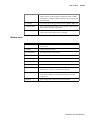
Transcript
keeps a running history of commands and
messages and provides a command-line
interface
"Transcript" (GR-19)
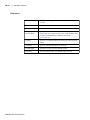
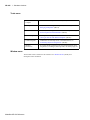
Wave
displays waveforms
"Wave window" (GR-217)
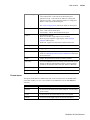
Workspace
provides easy access to projects, libraries,
compiled design units, etc.
"Workspace" (GR-18)
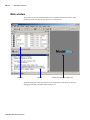
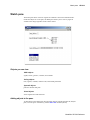
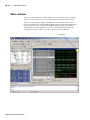
The windows and panes are customizable in that you can position and size them as you see
fit, and ModelSim will remember your settings upon subsequent invocations. See
"Customizing the GUI layout" (GR-264) for more details.
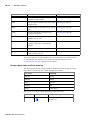
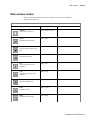
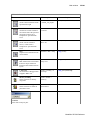
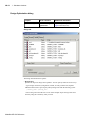
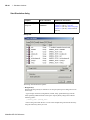
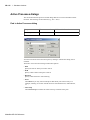
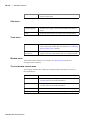
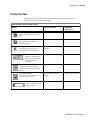
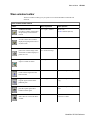
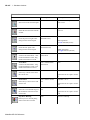
Design object icons and their meaning
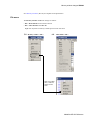
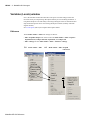
The color and shape of icons convey information about the language and type of a design
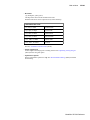
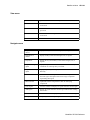
object. Here is a list of icon colors and the languages they indicate:
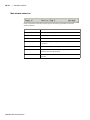
icon color
language
light blue
Verilog
dark blue
VHDL
green
SystemC
magenta
PSL
orange
virtual object
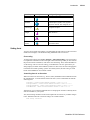
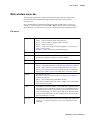
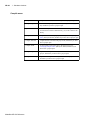
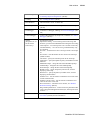
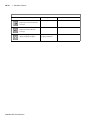
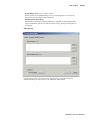
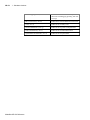
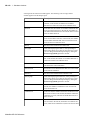
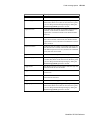
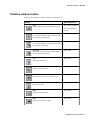
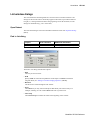
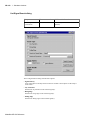
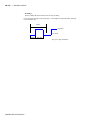
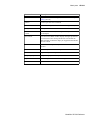
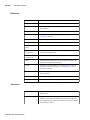
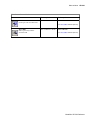
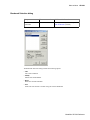
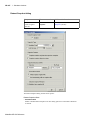
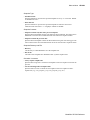
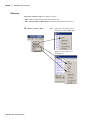
Here is a list of icon shapes and the design object types they indicate:
icon shape
square
ModelSim SE GUI Reference
example
design object type
blocks (entity/architecture, module, SC
module, etc.)