1
English
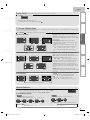
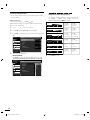
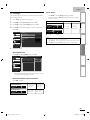
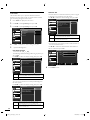
Clock, Phase
Use ◄/► to adjust [Clock] setting to stabilize
the PC screen and [Phase] setting to improve the clarity
of the PC screen.
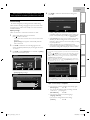
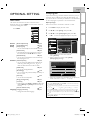
This function lets you adjust the PC screen position, clock and
phase during PC input.
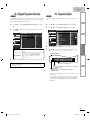
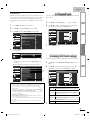
Press MENU to display the main menu.
Cursor s
Use ▲/▼ to select [Features], then press OK.
Cursor B
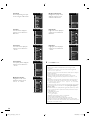
Clock
Use ▲/▼ to select [PC Settings], then press OK.
Clock
Use ▲/▼ to select the setting you want to adjust, then
press OK.
0
Adjust
Move
OK
OK
Move
OK
OK
Phase
Phase
to decrease
setting value
to increase
setting value
0
Adjust
PREPARATION
1
2
3
4
INTRODUCTION
PC Settings
PC Settings
6
Auto Adjustment
Sound
Setup
Features
Horizontal Position
0
Vertical Position
0
Clock
0
Phase
0
5
Adjust the setting.
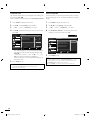
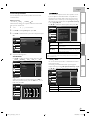
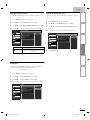
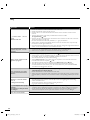
Auto Adjustment
Use ▲/▼ to select [Adjust], then press OK.
Auto Adjustment
Picture
To automatically synchronize the
phase and clock on the TV and PC.
Sound
Cancel
Adjust
Setup
Note
• You may not obtain an appropriate screen with
[Auto Adjustment] for some signals. In this case, adjust the settings manually.
• Adjust [Phase] setting after [Clock] setting has been properly adjusted.
OPTIONAL SETTING TROUBLESHOOTING
Language
Press MENU to exit.
WATCHING TV
Picture
Features
• The horizontal/vertical position, clock and phase of the
PC screen are automatically adjusted.
INFORMATION
Language
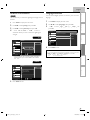
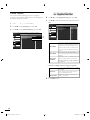
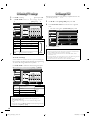
Horizontal Position,Vertical Position
Use ◄/► to adjust.
Cursorr ◄
Horizontal Position
H. Position
0 -
Adjust
Move
OK
+
to move PC
screen left
to move PC
screen right
+
to move PC
screen down
to move PC
screen up
OK
Vertical Position
V. Position
Adjust
0 Move
OK
OK
Cursorr ►
29
EN
A0173_N3UH_EN_v1.indd 29
2010/02/03 17:57:07