1
Controlling Fixtures
Controlling Fixtures
Once you have added your fixtures to the desk, you are ready to start controlling them.
Selecting Fixtures
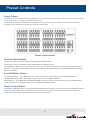
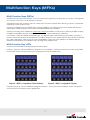
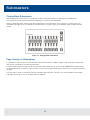
Press the FIXTURES key. The MFKs become fixture selection buttons and the LCDs above the keys indicate what fixture
has been assigned to which MFK. Press the MFK to select the fixture; press it again to deselect the fixture. Note that
you can multi-select fixtures by holding the first fixture button down whilst tapping the last fixture button (all intermediate
fixtures will be selected).
Homing Fixtures
The easiest way to see which fixtures in the rig you are controlling is to ‘home’ them. This sets their parameter values to
the Home values defined in the Edit Fixtures table in Setup. Typically these are position (Pan and Tilt) to 50%, the dimmer
to 100% with an open white beam (shutter open, no gobos or effects).
With your fixtures selected, press the HOME key. This sends all the parameters of the selected fixture(s) to their home
values and automatically tags the fixture parameters.
Controlling Fixture Parameters
Each fixture type has it’s own set of parameters (intensity, color, gobo, pan, tilt etc.) which are classified or grouped
together into different attributes (Colour, Beamshape and Position). Once a fixture has been selected, the attribute buttons
and control wheels can be used to adjust the parameter output levels as required.
Controlling Intensity
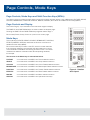
The Intensity parameter of a fixture is adjusted by control wheel. First select the fixture(s) required as described above
and then press the POSITION key (if not already selected). The intensity parameter is assigned to the second finger wheel.
Use the control wheel to adjust the intensity level as required. The output value is shown on the Wheel LCD above the
corresponding control wheel.
Tip – No Intensity Output ?
If the intensity output levels do not change when you adjust the intensity parameter using the wheel, check that the
GRAND MASTER fader is at full and the BLACKOUT button is off. If the selected fixture(s) have a Shutter parameter,
check that the shutter is open.
Controlling Colour, Beamshape and Position Parameters
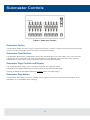
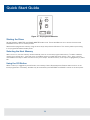
The colour, beamshape and position parameters of the selected fixture(s) are controlled using the control wheels.
First select the required fixture(s) and then press one of the attribute keys (COLOUR, BEAMSHAPE or POSITION).
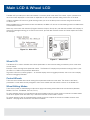
The corresponding parameters for the fixture(s) are assigned to the control wheels and are indicated on the Wheel LCD.
If the fixture has more than three controllable parameters for the selected attribute, press the attribute key again to select
the next group of parameters.
26