1
Polycom RSS 4000 System User Guide
Basics about the Admin UI
.
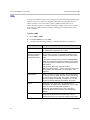
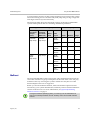
When the Polycom RSS 4000 system runs in the normal mode with network
separation disabled, access the Admin UI using the system’s LAN1 IP address.
When the Polycom RSS 4000 system runs in normal mode with network
separation enabled, or when it runs in the maximum security mode, access its
Admin UI using the system’s LAN2 IP address.
Enter your user name and password to log in to the system.
2
.
When making a connection from an Internet Explorer to configure the Polycom RSS
4000 system, always enter the address of the system in this format: https://<system
IP address>/rss>, for example, https://10.11.12.13/rss.
Using the HTTPS protocol ensures that the configuration of all login credentials
(such as user names and passwords) are transmitted using an encrypted channel.
This includes those credentials used to communicate with third-party systems on
your network. Using the HTTPS protocol limits the ability of anyone monitoring traffic
on the network to discover these credentials.
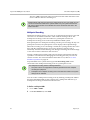
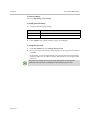
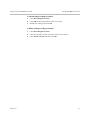
To access the Admin UI from the Viewer Portal:
1
In the Internet Explorer’s address line, enter the system’s IP address in this
format: https://<system IP address>/.
2
Click Manage RSS link, and then enter your user name and password to
log in to the system.
Admin UI Layout
The Admin UI varies with the user’s role. However, it basically consists of the
following four parts:
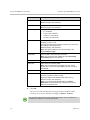
•
Menu bar: Provides all the function groups for system configuration.
•
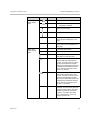
Group of page controls: Enables you to perform controlling operations on
a web page:
—
16
: Displays information about the current user, the IP address of the
system, and the system hardware and software versions. You can also
change system display font there.
—
: Logs out from the Admin UI.
—
: Locks the Admin UI. You need to enter your password to unlock it.
Polycom, Inc.