1
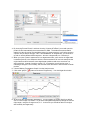
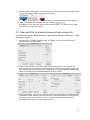
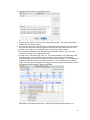
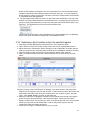
If youʼre connected to the the Internet, click the “Register” button at this point.
The registration e-mail will be sent to MBI automatically, and upon its
completion the window should display the message “Registration form
successfully sent”. If you perform the registration during the MBI's normal
operation hours (Monday through Friday, h: 8-16, Mountain Time), expect
the returning Access Code within an hour. Otherwise, you may Exit the
Oligo and start it again at later time, when youʼd receive the Access Code.
Click the “OK” button to exit.
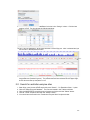
3a. If your network does not permit Oligo to send e-mails to us, press the Save
button, and this saved text file attach to your e-mail and send it to
[email protected]. No screen shots, please.
3b. If your computer is not connected to the Internet, please print out the
Registration Form by clicking the Print button, and fax it to MBI:
+1 719 684 7989.
4. When you receive the Access Code from MBI, go back to the registration
window by bringing it to the front or by re-starting Oligo, enter it to the
“Access Code” box, and click the “Confirm Code” button. The registration
process is complete.
To register your second and following computers, you need to complete the
same registration process each time. Any further updates are automatic but may
be also performed by using Oligo's Help menu.
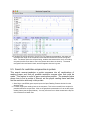
Note: If you ever need to re-load OLIGO, write this message to the Comments field.
6