1
ui
t
o
(w n
ithne
C proct
o
(w n file
ithne )
D out cpt
is ro
co fil
Sa nn e)
ve ect
D pro
el
e file
St te P
ar r
t o
St RT file
op c
o
Pa RT de
ra co
Sc me de
op ter
Lo e s
g
LE
D
M s
et
e
Sy r
nc
Te
xt
ed
ito
r
C
Q
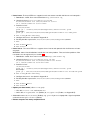
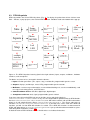
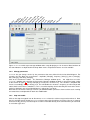
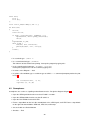
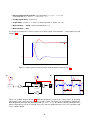
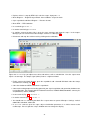
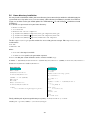
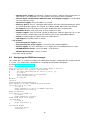
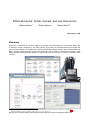
Figure 7: xrtailab with scope manager window and a scope displaying a 1 Hz sinewave. Most functions of
the row of buttons are duplicated in the drop-down menus. Keyboard shortcuts are also available.
3.4.4
Change parameters
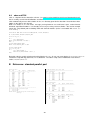
xrtailab lets you change “on the fly” the parameters that were defined in the Scicos block diagram. For
example, the Sine block has 5 parameters: amplitude (Value[0]), frequency (Value[1]), phase (Value[2]),
bias (Value[3]), and delay (Value[4]).
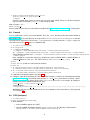
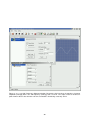
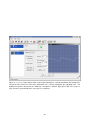
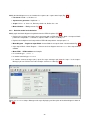
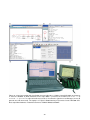
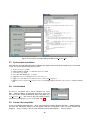
Click on the Parameters button. The Parameters Manager window opens. You might have to resize
xrtailab’s window and reposition the Parameters Manager window to obtain a convenient layout similar
to that shown in figure 8. Change Value[0] to 3 and press the Enter key. The sinewave’s amplitude will
increase accordingly. Change Value[1] to 2. This will double the sinewave’s frequency to 2 Hz and you will
notice that the wave lost its smoothness. This is an undersampling effect induced by the fact that the clock’s
period, as defined in the Scicos block diagram, is only of 0.1 s or 10 Hz.
Note that the Parameters Manager also lets you download block parameters from real-time tasks running
on remote hosts and upload them back after modification.
3.4.5
Stop executable
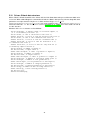
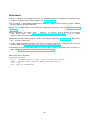
Click on the Stop hexagonal icon to disconnect xrtailab from the real-time target and terminate it. Note
that it is possible to only disconnect xrtailab from a target (alt-d) and leave it running. You can re-connect
to it later. Finally, you may also interrupt the real-time executable directly at the terminal where you launched
its execution: type ctrl-c.
19