1
- Cetrel Securities.-
SOFiE Crypt or Transport Configuration
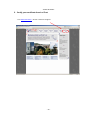
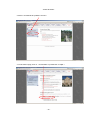
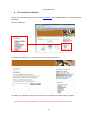
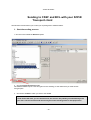
1. Starting SOFiE client
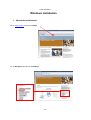
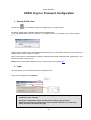
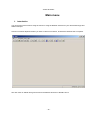
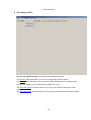
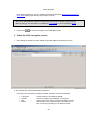
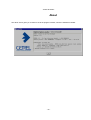
Use the icon
on your desktop to start your SOFiE Crypt or Transport client.
By default, SOFiE client is installed under folder C:\CETREL\sofie.
If you want install SOFiE client on a network, you change the letter C by the letter of your driver example:
f:\..................
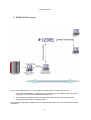
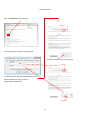
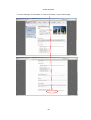
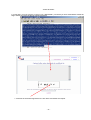
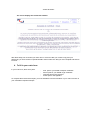
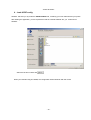
SOFiE client is started through Java Webstart [TM]. Every time you start SOFiE, it will try to synchronize your
SOFiE version with the reference at Cetrel.
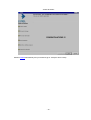
When a new version is downloaded, the starting of SOFiE client will last somewhat longer (depending on your
telecommunication infrastructure).
Notice:The synchronization happens only if you have access to the required URL.
2. Login
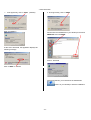
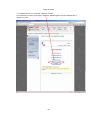
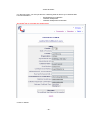
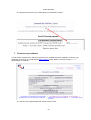
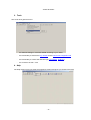
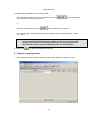
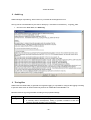
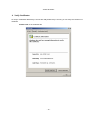
The login allows you to access the functions of SOFiE S.O.R.T.
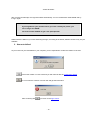
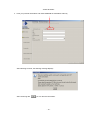
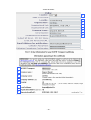
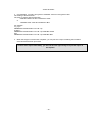
Fill in Your User Id and Your Password
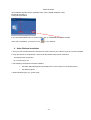
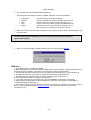
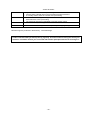
Remember that the first time you log to SOFiE, you have to type in the password
contained in your envelope.
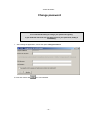
During the configuration wizard, you will have to change your password.
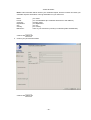
SOFiE requests that your password will have at least 8 characters, one upper case
letter, one lower case letter and a digit.
- 14 -