1
Modifying Actions
Modifying Actions
You can modify an object’s actions, for example, to change a trigger event, to
reorder actions if the object has more than one, to disable an action, or to delete it
altogether.
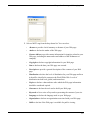
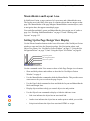
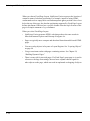
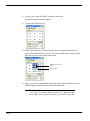
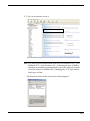
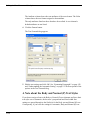
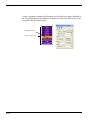
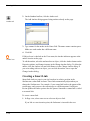
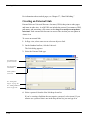
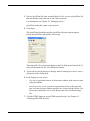
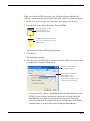
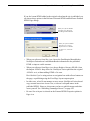
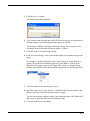
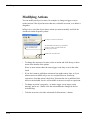
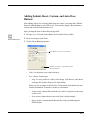
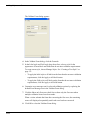
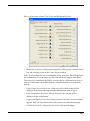
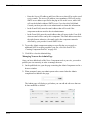
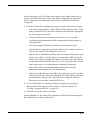
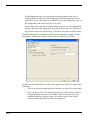
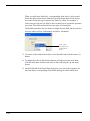
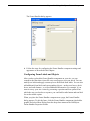
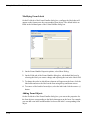
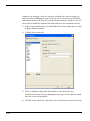
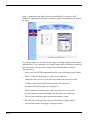
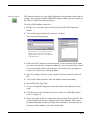
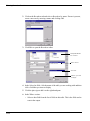
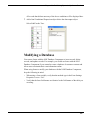
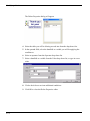
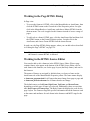
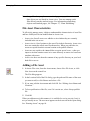
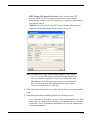
In Page view, select the object whose actions you want to modify, and click the
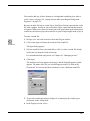
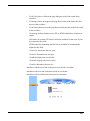
Actions tab on the Properties palette.
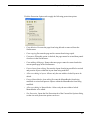
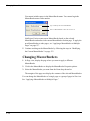
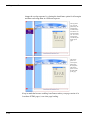
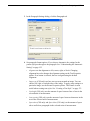
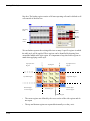
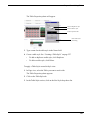
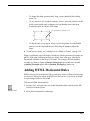
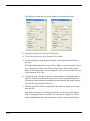
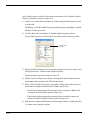
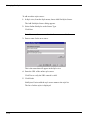
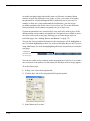
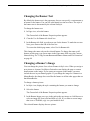
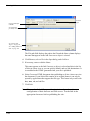
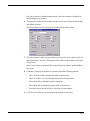
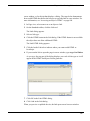
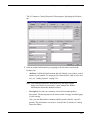
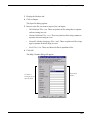
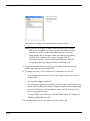
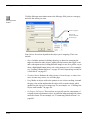
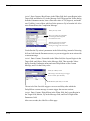
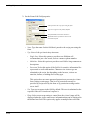
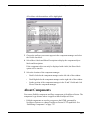
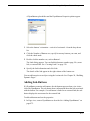
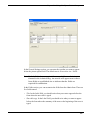
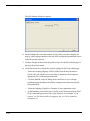
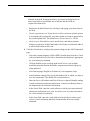
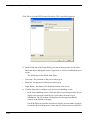
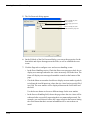
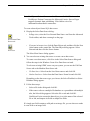
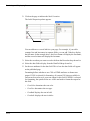
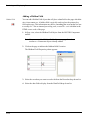
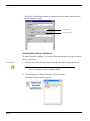
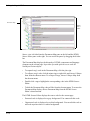
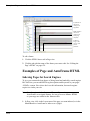
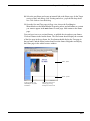
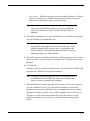
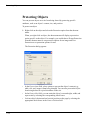
The object’s actions are listed here
An unchecked action doesn’t get published
but can be used in scripted actions and
JavaScript expressions
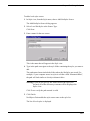
Reorders the selected action
•
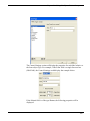
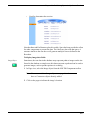
To change the sequence of actions, select an action and click the up or down
arrow at the bottom of the palette.
If two or more actions share the same trigger event, they occur in the order
listed.
428
•
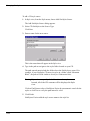
If you don’t want to publish an action now but might want to later, or if you
want an action available only to use in a scripted action or JavaScript
expression, clear that action’s check box. Next time the site is published, this
action is not included, but it is still available to insert in a script or expression.
•
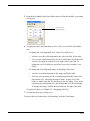
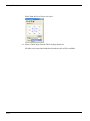
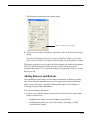
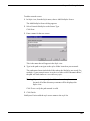
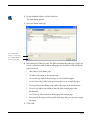
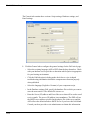
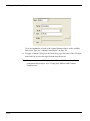
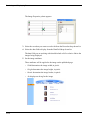
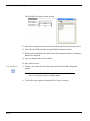
To change an action’s properties—its name, trigger event, target, action
message, and so on—double-click the action and make changes in the Set
Action dialog.
•
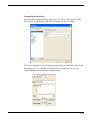
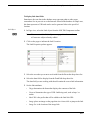
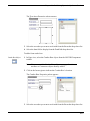
To delete an action, select the action and click the minus (-) button.