1
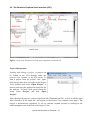
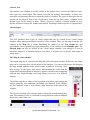
Plain text format input files can also be opened
and edited in the GUI. To open and edit an input
file, right click on the file and choose “Edit”,
from the popup menu. Note that any changes
will be saved in the files, not the GUI, and the
project must be refreshed so that it will contain
the edits. To do this, right-click on the project
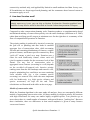
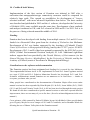
and select “Reload Edits” (see image below).
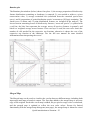
Input raster files can also be viewed in the GUI
by double-clicking on the file name. Raster
maps not included in the project files can also be
opened from the Raster-menu by selecting
Open Raster Map. This option opens a new
window to browse for the desired raster file.
Running, "queuing", an analysis
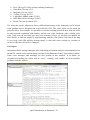
Each command line in a batch file corresponds to a
different variant of a Zonation run. In the GUI, each
command line is listed as an ‘Instance’ and referred
to by the output name specified in the command line.
To begin a Zonation analysis, right click either on
‘Project’ (to execute all instances at once) or
‘Instance’ (to execute each command individually)
in the Project View and select “Queue”. A project
may include only one or multiple Zonation analysis
instance.
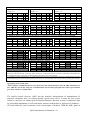
The selected runs should now immediately appear
in the Process View window (middle-left in main
window). Zonation will begin the analysis straight
away when the instance has been added to the
Process View.
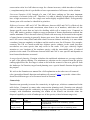
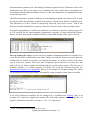
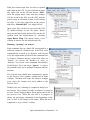
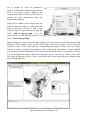
Double-click on a running or completed analysis in
the Process View window in order to observe its progress
it in the Visual Output window. Each analysis has a row in
the process view. When the run still is in progress, it
shows the percentage completed in the beginning of the
line (16.96% in the image on the right). When the run is
completed, is says "(done)" in front.
Quick introduction to Zonation - 20


![Final Report - [Almost] Daily Photos](http://vs1.manualzilla.com/store/data/005658230_1-ad9be13b69bd4f2e15f58148160b0f22-150x150.png)