1
Using ScreenFlow Menus
Actions Menu
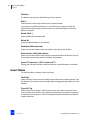
Add Audio Action (Alt-Command-U)
Adds an Audio Action to the selected clip. An Audio Action allows you to apply various
effects on the audio of the selected clip, such as muting, ducking, or adjusting the
volume.
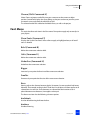
Add Screen Recording Action (Command-R)
Adds a Screen Recording Action to the selected screen recording clip. Screen Recording
actions enable you to modify the size of the Mouse Pointer, add click effects, or show
keys pressed, for example.
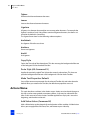
Add Callout (Command-L)
Adds a Callout to the selected screen recording clip. A callout lets you focus attention
on a section of your screencast. For example, you can highlight the Mouse Pointer by
dimming everything but the area just around the Mouse Pointer or highlight and
magnify the foreground window.
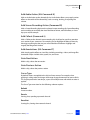
Add Annotations (Alt-Command-T)
Adds simple graphic effects to visual clips including recordings, videos, and image files.
Annotation shapes include circle, square, line, and arrow.
Goto Next Action
Within a clip, selects the next action.
Goto Previous Action
Within a clip, selects the previous action.
Curve Type
By default, actions are applied to the clip in a linear manner. For example, when
applying a scaling action, the image size changes by equal amounts from start to finish.
This may be perceived as too abrupt, so you can modify the rate with which an action is
applied.
The Curve Type menu item has the following submenu options:
Default
Linear transition.
Ease-In
Starting slow, speeding up towards the end.
Ease-Out
Starting fast, slowing down towards the end.
ScreenFlow User’s Guide | 81020
February 2012
89