1
CHAPTER 4: COMMANDCENTER MANAGEMENT
33
Upgrade Device
Use the Upgrade Device command to download new versions of device firmware.
1. Click on the Devices tab and select a device from the Devices tree.
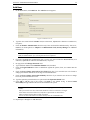
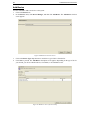
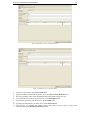
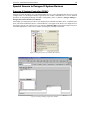
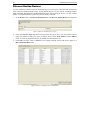
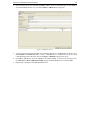
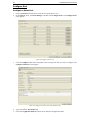
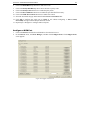
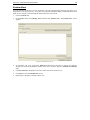
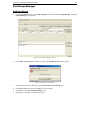
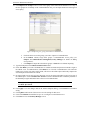
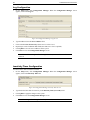
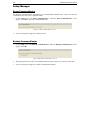
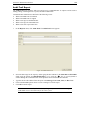
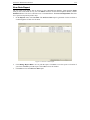
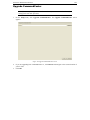
2. On the Devices menu, click Device Manager, and then click Upgrade Device. The Upgrade Device
screen appears.
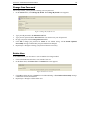
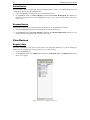
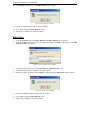
Figure 38 Upgrade Device Screen
3.
4.
5.
6.
Click on the Firmware Name drop-down arrow and select the appropriate firmware from the list
(Raritan or your reseller will provide this information).
Click OK to upgrade the device or Cancel to close the Upgrade Device screen. A Restart message
appears.
Click Yes to restart the device or No to close the window without restarting. A Device Upgraded
Successfully message confirms that the device has been upgraded.
Repeat steps 1 through 5 to upgrade other devices.
Ping Device
You can ping a device to determine if the device is available in your network.
1. Click on the Devices tab and select a device from the Devices tree.
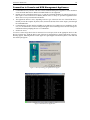
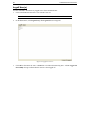
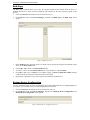
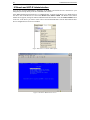
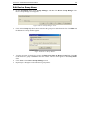
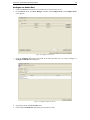
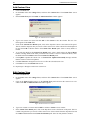
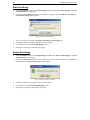
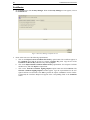
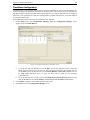
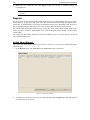
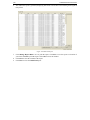
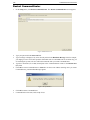
2. On the Devices menu, click Device Manager, and then click Ping Device. The Ping Device screen
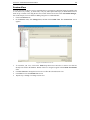
appears, showing the result of the ping.
Figure 39 Ping Device Screen
3.
4.
Click Close to clear this screen.
Repeat steps 1 through 3 to ping other devices.
Reset Device
Use the Reset Device command to reset device configurations to factory default.
1. Click on the Devices tab and select a device from the Devices tree.
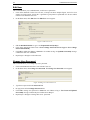
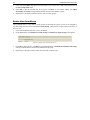
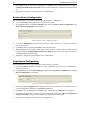
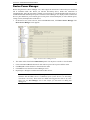
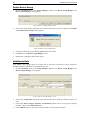
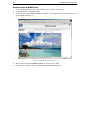
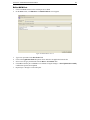
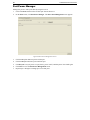
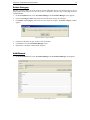
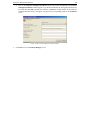
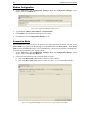
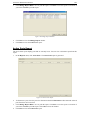
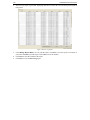
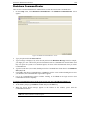
2. On the Devices menu, click Device Manager, and then click Reset Device. The Reset Device screen
appears.
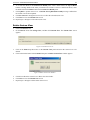
Figure 40 Reset Device Screen
3.
4.
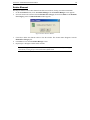
Click OK to reset the device or Cancel to exit without resetting. A Device Reset Successfully
message confirms that device has been reset.
Repeat steps 1 through 3 to reset other devices.