1
3.2.3
Installing the NAMT
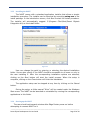
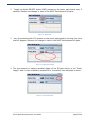
The NAMT comes with a standard application installer that allows a simple
installation procedure. The installer can be launched by executing setup.exe in the
install package. In the introduction screen, click Next to start the install procedure.
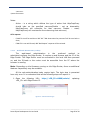
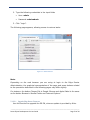
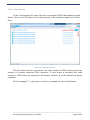
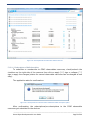
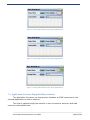
The installer will automatically suggest C:\Program Files\Nivis\Smart Objects
Integration Kit\ as the install folder:
Figure 3.5
User can change the path by entering or selecting the desired installation
folder. He can also specify if the NAMT should be accessible to all users or only to
the user installing it. After the corresponding installation options are selected,
clicking on the Next button will start the install process. When the setup is
complete, clicking on the Close button will finish the installation.
The application setup can be stopped at any time by clicking on the Cancel
button.
During the setup, a folder named “Nivis” will be created under the Windows
Start menu. The NAMT can be launched or uninstalled by running the corresponding
applications in this folder.
3.2.4 Starting up the NAMT
The user should wait several minutes after Edge Router power on before
attempting to connect NAMT to it.
_____________________________________________________________________________________
Smart Object Development Kit User Guide
Page 23 of 44