1
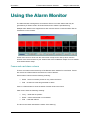
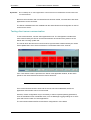
Chromatec E-Series Alarm Monitor Software Using the Alarm Monitor A frame button with a white surround is the frame that is currently active and has the information about its cards displayed. Checking communication with the Server The moving ‘server present’ bar in the lower left of the screen shows how much time to the next alarm refresh. This time is set by the server. When the bar is full, the information has just been refreshed. If the bar remains completely empty then contact with the server has been lost. If the server settings in the setup dialog are correct restart the Alarm Monitor to re-establish contact. Viewing the log The View log button displays the server log. This is a simple text display of the information logged at the server. Resetting alarms At the bottom of the screen are two buttons to reset the alarms. ‘Reset Frame Alarms’ will reset the alarms on the active frame (the one currently displayed). The ‘Reset All Alarms’ button resets all the alarms on all the frames. To reset an individual card alarm or to mute alarms in a particular frame, access the appropriate frame’s front panel controls. Refer to the appropriate E-Series manual for further information. 2009 Michael Stevens & Partners Ltd 18 Version 1.0