1
Group Tab
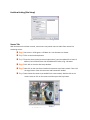
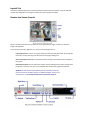
You may create custom camera groups from multiple servers.
Step 4Step 4
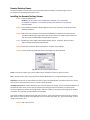
■ Step 1 Go to the Group tab of the LiveView Setting window.
■ Step 2 Log in to all the servers that contain the camera(s) you would like to put into the
group(s).
■ Step 3 Click 'Insert' to create a new group. Name the group for future reference.
■ Step 4 From the window at the right, highlight the camera(s) you would like to add to a
group and then click on the '<--' button. Repeat the process until you are satisfied
with the group setting.
■ Step 5 Click on the Delete and Rename button to remove or rename a specific group.
■ Step 6 Repeat Step 3 to 5 until you are done with creating and setting groups.
■ Step 7 Click 'OK' to save settings.
On Screen Display (OSD) Tab
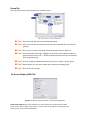
Fig. 129. On Window Display (OSD) tab in LiveView Setting window
Enable Camera OSD Display video information on the live video feed. The information includes
camera name, camera number, date, and time. User may also set up OSD font, including font, font
size, font color, and any desired font effects.