1
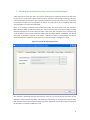
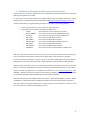
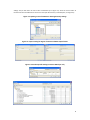
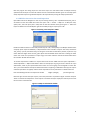
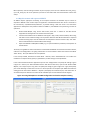
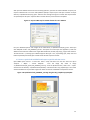
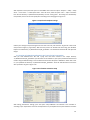
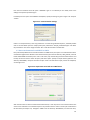
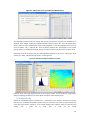
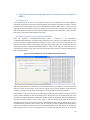
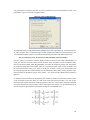
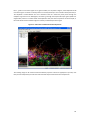
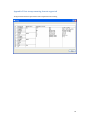
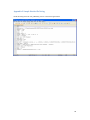
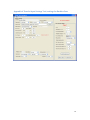
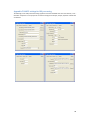
‘Create MapList’ right hand window and press “OK”. Right click with the mouse on the newly created maplist icon, select the option “Properties”, if the georeference is “NDV_20100101” and press”OK”. Figure 4.5: Transform from TimeSat back to ILWIS Double click with the mouse on the newly created map list “ndv_filtered”, subsequently in the MapList window select as display option “Open as SlideShow”, as Representation select “Pseudo” and press “OK” twice, add the file “Al1_country” (no Info, boundaries only, available from the sub‐directory ‘ndv_ilwis’) and using the mouse with the left button pressed, inspect the map values. Note that higher values are red, green depicts the intermediate values and blue is marking the lower values. The ‘values’ are represented in a ‘byte’ range, from 0‐255 and ‘255’ has been assigned a ‘missing pixel’ value by TimeSat. Close the animation window when finished. To complete the process once more use the option “Rename ILWIS Maplist”. Specify the settings as given in figure 4.6 and press “Start renaming”. Refresh your ILWIS catalog and check the content of the maplist. Figure 4.6: Maplist rename 19