1
Getting Started
7
Getting Started
Installing Outpost
VERY IMPORTANT WARNING! Shutdown any other firewall software before installing
Outpost on your computer. Trying to install a firewall over other running firewall software will
crash your computer. Like a car with two drivers, each firewall tries to steer and the computer
runs into a pole!
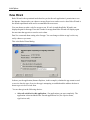
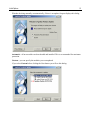
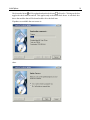
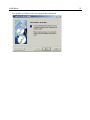
Once you are certain no other firewall is operating on your computer, install Outpost by running
outpost.exe. It is recommended that you use the default settings when the installation utility asks
you to confirm its choices if you are not an advanced user.
Running and Shutting Down
Outpost starts automatically as soon as it is installed. It is already configured to work best for
most users so it is perfectly safe just to close its window and let it do its job of guarding your
computer.
One of Outpost’s default settings is for it to run automatically when you start up Windows. This
ensures your computer is protected at all times. You can change this setting so Outpost does not
start up automatically if you prefer. In this case, you will need to start Outpost manually each
time to have it guard your computer.
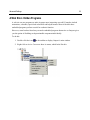
To start Outpost manually:
1. Click on the Windows’ Start button.
2. Move the cursor to Programs.
3. Select the folders Agnitum, then Outpost Firewall 1.0.
4. Click on Outpost Firewall.
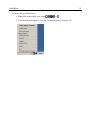
To shutdown Outpost:
1. Right-click the
icon on the taskbar.
2. Select Exit and Shutdown Outpost.