1
Linux System Administration
5.3
Module 5. Perform Basic File Management
File Extensions
■ It’s common to put an extension, beginning with a dot, on the end of a filename
■ The extension can indicate the type of the file:
.txt
Text file
.gif
Graphics Interchange Format image
.jpg
Joint Photographic Experts Group image
.mp3
MPEG-2 Layer 3 audio
.gz
Compressed file
.tar
Unix ‘tape archive’ file
.tar.gz, .tgz
Compressed archive file
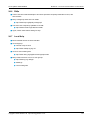
■ On Unix and Linux, file extensions are just a convention
● The kernel just treats them as a normal part of the name
● A few programs use extensions to determine the type of a file
5.4
Going Back to Previous Directories
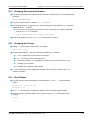
■ The pushd command takes you to another directory, like cd
● But also saves the current directory, so that you can go back later
■ For example, to visit Fred’s home directory, and then go back to where you started from:
$ pushd ˜fred
$ cd Work
$ ls
...
$ popd
■ popd takes you back to the directory where you last did pushd
■ dirs will list the directories you can pop back to
5.5
Filename Completion
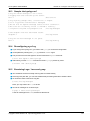
■ Modern shells help you type the names of files and directories by completing partial names
■ Type the start of the name (enough to make it unambiguous) and press Tab
■ For an ambiguous name (there are several possible completions), the shell can list the options:
● For Bash, type Tab twice in succession
● For C shells, type Ctrl+D
■ Both of these shells will automatically escape spaces and special characters in the filenames
Copyright © 2004 GBdirect Ltd. http://training.gbdirect.co.uk/
34