1
Chapter 4: To use the web interface
Link monitoring
You can monitor the external IP connection of the EXPLORER 710 system using the link
monitoring feature. With this feature activated, the terminal will send out ping commands
(ICMP Echo Requests) to a server of your choice.
Note
The data connection must be activated before link monitoring can start. See To start
and stop data connections on page 49.
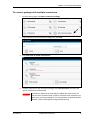
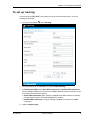
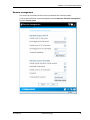
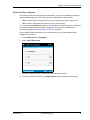
To set up link monitoring, do as follows:
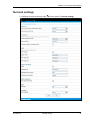
1. Under Advanced, select Link monitoring.
2. Select Enable Link monitoring.
3. At Ping interval (minutes) select the Interval in minutes between the ping commands.
4. Select the Number of retries before the terminal reboots.
5. Type in the Primary and optionally the Secondary IP address.
This is the IP address of the server(s) to which the terminal will send ping commands.
Note
Use a server that is reliable and that responds to ICMP Echo Requests.
6. Click Save.
When a data session is started, the terminal will start sending ping commands to the Primary IP
address the number of times specified at Number of retries. If no response is received, it will
send the same number of ping commands to the Secondary IP address, if available. If no
response is received here, the terminal will reboot.
Data limits
You can set a limit for the use of data services with the EXPLORER 710 system.
Once the entered limit is reached, the connection is automatically stopped. This is recorded in
the data log. To continue using the data service you must start a new connection by clicking on
the desired connection on the startup page.
Note
If you have enabled automatic activation of the Standard data connection and you
set a data limit for the Standard data connection, automatic activation is disabled.
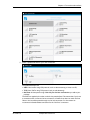
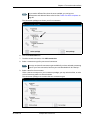
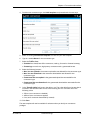
To set data limits, do as follows:
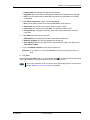
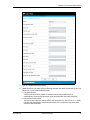
1. Under Advanced, select Data limits.
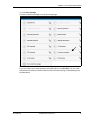
2. Select the type of connection you want to limit.
3. Type in the amount of data or time allowed and select the appropriate units.
4. Select Enable.
5. Click Save to save the settings.
98-140012-D
Advanced settings
80