1
Branching and Merging
cestor” of foo.c@100. On the other hand, suppose you commit the deletion of foo.c in revision 101, and then add
a new file by the same name in revision 102. In this case, foo.c@99 and foo.c@102 may appear to be related (they
have the same path), but in fact are completely different objects in the repository. They share no history or
“ancestry”.
The reason for bringing this up is to point out an important difference between svn diff and svn merge. The former
command ignores ancestry, while the latter command is quite sensitive to it. For example, if you asked svn diff to
compare revisions 99 and 102 of foo.c, you would see line-based diffs; the diff command is blindly comparing two
paths. But if you asked svn merge to compare the same two objects, it would notice that they're unrelated and first
attempt to delete the old file, then add the new file; you would see a D foo.c followed by a A foo.c.
Most merges involve comparing trees that are ancestrally related to one another, and therefore svn merge defaults to
this behavior. Occasionally, however, you may want the merge command to compare two unrelated trees. For example, you may have imported two source-code trees representing different vendor releases of a software project (see
Section , “Vendor branches”). If you asked svn merge to compare the two trees, you'd see the entire first tree being
deleted, followed by an add of the entire second tree!
In these situations, you'll want svn merge to do a path-based comparison only, ignoring any relations between files
and directories. Add the --ignore-ancestry option to your merge command, and it will behave just like svn diff.
(And conversely, the --notice-ancestry option will cause svn diff to behave like the merge command.)
Common Use-Cases for Merging
There are many different uses for svn merge, and this section describes the most common ones you're likely to run
into.
Merging a Whole Branch to Another
To complete our running example, we'll move forward in time. Suppose several days have passed, and many
changes have happened on both the trunk and your private branch. Suppose that you've finished working on your
private branch; the feature or bugfix is finally complete, and now you want to merge all of your branch changes back
into the trunk for others to enjoy.
So how do we use svn merge in this scenario? Remember that this command compares two trees, and applies the
differences to a working copy. So to receive the changes, you need to have a working copy of the trunk. We'll assume that either you still have your original one lying around (fully updated), or that you recently checked out a
fresh working copy of /calc/trunk.
But which two trees should be compared? At first glance, the answer may seem obvious: just compare the latest
trunk tree with your latest branch tree. But beware—this assumption is wrong, and has burned many a new user!
Since svn merge operates like svn diff, comparing the latest trunk and branch trees will not merely describe the set
of changes you made to your branch. Such a comparison shows too many changes: it would not only show the addition of your branch changes, but also the removal of trunk changes that never happened on your branch.
To express only the changes that happened on your branch, you need to compare the initial state of your branch to
its final state. Using svn log on your branch, you can see that your branch was created in revision 341. And the final
state of your branch is simply a matter of using the HEAD revision. That means you want to compare revisions 341
and HEAD of your branch directory, and apply those differences to a working copy of the trunk.
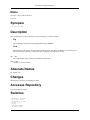
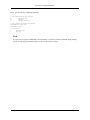
Tip
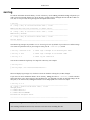
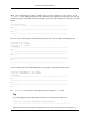
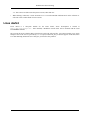
A nice way of finding the revision in which a branch was created (the "base" of the branch) is to use the -stop-on-copy option to svn log. The log subcommand will normally show every change ever made to
the branch, including tracing back through the copy which created the branch. So normally, you'll see history from the trunk as well. The --stop-on-copy will halt log output as soon as svn log detects that its
target was copied or renamed.
51