1
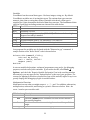
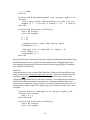
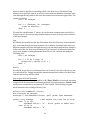
Note that if the user clicks Cancel instead of OK, the function returns a zero-‐length string (""). (A slightly fancier version provides a ‘default’ value of “123” and gives a label to the InputBox. This is done by replacing the “AcctID” line as follows:) AcctID = InputBox("Enter ID:", "Label", "123")
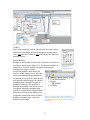
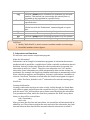
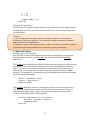
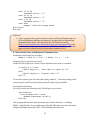
Outputs from your Program To pass results from our program to the user, you have already seen one method: the MessageBox. Of course, this is inconvenient for a list of numbers, and the “interruption” of the MessageBox can get annoying. Two other methods are TextBox (again!) and Label (UserForm) and Range (worksheet). If your program uses a UserForm, TextBox and Label (accessible via the Toolbox window) can pass along outputs to the user – without need for a MessageBox – as shown below. This snippet simply replaces the MsgBox command line from the snippet above: Value = TextBox1.Value
Output = Exp(Value)
TextBox2.Value = Output
Label1.Caption = Output
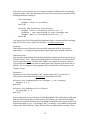
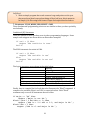
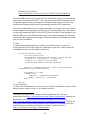
The difference between TextBox and Label is that a Label cannot be altered by the user, whereas the user can type into the TextBox. Alternatively, you could put your output into the spreadsheet, for later calculations, plots, etc. The Range object allows the program to read in values from a spreadsheet; i.e. this line of code squares the number in cell A1: MsgBox Range(“A1”) ^ 2
Range can also be used to place results: Range(“A1”) = CubeRoot(value)
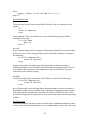
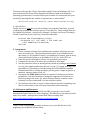
To add data cell by cell, the Offset property can be useful. The following expression refers to a cell two rows below cell E2 and three columns to the right of E2. In other words, cell H4: Range(“E2”).Offset(2,3)
Since the arguments of Offset could be variables, the sky is the limit! 18