1
Chapter 2 Setting up OrCAD CIS
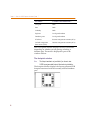
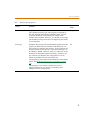
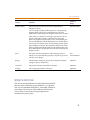
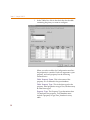
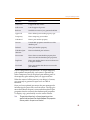
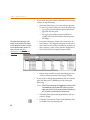
Property
Description
Schematic Part
(Symbol)
The part name. This property is required to use the Place
Database Part command. Only the part name is necessary if
the part is stored in the same directory as any part library
that is configured in Capture. (See the OrCAD Capture User’s
Guide for more information about configuring part libraries.)
However, to make sure that you don’t accidentally place an
identically named part, you should include the library
name, a backslash (\), and then the part name. Examples
include:
DEVICE\CAP
DEVICE\DIODE
ANALOG\CMP01
In addition, you can use the explicit path so CIS can locate
an unconfigured library. For example:
C:\MYLIB\DEVICE\CAP
You can also assign multiple schematic part names to a
single part. Use the same format as above for each name and
separate each one with a comma. For example:
DEVICE\CAPACITOR NON-TOL, DEVICE\CAP NT,
BENCH\SMALL CAP
Then, when you update your design’s part status, CIS can
approve and make current a schematic part which has
several acceptable names. Also, if a database part has several
different valid schematic parts, you will be able to choose
any one of them when you are placing parts from the parts
database or the OrCAD component data server (CDS). All
the configured schematic parts for the database part will be
available from a drop-down list under the Schematic Part
property name.
CIS locates the Capture library using the following set of
prioritized rules:
18
1
Search the library at the explicit path, if provided.
2
Search the first library listed in CAPTURE.INI that has a
matching library filename.
3
Search all directories that contain configured libraries.
4
If no libraries are included specifically in your Capture
design, CIS searches the ORCAD\CAPTURE\LIBRARY
directory.
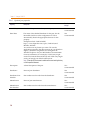
Transfer to
design?
Automatic