1
AXIS C3003-E Network Speaker
Events
Events
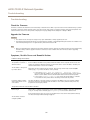
The Event pages allow you to configure the Axis product to perform actions when different events occur. For example, the product
can play an audio clip according to a schedule or when a call is received. The set of conditions that defines how and when the action
is triggered is called an action rule.
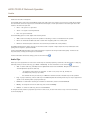
Set Up Action Rules
An action rule defines the conditions that must be met for the product to perform an action, for example play an audio clip or send a
notification message. If multiple conditions are defined, all of them must be met to trigger the action.
For more information about available triggers and actions, see Triggers on page 18 and Actions on page 19.
The following example describes how to set up an action rule to play an audio file when the Axis product receives an input signal
from a video management system.
1. Go to Events > Action Rules and click Add.
2. Select Enable rule and enter a descriptive name for the rule.
3. Select Input Signal from the Trigger drop-down list.
4. Select Virtual Inputs from the second drop-down list.
5. Select 1 from the third drop-down list.
6. Select Yes in the Active list.
7. Optionally, select a Schedule and Additional conditions. See below.
8. Under Actions, select Play Audio Clip from the Type drop-down list.
9. Select the desired audio file from the Play drop-down list.
10. Click OK.
To use more than one trigger for the action rule, select Additional conditions and click Add to add additional triggers. When using
additional conditions, all conditions must be met to trigger the action.
To prevent an action from being triggered repeatedly, a Wait at least time can be set. Enter the time in hours, minutes and seconds,
during which the trigger should be ignored before the action rule can be activated again.
For more information, see the online help
.
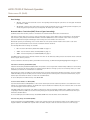
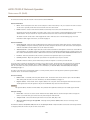
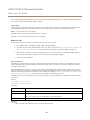
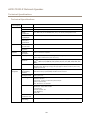
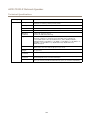
Triggers
Available action rule triggers and conditions include:
•
•
Call
-
State – Triggers the action rule when a call service state changes to active, calling or idle. This trigger can, for
example, be used to play a dial tone when a call is connecting.
-
State Change – Triggers the action rule when a call state changes. This trigger can for example, be used to play
a busy tone when a call is busy or call another specified SIP account if the call is busy.
Hardware
-
Network – Triggers the action rule when the network connection is lost. Select Yes to trigger the action
rule when the network connection is lost. Select No to trigger the action rule when the network connection
is restored.
18