1
AXIS C3003-E Network Speaker
System Options
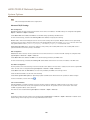
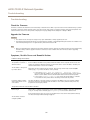
Server Report - Provides information about the product status in a pop-up window. The Access Log is automatically included
in the Server Report.
Parameter List - Shows the product's parameters and their current settings. This may prove useful when troubleshooting or
when contacting Axis Support.
Connection List - Lists all clients that are currently accessing media streams.
Crash Report - Generates an archive with debugging information. The report takes several minutes to generate.
Advanced
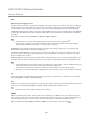
Scripting
Scripting allows experienced users to customize and use their own scripts.
NOTICE
TICE
NO
Improper use may cause unexpected behavior and loss of contact with the Axis product.
Axis strongly recommends that you do not use this function unless you understand the consequences. Axis Support does not provide
assistance for problems with customized scripts.
To open the Script Editor, go to System Options > Advanced > Scripting. If a script causes problems, reset the product to its
factory default settings, see page 30.
For more information, see www.axis.com/developer
Plain Config
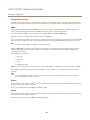
Plain Config is for advanced users with experience of Axis product configuration. Most parameters can be set and modified from
this page.
To open Plain Config, go to System Options > Advanced > Plain Config. Axis Support does not provide assistance.
Reset to Factory Default Settings
Important
Reset to factory default should be used with caution. A reset to factory default will reset all settings, including the IP
address, to the factory default values.
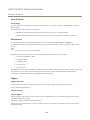
To reset the product to the factory default settings:
1. Disconnect power from the product.
2. Press and hold the control button and reconnect power. See Hardware Overview on page 6 .
3. Keep the control button pressed for about 10 seconds until the status LED indicator turns amber for the second time.
4. Release the control button. The process is complete when the status LED indicator turns green. The product has been reset
to the factory default settings. If no DHCP server is available on the network, the default IP address is 192.168.0.90
5. Using the installation and management software tools, assign an IP address, set the password, and access the product.
It is also possible to reset parameters to factory default via the web interface. Go to Setup > System Options > Maintenance.
30