1
PROGRAMMING GUIDE
XR200-485 ACCESS CONTROL
COMMAND PROCESSOR™ PANEL
MODEL XR200-485/485B ACCESS CONTROL
COMMAND PROCESSOR™ PANEL
PROGRAMMING GUIDE
Contains programming
instructions for use with the Model 485 and 485B Access Control Expansion card.
When using the XR200-485/485B panel for any UL, NFPA, CSFM, or other listing organization’s approved methods, refer
to this manual and the XR200 Installation Guide (LT-0197). These documents outline the installation and programming
requirements of all applications for which the XR200-485/485B is approved.
FCC NOTICE
This equipment generates and uses radio frequency energy and, if not installed and used properly in strict accordance
with the manufacturer’s instructions, may cause interference with radio and television reception. It has been type tested
and found to comply with the limits for a Class A computing device in accordance with the specification in Subpart J
of Part 15 of FCC Rules, which are designed to provide reasonable protection against such interference in a residential
installation. If this equipment does cause interference to radio or television reception, which can be determined by
turning the equipment off and on, the installer is encouraged to try to correct the interference by one or more of the
following measures:
Reorient the receiving antenna
Relocate the computer with respect to the receiver
Move the computer away from the receiver
Plug the computer into a different outlet so that computer and receiver are on different branch circuits
If necessary, the installer should consult the dealer or an experienced radio/television technician for additional suggestions.
The installer may find the following booklet, prepared by the Federal Communications Commission, helpful:
“How to identify and Resolve Radio-TV Interference Problems.”
This booklet is available from the U.S. Government Printing Office, Washington D.C. 20402
Stock No. 004-000-00345-4
Copyright © 1995 - 2006 Digital Monitoring Products, Inc.
Information furnished by DMP is believed to be accurate and reliable.
This information is subject to change without notice.
TABLE OF CONTENTS
Revisions to This Document.............................................vi
Introduction......................................................................1
1.1
1.2
1.3
1.4
1.5
1.6
1.7
1.8
1.9
Before you Begin.................................................................... 1
Internal Programmer.............................................................. 1
Programming Information Sheet ............................................. 1
Getting Started ...................................................................... 1
Accessing the Programmer ..................................................... 2
Initializing the Panel............................................................... 2
Programmer Operation ........................................................... 2
Programmer Lockout Codes .................................................... 2
Reset Timeout........................................................................ 3
Special Keys........................................................................... 3
COMMAND Key ...................................................................... 3
Back Arrow Key ..................................................................... 3
Select Keys ........................................................................... 3
Entering Alpha Characters....................................................... 3
Entering Non-Alpha Characters................................................ 4
Keypad Prompts Display Current Programming ......................... 4
Initialization .....................................................................5
2.1
2.2
2.3
2.4
2.5
2.6
2.7
2.8
2.9
2.10
Initialization ........................................................................... 5
Clear All Memory .................................................................... 5
Clear All Codes....................................................................... 5
Clear All Schedules ................................................................. 5
Clear Display Events Memory .................................................. 5
Clear Zone Information ........................................................... 5
Clear Area Information ........................................................... 5
Clear Output Information ........................................................ 5
Clear Communication and Remote Options ............................... 5
Set to Factory Defaults ........................................................... 5
Communication .................................................................6
3.1
3.2
3.2.1
3.2.2
3.2.3
3.2.4
3.2.5
3.3
3.3.1
3.4
3.5
3.6
3.7
3.8
3.9
3.10
3.11
3.12
3.13
3.14
3.15
3.16
3.17
3.18
3.19
3.20
XR200-485 Programming Guide
Communication ...................................................................... 6
Communication Type .............................................................. 6
Retry Time............................................................................. 6
Host Backup .......................................................................... 7
Test Frequency....................................................................... 7
Modem Setup......................................................................... 7
UL AA.................................................................................... 8
2ND Phone Line ..................................................................... 9
Test Frequency......................................................................10
Account Number ...................................................................10
Transmit Delay ......................................................................10
DTMF ...................................................................................10
Events Manager ....................................................................10
Defer Test Time ....................................................................11
Test Frequency......................................................................11
Test Time .............................................................................11
Receiver One Programming ....................................................12
Alarm Reports .......................................................................12
Supervisory/Trouble Reports ..................................................12
Opening/Closing and User Reports..........................................12
Test Report ...........................................................................12
Door Access Report ...............................................................12
Backup Reporting ..................................................................12
First Telephone Number .........................................................12
Second Telephone Number.....................................................12
Receiver Two Programming ....................................................13
Digital Monitoring Products
i
TABLE OF CONTENTS
3.21
3.22
3.23
3.24
3.25
3.26
3.27
3.28
3.29
3.30
Pager Type ...........................................................................13
Alarm Reports .......................................................................13
Supervisory/Trouble Reports ..................................................13
Opening/Closing and User Reports..........................................13
Test Report ...........................................................................13
Door Access Report ...............................................................13
Backup Reporting ..................................................................13
First Telephone Number .........................................................13
Second Telephone Number.....................................................13
Pager Identification Number...................................................13
Device Setup ...................................................................14
4.1
4.2
4.3
4.4
4.5
4.6
4.7
4.8
4.9
4.10
4.11
4.12
Device Setup.........................................................................14
Maximum Partitions ...............................................................14
Device Number .....................................................................14
Device Type ..........................................................................14
Partition Number ...................................................................14
Door Name ..........................................................................14
Access Areas.........................................................................15
Egress Areas .........................................................................15
Strike Time ...........................................................................15
Fire Exit Release....................................................................15
Output Group........................................................................15
Schedule Override .................................................................15
Remote Options ..............................................................16
5.1
5.2
5.3
5.4
5.5
5.6
5.7
5.8
5.9
Remote Options ....................................................................16
Remote Key .........................................................................16
Manufacturer Authorization ....................................................16
Armed Rings .........................................................................16
Disarmed Rings .....................................................................16
Alarm Receiver Authorization..................................................16
Service Receiver Authorization................................................17
Remote Phone Number..........................................................17
Remote Disarm ....................................................................17
System Reports...............................................................18
6.1
6.2
6.3
6.4
6.5
6.6
6.7
6.8
System Reports .....................................................................18
Abort Report .........................................................................18
Restoral Reports....................................................................18
Bypass Reports .....................................................................18
Schedule Change Reports ......................................................18
Code Change Reports ............................................................18
Access Keypads.....................................................................18
Ambush ...............................................................................18
System Options ...............................................................19
7.1
7.2
7.3
7.4
7.5
7.6
7.7
7.8
7.9
7.10
7.11
Digital Monitoring Products
ii
System Options .....................................................................19
Closing Wait..........................................................................19
Entry Delay 1 ........................................................................19
Cross Zone Time ...................................................................19
Zone Retard Delay.................................................................19
Power Fail Delay....................................................................19
Swinger Bypass Trips .............................................................19
Reset Swinger Bypass............................................................20
Video/Alarm Verification.........................................................20
Time Zone Changes...............................................................20
AC Cycles..............................................................................20
XR200-485 Programming Guide
TABLE OF CONTENTS
Output Options ...............................................................21
8.1
8.2
8.3
8.4
8.4.1
8.4.2
8.4.3
8.4.4
8.4.5
8.4.6
8.4.7
8.5
8.5.1
8.5.2
8.5.3
8.5.4
8.5.5
8.5.6
8.5.7
8.5.8
8.5.9
8.5.10
8.5.11
8.5.12
8.5.13
8.6
8.6.1
8.6.2
Output Options .....................................................................21
Bell Cutoff Time ....................................................................21
Automatic Bell Test ...............................................................21
Bell Action ............................................................................21
Fire Bell Action ......................................................................21
Burglary Bell Action ...............................................................21
Supervisory Bell Action ..........................................................21
Panic Bell Action....................................................................21
Emergency Bell Action ...........................................................21
Auxiliary 1 Bell Action ............................................................21
Auxiliary 2 Bell Action ............................................................21
Output Action........................................................................21
Cutoff Output .......................................................................21
Output Cutoff Time ...............................................................22
Communication Fail Output ....................................................22
Fire Alarm Output..................................................................22
Fire Trouble Output ...............................................................22
Ambush Output.....................................................................22
Entry Output .........................................................................22
Exit Output ...........................................................................22
Ready Output........................................................................22
Phone Trouble Output............................................................22
Late To Close Output ..............................................................22
Device Fail Output .................................................................23
Sensor Reset Output..............................................................23
Output Names.......................................................................23
Output Number ....................................................................23
Output Names.......................................................................23
Output Groups ................................................................24
9.1
9.2
9.3
9.4
Output Groups ......................................................................24
Group Number ......................................................................24
Group Name ........................................................................24
Output Number .....................................................................24
Menu Display...................................................................25
10.1
10.2
10.3
10.4
Menu Display .......................................................................25
Armed Status ........................................................................25
Time ...................................................................................25
Arm/Disarm ..........................................................................25
Status List .......................................................................26
11.1
11.2
11.3
11.4
11.5
11.6
11.7
11.8
11.9
11.10
XR200-485 Programming Guide
Status List ...........................................................................26
Display Keypads ....................................................................26
System Monitor Troubles........................................................26
Fire Zones.............................................................................26
Burglary Zones......................................................................27
Supervisory Zones .................................................................27
Panic Zones ..........................................................................27
Emergency Zones ..................................................................27
Auxiliary 1 Zones ...................................................................27
Auxiliary 2 Zones ...................................................................27
Digital Monitoring Products
iii
TABLE OF CONTENTS
Printer Reports ...............................................................28
12.1
12.2
12.3
12.4
12.5
12.6
Printer Reports......................................................................28
Arm and Disarm Reports ........................................................28
Zone Reports ........................................................................28
User Command Reports .........................................................28
Door Access Reports..............................................................28
Supervisory Reports...............................................................28
Host Log Reports ............................................................29
13.1
13.2
13.3
13.4
13.5
13.6
13.7
Host Log Reports...................................................................29
Modem Setup........................................................................29
Arm and Disarm Reports ........................................................29
Zone Reports ........................................................................29
User Command Reports .........................................................29
Door Access Reports..............................................................29
Supervisory Reports...............................................................29
Area Information ............................................................30
14.1
14.2
14.3
14.4
14.5
14.6
14.7
14.8
14.9
14.10
14.11
14.12
14.13
14.14
14.15
14.16
14.17
14.18
14.19
14.20
14.21
Area Information ...................................................................30
Partition Number ...................................................................30
Exit Delay .............................................................................30
Burglary Bell Output ..............................................................30
Opening/Closing Reports........................................................30
Closing Check .......................................................................30
Closing Code.........................................................................31
Any Bypass ...........................................................................31
Area Schedules .....................................................................31
Early Morning Ambush (485B only).........................................31
Area Number ........................................................................31
Area Name ...........................................................................31
Account Number ...................................................................32
Automatic Arming..................................................................32
Bad Zones ............................................................................32
Automatic Disarming .............................................................32
Armed Output Number ..........................................................32
Late Output Number..............................................................32
Bank Safe & Vault (485B only)................................................33
Common Area .......................................................................33
Two Man Rule (485B only) .....................................................33
Zone Information............................................................34
15.1
15.2
15.3
15.4
15.5
15.6
15.6.1
15.8
15.9
15.10
15.11
15.12
15.13
15.14
15.15
Digital Monitoring Products
iv
Zone Information ..................................................................34
Zone Number ........................................................................34
Zone Name ...........................................................................34
Zone Type.............................................................................35
Fire Bell Output .....................................................................35
Partition Number ...................................................................35
Area Number ........................................................................35
Arming Zone Area Assignment................................................36
Style.....................................................................................36
Next Zone.............................................................................37
Wireless................................................................................37
Check-in Time .......................................................................37
Internal Contact ....................................................................37
End-of-Line ...........................................................................37
Normally Open .....................................................................37
Alarm Action .........................................................................37
Disarmed Open ....................................................................37
Report to Transmit.................................................................38
Output Number ......................................................................38
XR200-485 Programming Guide
TABLE OF CONTENTS
15.16
15.17
15.18
15.19
15.20
15.21
15.22
15.23
15.24
15.25
15.26
15.27
15.28
Output Action........................................................................38
Swinger Bypass .....................................................................39
Prewarn Addresses ................................................................39
Entry Delay ...........................................................................39
Zone Retard ..........................................................................39
Presignal Addresses...............................................................39
Fast Response.......................................................................39
Cross Zone............................................................................40
Priority ................................................................................40
Program Transmitter ..............................................................40
Connect Transmitter ..............................................................40
Connect Command Transmitter...............................................40
Transmitter Programmed........................................................40
Stop.................................................................................41
16.1
Stop .....................................................................................41
Set Lockout Code ............................................................41
17.1
Set Lockout Code ..................................................................41
Appendix .........................................................................42
18.1
18.2
18.3
18.4
18.5
18.6
18.7
18.8
18.9
18.10
18.11
18.12
18.13
18.14
18.15
18.16
Diagnostics Function..............................................................42
Test LX-Bus ..........................................................................42
Zone Finder..........................................................................42
Zone State ...........................................................................42
LX-Bus Status .......................................................................42
Exiting the Diagnostics program.............................................43
Using the 984 Command Function ..........................................43
NBR.....................................................................................43
RMT ...................................................................................43
PICKUP ................................................................................44
Keypad Displays ...................................................................44
Using the Walk Test ...............................................................44
Walk Test .............................................................................44
Zone Types ...........................................................................44
Bell Action ............................................................................45
Trip Counter..........................................................................45
Failed Zones Display ..............................................................45
Local Printer for Walk Test.....................................................45
690 Series Keypads Speaker Operation ...................................45
Cross Zoning .........................................................................45
Pager Direct Specifications .....................................................46
Events Manager ....................................................................46
Modem Setup Information .....................................................46
Host Backup Examples...........................................................47
Example 1: Two 462N Cards ..................................................47
Example 2: One 462N Card ...................................................47
Example 3: Other Network Devices ........................................47
462N Network Interface Card Examples ..................................48
User Profiles .........................................................................48
User Profiles Record ..............................................................49
Inovonics Transmitter Information ..........................................49
Cross Talk ............................................................................49
Zone Type Descriptions ..........................................................50
Zone Type Specifications .......................................................51
Common Keypad Messages ....................................................52
Listings and Approvals ....................................................54
XR200-485 Programming Guide
Digital Monitoring Products
v
REVISIONS
Revisions to This Document
This section explains the changes made to this document during this revision. It lists the date and
identifies the change made, the related section number and section heading, and a summary of the change.
Date Section Number and Heading
Quick Explanation of Changes
8/05
14.10 Early Morning Ambush
15.20 Zone Retard
Clarified second user code operation.
Expanded and clarified operation.
3/04
Entire Document
Added iCOM-E where applicable corrected 4.2 Maximum Partitions
table, and removed references throughout to specific keypad
models. Added SCS-1R references to the appropriate places. General
review and grammar edits. Note: Section numbers have changed.
5/03
7.5 Zone Retard Delay
Added description regarding Zone Retard Delay with an A1, A2, or
Arming using zone type with a light sensor.
8.5.3 Communication Fail Output
Information added stating that the output can be turned off through
the User Menu.
8.5.10 Phone Trouble Output
Section corrected to include output activation when short across
phone block pins 2 and 7 is lost.
14.17 Armed Output Number
Sentence added to clarify that the Armed Output turns on at the
beginning of the exit delay.
15.13 Report to Transmit
Supervisory zone type removed from UL note.
15.26 Connect Command Transmitter
Press Reset button to initiate programming.
18.1 Diagnostics Function
Note added to clarify wireless zone diagnostics.
18.2 Using the 984 Command Function Section rewritten to provide clarity.
18.3 Using the Walk Test
Note added to clarify testing panic zones.
18.13 Inovonics Transmitter Information Section added with information about programming transmitters.
Note: Subsequent numbers changed.
18.14 Zone Type Descriptions
Expanded A1 and A2 and Arming Zone explanations to include using a
light sensor. Blank Zone Type description added.
18.15 Zone Type Specifications
Expanded Retard Delay explanation to include using an Arming Zone.
10/02 3.2.3 Test Frequency
18.10 462N Interface Card Examples
New programming prompt added.
Note: Subsequent section numbers changed.
Sentence added stating that the following prompts not shown if
COMM TYPE is HST and 2ND LINE is NONE.
Information added clarifying pager information.
Information added clarifying pager information.
Prompt added to documentation verifying that the wireless
transmitter was successfully programmed.
Table updated to reflect proper configuration.
3/02
3.2.4 UL AA
Check-in Time and Fail Time defaults changed to 1 (one).
1/02
3 Communication
13 Host Log Reports
DNET programming type removed.
Section added for Host Log Reports feature.
Note: All subsequent section numbers adjusted.
Section added about using the 462N card.
3.20 Receiver Two Programming
3.28 First Telephone Number
3.30 Pager Identification Number
15.27 Transmitter Programmed
18.10 462N Examples
12/01 3.2.1 Retry Time
3.2.2 Host Backup
3.2.3 Modem Setup
3.2.4 UL AA
17 Appendix
17.3 Using the Walk Test
Digital Monitoring Products
vi
Section added for new programming operation.
Section added for new programming operation.
Section expanded for new programming operation.
Section added for new programming operation.
Entire section rearranged for clarity.
Clarification added regarding bells.
XR200-485 Programming Guide
INTRODUCTION
Introduction
1.1
Before you Begin
This guide provides programming information for the DMP XR200-485/485B Command Processor™ Panel.
After this Introduction, the remaining sections describe the functions of each programming menu item
along with the available options. Before starting to program, we recommend that you read through the
contents of this guide. The information contained here allows you to quickly learn the programming
options and operational capabilities of the XR200-485/485B panel.
In addition to this guide, you should also read and be familiar with the following XR200 and XR200-485/
485B documents:
• XR200 Installation Guide (LT-0197)
• XR200-485/485B Installation Sheet (LT-0362)
• XR200-485/485B Programming Sheet (LT-0358)
• XR200-485/485B Security Command® User’s Guide (LT-0364)
Internal Programmer
The panel contains all of its programming information in an on-board processor and does not require an
external programmer. You can perform all programming tasks through a DMP alphanumeric keypad set to
address one.
Programming Information Sheet
Included with each panel are Programming Information Sheets. These list the various programming prompts
and available options for panel programming. Before starting to program, we recommend you completely
fill out each sheet with the programming options you intend to enter into the panel.
Having completed programming sheets available while entering data helps prevent errors and can shorten
the time you spend programming. Completed sheets also provide you with an accurate record of the
panel’s program you can keep on file for future system service or expansion. The remainder of this
Introduction provides instructions for starting and ending a programming session using the alphanumeric
keypad.
1.2
Getting Started
Ground Yourself Before Handling the Panel! Touch any grounded metal, such as the enclosure, before
touching the panel to discharge static.
Remove All Power From the Panel! Remove all AC and Battery power from the panel before installing or
connecting any modules, cards, or wires to the panel.
Before starting to program the XR200-485/485B panel, make sure the panel is properly grounded and AC
and battery power is applied to the appropriate panel terminals. All wiring connections and grounding
instructions are detailed in the XR200 Installation Guide (LT-0197).
XR200-485 Programming Guide
Digital Monitoring Products
1
INTRODUCTION
Accessing the Programmer
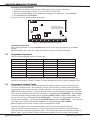
1. Install the reset jumper across the two J16 reset pins for two seconds. See Figure 1.
2. Remove the reset jumper and place it over just one pin for future use.
3. Enter the code 6653 (PROG) into an alphanumeric keypad set to address one. Press COMMAND.
4. The keypad displays PROGRAMMER.
You are now ready to start programming the panel.
��
������
����������������������
��������������������������
��������������������������
���
�����������
��
��
��
�
�
�
�� ���� ��� ��� ��� ��� ��� ��� ��� �� ��� ��
�
�
�
�
�
�
��
��
��
��
��
��
�� ��� ��
�� ��� ��
��
��
��
��
��
��
�� ��� ��
��
��
��� ��� ���� ����
��
��
��
��
��
Figure 1: XR200-485 Panel Showing Reset
Initializing the Panel
After installing the panel, use the Initialization function to set the panel programming to its default
settings.
Note: The default user code is 99. Change this code as soon as the system is operational.
1.3
Programmer Operation
There are 16 programming sections to choose from:
Menu Item
Initialization
Communication
Device Setup
Remote Options
System Reports
System Options
Output Options
Output Groups
Section in this manual
2
3
4
5
6
7
8
9
Menu Item
Menu Display
Status List
Printer Reports
Host Log Reports
Area Information
Zone Information
Stop
Set Lockout Code
Section in this manual
10
11
12
13
14
15
16
17
To select a section for programming, press any one of the Select keys when the name of that section
displays on the keypad. Sections 2 through 17 contain detailed instructions for each programming step.
1.4
Programmer Lockout Codes
The panel allows you to enter the programming function without entering a lockout code using steps 1
to 4 listed in Getting Started. We recommend, however, that you install a Lockout Code that restricts
programming to only those persons your company authorizes. You can do this by using the SET LOCKOUT
CODE feature in the Programmer. The Lockout Code restricts any unauthorized programming of the panel.
After resetting the panel and entering the code 6653, the keypad displays PROGRAMMER. Press COMMAND
to advance through the programming sections until SET LOCKOUT CODE is displayed (after STOP). Press
any top row Select key. The keypad displays ENTER CODE: – . Enter a 3 to 5 digit Programmer Lockout
Code and press COMMAND. The keypad displays ENTER AGAIN followed by ENTER CODE: –. Enter the same
3 to 5 digit code a second time and press COMMAND. The keypad displays CODE CHANGED.
Note: The panel will not accept a 5-digit Lockout Code higher than 65535.
The new code number must now be entered before you can access the programmer function.
Write the Lockout Code down and keep it in a secure place with access limited to only those persons
authorized by your company to program the panel. Lost Lockout Codes require the panel be sent back to
DMP for repair. You may cancel a Lockout Code by entering 00000 at the Set Lockout Code command.
Digital Monitoring Products
2
XR200-485 Programming Guide
INTRODUCTION
1.5
Reset Timeout
The panel has a feature that requires you to enter the Programmer within 30 minutes of resetting the
panel. After 30 minutes, if you attempt to program by entering the 6653 (PROG) code, the keypad
displays: RESET PANEL. You must reset the panel, enter the program code, then begin programming
within the next 30 minutes.
If you are already in the Programmer and do not press any keys on the programming keypad for 30 minutes,
the panel terminates programming. All data entered up to that time is saved in the panel memory.
1.6
Special Keys
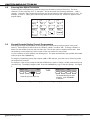
��������������������
COMMAND Key
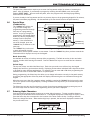
The COMMAND key allows you
���������
to go forward through the
������������
programming menu and through
�
� ���� � � � �������
���������
each step of a programming
section. As you go through the
�����������
�
programming, the keypad display
�
�
�
�
shows any current programming
already stored in the panel
�
�
�
�
memory. If the information is
�������
�����������
�
�
not to be changed, press the
��������������
COMMAND key to advance to the
next step.
����������������������
The COMMAND key is also used
Figure 2: Keypad Function Keys
to enter information into the
panel memory such as phone numbers or zone names. Press the COMMAND key after you have entered the
information and it displays correctly on the keypad.
Back Arrow Key
Use the Back Arrow key to back up one step while programming. The Back Arrow key is also used when
an error is made while entering information. Press the Back Arrow key once to erase the last character
entered.
Select Keys
The top row of keys are called the Select keys. Each time you need to use a Select key, the keypad
displays the function or options above the key. Displaying choices above individual Select keys allows them
to be used for many different applications. For example, you can enter AM or PM when programming the
automatic test time or answer YES or NO for a system option.
During programming, the Select keys also allow you to change information currently in the panel memory
by pressing the appropriate Select key under the display then entering the new information through the
keypad.
When there are more than four response options available, pressing the COMMAND key brings up the next
one to four options on the keypad display. Pressing the Back Arrow key allows you to review the previous
four choices.
The Select keys are also used for selecting a section from the programming menu by pressing any one of
the Select keys when the name of the programming section you want is displayed.
�
�
�
�
�
�
���
���
� �� ��
� � �
��� ��
���
���
� ��
��
1.7
Entering Alpha Characters
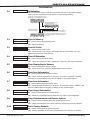
Some options during programming require you to enter alpha characters. To enter an alpha character,
press the key that has that letter written below it. The keypad displays the number digit of the key. Next,
press the Select key that corresponds to the location of the letter under the key. Pressing a different
Select key changes the letter. When another digit key is pressed, the last letter displayed is retained and
the process starts over.
�
�
������������ �������������
�
������������
�
������������������
Figure 3: Entering Alpha Characters
XR200-485 Programming Guide
Digital Monitoring Products
3
INTRODUCTION
1.8
Entering Non-Alpha Characters
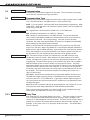
To enter a space in an alpha entry, press the 9 digit key followed by the third Select key. The three
characters on the 9 digit key are Y, Z, and space. You can also enter the following characters: – (dash), .
(period), * (asterisk), and # (pound sign) using the zero key and the four Select keys from left to right. For
example, to enter a – (dash), press the zero key and then the left Select key. A dash now appears in the
keypad display.
�
�
�
�
�����
�����
�����
�����
�����
�����
�����
�����
�
�
�
�
�
������������
�
�������
����������
Figure 4: Special Characters
1.9
Keypad Prompts Display Current Programming
Each programming prompt displayed at the keypad shows the currently selected option in the panel
memory. These options are either shown as a number, a blank, or a NO or YES. To change a number or
blank to a new number, press any top row Select key. The current option is replaced with a dash. Press
the number(s) on the keypad you want to enter as the new number for that prompt.
It is not necessary to enter numbers with leading zeros. The panel automatically right justifies the number
when you press the COMMAND key.
To change a programming prompt that requires a NO or YES response, press the top row Select key under
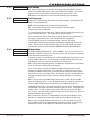
the response not selected.
For example, if the current prompt is selected as YES and you want to change it to NO, press the third top
row Select key. The display changes to NO. Press the COMMAND key to go to the next prompt. See Figure
5.
��������
���
������������������������������
����
��������
��
����������������������������
��������������������������
�����������
Figure 5: Changing the Current Programming Option
Digital Monitoring Products
4
XR200-485 Programming Guide
INITIALIZATION
Initialization
2.1
INITIALIZATION
Initialization
This function allows you to clear and return selected parts of the panel program
back to the factory defaults in preparation for system programming.
������������������������������������������
�����������������������������������������������
������
��
���
������������������������������
����������������������
�����
����������������������
�����������������������
�������
2.2
INIT ALL?
SURE?
NO YES
YES NO
���
��
���������������������������������������������������������
������������������������������������������������
��
���
�����������������������������������������������������
�������������������������������������������������������
������������
Clear All Memory
NO - Leaves existing programming intact.
YES - Clears all memory.
2.3
CODES?
SURE?
NO YES
YES NO
Clear All Codes
NO - Leaves existing codes intact.
YES - Clears the user code memory and assigns the user code number 99 to the
highest user position in each partition.
2.4
SCHEDS?
SURE?
NO YES
YES NO
Clear All Schedules
NO - Leaves existing schedules intact.
YES - Clears all primary, secondary, permanent, temporary, and output schedules.
2.5
EVENTS?
SURE?
NO YES
YES NO
Clear Display Events Memory
NO - Leaves existing event memory intact.
YES - Clears the Security Command keypad display events memory.
2.6
ZONES?
SURE?
NO YES
YES NO
Clear Zone Information
NO - Leaves existing zone information intact.
YES - Clears the zone information for all zones. All zones are marked * UNUSED *
and must be renamed before being able to display on any system keypad.
2.7
AREAS?
SURE?
NO YES
YES NO
Clear Area Information
NO - Leaves existing area information intact.
YES - Clears the area information for all areas. All areas are marked * UNUSED * and
must be renamed before being able to display on any system keypad.
2.8
OUTPUTS? NO YES
SURE?
YES NO
Clear Output Information
NO - Leaves existing output information intact.
YES - Clears all programmed Output names and any output cutoff assignment.
2.9
COM/RMT? NO YES
SURE?
YES NO
Clear Communication and Remote Options
NO - Leaves existing communication and remote options intact.
YES - Clears communication and remote options programming to factory defaults.
2.10
DEFAULTS NO YES
SURE?
YES NO
Set to Factory Defaults
NO - Leaves existing panel programming intact.
YES - Sets the remainder of the panel programming back to the factory defaults.
XR200-485 Programming Guide
Digital Monitoring Products
5
COMMUNICATION
Communication
3.1
COMMUNICATION
Communication
Configure the communication options for the panel. The information you program
varies with the Communication Type you select.
3.2
COMM TYPE:
DD
Communication Type
Specifies the communication method the panel uses to report system events to DMP
SCS-1/SCS-1R Receivers or non-DMP receivers. Press any Select key.
NONE - For local systems. Selecting NONE ends communication programming. When
COMM TYPE = NONE and there is an unrestored System Trouble, then the keypad will
sound daily at 10:00 AM.
NONE DD MPX M2E
DD - Digital Dialer communication to a DMP SCS-1 or SCS-1R Receiver.
MPX - Multiplex communication to a DMP SCS-1 Receiver.
M2E - Modem IIe communication to non-DMP receivers. This format sends the
report codes of the Radionics Modem IIe communication format to the receiver(s)
programmed in Receiver 1 and 2 programming. Once the receiver has been
contacted, the panel waits approximately 45 seconds for the Modem IIe handshake
before hanging up and making another attempt.
Note: Do not use the M2E communication option if the system has over 255 zones
and/or over 254 users. When using Modem IIe to communicate between a Radionics
D6500 receiver and the XR200-485 panel, zone numbers 256 to 299 and user numbers
255 to 999 CANNOT be received by the D6500. Zone numbers greater than 255 will
be reported as 255. User numbers greater than 254 will be reported as 000.
CID
HST
CID - This option allows the panel to communicate to non-DMP receivers using
the Ademco Contact ID format. When selected, the panel sends all of its alarm,
trouble, and supervisory reports to the receiver(s) programmed in Receiver 1 and 2
Programming. The panel sends reports to the receiver using either CID or standard
DMP SDLC based on each receiver’s ability to process the CID format. The panel
determines whether the receiver can process the CID format by the acknowledgment
tones the receiver transmits when first contacted. If the receiver can process the
CID format, only those event reports for which there are CID definitions will be sent
by the panel. This restriction prevents the panel from dialing the receiver for a
report it cannot send.
HST (Host) - Asynchronous communication using the 462N Network Interface Card.
The DMP Host/Output reporting format is transmitted over an asynchronous data
network to the SCS-1 or SCS-1R Receiver. If you need to send a duplicate signal to
the central station and you have selected HST, use Receiver 2 programming to send
the duplicate signal.
Note: When HST is selected, 2ND LINE programming allows you to select D2 for two
line supervision when using a Model 893 or 893A Dual Phone Line Module.
There are extra options available if you selected HST for the communication type.
These options are explained in sections 3.2.1 through 3.2.5.
3.2.1
RETRY TIME: -
Retry Time
After selecting HST, the keypad displays retry time: -. Enter the number of seconds
(3 to 15 seconds) the panel should wait before retrying to send a message to the
receiver if an acknowledgment was not received. The panel retries as many times as
possible for a period of one minute before sending a network trouble message. For
example, if retry time is set to 15, the panel retries four times. The default Retry
Time is 5 seconds.
Digital Monitoring Products
6
XR200-485 Programming Guide
COMMUNICATION
3.2.2
HST BCKUP NO YES
Host Backup
After displaying the Retry time prompt, the keypad displays HST BCKUP NO YES.
Select YES to enable Host Backup. Select NO to disable Host Backup. You can still
program 2nd line for a different communication type, such as CELL or DD.
Note: Refer to the Appendix for more information about using Host Backup.
3.2.3
TEST FREQ:
NONE
NONE REG 7
30
Test Frequency
Specifies the communication test interval for the host backup. This displays if HST
BCKUP is programmed as YES.
NONE - No communication test is made on the host backup.
REG - A HST BCKUP communication test is made each time the regular
communication test is completed.
7 - A communication test is made every 7 days at the test time programmed for the
regular communication test. Test time deferrals are disregarded.
30 - A communication test is made every 30 days at the test time programmed for
the regular communication test. Test time deferrals are disregarded.
If the HST BCKUP test fails to communicate after 1 minute, the regular
communication channel sends a Warning: Panel Backup Communication Fail (S12)
report. The next time the panel sends a report over the HST BCKUP, the regular
communication channel sends a BACKUP COMMUNICATION LINE RESTORED (S04).
3.2.4
MODEM SETUP:
-
Modem Setup
The keypad displays MODEM SETUP:. Press COMMAND. Enter up to two lines of 16
characters to equal 32 characters for the string that is sent to the device connected
to the 462N Network Interface Card.
If the network device is an iCOM and you are using Host Backup, refer below for the
iCOM or iCOM-E setup string. If you are using a non-DMP network device such as a
CDPD Modem, refer to the device’s literature for the setup string.
Note: If the iCOM is only being used for the main host communication (Host Backup
is NO), do NOT enter a Modem Setup String here.
There are two ways to use the Host Backup and Modem Setup features to send
messages through the backup Host. You could have two 462N cards on the panel
and assign the Modem Setup String to send the backup messages through a backup
network device, such as a cellular radio. Alternatively, you can have one 462N card
and assign the Modem Setup String to route the backup messages to the backup
receiver.
Note: If you are using a non-DMP network device and an iCOM, use the non-DMP
device as the backup device. If not, the Modem Setup String entered overrides the
iCOM or iCOM-E IP Address and is not used for the non-DMP network device.
The Modem Setup String for the iCOM should be entered as follows: AT#UCXXX.XXX.X
XX.XXX#PPPPP. Also enter the UDP Port Number in place of the Ps. The default port
number is 2001. To enter # (pound sign), press 0 and the far right top row Select
key. To enter . (periods), press 0 and the second from the left Select key. Enter the
backup IP Address in place of the Xs.
Refer to the table in section 17.10 462N Network Interface Card Examples of the
Appendix for complete information about when to use the Modem Setup String.
Note: If you are using Host Backup and UL AA is set to YES, the panel only sends
the S72 (Warning: Network Trouble) message after the first series of host message
attempts fails. Refer to the Appendix for information about Host options.
XR200-485 Programming Guide
Digital Monitoring Products
7
COMMUNICATION
3.2.5
UL AA
NO YES
UL AA
At the UL AA prompt, select Yes to enable AA Mode or NO to disable AA Mode. NO is
the default setting. UL AA involves check-in reports. Check-in reports are a method
of supervising the panel communication with the receiver. To be UL AA compliant,
panels must check-in with the receiver every 6 minutes when armed.
The SCS-1/SCS-1R Receiver verifies that the next Check-in report is received at the
appropriate time. SCS-1/805 or higher firmware is required in the SCS-1 Receiver.
When AA is selected and the check-in fails after one minute, the panel sends a
WARNING: NETWORK TROUBLE (S72) report on the 2ND LINE. The next time the HST
report is successfully sent, the panel sends a NETWORK RESTORED (S73) report over
the 2ND LINE.
UL AA
NO YES
DISARM CHKIN RND
MINUTES: RND
If you select YES for UL AA, the DISARM CHKIN prompt displays. Press any
Select key to display Minutes: - RND. Enter the number of minutes, from one
to six, between disarmed check-in reports. If any area is armed, the report is
automatically sent every 6 minutes.
To select RND (Random), press the top right Select key. RND is the default
setting. Selecting RND causes the panel to send the Check-in report at random
times. When all areas are disarmed, the panel sends the report randomly but
always between 5 and 60 minutes. If any area is armed, the panel sends the
report every 6 minutes.
Note: NET TRBL, Network Fail Notification, is automatically enabled when UL
AA is enabled. NET TRBL allows the panel to detect a primary host failure and
send an S72, Network Trouble message, through the DD if it is programmed
as the second line. When the primary host restores the panel sends an S73,
Network Restored message.
UL AA
NO YES
SUB CODE NO YES
CHECKIN:
1
FAIL TIME:
1
NET TRBL NO YES
If you select NO for UL AA, the SUB CODE prompt displays. Select YES if
the panel will send a Panel Substitution Code when communicating with the
receiver. The Panel Substitution Code increases the level of security by helping
to ensure that the panel sending the message to the receiver has not been
substituted by another panel. By default, SUB CODE is NO. When UL AA is YES,
the substitution code is always sent.
At the checkin: - prompt, enter the number of minutes, from 0 to 240, between
check-in reports when the panel is armed or disarmed. Check-in reports are a
method of supervising the panel for communication with the receiver. Enter 0
(Zero) to disable the check-in. The default checkin is 1.
Note: When used for Fire Protective Signaling, the Check-in Time should not
exceed 1 minute.
Entering a Fail Time allows the receiver to miss multiple check-ins before
logging that the panel is missing. For example, if checkin is 10 and Fail time is
30, the receiver only indicates a Panel Not Responding after 30 minutes. The
Fail time must be equal to or greater than the CHECKIN time: If the CHECKIN is
10 minutes, the FAIL TIME must be 10 or more. The maximum FAIL time is 240
minutes. The default fail Time is 1 (one).
Select YES at the NET TRBL prompt to Enable Network Fail Notification. When
UL AA is enabled, this feature is automatically enabled.
When NET TRBL is YES and the panel detects a primary host communication
failure, the panel sends an S72, Network Trouble message, through the DD
if it is programmed as the second line. Also, the trouble keypads sound a
continuous tone and display “NETWORK -TRBL.” Press any key to silence the
tone.
When the primary host restores the panel sends an S73, Network Restored
message, through the DD if it is programmed as the second line. The
“NETWORK -TRBL” display is removed from the keypad and the tone
automatically silences.
Digital Monitoring Products
8
XR200-485 Programming Guide
COMMUNICATION
3.3
2ND LINE:
NONE
2ND Phone Line
Allows you to use a second communication line to send reports to the SCS-1/SCS-1R
Receiver should the first phone line fail. The default 2nd Phone Line is NONE.
If 2ND LINE is DD or CELL (and you are not using a 462N Network Interface Card), you
need to install a DMP 893 or 893A Dual Phone Line Module to connect both the main
and secondary phone lines to the panel.
Both DD and MPX type systems can be backed up with a dialer or cellular line.
Multiplex lines cannot be used as a secondary line.
NONE DD CELL HST
NONE - A second line is not used.
DD - Dialer communication to a DMP SCS-1/SCS-1R Receiver. When using M2E or
CID as the main Communication Type, choose DD to communicate to an M2E or CID
receiver on the 2ND LINE.
CELL - Cellular dialer communication with Cell-Miser™ restrictions. When Cell-Miser
is selected, the following call restrictions apply to the panel.
1. Only zone alarms, Ambush, Line 1 Trouble, Abort, Recall Test, and Delayed
Events are sent over the cellular system. Delayed Events are only sent if the
cellular call was made for one of the other allowed reports.
2. Line 1 Trouble is sent only once during each armed period.
3. The dialing sequence uses the first phone number on line 1 only and the second
phone number on line 2 only. This allows the panel to use the cellular phone
number for cellular calls only without needing prefixes or area codes for land
line dialing.
If 2ND LINE = DD
If 2ND LINE = CELL
Panel dials the 1st ph # twice on Line 1
Panel dials the 1st ph # twice on Line 1
Panel dials the 1st ph # twice on Line 2
Panel dials the 2nd ph # twice on Line 2
Panel dials the 2nd ph # twice on Line 1
Panel dials the 1st ph # twice on Line 1
Panel dials the 2nd ph # twice on Line 2
Panel dials the 2nd ph # twice on Line 2
Panel dials the 1st ph # twice on Line 1
Panel dials the 1st ph # twice on Line 1
NONE DD CELL D2
D2 - Select D2 to allow supervision of a second telephone line connected to a
Model 893 or 893A Dual Phone Line Module. D2 is only displayed if HST is the main
Communication type.
NONE DD CELL HST
HST (HOST) - DMP Asynchronous communication to a DMP SCS-1/SCS-1R Receiver or
Host automation system. If HST is selected as the Communication Type, HST does
not display as an option in 2ND LINE. If HST is selected for 2ND LINE, all zone alarms
and restorals are duplicated on the asynchronous channel in addition to the main
communication method.
When HST is used as the main or 2ND LINE communication method, the account
number must not begin with a number that matches a line number being used
for multiplex service on the same SCS-1 Receiver. This allows the Redisplay NonRestored status list to work properly in receivers with SCS-1/805 or higher firmware.
XR200-485 Programming Guide
Digital Monitoring Products
9
COMMUNICATION
3.3.1
TEST FREQ:
NONE
Test Frequency
NONE REG
7
NONE - No communication test is made on the second line. NONE is selected by
default.
30
Specifies the communication test interval for the second phone line. This is
displayed if 2ND LINE is programmed as DD, CELL or HST.
REG - A 2ND LINE communication test is made each time the regular communication
test is completed.
7 - A communication test is made every 7 days at the test time programmed for the
regular communication test. Test time deferrals are disregarded.
30 - A communication test is made every 30 days at the test time programmed for
the regular communication test. Test time deferrals are disregarded.
If the 2ND LINE test fails to communicate after 10 attempts, the regular
communication channel sends a WARNING: PANEL BACKUP COMMUNICATION FAIL
(S12) report. The next time the panel sends a report over the 2ND LINE, the regular
communication channel sends a BACKUP COMMUNICATION LINE RESTORED (S04)
report.
3.4
Account Number
ACCT NO: 12345
Enter the account number sent to the SCS-1/SCS-1R Receiver.
DD and HST - The range of valid account numbers for a panel using DD or HST is 1 to
65535. For accounts of four digits or less, do not enter leading zeros.
CID and M2E - Choose an account number between 1 to 9999.
MPX - A 5-digit account number is required for panels using these formats. The first
digit is the receiver line number. The second digit is always zero. The last three
digits are the panel account number, which is between the range of 000 and 127.
Individual area account numbers must be between the range of 128 to 999 on the
same line. Example: 10128 to 10999.
3.5
0
XMIT DELAY:
Transmit Delay
Enter the number of seconds (1 to 60 ) the panel waits before sending burglary
reports to the receiver. Alarm bells and relay outputs are not delayed during this
period. Program Burglary Outputs for pulsed or steady, and set Abort Reports to
YES if Opening and Closing reports are not being sent. Enter zero to disable. The
default Transmit Delay is 0 (zero).
3.6
DTMF
NO YES
DTMF
YES enables tone dialing by the panel. NO enables rotary dialing.
3.7
EVENT MGR:
SEND
Events Manager
Specifies when non-alarm reports are sent to the receiver. This selection does not
affect zone alarm, zone trouble, zone restoral, supervisory, or serviceman messages.
Closing reports are not delayed if the Closing Wait option is YES. Contact ID and
Modem IIe do not delay reports but send them as they occur.
SND DLY
KEEP
SND - All reports are sent to the receiver as they occur.
DLY - All non-alarm reports are held until the panel memory buffer contains 133
events or until the next communication between the panel and the receiver.
KEEP - All non-alarm reports are held in the panel memory buffer until they are
overwritten by new activity. You can view the contents of the memory buffer using
DMP Remote Link™ or System Link™. You can also use the display events feature in
the User Menu. Refer to the Appendix for a table listing the delayed report types.
Digital Monitoring Products
10
XR200-485 Programming Guide
COMMUNICATION
3.8
3.9
DFR TEST
NO YES
TEST FREQ:
0
Defer Test Time
Select YES to allow the programmed test report to be deferred if the panel
communicates with a receiver within the time set in Test Frequency. Select NO to
send the test report as programmed regardless of previous panel communication.
Test Frequency
Allows you to set how often the panel sends a test report to the SCS-1/SCS-1R
Receiver. Enter from 1 to 60 days. This prompt is not displayed if Defer Test Time is
NO.
3.10
TEST TIME
0:00
AM PM
TEST DAY:
ALL
XR200-485 Programming Guide
Test Time
Press COMMAND to show the enter test time display. Enter the time of day the panel
sends the test report to the SCS-1/SCS-1R Receiver. Use entries between 12:00 to
11:59 and then choose AM or PM. When Defer Test Time is set to NO, this option
allows you to program the day of the week the test report is sent. Choose one day
of the week or all days.
Digital Monitoring Products
11
COMMUNICATION
3.11
3.12
RECEIVER 1 PROG
ALARM
NO YES
Receiver 1 Programming
Allows you to set the options for the first receiver the panel attempts to contact
when sending reports. The panel supports communication to two receivers.
Alarm Reports
YES sends Abort, Alarm, Alarm Restoral, Ambush, Exit Error, and System Recently
Armed reports to this receiver.
3.13
SPV/TRBL
NO YES
Supervisory/Trouble Reports
YES sends Supervisory, Trouble, Trouble Restoral, Force Armed, Zone Fault reports,
and Serviceman Messages to this receiver.
3.14
O/C USER
NO YES
Opening/Closing and User Reports
YES sends Opening, Closing, Door Access, Late to Close, Unauthorized Entry,
Schedule and Code changes, Zone Reset, and Zone Bypass reports by user to this
receiver.
3.15
TEST RPT
NO YES
Test Report
Enter YES to enable the system test report to be sent to this receiver. Reports are
sent according to the programming in Test Frequency and Test Time.
3.16
DOOR ACS NO YES
Door Access Report
YES enables Door Access Granted reports to this receiver whenever a door access is
granted to a user. The Door Access Granted report is only sent if the keypad number
has also been selected in Access Keypads under the SYSTEM REPORTS programming.
Note: The following three prompts and Receiver 2 programming prompts do not
display if COMM TYPE is NET, NET BACKUP is NO, and 2ND LINE is NONE.
3.17
BACKUP
NO YES
Backup Reporting
Enter YES to enable this receiver to be a backup to the other receiver in the event
the other receiver cannot be contacted.
3.18
3.19
FIRST PHONE NO:
-
First Telephone Number
SECOND PHONE NO:
-
Second Telephone Number
Digital Monitoring Products
12
This is the first number the panel dials when sending reports to this receiver. Phone
numbers can be up to two lines of 16 characters to equal 32 characters. You can
program a three second pause in the dialing sequence by entering the letter P. You
can program a dial tone detect by entering the letter D. These characters are
counted as part of the 32 allowable characters.
Area code selection for cellular communication: You can also enter a letter “C” in
the first or second phone number. When entered, the characters before the “C” are
only used when a 2nd LINE Cellular call is being made. All other calls made on the
main phone line will only use the characters entered after the letter “C”. The letter
“C” is never dialed and is recognized by the panel as a marker only.
If a dial tone detect “D” is entered it causes the panel to begin dialing as soon as a
dial tone is detected. The panel waits a maximum of five seconds for a dial tone on
the first attempt. If a dial tone is not detected, the panel hangs up and then picks
up the line again. After waiting another five seconds without dial tone, the panel
begins dialing on the second through tenth attempts.
The panel dials the second number when two successive tries using the first number
have failed. If the panel cannot reach the receiver after two attempts using the
second number, it returns to the first number and makes two additional attempts. A
total of ten dialing attempts are made using the first and second phone numbers.
Each number can be up to 32 characters in length including any P or D characters
entered for pause and dial tone detect.
Should all ten attempts fail, the panel clears the communication buffer and makes
one communication attempt each hour to send a TRANSMIT FAILED (S87) report to
the receiver. The report information that was not sent to the receiver is available
from the Display Events feature of the User Menu and can be downloaded with DMP
Remote Link™ software.
XR200-485 Programming Guide
COMMUNICATION
3.20
3.21
RECEIVER 2 PROG
PAGER?
NONE
Receiver 2 Programming
Allows you to set the options for the second receiver the panel attempts to contact
when sending reports. If you select YES for any of the second receiver options,
you must have at least one phone number programmed in Receiver 2 programming.
RECEIVER 2 PROG and the following prompts do not display if COMM TYPE is HST and
2ND LINE is NONE.
Pager Type
This option allows the panel to send Alarm, Trouble, Opening, Closing, and Late to
Close reports to a customer’s numeric or alphanumeric pager. The panel uses DTMF
tones for numeric pagers and Glenayre protocol for alphanumeric pagers to generate
the account and report information sent over the pager terminal equipment. Refer
to Section 18.6 Pager Direct Specifications in the Appendix for more information.
NONE NUM
3.22
ALARM
ALPHA
NO YES
NONE - The pager reporting option is not being used. Sends panel reports to a
second receiver.
NUMERIC - Reports are sent to the customer’s numeric only pager.
ALPHANUMERIC - Reports are sent to the customer’s alphanumeric pager.
Alarm Reports
See section Alarm Reports on previous page.
3.23
SPV/TRBL
NO YES
Supervisory/Trouble Reports
See section Supervisory/Trouble Reports on previous page.
3.24
O/C USER
NO YES
Opening/Closing and User Reports
See Opening/Closing and User Reports on previous page.
3.25
TEST RPT
NO YES
Test Report
See Test Report on previous page.
3.26
DOOR ACS NO YES
Door Access Report
See Door Access Report on previous page.
3.27
BACKUP
NO YES
Backup Reporting
See Backup Reporting on previous page.
3.28
3.29
3.30
FIRST PHONE NO:
-
First Telephone Number
SECOND PHONE NO:
-
Second Telephone Number
PAGER ID NUMBER
-
Pager Identification Number
XR200-485 Programming Guide
Enter the phone number the panel dials to send reports to the receiver or pager.
When communicating to an Alphanumeric pager, the Paging Service provider Paging
Terminal is usually used to actually send the messages to the pager. First Phone
number MUST be programmed with the Paging Terminal’s telephone number.
Note: All phone numbers can be up to 32 characters. Program a 3-second pause in
the dialing sequence by entering the letter P. Program a dial tone detect by entering
the letter D. These characters are counted as part of the 32 allowable characters.
When PAGER? is NONE. The panel dials the second number when two successive tries
using the first number have failed. If the panel cannot reach the receiver after two
attempts using the second number, it returns to the first number and makes two
additional attempts. A total of ten dialing attempts are made using the first and
second phone numbers.
Enter a pager identification number if your pager uses one. For numeric paging, the
panel waits for 9 seconds after having dialed the First Phone Number before sending
the Pager ID. After the Pager ID has been transmitted, the panel waits another 3
seconds before sending the actual pager message containing the panel reports.
The Pager ID is usually the pager phone number—the number that you would dial to
leave a message on the pager. The pager ID can also be an ID # obtained from the
Paging Service provider.
Digital Monitoring Products
13
DEVICE SETUP
Device Setup
4.1
Device Setup
DEVICE SETUP
This section allows you to define the XR200-485/485B panel physical configuration.
You can install and address up to sixteen supervised devices on the keypad data bus.
Zones are available only from addresses 1-8. Additionally, certain device functions
are programmed in address pairs; 1-9, 2-10, 3-11, 4-12, 5-13, 6-14, 7-15, and 8-16.
These options include Partition (4.4), Access Keypad Reports (6.7), Menu Display
(9.1), Status List (10.1), Prewarn (13.14), and Presignal (13.17). In each of these
options, only addresses from 1-8 are programmable. For example, if 1 is selected,
address 9 is also selected; if address 2 is selected, 10 is also selected.
4.2
MAX PARTITION:
1
Maximum Partitions
Enter the maximum number of partitions you want in this system. You can choose
from 1 to 4. To change the number displayed, press any Select key, enter the
number of partitions you want to enable, and press COMMAND.
Changing the number of partitions resets user codes: Whenever you change the
number of partitions on the panel, all programmed user codes are cleared. The only
user code available after a partition change is the factory default of 99.
Partitions
Enabled
1
2
3
4
4.3
Areas Available
1 to 8
Partition 1: 1
Partition 2: 1
Partition 1: 1
Partition 2: 1
Partition 3: 1
Partition 1: 1
Partition 2: 1
Partition 3: 1
Partition 4: 1
to
to
to
to
to
to
to
to
to
8
4
8
4
4
8
4
4
4
Users Codes
Available
1 to 999
Partition 1: Up to 500
Partition 2: Up to 500
Partition 1: Up to 400
Partition 2: Up to 300
Partition 3: Up to 300
Partition 1: Up to 400
Partition 2: Up to 200
Partition 3: Up to 200
Partition 4: Up to 200
User Profiles
Available
1 to 99
Partition 1: Up to 50
Partition 2: Up to 50
Partition 1: Up to 40
Partition 2: Up to 30
Partition 3: Up to 30
Partition 1: Up to 40
Partition 2: Up to 20
Partition 3: Up to 20
Partition 4: Up to 20
Device Number
DEVICE NO:-
Enter the device number on the keypad bus you are programming. The keypad bus
supports up to 16 devices.
4.4
DEVICE 1: STNDRD Device Type
STD FIRE
NONE STANDARD - The device is either a Security Command keypad, a 711, 714, or
715 Zone Expander, a 6155LX PIR, 5845LX Glassbreak Detector, or a 733 Wiegand
Interface Module.
FIRE - The device is an Addressable Fire Alarm Control panel or a Model 630F Remote
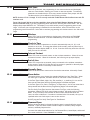
Fire Command Center.
Note: Devices must be programmed in pairs as mentioned above. For example, if
device 1 is programmed as FIRE, device 9 must also be programmed as FIRE or NONE.
Furthermore, if you do not want device 9 to be FIRE, you may use a 733 and it will
still function.
NONE - No device is set for this address.
If you entered 2, 3, or 4 in section 4.2 MAX PARTITION, the keypad displays the
PARTITION NO: prompt. If there is only one partition programmed in section 4.2, the
keypad does not display the partition assignment prompt.
4.5
PARTITION NO:
1
Partition Number
Enter the partition number where the current device being programmed is assigned.
For systems with more than one partition, press any top row Select key then enter
1, 2, 3, or 4. Press COMMAND to program the next device.
4.6
DOOR NAME XX
Door Name
The door name displays. To change the name, press any top row Select key then
enter up to 16 characters for the door name. Press COMMAND to continue device
setup programming.
Digital Monitoring Products
14
XR200-485 Programming Guide
DEVICE SETUP
4.7
ACCESS - - - - - - - -
Access Areas
Enter the area numbers (1 to 8 for partition 1 and 1 to 4 for partitions 2, 3, and 4).
Users must have matching access area numbers assigned to their code to receive
door access at this device.
If you do not enter any area numbers, all users with Door Access authority will
receive door access without regard to schedules. If the user code is programmed
for Anti-Pass YES, then the user is logged into all matching areas. This user is not
allowed to access these areas again until they have egressed the area. See Egress
Areas below.
4.8
EGRESS - - - - - - - -
Egress Areas
Use this option to detect Anti-passback violations. Anti-passback requires a user to
properly exit (egress) an area they have previously accessed. If users fail to exit
through the proper card reader location they are not granted access on their next
attempt. Enter the area numbers (1 to 8 for partition 1 and 1 to 4 for partitions 2,
3, and 4). Users must have matching access area numbers assigned to their profile,
to receive a door access at this device. If the user is programmed for Anti-Pass
YES, then the user is logged out of all matching areas. This allows the user to again
access the area. See Access Areas section.
If you do not enter any area numbers, all users with Door Access authority receive
door access without regard to schedules. If you are not using the Anti-Pass feature
leave the option blank.
4.9
STRIKE TIME:
5
Strike Time
This prompt allows you to enter a door access time during which a keypad or access
control device relay is activated. Magnetic locks or electric door strikes can be
connected to the relay and released for the length of time specified here. Enter a
time between 1 and 250 seconds. The default is 5 seconds.
This prompt also allows you to enter zero to activate the device relay with a toggle
action. This allows the user to activate or deactivate the device relay each time a
valid user code is entered. The device relay is activated or deactivated until a user
code is entered again.
Note: The Request to Exit door access time of a keypad or Model 733 Wiegand
Interface Module is not affected by this selection. It remains at 5 seconds.
4.10
FIRE EXIT
4.11
OUT GROUP NO YES
4.12
OVERRIDE NO YES
NO YES
Fire Exit Release
Select YES to allow the door access relay at this address to release whenever Fire
panic keys are pressed or a Fire or Fire Verify zone alarm is in the Status List. The
relay is reset whenever a Sensor Reset is performed to remove all Fire and Fire
Verify zone alarms from the Status List. Select NO to not allow the door access relay
at this address to release.
Output Group
Select YES to allow the output group (relays) assigned to the user profile to turn ON
when the device relay is activated for the programmed strike time. This could be
used to operate an elevator control. Default is NO. See Section 18.11 User Profiles
in the Appendix of this document for more information about profiles.
Schedule Override
Use this option to allow door ON/OFF schedules to be overridden by the armed
condition of the system. Selecting YES causes the on time for a door schedule to be
ignored when all areas assigned to Access Areas for this device are armed. Should
any area become disarmed after the door schedule on time, the device output turns
on. A door output which is on during a disarmed period automatically turns off when
all access areas assigned to the device become armed, even if the scheduled off
time has not been reached. This feature can be used to keep doors locked when a
factory opens late, or is forced to close early, due to a snow storm or other cause.
Select NO to allow door schedules to operate independent of system armed status.
Note: When OVERRIDE is YES and there are no areas programmed in ACCESS AREAS,
the door schedule for that device does not work. Either set OVERRIDE to NO or
enter an area number in ACCESS AREAS.
XR200-485 Programming Guide
Digital Monitoring Products
15
REMOTE OPTIONS
Remote Options
5.1
Remote Options
REMOTE OPTIONS
This section allows you to enter the information needed for Remote Command/
Remote Programming operation.
5.2
Remote Key
RMT KEY:
This option allows you to enter a code of up to eight digits for use in verifying
the authority of an alarm or service receiver to perform a remote command/
programming session. The Remote Link™ program must give the correct key to the
panel before being allowed any remote functions. All panels ship from the factory
with the key preset as blank.
To enter a remote key or change the current one, press a top row Select key and
enter any combination of up to eight digits. Press COMMAND. The current key never
displays.
5.3
MFG AUTH NO YES
Manufacturer Authorization
Select YES to allow DMP Technical Support technicians to access the panel during
system service or for troubleshooting. This authorization automatically expires
within one hour.
DMP remote service is provided on a read only basis: DMP technicians can look
at the system programming and make suggestions only. Alterations can only be
accomplished by the installing company service personnel.
5.4
ARM RINGS:
0
Armed Rings
Enter the number of rings the panel counts before answering the phone line when
all areas of the system are armed. Any number from 1 to 15 can be entered. If zero
is entered, the panel does not answer the phone when all areas of the system are
armed. The default Armed Rings is 0 (zero).
5.5
DISARM RINGS:
0
Disarmed Rings
Enter the number of rings the panel counts before answering the phone line while
any areas of the system are disarmed. Any number from 1 to 15 can be entered. If
zero is entered, the panel does not answer the phone when any area of the system is
disarmed. The default number of Disarmed Rings is 0 (zero).
5.6
ALR REC
NO YES
Alarm Receiver Authorization
Select YES to enable remote commands and programming to be accepted from the
alarm SCS-1/SCS-1R Receiver. The Remote Key option can also be required.
With YES selected, the panel requests the receiver key during its first communication
with the first SCS-1/SCS-1R Receiver. The panel retains this alarm receiver key in
memory and allows remote commands to be accepted from the alarm receiver. If an
alarm occurs during a remote connect, the alarm report is immediately sent to this
receiver only.
When NO is selected, remote commands and programming are not accepted from
the alarm SCS-1/SCS-1R Receiver.
Digital Monitoring Products
16
XR200-485 Programming Guide
REMOTE OPTIONS
5.7
SVC REC
NO YES
Service Receiver Authorization
YES enables remote commands and programming to be accepted from a secondary
service receiver other than the alarm SCS-1/SCS-1R Receiver. The Remote Key
option can also be required.
With YES selected, the panel requests the service receiver key the first time it is
contacted by the service receiver. The panel retains this service receiver key in
memory and accepts remote commands from the service receiver.
If an alarm occurs during a remote connect, the panel disconnects from the service
receiver and calls the alarm receiver. Alarm reports are only sent to the alarm
receiver. It is important that the alarm receiver key and the service receiver key
programmed at the central station are NOT the same so the panel can determine the
difference between receivers.
When NO is selected remote commands and programming are not accepted from a
secondary service receiver.
This option must be YES to allow programming from a directly connected computer
or an iCOM or iCOM-E.
5.8
REMOTE PHONE NO
-
Remote Phone Number
Press COMMAND to enter the phone number the panel dials whenever remote
programming is requested. After entering a phone number, the panel allows remote
commands and programming only after it is first called by the authorized receiver,
disconnects itself, and redials the remote phone number.
If a Remote Phone Number is NOT entered, and Alarm Receiver and Service Receiver
is YES the panel allows remote commands and programming without disconnecting
and redialing. The phone number can be up to two lines of 16 characters to equal
32. Enter a D for dial tone detect and a P for a 3 second pause.
Note: When not in the Programming Menu, enter 984 at the keypad and press
the COMMAND key to display the remote options menu. This menu contains the
following options:
NBR RMT
PICKUP
NUMBER - The panel allows you to enter into the keypad a phone number you want
the panel to dial. Enter any required prefixes and area codes.
REMOTE - The panel dials the phone number programmed in Remote Phone Number.
PICKUP - The panel picks up the phone line as Remote Link™ calls in. The phone
must be ringing before selecting PICKUP.
5.9
DISARM
NO YES
Remote Disarm
YES allows the panel to be disarmed remotely. NO disables remote disarming.
XR200-485 Programming Guide
Digital Monitoring Products
17
SYSTEM REPORTS
System Reports
6.1
SYSTEM REPORTS
System Reports
Select specific system reports the panel sends to the receiver.
6.2
ABORT
NO YES
Abort Report
YES allows the panel to send an alarm abort report to the receiver any time an area
is disarmed after an alarm report has been sent and the Bell Cutoff Time has not
expired. No alarmed zones can still be armed. Abort reports are also sent when the
system is disarmed during Transmit Delay and the Bell Output Timer is active. If the
communication type is set to DD, a Warning: Alarm Bell Silenced report is also sent if
the alarm bell is silenced by a user.
Note: Abort reports are not sent for Fire zones, Fire Verify, or Supervisory zones.
6.3
YES
RESTORAL:
Restoral Reports
This option allows you to control when and if a zone restoral report is sent to the
central station receiver. Press a Select key to display the following options:
NO
YES
DISARM NO - Disables the zone restoral report option. Zones continue to operate normally
but do not send restoral reports to the receiver.
YES - Enables the zone restoral report option. Zone restorals are sent whenever a
zone restores from a trouble or alarm condition.
DISARM - Causes the panel to send restoral reports for a non-24-hour zone whenever
a zone that has restored from a trouble or alarm condition is disarmed. All 24-hour
zones send restoral reports as they restore.
6.4
BYPASS
NO YES
Bypass Reports
YES allows the panel to send all zone bypasses, resets, and force arm reports to the
receiver. The bypass report includes the zone number, zone name, and the user
name and number of the individual operating the system. Reports are only sent if
O/C User in Communications is set YES for Receiver 1 or Receiver 2.
6.5
SCHD CHG NO YES
Schedule Change Reports
YES allows the panel to send all permanent and temporary, primary and secondary
schedule changes to the receiver. The report includes the day, opening time, closing
time, and the user name and number of the individual making the change. Schedule
changes made through Remote Link™ are not sent to the printer or Display Events.
Reports are only sent if O/C User in Communications is set YES for Receiver 1 or
Receiver 2. The default setting is YES.
6.6
CODE CHG NO YES
Code Change Reports
YES allows the panel to send all code additions, changes, and deletions to the
receiver. The code change report includes the user name and number added or
deleted and the user name and number of the individual making the change. Code
changes made through Remote Link™ are not sent to the printer or Display Events.
Reports are only sent if O/C User in Communications is set YES for Receiver 1 or
Receiver 2. The default setting is YES.
6.7
ACS KEY: - - - - - - - - -
Access Keypads
Enter the keypad addresses that send door access reports to the receiver. A report is
sent with each door access made from the selected keypads. Keypads at addresses
not selected still operate the door strike relay but do not send door access reports.
Reports include the user name, number, and the keypad address.
6.8
AMBUSH
NO YES
Ambush
YES allows an ambush report to be sent anytime user code number 1 is entered
at a keypad. NO disables the ambush report and allows user number 1 to operate
the same as all other codes. If YES, you can program one Ambush code for each
partition in the system.
Digital Monitoring Products
18
XR200-485 Programming Guide
SYSTEM OPTIONS
System Options
7.1
System Options
SYSTEM OPTIONS
This section allows you to select system-wide parameters.
7.2
CLS WAIT
NO YES
Closing Wait
When YES, the keypad displays ONE MOMENT... while the system waits for an
acknowledge from the receiver before arming the selected area(s) and performing
a Bell Test (if selected). Exit delays begin after the Closing Wait. Opening/Closing
reports must be YES to enable Closing Wait.
7.3
7.4
ENTRY DELAY 1: 30
ENTRY DELAY 2: 60
ENTRY DELAY 3: 90
ENTRY DELAY 4: 120
Entry Delay 1
CRS ZONE TM:
Cross Zone Time
4
Enter the Entry Delay time for all Exit type zones programmed to use Entry Delay 1.
When an armed Exit type zone is faulted, the keypad prewarn tone begins sounding
and ENTER CODE:- displays on all keypads programmed to prewarn for that zone.
The area must be disarmed before the delay expires or an alarm report is sent to the
receiver. All zones in that area are delayed along with the Exit zone. Entry Delay
times can be from 1 to 250 seconds. Repeat the above for each entry delay being
used in the system.
Enter the time allowed between zone faults. When zones are cross zoned, a second
cross-zoned zone in the same partition must fault within this time in order for an
alarm report from the first zone to be sent to the receiver. If the cross-zone time
expires without the second zone faulting, only a zone fault from the first zone is
reported. Cross-zone time can be from 4 to 250 seconds. Entering zero disables this
function. See the Appendix.
7.5
RETARD DELAY:
10
Zone Retard Delay
Enter the retard time assigned to Fire, Supervisory, Auxiliary 1, Auxiliary 2, and
Arming type zones. The retard delay only functions when the zone shorts. The
zone must remain shorted for the entire length of the Retard Delay before being
recognized by the panel. The Zone Retard Delay can be from 1 to 250 seconds.
Entering a zero disables this function.
If the zone is programmed as an Auxiliary 2 or Arming type, the Zone Retard Delay
timer is counted in minutes. This allows a light sensor, which detects darkness and
obstructing objects, to be connected to the zone.
Note: The number entered for Zone Retard Delay is used for all types of zones
that are programmed for Retard in Zone Information. For example, if you enter a
15-second delay for Fire zones, there will be a 15-minute delay for Auxiliary 2 and
Arming type zones.
7.6
PWR FAIL HRS:
1
Power Fail Delay
This option tracks the duration of an AC power failure. When the AC power is off for
the length of the programmed delay time, an AC power failure report is sent to the
receiver. The delay time can be from 1 to 9 hours. Entering a zero sends the power
failure report after a 15-second delay. The default setting is 1.
7.7
SWGRBYPS TRIPS: 3
Swinger Bypass Trips
Enter the number of times a zone can go into an alarm or trouble condition within
one hour before being automatically bypassed. You can select from 1 to 7 trips.
Bypassed zones automatically reset when the area they are assigned to is disarmed.
All 24-hour zones reset when any area of the system is disarmed. Entering a zero
disables this function.
How it works
The panel hour timer starts at 59 minutes past the hour. If the hour timer expires
before the trip counter is exceeded, the trip counter returns to zero. If the trip
counter is exceeded before the hour expires, the zone is automatically bypassed by
the panel. A Bypass Report is sent to the receiver if Bypass Reports is YES.
XR200-485 Programming Guide
Digital Monitoring Products
19
SYSTEM OPTIONS
7.8
7.9
RST SBYP
NO YES
Reset Swinger Bypass
VIDEO
NO YES
Video/Alarm Verification
When YES is selected, an automatically bypassed zone is reset if it remains in a
normal condition for one complete hour after being bypassed. An automatic reset
report is sent to the receiver if Bypass Reports is selected as YES.
Selecting YES forces the panel to wait for 60 seconds after a successful
communication with a central station receiver before making any additional
communication attempts. This 60-second period can be used to allow video
transmission or alarm verification (such as 2-way voice) equipment to use the phone
line. After the 60-second timer, the panel can once again seize the phone line and
send any pending reports.
The Video option must be set to NO if any fire protection is connected to the panel.
7.10
TIME CHG
NO YES
Time Zone Changes
This function allows the panel to request automatic time changes from the DMP SCS1/SCS-1R Receiver. For the receiver to send time changes, it must be programmed
to send time changes and must be receiving time change updates from the host
automation computer at least every 24 hours. Default is YES.
HRS FROM GMT:
6
When time zone is programmed YES, enter the number (0-23) that indicates the
Greenwich Time zone (GMT) where the panel is located. The default is 6.
GMT
0
1
2
3
4
5
6
7
8
9
10
11
12
13
14
15
16
17
18
19
20
21
22
23
7.11
AC CYCLES:
50HZ
60HZ
60HZ
Digital Monitoring Products
20
City/Time Zone
London, Monrovia, Lisbon, Dublin, Casablanca, Edinburgh
Cape Verde Island, Azores
Mid-Atlantic, Fernando de Noronha
Buenos Aires, Georgetown, Brasilia, Rio de Janeiro
Atlantic Time (Canada), Caracas, La Paz, Santiago
Eastern Time (US, Canada) Bogota, Lima, Arequipa
Central Time (US, Canada), Mexico City, Saskatchewan
Mountain Time (US, Canada), Edmonton
Pacific Time (US, Canada), Tijuana
Alaska
Hawaii
Midway Island, Samoa
Fiji, Marshall Island, Wellington, Auckland, Kwajalein, Kamchatka
New Cadelonia
Guam, Sydney
Tokyo, Seoul
Hong Kong, Singapore
Bangkok, Hanoi
Dhaka, Almaty
Islamabad, Karachi
Abu Dhabi, Kazan
Moscow, Bagdad
Eastern Europe
Rome, Paris, Berlin
AC Cycles
This function allows you to select either a 60 Hz or 50 Hz electrical AC cycle. When
60HZ is selected, the panel operates on a 60 Hz cycle used in the USA. Select 50HZ
for the panel to operate on a 50 Hz cycle used in countries other than the USA. The
default value is 60HZ.
XR200-485 Programming Guide
OUTPUT OPTIONS
Output Options
8.1
Output Options
OUTPUT OPTIONS
This function allows you to program the panel Bell Output functions and certain
Relay Output options. Dry contact relays and voltage outputs are available using the
XR200-485/485B board output harness. Refer to the XR200 Installation Guide (LT0197) for complete information.
8.2
BELL CUTOFF:
15
Bell Cutoff Time
Enter the maximum time from 1 to 99 minutes the Bell Output remains on. If the
Bell Output is silenced or the area is disarmed, the cutoff time resets. Enter 0 to
provide continuous bell output. The default is 15 minutes.
8.3
BELL TST
NO YES
Automatic Bell Test
Select YES to turn on the Bell Output for 2 seconds each time a partition is
completely armed from a keypad. This test delays until the Closing Wait
acknowledge is received (if selected). If the Closing Wait acknowledge is not
received within 90 seconds, the bell test does not occur. Arming performed from an
Arming zone or from Remote Link™ does not activate the Bell Test.
8.4
BELL ACTION . . . . . .
Bell Action
This section defines the type of Bell Output for zone alarms. (Trouble conditions do
not activate the Bell Output.) Press COMMAND to display the default Bell Output for
each zone type. Press any Select key and enter S for a Steady Bell Output, P for a
Pulsed output, T for a Temporal Code 3 output, and N for no Bell Output.
8.4.1
FIRE
TYPE:
P
Fire Bell Action
Defines Bell Action for Fire Type zones. The default is P.
8.4.2
BURGLARY TYPE:
S
Burglary Bell Action
Defines Bell Action for Burglary Type zones and Exit Error output. The factory
default is set at S.
8.4.3
SUPRVSRY TYPE:
N
Supervisory Bell Action
Defines Bell Action for Supervisory Type zones. The default is set at N.
8.4.4
PANIC
TYPE:
N
Panic Bell Action
Defines Bell Action for Panic Type zones. The default is set at N.
8.4.5
EMERGNCY TYPE:
N
Emergency Bell Action
Defines Bell Action for Emergency Type zones. The default is set at N.
8.4.6
AUXLRY 1 TYPE:
N
Auxiliary 1 Bell Action
Defines Bell Action for Auxiliary 1 Type zones. The default is set at N.
8.4.7
AUXLRY 2 TYPE:
N
Auxiliary 2 Bell Action
Defines Bell Action for Auxiliary 2 Type zones. The default is set at N.
8.5
OUTPUT ACTION . . .
Output Action
Define the XR200-485/485B relay outputs operation. The panel provides two Form C
relays (1 and 2) and eight 12 VDC voltage outputs (3 to 10) rated at 50mA each. You
can expand the system up to 200 additional relay outputs (numbered 100 to 299)
using multiple 716 Output Expander Modules and one or two interface cards. Keypad
door strike relays can be programmed by entering D1 to D16 for addresses 1 to 16.
Also, output groups can be programmed by entering G1 to G20.
8.5.1
CO OUTS: - - - - - - - -
Cutoff Output
Outputs 1 to 8 can be entered here to turn off after a time specified in CUTOFF
TIME. To disable this option, press any Select key to clear the display then press
COMMAND. The Cutoff Output displays NONE when no outputs are selected.
XR200-485 Programming Guide
Digital Monitoring Products
21
OUTPUT OPTIONS
8.5.2
CUTOFF TIME:
0
Output Cutoff Time
If a Cutoff Output is assigned, enter a Cutoff Time of 1 to 99 minutes for the output
to remain on. Enter zero for continuous output.
8.5.3
COMM FAIL OUT:
0
Communication Fail Output
Enter the output number to turn on when a DD system fails to communicate on three
successive dial attempts or a MPX system does not communicate with the receiver
for 150 seconds or if the backup communication line transmits a report
To clear the output, disarm any area or select Off for the output number in the User
Menu Outputs On/Off section. Enter zero to disable this output.
8.5.4
FIRE ALR OUT:
0
Fire Alarm Output
Enter the output number to turn on when a fire type zone is placed in alarm. The
output is turned off using the Sensor Reset option while no additional fire type zones
are in alarm. Enter zero to disable. This output is not compatible with Cutoff
Outputs.
8.5.5
FIRE TRB OUT:
0
Fire Trouble Output
Enter the output number to turn on when any fire type zone is placed in trouble,
when any supervisory type zone is placed in alarm or trouble, or when any system
monitor (AC, Battery, Phone Line 1 or Phone Line 2) is placed in trouble. The output
turns off when all fire and supervisory type zones, or system monitors are restored to
normal. Enter zero to disable this output. This output is not compatible with Cutoff
Outputs.
8.5.6
AMBUSH OUT:
0
Ambush Output
Enter the output number to turn on when an Ambush code is entered at a keypad.
The output is turned off using the Sensor Reset option. Enter zero to disable.
8.5.7
ENTRY OUT:
0
Entry Output
Enter the output number to turn on at the start of the entry delay time. The output
turns off when the area is disarmed or the entry delay time expires. Enter zero to
disable.
8.5.8
EXIT OUT:
0
Exit Output
Enter the output number to turn on when an exit delay time starts in any area of the
system. The output is turned off when the area arms or when the arming is stopped.
Enter zero to disable this output.
8.5.9
READY OUT:
0
Ready Output
Enter the output number to turn on when all disarmed burglary zones are in a
normal state. The output is turned off when any disarmed burglary type zone is in a
bad state. Enter zero to disable. This output is not compatible with Cutoff Outputs.
8.5.10 PH TRBL OUT:
0
Phone Trouble Output
Enter the output number to turn on when the phone line monitor in the DMP 893/
893A detects a voltage below 3 VDC or when the short across pins 2 and 7 on the
phone block is lost. The output is turned off when phone voltage rises above 3 VDC.
Enter zero to disable this output.
8.5.11 LATE CLS OUT:
0
Late To Close Output
Enter the output number to turn on at the expiration of a Closing schedule. The
output activates simultaneously with the CLOSING TIME! keypad display. The output
is turned off when the area is armed, the Closing is extended, or the schedule is
changed. Enter zero to disable this output.
Digital Monitoring Products
22
XR200-485 Programming Guide
OUTPUT OPTIONS
8.5.12 DVC FAIL OUT:
0
Device Fail Output
Enter the output number to turn on when an addressed device fails to respond to
polling from the panel. A Missing Device report is sent to the receiver. The output
is turned off when the device responds to polling or is removed from the system.
Enter zero to disable this output and LX-Bus™ device fail reporting to the receiver. If
any addressed device is unsupervised, this output cannot be used.
8.5.13 SNSR RST OUT:
0
Sensor Reset Output
Enter the output number to turn on when a Sensor Reset is performed at a keypad.
The output turns off automatically 5 seconds later. This function can be used to
reset smoke detectors operated by an external power supply through a Model 716
Output Expander Module. Enter zero to disable this output.
8.6
OUTPUT NAMES . . .
Output Names
This section allows you to define a 16 character alphanumeric name for any or all
210 output numbers. The name can display on the keypad when a user performs the
browser feature at Outputs On/Off. See the XR200-485/485B User’s Guide (LT-0364)
Appendix for browser operation.
8.6.1
OUTPUT NO: -
Output Number
Enter an output number (1 to 10, 100 to 299).
8.6.2
OUTPUT NAME X X X
Output Names
The output name displays. To change the default name, press any top row Select
key then enter up to 16 characters for the output name. Press COMMAND to enter
the next output number and name.
XR200-485 Programming Guide
Digital Monitoring Products
23
OUTPUT GROUPS
Output Groups
9.1
OUTPUT GROUPS
Output Groups
This function allows you to assign outputs to groups. Output groups can be assigned
to other areas of programming such as Output Options or Zone Information Alarm
Action, the same way single outputs are assigned. This allows the entire group of
outputs to turn on and off as required by the programming option.
9.2
GROUP NO: -
Group Number
Enter a group number from 1 to 20. Up to 20 different groups may be assigned.
9.3
GROUP NAME X X
Group Name
The group name displays. To change the default name, press any top row Select key
then enter up to 16 characters for the group name. Press COMMAND to enter the
outputs to be assigned to the group.
9.4
OUTPUT NO 1: OUTPUT NO 2: OUTPUT NO 3: OUTPUT NO 4: OUTPUT NO 5: OUTPUT NO 6: OUTPUT NO 7: OUTPUT NO 8: -
Output Number
Enter the Output number. Entry range is 1 to 10, 100 to 299 (outputs), D1 to D16
(doors), and G1 to G20 (groups). The maximum number of outputs that can be
assigned to a specific group is eight.
An output group may be assigned as one of the output numbers in another output
group.
Example: Output Group 1 consists of only four assigned outputs. Output Group
1 could be assigned as one output in Output Group 2. Output Group 2 could still
have 7 other outputs assigned to that group. When Output Group 2 is turned on, 11
outputs could turn on. This allows Output Groups to be assigned within other Output
Groups providing many combinations.
Output groups 1 to 10 can be assigned by a user profile for applications such as
elevator control. See the XR200-485/485B User’s Guide (LT-0364) Output Group
section for additional information.
Output groups 11 to 20 cannot be assigned to a profile and are available for
installation applications such as special lighting, etc. To assign these groups to a
profile, use Remote Link™ or System Link™ software from DMP.
Digital Monitoring Products
24
XR200-485 Programming Guide
MENU DISPLAY
Menu Display
10.1
MENU DISPLAY
Menu Display
Menu Display allows you to select at which keypad addresses the user can access the
following functions. Menu displays for addresses 9-16 automatically show when a
corresponding address 1-8 is entered. For example, when address 1 is entered for
Time Display, address 9 also displays the time.
10.2
ARM STAT 12345678
Armed Status
Enter the keypad addresses that show the armed areas for their partitions. For
example: if address 1 is enabled here, it can display the armed areas within its
partition. Each armed area displays with its area number. The User Menu Armed
Areas function also displays the custom area name you enter in Area Information.
10.3
TIME DSP 12345678
Time
Enter the keypad addresses that can display the time and day of the week.
10.4
ARM/DIS 12345678
Arm/Disarm
Enter the keypad addresses from which users can arm and disarm areas in a
partition.
XR200-485 Programming Guide
Digital Monitoring Products
25
STATUS LIST
Status List
11.1
STATUS LIST
Status List
This function allows you to select the zone alarms and troubles, and system monitor
troubles displayed at the keypads. The Status List function operates automatically
when the keypad is not performing any other function. Status list displays for
addresses 9 through 16 automatically show when a corresponding address 1 through
8 is entered.
The keypad stays in the Status List until the user arms or disarms or selects a menu
option. Status List alternates with the Armed Status on keypad addresses selected
in the Menu Display - Armed Status section. You can choose to have System Monitor
troubles placed in the list, the different zone types placed in the list, and at which
keypad addresses they display.
11.2
DISPLAY KEYPADS:
Display Keypads
This option defines which keypad addresses display the various status information.
Any combination of addresses can be entered to display the status items that follow.
If you do not want a particular status item to display, do not enter any addresses.
11.3
SYS TRB 12345678
System Monitor Troubles
Specifies the addresses where any trouble on a System Monitor displays. The System
Monitors include the following:
AC Power
Battery Power
Closing Check
Panel Box Tamper
Phone Line 1
Phone Line 2
(requires the 893 or 893A Dual Phone Line Module)
The name of the System Monitor is placed in the Status List and the keypad steady
trouble buzzer sounds. The buzzer remains on until any top row Select key is
pressed on the keypad. The name remains in the list until the condition is restored.
11.4
FIRE 12345678
Fire Zones
Specifies the addresses where all fire zone alarms and troubles display. The zone
name displays and, if it is a trouble condition, the keypad steady trouble buzzer
sounds. The buzzer remains on until any top row Select key is pressed. The name
remains in the list until the user clears it with the Sensor Reset function.
When using the Security Command LCD Keypads or the 630F Remote Fire Command
Center, the panel provides distinct speaker tones from the keypad for Fire:
On - Fire zone alarm and Bell Output or Fire Bell Output is ON.
Off - Alarm Silence
Digital Monitoring Products
26
XR200-485 Programming Guide
STATUS LIST
11.5
BURGLRY 12345678
Burglary Zones
Specifies the addresses where all burglary zone alarms and troubles display. Burglary
zones include Night, Day, and Exit type zones. Burglary zone troubles remain in the
list until the zone restores. All keypads are selected by default.
For zone alarms, only the last burglary zone tripped remains in the list. The alarm
remains in the list until another burglary zone goes into alarm, any area of the
system is disarmed, or 10 minutes elapses without an alarm. This ensures that if a
burglary is in progress the last zone tripped remains in the list even if the zone is
restored.
The keypad buzzer sounds for one second on burglary alarms.
When using the Security Command LCD Keypads or the 630F Remote Fire Command
Center, the panel provides distinct speaker tones from the keypad for Burglary:
On - Burglary zone alarm and Bell Output or Burglary Bell Output is ON.
Off - Alarm Silence.
11.6
SPRVSRY 12345678
Supervisory Zones
Specifies the addresses where all supervisory zone alarms and troubles display. Enter
supervisory zones in the status list and sound the keypad buzzer until a valid user
code is entered at any keypad address.
11.7
PANIC
--------
Panic Zones
Specifies the addresses where all panic zone alarms and troubles display. The zone
name remains in the list until the zone restores. The keypad buzzer does not sound
for panic alarms or troubles.
11.8
EMERGCY - - - - - - - -
Emergency Zones
Specifies the addresses where all emergency zone alarms and troubles display. The
zone name remains in the list until the zone restores. The keypad buzzer does not
sound for emergency alarms or troubles.
11.9
AUX 1
--------
Auxiliary 1 Zones
Specifies the addresses where all Auxiliary 1 zone alarms and troubles display. The
zone name remains in the list until the zone restores. The keypad buzzer does not
sound for Auxiliary 1 alarms or troubles.
11.10 AUX 2
--------
Auxiliary 2 Zones
Specifies the addresses where all Auxiliary 2 zone alarms and troubles display. The
zone name remains in the list until the zone restores. The keypad buzzer does not
sound for Auxiliary 2 alarms or troubles.
XR200-485 Programming Guide
Digital Monitoring Products
27
PRINTER REPORTS
Printer Reports
12.1
PRINTER REPORTS
Printer Reports
This section allows you to define the operation of a local printer connected to the
panel through the use of a DMP 462P Printer Interface Card. The 462P allows you to
connect the DMP SCS-PTR or other compatible 40-character or 80-character serial
printer to the panel.
Printing the panel event buffer
The Display Events option in the User Menu contains a PRINT command that allows
the user to send the contents of the panel event buffer to a local printer. The PRINT
option is visible whether or not a 462P Printer Interface Card is attached to the
panel.
12.2
ARM/DIS
NO YES
Arm and Disarm Reports
Prints arming, disarming, and Late to Close reports. Includes the area number,
name, and action (armed, disarmed, or late), the user number, user name, and time
and date.
12.3
ZONE
NO YES
Zone Reports
Prints changes in the status of active zones. Includes the zone number, name, and
type as well as the action (alarm, trouble, bypass, etc.) user number (if applicable)
and area name. When the Walk Test or Panic Zone Test (485B only) is performed,
Verify and Fail messages also print for each zone.
12.4
USR CMDS NO YES
12.5
DOOR ACS NO YES
User Command Reports
Prints user code changes, outputs turned ON or OFF (if operated by a schedule, SCH
is shown in Display Events in place of the user number), schedule changes, and User
Menu functions.
Door Access Reports
Prints door access activity. Includes the door number, first and second (485B only)
user number, first and second (485B only) user name, and the time and date of the
door access.
12.6
SUPV MSG NO YES
Supervisory Reports
Prints System Monitor Troubles and system events. See Status List - System Monitor
Troubles.
Digital Monitoring Products
28
XR200-485 Programming Guide
HOST LOG REPORTS
Host Log Reports
13.1
HOST LOG REPORTS
Host Log Reports
This section allows you to program the types of logging reports the panel will send
through the 462N Network Interface Card. The reports include information such as
the type of activity, time and date of the activity, and user name and number. These
data logging reports can be accessed using the Advanced Reporting Module. See the
User’s Guides for more information.
Note: The network connection that the Host Log Reports are sent through is not
monitored for network trouble: The Host Log Reports option should NOT replace the
primary communication method or act as a backup communication method.
If there is trouble with the network connection, the panel continues to attempt to
send the Host Log Reports until the connection is reestablished. The panel then
sends the reports. A Network Trouble message is not sent if the connection is lost.
The Host Log Reports have the lowest priority of panel reports sent.
For information about the 462N card capabilities with Host Log Reports and Host
Communication method, see Section 18.10 462N Card Examples in the Appendix.
13.2
MODEM SETUP:
-
Modem Setup
The keypad displays MODEM SETUP:. Press COMMAND. Enter up to two lines of 16
characters to equal 32 characters for the string that is sent to the network device
connected to the 462N Network Interface Card.
If you are using a direct connection through the 462N card to a Remote Link
computer, do not enter a Modem Setup String here.
If your network device is an iCOM or iCOM-E, enter the following setup string:
AT#UCXXX.XXX.XXX.XXX#PPPPP. The Xs represent the target IP Address of the iCOM
or iCOM-E, and the Ps represent the port number. The default port number is 2001.
An example of a modem setup is: AT#UC192.168.001.099#2001.
Note: If the iCOM or iCOM-E is only being used to send Host Log Reports, do NOT
enter a Modem Setup String here. The Modem Setup String entered CANNOT be the
same as that entered in Communication.
13.3
ARM/DIS
NO YES
Arm and Disarm Reports
Sends arming, disarming and Late to Close events. Includes the area number, name
and action, the user number and name, and the time and date.
13.4
ZONE
NO YES
Zone Reports
Sends changes in the active zones status. Includes the zone number, name, type,
the action (alarm, trouble, bypass, etc.), user number (if applicable), and area
name. For a Walk Test, Verify and Fail messages are sent for each zone.
13.5
USR CMDS NO YES
User Command Reports
Sends user code changes, schedule changes, and door access denied events.
13.6
DOOR ACS NO YES
Door Access Reports
Sends door access activity: door number, user number and name, and time and date.
13.7
SUPV MSG NO YES
Supervisory Reports
Sends system monitor reports, such as AC and battery, and system event reports.
Supervisory Reports also sends the following reports:
• Abort
• Exit Error
• Ambush
• System Recently Armed
• Alarm Bell Silenced
• Unauthorized Entry
• *Late to Close
* Only sent as a Supervisory Report if Area Schedules is not enabled, Closing
Check is enabled, and an opening/closing schedule has been programmed.)
Note: To send these reports through the host logger, you must enable SUPV MSG.
XR200-485 Programming Guide
Digital Monitoring Products
29
AREA INFORMATION
Area Information
14.1
AREA INFORMATION
Area Information
Allows you to assign functions to the different areas within a partition. All non-24hour zones must be assigned to an active area. See Zone Information.
You activate an area by assigning it a name. See Area Name. A name is given to
each active area in place of a number to assist the user during arming and disarming.
14.2
PARTITION NO:
1
Partition Number
Enter the partition number to program. Partition 1 using area arming can have up to
eight areas on the panel. Partitions 2, 3, and 4 using area arming can each have up
to four independent areas.
This prompt does not display if you only entered one partition in Device Setup.
14.3
EXIT DELAY:
45
Exit Delay
Enter the exit delay time for all Exit type zones in this partition. When the exit
delay time starts, all activity on that zone and other non-24-hour zone types in the
area are ignored until the exit delay expires. The keypad displays the countdown.
If an Exit zone is in a bad condition at the end of the exit delay:
• the alarm bell sounds for 2 seconds
• an Exit Error report is sent to the central station receiver
• the bad Exit zone is force armed
If any other zone type is placed in a bad condition at the end of the exit delay an
alarm is indicated. The exit delay can be from 1 to 250 seconds. Enter zero to
disable the Exit Delay feature.
14.4
BURG BELL OUT:
0
Burglary Bell Output
Enter the output number (0 to 10, 100 to 299, G1 to G20, or D1 to D16) that turns on
any time a Burglary type zone in this partition is placed in alarm. The output turns
off when you disarm the area in which the alarm occurred and no other Burglary
type zones are in alarm. The output can also be turned off using the Alarm Silence
option in the User Menu or by entering a user code with the authority to silence
alarms. The duration of this bell output follows the time entered in the System
Options/Bell Cutoff Time prompt. See the Output Options - Bell Cutoff Time
section. If Bell Test is selected YES, the Burglary Bell Output entered here is turned
on for two seconds each time the system is armed.
14.5
14.6
O/C RPTS
NO YES
Opening/Closing Reports
CLS CHK
NO YES
Closing Check
This option allows an Opening report to be sent to the receiver whenever an area
within this partition is disarmed. A Closing report is also sent to the receiver when
any area within this partition is armed.
Select YES to enable the panel to verify that all areas in this partition have been
armed after temporary or permanent schedules have expired. If the Closing Check
finds any areas disarmed past the scheduled time, the keypad selected to display
System Trouble Status displays CLOSING TIME! and emits a steady beep.
If you select YES in the Area Schedules section, the appropriate area name displays
followed by - LATE. The keypad steady beep is silenced by pressing any top row
Select key. If the system is not armed or a temporary schedule not entered to
extend the closing within ten minutes, a Late to Close report is sent to the SCS-1 or
SCS-1R Receiver if AUTO ARM is NO. See Automatic Arming section. If the area has
been disarmed outside of any schedule, the closing check sequence occurs one hour
after the area is disarmed and continues each hour until the area is armed or the
schedule is extended.
Digital Monitoring Products
30
XR200-485 Programming Guide
AREA INFORMATION
14.7
CLS CODE
NO YES
Closing Code
When YES is selected, a code number is required for system arming. If NO is
selected, a code number is not required for system arming.
14.8
ANY BYPS
NO YES
Any Bypass
When YES is selected, zones can be bypassed without a code number during the
arming sequence. A code number is always required to use the Bypass Zones option
from the menu.
14.9
AREA SCH
NO YES
Area Schedules
Select YES to allow each area in this partition to set its own shift schedules 1 to 4.
Enter NO to provide one set of schedules for this partition.
Note: You can only use Area Schedules with an Area or All/Perimeter system.
14.10 EARLY AMBUSH:
0
Early Morning Ambush (485B only)
Enter the number of minutes (1 to 15) before a silent alarm (Ambush S15) is sent
to the central station using the area 1 account number. Enter zero to disable this
option.
When a user code is entered to disarm area 1, the same or different user code
must be entered within the programmed number of minutes to prevent an ambush
message being sent to the receiver. The second user code must have authority to
disarm area 1 and may be entered at either the same or another keypad or reader.
The keypad does not display any indication that the ambush timer is running.
Indications can be provided by assigning an output number to Entry Out and Ambush
Out in Output Options. Entry Out turns on one minute before the timer expires and
turns off at expiration. Ambush Out turns on when the timer expires and turns off
when Sensor reset is performed.
This option only appears when using the Model 485B card.
14.11 AREA NO: -
Area Number
Enter the number of the area in this partition you are programming. In an area
system, partition 1 can have up to 8 areas. Partitions 2 to 4 can each have up to 4
areas. After entering the area number, press COMMAND to enter the area name.
14.12 * UNUSED *
Area Name
The area name can be up to 16 alphanumeric characters. All others are marked
unused. For instructions on entering alphanumeric characters see section 1.7
Entering Alpha Characters. To add an area name to the system, press any Select
key and then enter up to 16 characters for the new area name. Press COMMAND to
continue.
To mark an active area unused, delete the old name by pressing a top row Select
key, then press the COMMAND key. The programmer automatically programs
the name as *UNUSED*. If you have already cleared Area Information during
Initialization, all areas will be marked * UNUSED *. See Section 2.1 Initialization.
XR200-485 Programming Guide
Digital Monitoring Products
31
AREA INFORMATION
14.13 ACCOUNT NO: 12345
Account Number
Enter the account number to be sent to the receiver for this area. Choose
an account number compatible with the Communication Type selected in
Communications. The default Account Number is the one previously entered. If
the Communication Type selected multiplex, you must choose an account number
between 128 and 999.
Proper multiplex account number assignments to DMP SCS-1 Receivers:
Receiver Line
1
2
3
4
5
Main Account #
10000 to 10127
20000 to 20127
30000 to 30127
40000 to 40127
50000 to 50127
Area Account #
10128 to 10999
20128 to 20999
30128 to 30999
40128 to 40999
50128 to 50999
14.14 AUTO ARM NO YES Automatic Arming
Select YES to allow this area to arm automatically according to permanent,
temporary, or extended schedules. If no schedules are programmed, the area auto
arms every hour.
If closing check is selected as YES, the automatic arming function does not take
place until the expiration of a ten minute Closing Check delay. See Closing Check.
If the area is disarmed outside of any permanent or temporary schedule, the closing
check sequence occurs one hour after the area is disarmed.
At arming, bad zones are handled according to the option selected in section Bad
Zones. If a closing report is sent, the user number is indicated as SCH on the SCS-1/
SCS-1R Receiver. NO disables automatic arming for this area.
14.15 BAD ZONES:
BYP
Bad Zones
At the time of automatic arming, some zones in the area may not be in a normal
condition. This option allows you to program the panel response to these bad zones.
This option is not displayed if AUTO ARM is NO.
BYP FORC
REF
BYP - All bad zones are bypassed. A bypass report is sent to the receiver if Bypass
Reports is YES. The report indicates SCH as the user number.
FORC - All bad zones are force armed. Zones force armed in a bad condition are
capable of restoring and reporting an alarm if tripped. A forced zone report is
transmitted if Bypass Reports is YES. The report indicates SCH as the user number.
REF - The automatic arming is refused and no arming takes place. A No Closing
report is sent to the receiver regardless of the Closing Check selection.
14.16 AUTO DIS NO YES Automatic Disarming
NO disables automatic disarming by schedule for this area. When YES is selected,
the area automatically disarms according to permanent or temporary schedules. If
an opening report is sent to the receiver, the user number is indicated as SCH.
14.17 ARMED OUTPUT:
0
Armed Output Number
14.18 LATE OUTPUT:
0
Late Output Number
Enter the output to turn on when this area is armed. If an exit delay is used for this
partition, the Armed Output turns on at the start of the exit delay. The output turns
off when this area is disarmed. The output cannot be turned on from the Outputs
On/Off option of the User Menu.
Enter the output to turn on when this area is not armed by its scheduled time and
Area Late or Closing Time displays at a keypad and the keypad buzzer is on. The
output turns off when the keypad buzzer is silenced by pressing any key. Default
is 0.
Digital Monitoring Products
32
XR200-485 Programming Guide
AREA INFORMATION
14.19 BANK/SAF NO YES Bank Safe & Vault (485B only)
NO disables the Bank Safe & Vault feature for this area. When selected as YES,
schedules set for this area and the time of day cannot be changed while the area is
armed.
Program schedules before arming: A Bank Safe & Vault area can only be disarmed
during scheduled times. If you arm the area before programming a schedule, the
panel must be reset before the area can be disarmed manually from a keypad or the
Bank Safe & Vault option in Zone Programming turned to NO.
Zones in areas programmed for Bank Safe & Vault cannot be bypassed or force
armed.
Do not assign Bank Safe & Vault area to an Arming zone. Arming zones can disarm
Bank Safe & Vault areas outside of a schedule.
14.20 COMMON
NO YES
Common Area
Select YES to enable this area to operate as a common area. This area is armed
when the last area in the partition is armed and is disarmed when the first area in
the partition is disarmed. You can have multiple common areas in each partition.
For the common area to work properly, do not assign the common area to any user
codes. A user code can be programmed to arm and disarm the common area from a
keypad at any time, but the common area will not function as a common area.
14.21 TWO MAN NO YES Two Man Rule (485B only)
Select YES to enable this area to require two user code entries to disarm or allow a
door access. When a user presents a code to a keypad or reader requesting a door
access or disarm, 2ND CODE displays and requires the entry of a different user code
with at least the same authority.
NO disables the Two Man Rule for this area.
XR200-485 Programming Guide
Digital Monitoring Products
33
ZONE INFORMATION
Zone Information
15.1
ZONE INFORMATION
Zone Information
Zone Information allows you to define each protection zone operation used in the
system. All protection zones, whether located on a command processor panel,
Security Command keypad, or zone expander are programmed the same way.
15.2
ZONE NO: -
Zone Number
Enter the zone number you intend to program. Available zone numbers are shown in
the table below. Press COMMAND to enter a zone name.
Note: The second zone of addresses 9 through 16 is available for programming when
using 485 firmware version 201 or higher.
15.3
* UNUSED *
Address
Programming Zone Number
Panel
1-10
1
11-14
2
21-24
3
31-34
4
41-44
5
51-54
6
61-64
7
71-74
8
81-84
9
16
10
26
11
36
12
46
13
56
14
66
15
76
16
86
LX-Bus 1
100-199
LX-Bus 2
200-299
Zone Name
Zone names can have up to 16 alphanumeric characters. Each operating zone in the
system must be given a name. The name can display at the keypads during arming
and disarming so the user does not have to memorize zone numbers. Users can
associate a zone name with a particular protection point. A zone that is not part of
the system must be marked unused.
To add a zone name to the system, press any Select key and then enter up to 16
characters for the new zone name. Press COMMAND to continue.
To mark a zone unused, delete the old name by pressing a top row Select key, then
press the COMMAND key. The programmer automatically programs the name as *
UNUSED *. If you have already cleared Zone Information during Initialization, the
zones are marked * UNUSED *.
Digital Monitoring Products
34
XR200-485 Programming Guide
ZONE INFORMATION
15.4
ZONE TYPE:
BLANK
Zone Type
The Zone Type defines the panel response to the zone being opened or shorted.
This is called the Alarm Action. There are up to 13 possible alarm action responses
depending on the zone type and any restrictions it may have. See Sections 18.4 and
18.5 in the Appendix for Zone Type information.
When you assign a Zone Type to a zone, responses are made automatically for the
zone. There are 12 Zone Types to choose from. Application descriptions for each
zone type can be found in Section 18.4 Zone Descriptions in the Appendix.
To enter a new Zone Type, press any Select key. The display lists all of the available
Zone Types four at a time.
--
NT
DY
EX
Blank, Night, Day, or Exit. Press COMMAND for additional zone types.
FI
PN
EM
SV
Fire, Panic, Emergency, or Supervisory. Press COMMAND for additional zone types.
A1
A2
FV
AR
Auxiliary 1, Auxiliary 2, Fire Verify, or Arming (keyswitch). Press the Back Arrow key
to display the previous zone types. When the Zone Type you want displays, press the
Select key beneath it.
If you select Blank, Night, Day, Exit, Auxiliary 1, Auxiliary 2, or Arming as the Zone
Type, the zone must be assigned to an active area. If you select Fire, Fire Verify,
Panic, Emergency, or Supervisory as the Zone Type, it is a 24-hour zone that is always
armed and no area assignment is needed.
Zone Type Specifications
The panel contains 12 default zone types for use in configuring the system. These
zone types provide the most commonly selected functions for their applications. All
zone types except the Arming zone type can be customized by changing the options
listed below.
Refer to Section 18.4 in the Appendix for complete zone type descriptions.
15.5
15.6
FIRE BELL OUT:
0
Fire Bell Output
PARTITION NO:
1
Partition Number
This output (1 to 10, 100 to 299) is turned on any time a Fire, Fire Verify, or
Supervisory zone is placed in alarm. The output is turned off by any the following
actions:
• When the User Menu Alarm Silence function is performed.
• When a valid user code is entered to silence the bell.
• When the Silence key is pressed on the 630F Remote Fire Command Center.
• Using the Outputs On/Off function in the User Menu.
• The expiration of the Bell Cutoff time.
Enter the partition number where this zone is being assigned.
15.7
AREA NO: -
Area Number
For an Area system, enter the area number where this zone is being assigned.
XR200-485 Programming Guide
Digital Monitoring Products
35
ZONE INFORMATION
15.8
AREAS: 1234
Arming Zone Area Assignment
If the zone has been programmed as an Arming Type (AR), the only information to
enter is the areas that the zone controls.
When the zone changes from normal to shorted, the programmed areas toggle
between the armed or disarmed condition. When restored to normal, no action
occurs. When the zone opens from a normal (disarmed) state, a trouble is reported.
When opened from a shorted (armed) state, an alarm is reported and the zone
is disabled until you disarm the area(s) from either a keypad or Remote Link™
computer.
To visually indicate the armed state of the area(s), you can assign an Armed Output
to individual areas and use remote LEDs at the keyswitch. The LED turns on or off to
indicate to the user the armed state of the area(s).
If any bad zones are present when the Arming zone shorts, the LED delays lighting
for 5 seconds. If during the 5-second delay the Arming zone shorts again no arming
takes place. If 5 seconds expires without the zone shorting again or restoring to
normal, the areas arm and bad zones are force armed. To allow bad zones to be
force armed, the Any Bypass option must be set to YES. If Any Bypass option is set to
NO, arming does not occur. See the Area Information - Any Bypass section. A priority
zone cannot be force armed.
15.9
STYLE:
Style
This option specifies the style for the arming/disarming operation. The default style
is TGL (toggle). Press any Select key to display the STYLE options. To view more
style options press the COMMAND key.
TGL ARM DIS STEP TGL (Toggle) - When the zone changes from normal to shorted, the programmed
areas toggle between the armed or disarmed condition. When restored to normal,
no action occurs. When the zone opens from a normal (disarmed) state, a trouble is
reported. When opened from a shorted (armed) state, an alarm is reported and the
zone is disabled until you disarm the area(s) from either a keypad or Remote Link.
ARM - When the zone is shorted, the programmed areas are armed. When restored
to normal, no action occurs. When the zone opens from a normal (disarmed) state,
a trouble is reported. When opened from a shorted (armed) state, an alarm is
reported.
DIS (Disarm) - When programmed as an AREA system, a short disarms the
programmed areas. When programmed as a ALL/PERIM or HOME/AWAY system, a
short disarms ALL areas. When restored to normal, no action occurs. When the zone
opens from a normal (disarmed) state, a trouble is reported.
STEP - A short arms the areas and beeps the keypads once. A normal condition
causes no action. An open condition disarms the programmed areas and beeps the
keypads for one second.
Note: This arming style is designed for wireless arming pendants. When using an
arming/disarming keyswitch locate the keyswitch within the protected area.
MNT
Digital Monitoring Products
36
MNT (Maintain) - When the zone shorts, the programmed areas are armed. When
restored to normal, the programmed areas disarm and any alarm bells silence.
When the zone opens from a normal (disarmed) state, a trouble is reported. If
opened from a shorted (armed) state, an alarm is reported and the zone is disabled
until you disarm the area(s) from either a keypad or Remote Link.
XR200-485 Programming Guide
ZONE INFORMATION
15.10 NEXT ZN?
NO YES
Next Zone
When YES is selected, the programming for the zone terminates and the display
returns to Zone Number, allowing you to enter a new zone number. To make any
alterations to the Alarm Action for a zone, answer the Next Zone prompt with NO.
The Alarm Action is then defined in the following sections.
NOTE: Sections 15.10.1 through 15.10.5 are only used with FA400 Remote Wireless Receivers and 472
interface card.
Zones 100 through 299 have wireless capability when using the FA400 Remote Wireless Receivers
and 472 interface card: If you are programming zones 100 to 299, selecting NO to NEXT ZONE - NO YES
displays the prompt WIRELESS NO. This display is not visible unless you are programming zones in this
range. If the zone you are programming is intended for wireless devices, select YES and refer to the
programming instructions below. Select NO to continue programming non-wireless zones in the 100 to 299
range.
15.11 WIRELESS NO YES Wireless
Select YES if you are programming a wireless zone connected to an FA400-DMP
Remote Wireless Receiver. Press the COMMAND key to continue with wireless
programming.
CHECK IN TM:
60
Check-in Time
You can set wireless transmitters to check in automatically every 10, 30, or 60
seconds or not at all. To change the default of 60 seconds, press any Select key to
display the default display NONE 10 30 60. Press the Select key under the check-in
time you want for this zone.
INT CONT
NO YES
Internal Contact
Select YES to use an internal contact on the wireless transmitter. Select NO to use
an external contact. When NO is selected, the following two prompts display.
EOL
NO YES
End-of-Line
Select YES to supervise an external contact connected to the wireless transmitter.
At the contact, install a 2.2k Ohm End-of-Line resistor in parallel for Normally Open
contacts and in series for Normally Closed contacts.
NRM OPEN NO YES
Normally Open
Select NO if the contact connected to the wireless transmitter is Normally Closed.
15.12 ALARM ACTION . . . .
Alarm Action
This option allows you to change the standard definitions of any Zone Type. When
the Zone Type is specified, the Alarm Action for that zone is stored in memory.
If the Zone Type is Blank, Night, Day, Exit, Auxiliary 1, or Auxiliary 2 it is a non-24hour zone and the Alarm Action programing begins with Disarmed Open.
If the Zone Type is Fire, Panic, Emergency, or Supervisory it is a 24-hour zone that is
always armed and the Alarm Action programming begins with Armed Open.
The Fire Verify Zone Type functions the same as Fire Type, with the following
exceptions: When a Fire Verify zone initiates an alarm, the panel performs a Sensor
Reset. If any Fire Verify zone initiates an alarm within 120 seconds after the
reset, an alarm is indicated. If an alarm is initiated after 120 seconds, the cycle is
repeated and a zone fault report is sent to the receiver.
Do NOT program Fire Verify Zone Types for Zone Retard.
15.13 DISARMED OPEN
Disarmed Open
Defines the action taken by the panel when the zone is opened while the area is
disarmed. There are three actions to define: Report to transmit, Relay Output to
activate, and Relay Output action.
You must also make these selections for the Disarmed Short, Armed Open, and Armed
Short zone conditions. Press COMMAND to continue.
XR200-485 Programming Guide
Digital Monitoring Products
37
ZONE INFORMATION
15.14 MSG:
A
TROUBLE
T
L
-
Report to Transmit
Press any Select key to display the following report options: A, T, L, S, and - (dash).
ALARM - Select A to send an alarm report to the receiver and activate the bell
output according to zone type. The zone name appears in the panel’s alarmed zones
and status lists.
TROUBLE - Select T to send a trouble report to the receiver. The zone name
appears in the panel’s alarmed zones and status lists.
Note: UL requirements prevent the Alarm (A) and Trouble (T) action for Fire (FI), and
Fire Verify (FV) zone types from being changed.
LOCAL - When you select L, an alarm report is NOT sent to the receiver. The bell
output activates and the zone name appears in the panel’s alarmed zones and status
lists. You can also select L for a zone to send alarm reports to the user’s pager only
and not to the central station. PAGER in Receiver 2 programming must be enabled.
D
S
DOOR PROPPED - Selecting D allows the following operation: The time programmed
into ENTRY DLY 4 in the System Option section begins to count without displaying
on the keypads. If the time expires and the zone has not returned to normal,
the keypad trouble buzzer starts and CLOSE THE DOOR appears on the keypads
programmed into the PREWARN ADDRESS section. The time programmed into ENTRY
DLY 4 begins to count down internally again. If the time expires a second time and
the zone has not returned to normal, a fault report is sent to the receiver and the
zone name - OPEN message displays on the keypads until a code is entered. The bell
output does not activate for the Door Propped operation.
SILENCE/RESET - When a programmed SV zone is connected to the DMP Model 303
Silence/Reset switch, the zone can be used to silence the alarm bell and perform a
sensor reset without using a keypad. For Supervisory zones, S messages replaces L
messages. A report is NOT sent to the receiver except for the bell silence report.
- (Dash) - When you select a – (dash), reports are NOT sent to the receiver. The
bell output does not activate and there is no display in the panel’s alarmed zones or
status list. Only the relay output selected in the next section operates.
15.15 OUTPUT NO:
0
Output Number
Specify any of the panel Relay Outputs to be activated by a zone condition (1 to 10,
100 to 299 if Model 716 used). The output can be activated regardless of the report
to transmit. An output activated by an armed zone turns off when the zone area is
disarmed by a user. Press a Select key then the output number.
Note: The polling cycle for the LX-Bus is 1.6 seconds. The panel may take up to 1.6
seconds to indicate LX-Bus zone conditions. Then, Model 716 relay actions on the
LX-Bus may take up to 1.6 seconds to activate the zone condition as indicated.
15.16 OUTPUT:
NONE
Output Action
Entering an Output Number displays this prompt. This prompt allows you to assign
an output action to the relay: Steady, Pulse, Momentary, or Follow.
STD PLS MOM FOLW STEADY - The output turns on and remains on until the area is disarmed, an output
cutoff time expires, or the output is reset from the keypad menu.
PULSE - The output alternates one second on and one second off.
Note: The pulsing rate for a Model 716 relay attached to the LX-Bus is 1.6 seconds.
MOMENTARY - The output is turned on only once for one second.
FOLLOW - The output is turned on and remains on while the zone is in an off
normal, or bad condition. When the zone restores, the output turns off.
After you make the three selections in the sections above, the display prompts you for the same three
selections for Disarmed Short, Armed Open, and Armed Short conditions. If the zone is a 24-hour type,
only the Armed Open and Armed Short conditions display. When you finish programming all of the zone
conditions, the Swinger Bypass selection then displays.
Digital Monitoring Products
38
XR200-485 Programming Guide
ZONE INFORMATION
15.17 SWGR BYP NO YES Swinger Bypass
YES allows the zone to be swinger bypassed by the panel according to the
specifications programmed in Swinger Bypass Trips and Reset Swinger Bypass. The
Bypass condition displays in the keypad Status List. Selecting NO disables swinger
bypassing for this zone.
How it works
If within one hour, a zone trips the total number of times AS specified in Swinger
Bypass Trips, the panel bypasses it until the following conditions occur; the area
in which the zone is assigned is disarmed, the zone is manually reset through the
Bypass Zones? keypad User Menu function, the zone remains normal for one hour and
the Reset Swinger Bypass is YES.
If the zone trips fewer than the specified times within one hour, the bypass trip
counter returns to zero and the process must repeat.
A swinger bypass report is sent to the receiver if Bypass Reports is YES.
15.18 PREWARN: 12345678
Prewarn Addresses
At the start of the entry delay, all keypad addresses selected here display ENTER
CODE:-. If you want the prewarn to sound at all eight addresses, leave the default
as shown.
To delete an address, press the matching number on the keypad. To disable
prewarning at all keypads, press any top row Select key to clear the addresses
shown. Press the COMMAND key when the address selection is complete.
15.19 ENTRY DELAY:
1
Entry Delay
Select the entry timer for this zone. Entry timers 1 to 4 are programmed in System
Options.
15.20 RETARD
NO YES
Zone Retard
When you select YES, the zone operates with the zone retard delay. The retard
functions only in zone short conditions.
The zone must remain shorted for the full length of the retard delay before the
panel recognizes its condition. If you select NO, the zone operates without a retard
delay.
If the zone is programmed as an Auxiliary 2 or Arming type, the Zone Retard Delay
timer is counted in minutes. This allows a light sensor, which detects darkness and
obstructing objects, to be connected to the zone.
Note: The number entered for Zone Retard Delay is used for all types of zones
that are programmed for Retard in Zone Information. For example, if you enter a
15-second delay for Fire zones, there will be a 15-minute delay for Auxiliary 2 and
Arming type zones.
15.21 PRESGNL:
NONE
Presignal Addresses
You can enable any combination of keypad addresses to sound a presignal tone
during the time a zone is in retard delay. The presignal tone silences when the zone
restores or the retard delay expires.
To enable a presignal address, press any top row Select key followed by the number
of the keypad address. You can enable the presignal for all eight keypad addresses.
To disable a presignal address press the matching number digit again. Press the
COMMAND key when the address selection is complete. The Presignal prompt only
displays when Retard is selected as YES.
15.22 FAST RSP
NO YES
Fast Response
Select YES to provide a zone response time of 167ms. Select NO to provide a normal
zone response time of 500ms. Zones 100 to 299 have a fixed response time of 200ms
and do not display this prompt.
XR200-485 Programming Guide
Digital Monitoring Products
39
ZONE INFORMATION
15.23 CRS ZONE NO YES Cross Zone
Select YES to enable cross zoning for this zone. Cross zoning requires one or more
armed zones to fault within a programmed time before an alarm report is sent to the
receiver.
When a cross zoned zone trips, the bell action assigned to the zone activates. The
cross zone time specified in System Options begins to count down. If another cross
zoned zone in the same area faults, or if the first zone restores and faults again
before a Sensor Reset is done, the panel sends an alarm report.
If no other cross zoned zone in the same area trips before the cross zone time
expires, the panel sends only a zone fault report to the receiver.
Cross zoning is not compatible with all zone types: You cannot enable cross zoning
for Fire verify zones or for any Fire zones that have Retard Delay enabled.
15.24 PRIORITY NO YES Priority
Select YES to provide additional protection for the premises by requiring this zone to
be in a normal condition before its assigned area can be armed.
ZONE NO: -
ZONE NUMBER - Enter the zone number to program next. Follow each programming
prompt as it displays. If all zones are programmed, press the Back Arrow key at the
ZONE NO: – display to continue.
Note: If you programmed any wireless zones, press the Back Arrow key for the
following wireless programming. The next four prompts are for use with the FA400DMP Remote Wireless Receiver.
15.25 PRG XMTR? NO YES Program Transmitter
Select YES to program wireless transmitters. Select NO to return to Zone
Information.
Note: Before programming transmitters, you must program the panel accurate
account number, which determines the transmitter House ID number. If the account
number is changed, reprogram the transmitter to reflect the new House ID number.
See section Inovonics Transmitter Information in the Appendix for more information
about programming transmitters and the House ID.
15.26 CONNECT XMTR: ***
Connect Transmitter
Connect the wireless transmitter, whose zone number displays, to the Programming
Connector on the 472 Inovonics 900MHz Card using the 620 Programming Cable.
RESET THE TRANSMITTER. The keypad display prompts you for wireless transmitters
starting from the lowest zone number to the highest.
At the CONNECT XMTR: prompt, you can also press a Select key and enter in any
wireless zone number (100 to 299 or 000 for the C100 and FA100 transmitters). After
programming all transmitters, press the COMMAND key.
15.27 CONNECT FA100 P 1
Connect Command Transmitter
Connect the FA100 or FA113 you want assigned to the partition shown (P1 = Partition
1) to the 472 Card. Press the Reset button inside the transmitter housing to initiate
programming. Repeat programming for each partition. To use the Alert buttons on
the transmitter as a panic, program AMBUSH as YES in System Reports.
Additional Zone Programming
The remaining Zone Information you need to specify varies with the different Zone
Types. Below is a list of the remaining information needed:
If Zone Type
Remaining Information
Exit
Prewarn addresses/Entry Delay
Fire, Supervisory, A1, and A2
Retard and Presignal addresses
15.28 XMTR PROGRAMMED
Transmitter Programmed
Transmitter Programmed displays after the wireless transmitter has been successfully
programmed into the panel.
Digital Monitoring Products
40
XR200-485 Programming Guide
STOP
Stop
16.1
STOP
Stop
At the STOP prompt, pressing any Select key allows you to exit the panel
Programmer function. When selected, the panel performs an internal reset and exits
the programmer.
The STOP routine causes the following conditions to occur:
• All areas in all partitions are DISARMED
• All zones in all partitions are DISARMED
• The panel Status List is CLEARED
During the reset, all keypad displays are momentarily blank for two seconds. After
the reset, the programming function is terminated and the keypads return to the
status list display.
Missing LX-Bus™ Modules Displayed
The Programmer includes a feature following the STOP routine that displays the
name of any programmed LX-Bus module not currently connected to the panel. For
example, if you had enabled any of the wireless options and not yet installed a 472
Inovonics 900MHz Card, after the STOP routine the panel would display NO WIRELESS
CARD. This is a helpful reminder to install the card. This feature can also be a
troubleshooting tool to indicate a problem if you installed the card and this message
still displays. The following list shows the different messages and their associated
LX-Bus cards.
Keypad Display
Missing Card
NO LXBUS CARD
481 LX-Bus™ Expansion Card
NO WIRELESS CARD
472 InovonicS 900MHz Card
NO PRINTER CARD
462P Printer Interface Card
NO HOST CARD
462N Network Interface Card
(with HOST communication selected)
The above messages clear automatically from the keypad after a few moments.
SET LOCKOUT CODE
Set Lockout Code
17.1
SET LOCKOUT CODE
Set Lockout Code
Pressing COMMAND at the STOP prompt displays SET LOCKOUT CODE. This allows
you to program a code that is then required to gain access to the panel internal
Programmer through the keypad. You can change this code at any time to any
combination of numbers from 3 to 5 digits long. Leading zeros do not have to be
entered when using the lockout code. Initializing the panel does not clear a Lockout
Code. Lockout Codes can be changed through Remote Link.
Once you have changed the code, it is important to write it down somewhere and
store it in a safe place. Lost Lockout Codes require that the panel be sent back to
DMP for repair. You may cancel a Lockout Code by entering 00000 at the Set Lockout
Code command.
Lockout Code restriction
Do not set a Lockout Code higher than 65535.
XR200-485 Programming Guide
Digital Monitoring Products
41
APPENDIX
Appendix
18.1
Diagnostics Function
The XR200-485/485B panel contains a Diagnostics function that allows LX-Bus™ communication integrity
testing, identifies individual zones, and displays the present state of any zone. To use Diagnostics, reset
the panel, enter the Diagnostics code 2313 (DIAG), and press COMMAND.
Test LX-Bus
The first Diagnostic function you see displayed is: TEST LX-BUS. This function allows you to test the ability
of the 462N, 462P, 462FM, 472, and 481 Interface Cards to communicate with zone and output expander
modules connected to their LX-Bus circuits.
To continue, press any top row Select key. The keypad displays LX-BUS 1 2. Press the Select key under 1
to test LX-Bus circuit number 1. Press the Select key under 2 to test LX-Bus circuit number 2. The keypad
now displays ADDRESS: - . Enter a 2-digit LX-Bus device address and press COMMAND. When testing LX-Bus
devices, enter only the addresses to which the modules have been set.
Important Note: A device address is not the same as a zone number. If you are testing 714 or 715 Zone
Expander Modules, which each contain four zones, the device address is the first zone number. When the
panel polls a 714 on the LX-Bus, it recognizes it as a four zone device and does not poll the remaining three
zones. The 714 module internally polls the remaining zones and transmits any status changes to the panel.
This greatly reduces the amount of time it takes the panel to poll all LX-Bus devices.
The keypad next displays TESTING . . . STOP during the device testing. At any time, you can press the
Select key under STOP to end the polling. The panel records the number of no responses from the device.
If all polls are received back by the panel correctly, the keypad displays 00000/65535 FAIL.
If one or more polling attempts fail, the keypad displays * * * * */65535 FAIL with the * representing the
number of failed polling attempts. A display of 65535/65535 FAIL indicates a problem with the interface
card or its LX-Bus wiring such as a bad or broken wire, harness not properly connected, or excessive noise
or distance. It can also mean that a zone number was entered that did not match a device address. Press
the Back Arrow key to enter a new device address or press COMMAND to exit the TEST LX-BUS.
Zone Finder
The second Diagnostic function is the Zone Finder. Press the COMMAND to display ZONE FINDER. This
function allows you to identify individual zones on devices connected to the interface card LX-Bus, the
panel, or any zones on the keypad data bus. To use ZONE FINDER, press any top row Select key. The
display changes to FAULT ZONE. The next zone on the system that changes from a normal to an open or
shorted state is displayed as ZONE NO: * * *. To continue, press the Back Arrow key.
Zone State
Press the COMMAND key to display the third Diagnostic function: ZONE STATE. This function allows you to
enter any zone number and check its current state (Normal, Open, or Shorted). Press any Select key. The
display changes to ZONE NUMBER: _ . Enter the zone number you want to check and press COMMAND. The
panel then displays the current state of the zone as either NRML (normal), OPEN, or SHORT.
Note: Inovonics Wireless zones states are as follows:
• OPEN: Transmitter tamper header or receiver problem, or a transmitter is not learned into the system.
• NRML: Wireless zones are OK.
• SHORT: A zone is tripped or a transmitter is programmed incorrectly: Be sure that the NORMALLY
OPEN programming option is correctly set to YES or NO, depending upon how the transmitter is used.
NORMALLY OPEN is in Zone Information > Wireless Options.
LX-Bus Status
The fourth Diagnostic function is the LX-BUS STATUS. This function allows the panel to poll all devices
connected to the LX-Bus of an interface card and check for any Overlapped, Missing, or Extra addresses.
Below is a description of each status item:
Digital Monitoring Products
42
XR200-485 Programming Guide
APPENDIX
Overlap
An overlap occurs when a device address is the same as any of the last three zones on another 714 or 715.
Note: The overlap feature cannot determine when two devices have the same address.
Example
714 Address 00
711 Address 02
Zones 100 101 102 103
Zone 102
Overlap
Missing
Missing occurs when a zone between 100 and 299 has been programmed in ZONE INFORMATION and
no device with that zone address is installed on the LX-Bus. To correct the problem, check your zone
expansion module programming and addressing.
Extra
A device is installed on the LX-Bus™ but one or more of its zones are not programmed into the system.
Exiting the Diagnostics program
To exit the Diagnostics function, press the Back Arrow key until STOP displays then press any Select key.
The keypad returns to the Status List display.
18.2
Using the 984 Command Function
This feature allows you to connect to a service receiver and is used primarily to bring a new account online and upload panel programming completed in Remote Link™. There are three options to allow manual
phone line seizure: Number, Remote, and Pickup.
NBR
After completing panel programming in Remote Link, set a trap to seize the panel when it calls. Traps are
set by selecting Panel > Trap. Refer to the Remote Link User’s Guide, LT-0565, or Remote Link Help File.
Then, from the panel, enter 984 and the COMMAND key, while the panel displays in the Status List. The
keypad display changes to NBR RMT PICKUP. Press the Select key under NBR. Enter the phone number
for the service receiver connected to the Remote Link computer. Press each number key slowly and
deliberately. The panel dials each number as it is pressed. If you make a mistake, press the Back Arrow
key. The panel stops dialing and returns to the Status List.
You can enter up to 32 characters for the phone number. Once you enter 16 characters the LCD display is
full: Press the COMMAND key to enter the final 16 characters. To enter a # (pound sign) press the fourth
(far right) Select key, and to enter an * (asterisk) press the third Select key. Program a pause by entering
the letter P. Program a dial tone detect by entering the letter D. These characters are counted as part of
the allowable 32 characters. Press COMMAND after you enter the phone number.
The panel calls the receiver connected to Remote Link to download the new programming. Remote Link
then traps the panel.
Note: The panel makes ten attempts to reach the receiver. If while attempting to contact the receiver, the
panel needs to send an alarm report, the panel stops dialing and uses the phone line to send its report.
RMT
Select RMT if you want the panel to immediately seize the phone line and dial the remote phone number
programmed in the panel programming Remote Options section. The Remote Options phone number is to
the modem being used by the DMP Remote Link™ software program.
After completing panel programming in Remote Link, set a trap to seize the panel when it calls. Traps are
set by selecting Panel > Trap. Refer to the Remote Link User’s Guide, LT-0565, or Remote Link Help File for
complete information about setting traps.
XR200-485 Programming Guide
Digital Monitoring Products
43
APPENDIX
Then, from the panel, enter 984 and the COMMAND key, while the panel displays in the Status List. The
keypad display changes to NBR RMT PICKUP. Press the Select key under RMT. The panel automatically
calls the receiver connected to Remote Link to download the new programming. Remote Link then traps
the panel.
Note: The panel makes ten attempts to reach the receiver. If while attempting to contact the receiver, the
panel needs to send an alarm report, the panel stops dialing and uses the phone line to send its report.
PICKUP
After completing panel programming in Remote Link, connect to the panel by selecting Panel > Connect.
Refer to the Remote Link User’s Guide, LT-0565, or Remote Link Help File for complete information about
connecting to panels.
When the telephone line at the panel rings, enter 984 and the COMMAND key, while the panel displays
the Status List. The keypad display changes to NBR PICKUP. Press the Select key under PICKUP to
allow the panel to seize the line. The panel immediately seizes the phone line and sends a carrier tone
to the receiver. A verification process occurs and, if successful, the panel grants remote access to its
programming and Event Buffer.
After the panel has seized the line, send the file from Remote Link by selecting Panel > Send. Remote
Link then uploads the new programming into the panel. You may also Request Events by selecting Panel >
Request Events in Remote Link.
Keypad Displays
When using either the RMT or PICKUP options, the keypad displays LINE SEIZED. This indicates that the
panel has seized the line and is executing its program. If the line cannot be accessed, or if the RMT or
PICKUP options are used before all connects attempts are made, the keypad displays SYSTEM BUSY.
18.3
Using the Walk Test
The XR200-485/485B panel provides a walk test feature that allows a single technician to test the
protection devices connected to zones on the system. To conduct the Walk Test, reset the panel.
WALK TEST
Walk Test
To conduct the Walk Test, reset control panel by momentarily placing a jumper
on J16. From the keypad, enter the code 8144 and press COMMAND. The
keypad displays WALK TEST for four seconds. If the system is monitored and the
communication type is DD or HST, the system sends a System Test Begin report to the
central station. After four seconds, the keypad displays the zone type choices for
testing.
*BG
*FI *PN *SV
Zone Types
Press the Select key directly below the zone type you want to test. An asterisk
next to the zone type indicates the zone type chosen for testing. Press the select
key again to deselect the zone type. When you have selected all the zone types
you want for testing, press the COMMAND key to display the next Walk Test option.
Pressing the Back Arrow key exits the Walk Test.
BG (Burglary zones) - Select BG to test burglary zones. Includes all NT, DY, EX, A1,
and A2 zones.
FI (Fire zones) - Select FI to test fire zones. Includes all FI and FV zones.
PN (Panic zones) - Select PN to test panic zones. Includes all PN and EM zones.
Note: While testing the panic zones in the Walk Test, trip each panic zone (or
button) on the system by pressing and holding the panic for 1 to 2 seconds.
You do NOT have to hold the panic for 2 seconds in normal mode. You are only
required to hold the panic during the Walk Test because the zone takes additional
time to report when the system is in test mode.
SV (Supervisory zones) - Select SV to test supervisory zones. Includes all SV zones.
Note: During the Walk Test, trip each panic zone (or button) on the system by
pressing and holding the panic for 1 to 2 seconds.
Digital Monitoring Products
44
XR200-485 Programming Guide
APPENDIX
BELL
NO YES
Bell Action
This option selects the bell output action when a zone under test faults. This option
allows the panel bell, and/or burglary bell, and/or fire bell to turn ON and then OFF
each time a zone trips (opened or shorted).
NO - Select NO for no bell output action during Walk Test.
YES - Select YES to turn on any bell output for 2 seconds during Walk Test.
PULS - Select PULS to turn on any bell output for 1/4 second during Walk Test. Any
LX-Bus device output turns on for 1.6 seconds due to the polling cycle.
Once in the Walk Test, walk around and trip each protective device. As each device
trips, the panel sounds the alarm bells as programmed in Bell Action (described on
the following page) and then performs an automatic Sensor Reset. Continue tripping
devices until the entire system is tested. The trip counter on the keypad display
increments by one each time a device opens or shorts.
TRIPS: XXX
END
Trip Counter
Displays the number of zone trips during the Walk Test.
• Each time a selected zone trips, the keypad buzzes for two seconds.
• Each time an FI, FV, or SV zone is tripped, a Sensor Reset occurs.
END - Press the Select key directly below END to stop the Walk Test. When the Walk
Test ends or a 20 minute time-out expires, a final Sensor Reset occurs. The System
Test End message is sent to the receiver along with Verify and Fail messages for each
zone under test. Faulted zones then display on the keypad.
SOUTH LOBBY
ZONE: 10
-FAIL
Failed Zones Display
For each zone that did not trip (failed) at least once during the Walk Test, the
keypad displays the zone name and number and buzzes for one second. Press the
COMMAND key to display the next failed zone.
Local Printer for Walk Test
When the Walk Test is completed, a Verify or Fail message for each zone tested prints to the local printer.
Enable Walk Test message printing through Printer Reports programming.
18.4
Keypads Speaker Operation
When using the Security Command LCD Keypads or the 630F Remote Fire Command Center, the panel
provides distinct speaker tones from the keypad for Fire, Burglary, Zone Monitor, and Prewarn events. The
list below details the conditions under which the speaker is turned on and off for each event.
Fire
Burglary
Zone Monitor
Prewarn
18.5
On - Fire zone alarm and Bell Output or Fire Bell Output is ON.
Off - Alarm Silence.
On - Burglary zone alarm and Bell Output or Burglary Bell Output is ON.
Off - Alarm Silence.
On - One time only when a monitored zone is tripped.
Off - After one tone.
On - During Entry Delay.
Off - When Entry Delay expires.
Cross Zoning
Caution must be taken when cross zoning devices to ensure that the Cross Zone Time is long enough to
allow an intruder to trip both devices before the time expires. A Cross Zone Time that is too short may
allow an intruder to trip the devices and have just a zone fault report sent to the central station.
When a Cross Zoned zone is tripped a FAULT report is sent to the SCS-1/SCS-1R Receiver. When two Cross
Zoned zones trip within the Cross Zone Time, both zone reports are sent to the receiver as ALARM signals.
For example, if zones 1 and 2 are Cross Zoned zones, and only zone 1 trips, a FAULT report is sent to the
receiver for zone 1. If zone 1 trips and zone 2 trips within the Cross Zone Time, an ALARM report is sent to
the receiver for zone 1 and zone 2.
XR200-485 Programming Guide
Digital Monitoring Products
45
APPENDIX
18.6
Pager Direct Specifications
The XR200-485 communicates in full-duplex mode with a Glenayre alphanumeric pager terminal. The
terminal modem must accept the following parameters:
• 300 bps Bell 103 protocol
• Carrier detect response time = 300ms
• Delay between lost carrier and hang-up = 12.0 seconds
The following alphanumeric pager specifications must also be met in order for the pager to receive Pager
Direct reports:
Glenayre Electronics GL3000 protocol:
• 300 Baud
• 7 Bits Data
• 1 Stop Bit
• Even Parity
18.7
Events Manager
The Events Manager allows you to delay sending certain reports to the central station receiver. Reports can
be kept in the panel memory until overwritten by new activity or held until the memory buffer reaches 133
events. When the buffer is filled, the panel automatically sends the stored reports to the central station
receiver. Below is a list of panel reports that can be delayed using the Events Manager option.
Report Type
Alarm
Trouble
Restore
Opening
Closing
Bypass
Reset
Supervisory
Add Codes
Delete Codes
Change Codes
Permanent Schedule Change
Temporary Schedule Change
Door Access
Door Access Denied
Late to Close
Force Armed Zone
18.8
Immediately
Y
Y
Y
Delayed
Y
Y
Y
Y
Y
Y
Y
Y
Y
Y
Y
Y
Y
Y
Modem Setup Information
When a report is to be sent, the panel first sends “+++ATHcr (carriage return)”, waits one second then sends
the dial string characters entered in MODEM SETUP. This is followed with a space and a “ cr.” The modem
must respond to the panel with “CONNECTcr”.
If “CONNECTcr” is properly received from the modem, the standard HST report/response sequences occur.
After a report is sent and acknowledged, or a report is sent and not acknowledged for a period of one
minute, the panel sends “+++ATHcr” to the modem.
If no response is received from the modem after 60 seconds, the cycle repeats. Any string other than
“CONNECTcr” that is returned by the modem and ends with a “cr” is ignored. After three cycles and no
connection is made, a NETWORK TROUBLE message is sent to the central station if UL AA is selected as
YES.
If the Host channel fails to receive a proper acknowledgment within 60 seconds, the panel sends a
WARNING: NETWORK TROUBLE (S72) report on the 2ND LINE. The next time a report is sent by the panel
over the Host channel, the panel sends a NETWORK RESTORED (S73) report over the 2ND LINE.
Digital Monitoring Products
46
XR200-485 Programming Guide
APPENDIX
18.9
Host Backup Examples
Several examples follow to explain scenarios in which you would use Host Backup and how to program the
panel for Host Backup.
When using Host Backup with Host Log Reports, refer to the next section, 462N Network Interface Card
Examples.
Example 1: Two 462N Cards
This example describes the configuration and programming needed when you are using two 462N Cards and
two iCOMSL units to enable the Host Backup.
Hardware:
• XR200-485 version 204 or above
• Two 462N Network Interface Cards
• One 460 Adaptor Card
• Two iCOM or iCOM-E Internet Alarm Port Routers
• One SCS-1 or SCS-1R Receiver
Installation:
Install the primary 462N Card into slot 1 of the 460 Card, then connect the primary iCOM or iCOM-E to the
462N card.
Install the backup 462N Card into slot 2 of the 460 Card, then connect the backup iCOM or iCOM-E to the
462N.
Programming:
Select Host for Communication type. Enter AT#UCXXX.XXX.XXX.XXX#PPPPPP for the Modem Setup.
Note: Enter the Target IP Address for the backup iCOM or iCOM-E connected to the 462N card in slot 2 in
place of XXX.XXX.XXX.XXX. Enter the port number in place of PPPPPP. The default port number is 2001.
Select YES for Host Backup. Enter the retry and check-in times.
Explanation:
Messages are sent through the 462N card in slot 1 to the iCOM or iCOM-E then to the SCS-1 or SCS1R Receiver. If the messages cannot be sent that route, the panel sends them using the backup: The
messages sent through the 462N Card in slot 2 to the iCOM or iCOM-E to the SCS-1 or SCS-1R Receiver (the
IP Address entered for the Modem Setup). If the panel cannot send the messages through the backup 462N
Card, the panel then uses the communication type selected for the 2nd Line.
Example 2: One 462N Card
This example describes the configuration and programming needed when using one 462N and one iCOM or
iCOM-E to enable the Host Backup.
Hardware:
• XR200-485 version 204 or above
• One 462N Network Interface Card
• One iCOM or iCOM-E Internet Alarm Router
• Two SCS-1 or SCS-1R Receivers
Programming:
Select Host for Communication type. Enter AT#UCXXX.XXX.XXX.XXX#PPPPPP for the Modem Setup.
Note: Enter the Target IP Address for the backup SCS-1 or SCS-1R Receiver in place of XXX.XXX.XXX.XXX.
Enter the port number in place of PPPPPP. The default port number is 2001.
Select YES for Host Backup. Enter the retry and check-in times.
Explanation:
Messages are sent through the 462N card to the iCOM or iCOM-E, then to the Main SCS-1 or SCS-1R Receiver.
If the messages cannot be sent using that route, the panel sends them to the backup SCS-1 or SCS-1R
Receiver. The Modem Setup is then used to direct the messages to the backup receiver. If the panel
cannot send the messages to the backup receiver, the panel then uses the communication type selected for
2nd Line.
Example 3: Other Network Devices
It is also possible to use other network devices for the backup. You may use a cellular radio to route
messages to the receiver. If you are using a network device other than an iCOM or iCOM-E, you need to
obtain the Modem Setup String for the network device. Generally the Setup String can be found in the
literature provided with the device.
You may use the examples above as a guide when programming your network device. The major difference
between programming an iCOM or iCOM-E for backup and another network device is the Modem Setup.
XR200-485 Programming Guide
Digital Monitoring Products
47
APPENDIX
18.10 462N Network Interface Card Examples
Several options are available when configuring the panel for Host communication, Host backup
communication, and Host Log Reports. All options use a 462N card and an iCOM Internet Alarm Router or
iCOM-E Encrypted Internet Alarm Router (an iCOM or iCOM-E is not required for the Host Log Reports when
using a direct connection).
The chart below outlines the different ways you can configure the panel for these three options. As shown
in the chart below, it is possible to use only one 462N card an one iCOM or iCOM-E to meet all three of
these needs. The chart also explains when a Modem Setup is required.
When using a direct connection to a Advanced Reporting Module computer for the Host Log Reports,
the 462N card can only be used for logging: A separate card is needed for Host Communication and Host
Backup. Also, a Modem Setup is not required when using a direct connection for the logger.
Refer to the Communication section and Host Log Reports section for more information. Also refer to
Modem Setup Information and Host Backup Examples in the Appendix.
Panel Programming
Options
Host
Host
Host Log
Backup Reports
1 Card
2 Cards
Card 1
Card 1
Card 2
Yes
Yes
No
Yes
No
No
Host
Host, Backup
(Modem Setup for Backup)
Host
Backup (Modem Setup
for Backup Optional)
Yes
Yes
Yes
Host, Backup, and Logging
(Modem Setup for Backup
and Logging)
Host, Backup
(Modem Setup for
Backup)
Logging
(Use Direct Connection)
Yes
Yes
Yes
Yes
No
Yes
Host, Logging
(Modem Setup for
Logging)
Host
Backup
(Modem Setup for
Backup Optional)
Logging
No
No
Yes
Host, Backup, and Logging
(Modem Setup for Backup
and Logging)
Host, Logging
(Modem Setup for Logging)
Logging
18.11 User Profiles
A profile defines the authority of each user code in the system. Profiles are programmed in the keypad
User Menu. Several characteristics associated with each User Profile define its authority within the system.
To effectively program an XR200-485 system, you must understand the interrelationship between profiles,
devices, output groups, and areas. Below is a brief explanation of the User Profile elements. For more
information about user profiles, refer to the XR200-485 User’s Guide (LT-0364).
Profile Number - Each profile may be assigned a unique number from 1 to 99.
Profile Name - Each profile may be assigned a 16-character name. The Profile Number is the default name.
Area Number - Each profile may be assigned specific areas of the system for arming and disarming. When
profiles 1 to 98 are created, NO areas are assigned by default and the default for profile 99 is ALL areas
assigned. Profile 99 is pre-programmed into the system at the factory.
Access Area Number - Each profile may be assigned door access area assignments. Default for profile 1 to
98 is NO areas assigned and default for profile 99 is ALL areas assigned. Profile 99 is pre-programmed into
the system at the factory.
Output Group Assignment - Each profile may be assigned an output group number from 1 to 10. Default
for profile 1 to 98 is NO output group assigned and default for profile 99 is output group ten. Your system
may by programmed to turn on an output group at certain keypads when door access occurs.
User Menu Assignments - Each user profile may have any of the menus assigned to it as shown in the
User Profile Record below. The User Profile Record lists the user menu profile assignments and the system
functions users are allowed to access based on the profile numbers assigned to their codes.
Always make sure that at least one administrator in your system has a profile with all authorities and all
areas.
Digital Monitoring Products
48
XR200-485 Programming Guide
APPENDIX
18.12 User Profiles Record
12345678 12345678
12345678 12345678
12345678 12345678
12345678 12345678
12345678 12345678
12345678 12345678
12345678 12345678
12345678 12345678
12345678 12345678
12345678 12345678
12345678 12345678
12345678 12345678
12345678 12345678
12345678 12345678
12345678 12345678
12345678 12345678
12345678 12345678
12345678 12345678
12345678 12345678
Shift/Time Access
Anti-passback
Temp User Code
Extend Schedules
Fire Drill
Service Request
Display Events
Time
Schedules
User Codes
User Profiles
System Test
System Status
Zone Monitor
Bypass Zones
Zone Status
Outputs On/Off
Armed Area
Door Access
Sensor Reset
Output
Group
Alarm Silence
Profile
Arm/Disarm
#
Profile Name
Area
Access Area
12345678 12345678
Arm/Disarm
This User Profiles Record can be used as a tool when programming devices, profiles, areas, and Output
Groups. Because these programming options are interrelated, use this sheet to plan the system before you
begin the installation and programming process.
1
1
1
1
1
1
1
1
1
1
1
1
1
1
1
1
1
1
1
1
2
2
2
2
2
2
2
2
2
2
2
2
2
2
2
2
2
2
2
2
3
3
3
3
3
3
3
3
3
3
3
3
3
3
3
3
3
3
3
3
4
4
4
4
4
4
4
4
4
4
4
4
4
4
4
4
4
4
4
4
A
A
A
A
A
A
A
A
A
A
A
A
A
A
A
A
A
A
A
A
18.13 Inovonics Transmitter Information
A House ID Number is like an address for Inovonics wireless transmitters so they know with which panel
they should be communicating. The House ID Number is based on the last two digits of the panel’s primary
account number.
Be sure that the panel primary account number is programmed before programming any wireless
transmitters. Because the House ID is based on the account number, entering or changing the primary
account number after programming the transmitters requires you to reprogram all of the transmitters.
Cross Talk
If you have more than one account within a five-mile radius, there is a possibility that “cross talk” can
occur. “Cross talk” is when transmitters communicate with multiple panels due to the transmitters having
the same House ID. If you have two panels within a five-mile radius that use wireless zones, be sure that
the last two digits of the account numbers are not the same.
For example, ABC Plumbing has a panel with an account number of 12345 that uses wireless zones. The
House ID for the wireless transmitters at ABC Plumbing is 45. Two blocks away, XYZ Printing has an account
number of 22345 and the panel also uses wireless zones. The House ID for the transmitters for XYZ Printing
is 45. Because the two accounts have the same last two digits in the account numbers, the House ID is the
same. Therefore, the wireless transmitters “cross talk” and report to both panels bearing the same House
ID.
To avoid “cross talking” panels within a five-mile radius must not have the same two digits in the primary
account number. If a “cross talk” issue is already present, you must delete the wireless transmitter zones,
enter the proper account number, and then reprogram the wireless transmitters.
XR200-485 Programming Guide
Digital Monitoring Products
49
APPENDIX
18.14 Zone Type Descriptions
This section describes applications for the default zone types in Zone Information programming.
-- (Blank Zone)
Customizable zone type. By default, no actions are programmed to occur with Blank Zone. A zone name
must be entered to use this zone type: This zone type is not the same as an *UNUSED* zone.
NT (Night Zone)
Controlled instant zone used for perimeter doors and windows and interior devices such as PIRs and
Glassbreak detectors.
DY (Day zone)
Used for emergency doors or fire doors to sound the keypad buzzer and display the zone name when the
zone is faulted. Day zones also send alarm reports to the receiver during system armed periods.
EX (Exit zone)
Initiates the entry delay timer when its assigned area is fully armed. Also, can initiate an exit delay timer
to allow a user to exit an area after the arming process is started.
PN (Panic zone)
Used for connecting to mechanical devices that allow a user to signal an emergency alarm. Panic zones can
provide either a silent or audible alarm with or without reporting to a central station receiver.
EM (Emergency zone)
These are used for reporting medical or other non-panic emergencies to the central station receiver.
SV (Supervisory zone)
Used to provide 24-hour zone supervision to devices associated with fire systems. Typical applications are
tamper switches on Post Indicator Valves (PIVs), gate valves, and low and high temperature gauges.
FI (Fire zone)
Used for any type of powered or mechanical fire detection device. Typical applications are for smoke
detectors, sprinkler flowswitches, manual pull stations, and beam detectors. Retard, cross zoning, and
presignal options are available for the Fire zone type.
FV (Fire Verify zone)
Used primarily for smoke detector circuits to verify the existence of an actual fire condition. When a Fire
Verify zone initiates an alarm, the panel performs a Fire Reset. If any Fire Verify zone initiates an alarm
within 120 seconds after the reset, an alarm is indicated. If an alarm is initiated after 120 seconds, the
cycle repeats.
A1 and A2 (Auxiliary 1 and Auxiliary 2)
These zones are similar to a Night zone and are typically used to protect restricted areas within a
protected premises.
When using A2 zones with light sensors, the Zone Retard Delay time (in minutes) keeps momentary
blockages or shadows from tripping the zone.
AR (Arming zone)
This zone allows you to connect a keyswitch on a zone and use it to arm and disarm one or more areas
within a partition. When connecting to a light sensor, using Maintain with Retard Delay allows arming at
dusk and disarming at dawn, ignoring momentary changes in light intensity, such as shadows or headlights.
Digital Monitoring Products
50
XR200-485 Programming Guide
APPENDIX
N
1 S
to P
4 M
F
A
T
L
D
S
1 S
to P
4 M
F
A
T
L
D
S
1 S N
to P
4 M or
F Y
1
1
N
1
N
N
N
to
or or to or or
8
4
Y
3
Y
Y
TGL
ARM
or DIS
Y STEP
MNT
Night
NT
-
0
-
-
0
-
A
0
-
A
0
-
Y
N
N
N
Day
DY
T
0
-
T
0
-
A
0
-
A
0
-
Y
N
N
N
Exit
EX
-
0
-
-
0
-
A
0
-
A
0
-
Y
N
N
N
Fire
FI
T
0
-
A
0
-
N
N
N
N
0
1-8
1
N
+
Panic
PN
T
0
-
A
0
-
N
N
N
N
Emergency
EM
T
0
-
A
0
-
N
N
N
N
Supervisory
SV
T
0
-
A
0
-
N
N
+
N
N
N
Auxiliary 1
A1
T
0
-
A
0
-
T
0
-
A
0
-
N
N
+
N
N
N
Auxiliary 2
A2
T
0
-
A
0
-
T
0
-
A
0
-
N
N
+
N
N
N
Fire Verify
FV
T
0
-
A
0
-
N
Arming
AR
0
0
N
Style
Swinger
Action
Output
Message
Action
Output
A
T
L
D
Priority
or
Message
1 S
to P
4 M
F
Action
A
T
L
D
Cross Zone
G1 to
G20
Y
Fast Response
1 to 8
Presignal
1
A2 to
4
AR
Retard Delay
FV
SV
Armed
Short
Entry Delay
Zone Type Defaults
299
D1 to
D16
Armed
Open
Prewarn
Assign Retard and Presignal
EM
for FI, SV, A1, A2, and FV
only
A1
PERIM 100 to
PN
Output
FI
Out
Disarmed
Short
Message
DY EX
INT
BDRM 1 to 10
Disarmed
Open
Action
NT
Fire
Bell
Output
Assign Prewarn and Entry
Delay for EX only
--
Area
Message
Assign Area and Disarmed
condition of NT, DY, EX, A1,
A2, and AR only
Type
Wireless
Zone Information
Partition Number
18.15 Zone Type Specifications
N
TGL
- = This function is not enabled for this zone type.
+ = Retard must be YES before presignal can be selected.
= These functions are not available for this zone type.
Zone Type Defaults
These are complete spellings of the abbreviations used for the zone types, such as Night and Exit.
Type - These are the abbreviations used for the zone types, such as NT and EX.
Area - For a ALL/PERIM or HOME/SLEEP/AWAY system, this is either Interior, Bedroom, or Perimeter. For an
AREA system, 1 to 8.
Wireless - This zone is connected to a wireless transmitter. For use with the FA400-DMP Remote Wireless
Receiver.
Message - A = alarm report, T = trouble report, L = local, no report, - (dash) = no report,
S = sensor reset/alarm silence (When SV zone is connected to 303 Silence/Reset Switch.)
Output - These are the ten on-board and 200 off-board relay outputs.
Action - This selects the action of the output: S = steady, P = pulse, M = momentary, and F = follow
Swinger - The zone can be automatically shunted after a programmed number of trips.
Prewarn - This selects the keypad address that sounds the entry prewarn for this zone.
Entry Delay - This is the entry delay timer selected as the default for this zone.
Retard Delay - Provides a programmed retard time before an alarm is initiated from a shorted zone. When
used on an arming zone, the retard delay occurs when the zone is shorted before the armed state has
changed. If the arming zone has Maintain as the style, the retard delay also occurs when the zone returns
to a normal state.
Presignal - Provides a keypad tone for zones in retard delay. Retard must be YES before Presignal can be
selected.
Fast Response - Provides a 167ms zone response instead of the normal 500ms response.
Cross Zone - Provides cross zoning with any of the 242 available zones.
Priority - Requires this zone to be in a normal condition before the area can be armed.
Style - The abbreviations for arming zone style: TGL = Toggle, ARM = Arm only, DIS = Disarm only,
STEP = Wireless arming, MNT = Maintain
XR200-485 Programming Guide
Digital Monitoring Products
51
APPENDIX
18.16 Common Keypad Messages
There are several common keypad messages that the keypad displays to inform the technician and
end-user. The common messages are described below. Possible solutions are also provided.
Message
Meaning
Possible Solutions
INVALID AREA
The user has attempted a door access for an area
they are not assigned.
Change the user access areas if access to the area
is needed. If access is not needed, the user cannot
enter the area.
INVALID CODE
The user code you entered is not recognized by the
system.
Check the user code and try again.
INVALID LEVEL
The code you used does not have the authority level
required to perform the task you are attempting.
Be sure the correct level is set for the code.
Remember that you can only grant a user authority
if you have the same authority or greater: You can’t
give what you don’t have.
INVALID PROFILE
A user has attempted a function that is outside of the
assigned profile.
Check the user profile settings.
INVALID TIME
A user code assigned to a specific schedule has
entered outside of the valid schedule.
ENTER 2ND CODE
The area you are attempting to disarm or access is a
Two Man Area.
CLOSING TIME
The scheduled has expired but the area is not armed.
LATE TO CLOSE
The system was not armed at its scheduled closing
time.
FAILED TO EXIT
A user assigned the anti-passback option has
attempted to re-enter an area from which they did
not exit properly.
AC TROUBLE
The system is not getting proper power.
BATTERY TROUBLE
The battery is either low or missing.
PHONE LINE 1
TROUBLE
The panel is looking for phone jack supervision.
SYSTEM TROUBLE
or
SERVICE REQUIRED
There is a problem with one or more components in
the system.
SYSTEM BUSY
The system is performing another task with a higher
priority.
4-WIRE BUS
TROUBLE
There is not a supervised device on the bus.
There is low voltage or an open yellow wire.
Two devices share the same address.
TRANSMIT FAIL
The panel has attempted to communicate with the
central station 10 times and has not succeeded.
WIRELESS
TROUBLE
NON-POLLED
ADDRESS
ENTER CODE
(entering
Programming)
MAN NUMBER
The wireless receiver is not communicating with the
472 Inovonics 900MZ Interface.
The device is not set to STD or FIRE in Device Setup
programming.
Make sure the system time (clock) is set to the
correct time zone.
See Schedules and User Codes.
A second and different user code must be entered.
See Two Man Rule.
Make sure the system time (clock) is set to the
correct time zone.
See Closing Check and Schedules.
Make sure the system time (clock) is set to the
correct time zone.
See Closing Check and Schedules.
The user must exit the area through the proper
door. If not possible, the system administrator
should select the Forgive option in the User Codes
menu. See Access Areas and Egress Areas.
Check that the AC connections are good.
Check that the battery connections are good and
the battery is still good.
Install a jumper wire between terminals 2 and 7 on
the phone jack.
Make sure the J16 jumper is removed from the
panel. Make sure there is not a short or open
condition on the green data wire to the keypad.
You may also need to check that all of the keypads
and expansion modules on the bus are good.
Wait a few moments for the system to complete the
task. Make sure the J16 jumper is not on the panel.
If the message displays for a long period of time,
the processor could be locked up.
Program a device to be supervised.
Make sure all wires are connected.
Program one of the devices to a unique address.
Verify your communication type, account number,
and phone number. Make sure the telephone line is
connected and working properly.
Check both devices and the wiring between those
devices.
Program the device as STD or FIRE in Device Setup.
A lockout code is programmed for the panel.
Enter the lockout code.
A service man number has been assigned using
Remote Link.
Enter your Service Man Code.
Digital Monitoring Products
52
XR200-485 Programming Guide
APPENDIX
This page intentionally left blank
XR200-485 Programming Guide
Digital Monitoring Products
53
Underwriters Laboratories (UL) Listed
UL 294 Access Control System Units
UL 365 Police Connected Burglar
UL 609 Local Burglar
UL 864 Fire Protective Signaling
UL 985 Household Fire Warning
UL 1023 Household Burglar
UL 1076 Proprietary Burglar
UL 1610 Central Station Burglar
UL 1635 Digital Burglar
UL Bank Safe and Vault (485B only)
California State Fire Marshal (CSFM)
FCC Part 15
FCC Part 68 Registration ID CCKUSA-18660-AL-R
800-641-4282
INTRUSION • FIRE • ACCESS • NETWORKS
www.dmp.com
2500 North Partnership Boulevard
Made in the USA
Springfield, Missouri 65803-8877
LT-0466 (1/06) © 2006 Digital Monitoring Products, Inc.
Listings and Approvals