1
Console and Channel View Controls for Pan, Sends, and Inserts
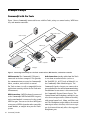
The Console and Channel View sections give you control over many on-screen elements in Pro Tools.
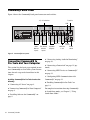
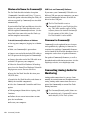
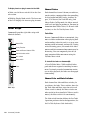
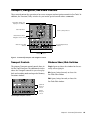
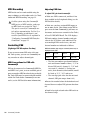
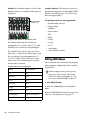
Plug-in Bypass
Console View
switches
Display Mode
Channel View switches
Plug-in Page switches
Escape/Cancel
Insert/Send
Position
selectors
Select
switches
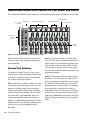
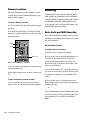
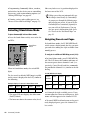
Figure 2. Command|8 Console and Channel View controls
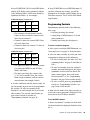
Both Console and Channel views let you view
and access pan, sends, or plug-ins for editing,
and automation.
Console View Switches
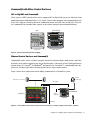
The different Console Views let you see pan,
send, or insert settings of multiple tracks at once
in the LCD. Parameters can be adjusted using
the switches and rotary encoders.
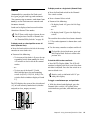
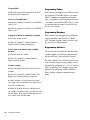
Pan Sets the rotary encoders to adjust pan. This
is the default view that appears when you first
launch a Pro Tools session, where the faders
control track volume and the rotary encoders
control channel pan positions. The LCD shows
the track names, and temporarily shows the
channel pan positions when the encoder is
moved, or volume information when the fader
is moved. In this view, pressing a Channel Select
switch selects the corresponding track in
Pro Tools.
22
Command|8 Guide
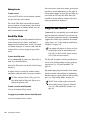
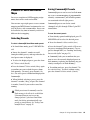
Send Sets the rotary encoders to adjust Send
level. The LCD shows the names of currently assigned sends across all channel strips for a given
send position (Sends A–J in Pro Tools). In this
view, pressing a Channel Select switch toggles
the selected send on that track between pre- and
post-fader operation.
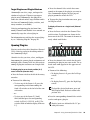
Insert Sets the rotary encoders to adjust plug-in
parameters. The LCD shows the names of currently assigned inserts (hardware inserts or plugins) across all channel strips for a given insert
position (Inserts A–J in Pro Tools). If a hardware
insert or plug-in is selected in Pro Tools, its
name flashes in the LCD. In this view, pressing a
Channel Select switch directly under a plug-in
name puts Command|8 into Channel View and
displays the plug-in controls across all channel
strips.