1
23
English
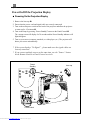
4. Follow above steps 1~2. Click on the “Advanced Properties ” button.
5. Select the “Change” button under the “Monitor” tab .
6. Click on “ Show all devices ”. Then select “ Standard monitor types ” under the
“ Manufactures ” box; choose the resolution mode you need under the “ Models”
box.
7. Verify that the resolution setting of the monitor display is less than or equal to
800 x 600.
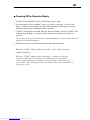
4 If you are using a Notebook PC:
1. You are required to implement above steps of resolution setting of computer first.
2. Switch the Notebook PC display to the “external display only” or “CRT only”
mode.
4 If you are experiencing difficulty in changing resolutions or your monitor freezes,
restart all the equipment and the projection display.
Problem: The screen of the Notebook or PowerBook computer is not displaying
your presentation.
4 If you are using Notebook PC:
Some Notebook PCs may deactivate their own computers’ screens when a
second display device is in use. Each of them has different way to be reactivated.
Refer to your computer’s documentation for detailed information.
4 If you are using an Apple PowerBook:
In Control Panels, open the PowerBook Display to select Video Mirroring “On”.
Problem: Image is unstable or flickering
4 Use “Tracking” to correct it.
4 Change the monitor color setting from your computer.
Problem: Image has vertical flickering bar
4 Use “Frequency” to make an adjustment.
4 Check and reconfigure the display mode of your graphic card to make it compatible
with the product.
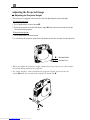
Problem: Image is out of focus
4 Adjust the Focus Ring on the projector lens.
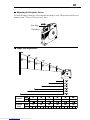
4 Make sure the projection screen is between the required distance 3.3ft.(1m)~ 32.8ft.
(10m) from the projector.
Downloaded from www.Manualslib.com manuals search engine