1
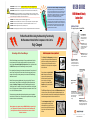
ELECTRICAL: Avoid sparks. Avoid arcing
Always turn OFF the power to the cart before plugging IN or OUT!
How Does the Network Ready Cart Manage Heat?
ELECTRICAL: For Safety Purposes, make sure all electrical components do not exceed the the maximum load rating of 12 amps.
When computers are charging, the source of heat is the adapter/transformer.
However, when they are receiving updates from your network, the computers must
be powered on meaning the source of the heat inside the cart is the computers’
ventilating themselves to keep their internal batteries cool. The air emitted from each
computer is very hot and with all 20 laptops ventilating at once, the internal
temperature of the cart rises dramatically while they are updating.
ELECTRICAL: Risk of electrical shock. Do not plug the power cord into another extension cord or relocatable power tap.
ELECTRICAL: The power strips inside the laptop cart are only for charging laptop computers. Any other use may cause an
overload for the Power Management System, causing the “Power Manager” to shutdown. To reset the “Power Manager”, turn off the
main power switch, unplug the non-laptop device, then turn the main switch back on.
CAUTION:
Be sure each laptop computer is turned OFF before plugging into the cart..
Computer manufacturers recommend a safe temperature range of 50°F to 95 °F for
operating laptops. To keep the internal temperature of the cart within these limits,
the MDM Network Ready Laptop Cart features ventilation on the side panels and is
equipped with two thermally-controlled fans that turn on when the temperature
inside the cart exceeds 77°F. Bretford has conducted extensive testing that
confirms the effectiveness of these features.
CAUTION: Do Not block the ventilation holes or fans on the cart. Proper air flow is required for safe operation of equipment.
CAUTION: Cart with computers should be kept in a room with a maximum temperature not to exceed 77° F or 25° C.
CAUTION: Maximum weight of accessories on top of cabinet is 25 pounds.
CAUTION: Avoid loading equipment in the cart in a uneven fashion. Uneven weight distribution could cause a hazardous condition.
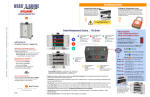
USER GUIDE
MDM Network Ready
Laptop Cart
MDMLAP20NR
20 Laptop Computers in Vertical Slots
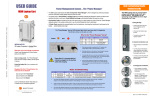
Power Manager
Uses the power from a
single wall outlet to charge
and update laptops safely
and efficiently.
For Best Results When Using the Networking Functionality,
We Recommend that All of the Computers in the Cart be
Two Fans in the front of
the cart vacate heat, keeping
the internal temperature of the
cart within recommended
operating levels.
Fully Charged
Networking with the Power Manager
When the Power Manager has moved through all of power modes described in the blue
box on the reverse side of this guide, the power required for all six power strips will be
below 10 amps and the network switch will be powered on. Once on, the network switch
will ALWAYS receive power until the Power Manager is manually turned off.
If the combined draw of the power strips and network switch exceeds 10 amps, the cart will
revert to “Smart Charge” mode. The network switch will continue to get power but some
computers will be running on battery power every three minutes as the Power Manager
redistributes the current.
Note that if the computers are updated remotely, they must be receiving AC power to
receive a “wake up” packet. Therefore, when using Wake-On LAN we recommend the
computers be “awakened” in stages to prevent the Power Manager from reverting to
“Smart Charge” mode. For example, the “wake-up” packet would be sent to the computers
in slots 1-5; once they are on, the packet would be sent to the computers in slots 6-10 and
so on, until all 20 devices are powered on.
Since computers can receive updates while operating on battery power, the update can
now be sent to all 20 of them at once. If the computers are powered on manually, updates
can be sent to the entire cart simultaneously.
Network updates sent to computers using the MDMLAP20NR are the responsibility of
your IT Department. The information above explains how the Power Manager will
potentially affect these efforts and all recommendations are based on results of
Bretford’s internal tests.
Cable Management … Done at your Desk!
The “Desktop” Cord Management system allows you
to organize the computer cord sets while seated at a
table. No more bending or kneeling behind the cart!!
Simply remove the four steel panels, secure the
adapters with the Velcro straps, and re-hang them in
the rear of the cart.
Be sure to leave enough slack at both
ends of the power cord to be able to
plug one end into the power strip and
pass the other end through the divider
panel to the front of its assigned
storage slot. Use the Laser Cut ID
Numbers to quickly match computers
with their cord sets.
The MDM Network Ready Laptop Cart ships with 20 Ethernet cables pre-wired
in the rear of the cart. One end will be routed to the dedicated space for your
network switch and the other end will be threaded through the divider panel into
the cable management channel in the front section of the cart.
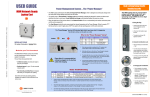
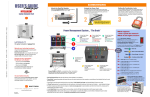
Security provided by duallocking handles built right into
the steel constructed doors
Front View
Directional Locking
Casters can be locked as a
rigid caster for easy rolling down
the hallway, or unlocked to swivel
for easily getting into tight spaces.
Dedicated Space
for your 19” rack-mounted
network switch.
Ethernet Cables
pre-wired in the rear of
the cart.
Laser-Cut ID #’s in
front & back keep computers
and their cable sets in the right
place and make it easy to
identify if something is
missing.
The cable management channel includes
a cut-out designed to hold the Ethernet
cable and power cord in place. Place the
power cord on top of the Ethernet cable and
loop it into the “notch” and over the hook at
the front.
Back View
Removable Cord
Management panels let IT
Coordinator wrap cable sets at a desk.
No more kneeling or bending behind
the cart organizing the power cords.
®
11000 Seymour Avenue
Franklin Park, IL 60131 USA
www.bretford.com
800 521 9614