1
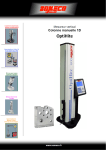
OptiHite
Height Measuring Instrument
User’s Manual
OptiHite
Introduction:
The OptiHite is an accurate Height measuring instrument. The
instrument is available with variable measuring heights. Please read the
specifications for more details.
OptiHite (400mm, 600, 1000mm)
The OptiHite, height measuring instrument basically consists of
measuring column and controller unit, EL50M.
The Instrument is suitable for One-Dimensional measurements.
Specified operating temperature for OptiHite is in between 10°C to 40°C.
However it is recommended that the best accuracy results are achieved
at 20°C as the master slip sizes are defined at 20°C.
High quality, hardened and lapped stainless steel base pads with air
bearings supplied for smooth movement of the instrument on granite
surface plate.
Standard measuring probe is Ø6mm X 55mm long with carbide ball.
Actual measurement is carried out at the constant measuring force of
1.2 Newton.
The instrument is re-chargeable battery operated and if the battery is
discharged it can also be operated by AC adaptor independently.
OptiHite can be used on battery for 16 hrs. Its battery can be recharged
fully within 6-8 hrs. Use the AC adaptor (Charger) for re-charging the
batteries.
User’s Manual
Page 2
OptiHite
INDEX
1.
2.
3.
4.
5.
6.
7.
8.
9.
10.
11.
12.
13.
14.
15.
16.
17.
Safety Measures
Standard Scope of Supply
Installation and Commissioning
Measuring Accuracy
Specifications
Description
Layout of the Screen
Battery Indications
Settings of EL50M
Getting Started
Basic Measurements
Secondary Measurements
PC utility
Tags Used in Result Memory
Application Examples
Maintenance and Care
Optional Accessories
User’s Manual
4
5
6
9
10
12
16
17
19
23
25
30
36
40
41
45
46
Page 3
OptiHite
1. Safety Measures:
Please read the following instructions carefully to avoid any damage due
to improper handling of the instrument.
Manufacturer will not be responsible for any damages caused due to
improper handling of the Instrument or if the instructions are not followed
as mentioned in the manual.
Instrument should be switched ON only after completing all
electrical connections and mechanical installations.
To get consistent performance of the instrument, do not
dismantle or disassemble any assembled part.
Do not expose the instrument, its components and accessories to
rain or any other fluids. Protect the instrument from foreign
materials to penetrate inside the connectors and small openings.
Do not open Digital controller EL50M.
If in case of operational failures in the instrument or any of its part
(no display, over-heating, odd smell, etc) is observed, switch off
the instrument immediately and disconnect the power supply.
Contact your local OptiHite dealer for trouble-shooting.
To get consistent performance it is important to take particular
care at the time of handling every time.
Instrument should be kept on grade zero, smooth & clean Granite
surface plate.
Avoid any shock to prevent the characteristics features of the
instrument from losing its performance.
Operate the instrument in a vibration free zone.
Avoid direct contact with sunlight and excessive humidity.
Avoid over heating or over cooling of the machine.
Respect the indicated environmental conditions.
Clean base pads periodically to remove foreign particles in
between surface plate and machine base pads.
DO NOT USE THE INSTRUMENT FOR MARKING OR
SCRIBING.
Use probes supplied by the manufacturer or dealer. Using locally
made probes can give an additional stress on the measuring
column and can damage the instrument.
User’s Manual
Page 4
OptiHite
2. Standard Scope of Supply:
Sr. No.
1
2
3
4
5
6
7
8
9
10
11
12
13
14
15
Description
Quantity
Main Instrument
1
Digital controller EL50M
1
AC Adaptor
1
Power supply cable
1
Probe Ø6mm X 55mm
1
Setting Master
1
Dust protection cover
1
Allen key set
1
Allen screws M8 for EL50M mounting
2
User Manual
1
Probe holder assembly
1
Base handle assembly
1
Data transfer cable USB
1
Data transfer software CD
1
Calibration Report
1
While removing the instrument for un-packing, hold the instrument by
base handle and the column cover.
If the instrument has been stored at a temperature below 10°C, wait a
few hours before unpacking to prevent the instrument parts from
humidity condensation. Condensation can affect sensitive parts (like
electronic components) of the instrument.
User’s Manual
Page 5
OptiHite
3. Installation and Commissioning:
Clean the surface plate and base pad surface with clean fabric
slightly soaked with alcohol or propane.
Figure 1
CLEAN BASE PAD
Position the instrument on the surface plate with proper care.
Release the transport lock: To unlock the instrument there is a small
opening provided at the top of the main cover cap. Remove the
rubber grommet and insert 5mm Allen-key (Socket head cap screw
key) and unlock the screw (M6). See Figure 2.
Figure 2
REMOVE TRANSPORT LOCK STUD FROM TOP CAP USING 5mm
ALLEN KEY.
User’s Manual
Page 6
OptiHite
Position the probe holder assembly along with probe as shown in
Figure 3.
Figure 3
CORRECT PROBE POSITION
WRONG PROBE POSITION
Figure 5
PLACE THE SQUARE PROBE
HOLDER PROPERLY.
User’s Manual
TIGHTEN THE M5 ALLEN
KEY
Page 7
OptiHite
Mount digital controller unit EL50M with the help of two M8 Allen
screws supplied (Use 6mm Allen-key). Avoid direct contact with the
connector pins to protect the electronic components from static
electricity.
Figure 6
CLAMP DIGITAL CONTROLLER WITH THE HELP OF TWO M8 HEX SOCKET
HEAD CAP SCREWS.
Keep EL50M in switched off condition and then Connect Z (9 pin D
Male) from interface cables to Z (9 pin D Female) connector on
EL50M. Connect INTERFACE (15 pin D Female) on interface cables
to INTERFACE (15 pin D Male) on EL50M.
Before using the controller unit for the first time, connect the AC
adaptor to the corresponding socket on the rear side of the controller
unit and charge the battery for 6-8 hours.
Before switching ON the instrument please read the instructions
given in the GETTING STARTED segment.
IT’S IMPORTANT TO CONDUCT BASE PLATE REFERENCE
EACH TIME YOU SWITCH ON THE INSTRUMENT.
Now the Instrument is ready for use.
o
User’s Manual
Page 8
OptiHite
4. Measuring Accuracy
To achieve good accuracies and precision following instructions will be
helpful:
Use only Grade „0‟ surface plate. Keep surface plate clean. Use soft
and clean fabric, soaked with alcohol to clean the surface plate.
Surface plate should be properly damped for vibration free operations
of the instrument.
Clean base pads provided at the bottom of the instrument
periodically.
Clean the work piece before starting any measurement task.
Confirm that all the joints of probe holder assembly are tightened
properly.
Reference Zero to the surface plate is essential before starting any
measurement task.
Probe diameter calibration as instructed is essential to get accurate
results.
User’s Manual
Page 9
OptiHite
5. Specifications:
Description
Measuring Range
Expandable Range
Resolutions
Repeatability*1 (2S)
OptiHite 400 OptiHite 600 OptiHite 1000
400 mm
600 mm
1000 mm
715 mm
915 mm
1315 mm
0.005, 0.001, 0.0005 mm
On plane ≤ 0.003 mm
On Bore ≤ 0.005 mm
Maximum Counting Speed
600 mm / sec
Measuring Force
1.2 N ± 0.2
Maximum Permissible error
(3 + L / 250) µm
1
*
(L = Length in mm)
(L = Length in mm)
Squareness *2
6.5 µm
10 µm
15 µm
Battery Backup Time
16 hours
Operation Temperature
10 °C to 40 °C
Weight of Machine
20 Kg
22 Kg
28 Kg
Adaptor input
100 VAC to 240 VAC, 50/60 Hz
Adaptor Output
24VDC, 2.5A
Battery ratings
18V, 4000mA
Standard probe
Carbide ball Ø6 x 55 mm
Note:
*1 Values are valid with a standard probe at temperature of 20 °C ±0.5 °C.
*2 With electronic probe Magnascan50.
User’s Manual
Page 10
OptiHite
ACCURACY DEFINATIONS:
1. Repeatability error: This is the error in the ability of the instrument to
give consistent readings for one measurement point when the travel
of the probe is same. The repeatability is specified on 95%
confidence level i.e. 2σ. This error is specified on ø 4 X 55 mm probe.
2. Position accuracy: This is the difference between a master length
gauge value and the displayed value. This error is specified on the ø
4mm X 55mm probe at 20°C.
3. Squareness Error: This is an error displayed on controller EL50M if
the instrument is checked in squareness mode with a dial indicator /
Magnascan50 at 20°C. To display this error the dial indicator
readings are manually entered in the EL50M controller. It is
recommended to use a plunger type digital dial indicator for better
results.
Caution: This error is not the error that is shown by the dial indicator.
User’s Manual
Page 11
OptiHite
6. Description:
Machine:
1
2
3
4
5
6
7
1
2
Machine Column
Controller unit – EL50M
Probe holder
Mechanical probe
Test Piece
Machine handle
Machine base
3
5
4
6
7
Figure 8
User’s Manual
Page 12
OptiHite
Controller Unit - EL50M:
1
2
3
6
4
7
5
8
Figure 9
1
LCD Display
2
Numeric / Function Keys
3
Battery low led
4
Battery status led
5
Power ON/OFF led
6
Arrow Keys for Navigation
7
Memory Key
8
Menu Key
User’s Manual
Page 13
OptiHite
Description of Keys:
Key
Description
Contacting a plane from above / Numeric Key 1
Contacting a shaft from above / Numeric Key 2
Contacting a bore from above / Numeric key 3
Measuring Bore diameter and center / Numeric key 4
Contacting a plane from below / Numeric key 5
Contacting a shaft from below / Numeric key 6
Contacting a bore from below / Numeric key 7
Measuring Shaft diameter and center / Numeric key 8
Measuring Groove width and center / Numeric key 9
Measuring job squareness / Numeric key 0
Referencing / Decimal entry
Probe diameter calibration / ± entry
Cancel key
User’s Manual
Page 14
OptiHite
Printer key
Enter key
Menu key
Display result memory key
Up Arrow key
Down Arrow key
Left Arrow key
Right Arrow key
User’s Manual
Page 15
OptiHite
7. Layout of the Screen:
Normal Counting
5
1
2
3
4
Figure 10
1
2
3
4
5
Graphics of last executed function
Graphics of selected reference
Probe diameter (in mm)
Measurement unit
Current Probe position
Result Screen
1
2
3
4
Figure 11
5
1
2
3
4
5
Graphics of last executed
function
Graphics of selected reference
Probe diameter (in mm)
Measurement unit
Result of last executed function
User’s Manual
Page 16
OptiHite
8. Battery Indications:
A battery status is displayed using LED on EL50M controller.
The following table will illustrate this in details.
Sr.No. Symbol
Description
1
Battery is getting charged (Fast
charging process)
Steady (Yellow)
2
Battery with Full capacity. LED
turns OFF
LED OFF
4
Blinking (Red)
Battery Low. LED turns RED.
(DRO is functionally off and
shows “Battery Low”. Connect
the adapter” message and give
beep. The user must charge the
battery immediately. If this is not
done,
battery
might
get
damaged and may need to be
replaced)
The battery is trickle charged when it is used beyond its
capacity or it is deeply discharged due to some reason. The
controller senses this condition and first trickle charges this battery
up to certain level and then it starts fast charging. The trickle time
may vary depending on the level of discharging. When the adaptor
is first plugged to start the battery charging the controller first starts
with trickle charging for few minutes till it analyses the battery
conditions and then starts fast charging. A deep discharged
(depleted) battery may take maximum of 8 hours for trickle
charging and then starts fast charging. Fast charging may take
User’s Manual
Page 17
OptiHite
maximum of 6-8 hours. This time may vary with different batteries
and ambient temperature and the level of discharging.
Whenever charging a deep discharged battery, the controller
might stop fast charging in between. This happens due to the use
of instrument even after showing low battery.
User’s Manual
Page 18
OptiHite
9. Settings of EL50M
The EL50M setup can be accessed by pressing the [
key.
]
The following options will be available:
1. User Settings
Following options will be available in user settings:
1) “Inch/mm” - Using this option the user can select any one
of following measurement units.
1. Metric (mm)
2. Imperial (inch)
2) “Display Resolution” - Using this option the user can
select the display resolution.
1. 0.5 Micron
2. 1 Micron
3) “Language” - Using this option user can select the
language of DRO.
4) “Change Zero Pt ½” - Using this option user can switch
over to any of the following previously set references for
the next measurements.
1. Reference Point
2. Zero Pt 1 On Part
3. Zero Pt 2 On Part
5) “Offset” - Offset is a function through which we can
expand the measuring range by changing the probe
position (see Figure 12). To expand the range a long
length slip or a work piece with a known height is
required. Place long length slip or work piece on surface
plate. Position the probe in reverse conditions in the
probe holder. Select the function from the following
Contact above, Contact below or previously measured
result from memory. After execution of this function
“Offset” message will be displayed asking the operator
to enter slip or work piece length. Enter the value of slip
or work piece & press ENT key to complete the function.
The measuring range can be expanded up to 580 / 880
User’s Manual
Page 19
OptiHite
mm. To remove offset, bring the probe back to its original
position & go to user settings and select Offset Off. It is
recommended to use this function also for depth
measurements by depth probes other than standard
probes.
Figure 12
FOR OFFSET FUNCTION
POSITION SQUARE PROBE
HOLDER ASSEMBLY AS
SHOWN
TIGHTEN SQUARE PROBE
HOLDER ASSEMBLY WITH
THE HELP OF M5 CAP HEAD
SCREW
6) “Groove Edge” – This option is used to select which
result to display from the list given below, during
measurement of groove or ledge.
1. Lower Edge
2. Upper Edge
3. Groove Centre
7) “Temperature Comp” – Following options will be
available under temperature compensation,
1. Compensation OnOff – Using this option user
can ON or OFF temperature compensation.
2. Material coeff. – Using this option user can enter
the thermal coefficient of test piece material.
3. Current Temp. – Using this option user can enter
the current temperature of testing room.
User’s Manual
Page 20
OptiHite
8) “LCD Contrast” - Using this option user can increase or
decrease the contrast of LCD.
9) “Sleep Timer” – The controller turns off LCD and goes
into power saving mode when it is idle for set sleep timer
value. Sleep timer can have value from 0 to 60 minutes.
0 value disables sleep timer. Any key operation will bring
the controller in the normal measurement mode.
2. Factory Settings
This is a password protected option used during calibration
of the machine. This is not accessible to the user.
3. Functions
1) “Distance” – Using this option user can find distance
between any two previous stored results from memory.
Refer 12.3 Distance Measurement function.
2) “Ledge” – This option is use to select Ledge calculation
function. After completion of this function controller will
show result on screen. Refer 11.2.d Ledge measurement
function.
3) “Min-Max Delta” – This option is used to select Min-Max
delta calculation function.
In this function there are two options to select surface for
Min-Max
i. Min – Max from top side.
ii. Min – Max from Bottom side.
Refer 12.2. Function for detail operation.
4) “Reset At position” - This option is used to reset current
position of the main axis and this is taken as new
reference for further measurement.
Refer 12.4 functions for detail operation.
User’s Manual
Page 21
OptiHite
5) “Preset At position” - In this Option, current distance of
axis set to value from user zero and this is taken
as new reference for further measurement.
Refer 12.5 functions for detail operation.
User’s Manual
Page 22
OptiHite
10.
Getting Started:
Step 1: Switch ON EL50M.
Step 2: Base plate referencing
Base plate referencing must be executed by the user after every
power “ON” of EL50M. Base plate referencing is cancelled if user
presses any other key. Base plate referencing is also required if
measuring probe is changed.
Base plate referencing can be performed by pressing the [
key twice.
]
Step 3: Probe diameter Calibration
It is recommended to calibrate the probe diameter every time a probe is
changed. Pressing [
] key will enable calibration of Probe diameter
and shows “Stylus Calibration.!” message on screen. Before going into
the function ensure that the probe is below the slip of calibration setting
master supplied with the machine. Then Press [
] key. Then
controller first probe at slip‟s bottom surface and give beep. Now remove
Calibration setting master slowly. Now stylus goes up and comes down.
Now place calibration setting master again to its previous position. Now
controller performs probing at slip‟s top surface and will give beep. Then
controller shows of average probe diameter result on screen, with
message “Measure Once more?” if user selects “1.Yes” then controller
will start Probe diameter Calibration process again. To avoid
recalibration process press “2.No” option. Here the user can edit the
value of measured probe if required.
Press [
function.
Press [
User’s Manual
] to save the calibrated result and exit from the
] to exit without saving the result.
Page 23
OptiHite
Memory of EL50M
The EL50M memory can be accessed by pressing the [
]
key. The following options will be available:
1. View Memory
Using this option user can view results in the result memory.
Maximum number of Result – 500.
2. Clear Memory
Following options will be available in clear memory,
1) “Last Reading” - Using this option user can delete last
result in the result memory.
2) “All Readings” - Using this option user can delete all
results in the result memory.
Print function
Result memory in EL50M can be printed on Thermal printer or
terminal software of PC by pressing the [
] key. The following
options will be available:
1. Print Selected
Using this option user can print several selected results in
result buffer.
2. Print All
Using this option user can print all results in result buffer.
User’s Manual
Page 24
OptiHite
11.
Basic Measurements:
The Basic measurements are broadly categorized in two categories:
1.2. Surface measurement:
a. Contact above Measurement:
In this function, a plane is contacted from above to determine
the height of the plane from earlier selected reference point.
The result is displayed on the display and gets stored in result
memory as “Con_Abo”. This is illustrated in the Figure 13.
To perform this function press [
] key.
Figure 13.
b. Contact below Measurement:
In this function, a plane is contacted from below to determine
the height of the plane from earlier selected reference point.
The result is displayed on the display and gets stored in result
memory as “Con_Blo”. This is illustrated in the Figure 14.
To perform this function press [
] key
Figure 14.
User’s Manual
Page 25
OptiHite
c. Shaft above Measurement:
This function can be performed by pressing [
] key. In
this function, a shaft is scanned from above to get the highest
point. The operator can move the job or machine. The result is
displayed on the display and gets stored in result memory as
“Shft_Ab”. This is illustrated in the Figure 15.
Figure 15
d. Shaft below Measurement:
This function can be performed by pressing [
] key. In this
function, a shaft is scanned from below to get the lowest point.
For scanning shaft, the operator can either move the job or
machine. The result is displayed on the display and gets stored
in result buffer as “Shft_Bl”. This is illustrated in the Figure 16.
Figure 16.
e. Bore Above Measurement:
This function can be performed by pressing [
] key. In
this function, a bore (hole) is scanned from above to get the
highest point. For scanning bore, the operator can either move
the job or machine. The result is displayed on the display and
User’s Manual
Page 26
OptiHite
gets stored in result buffer as “Bor_Abo”. This is illustrated in
the Figure 17.
Figure 18
f. Bore below Measurement:
This function can be performed by pressing [
] key. In this
function, a bore (hole) is scanned from below to get the lowest
point. . For scanning bore, the operator can either move the job
or machine. The result is displayed on the display and gets
stored in result buffer as “Bor_Blo. This is illustrated in the
Figure 18.
Figure 18
1.3. Diameter and center measurement:
a. Shaft diameter and center measurement:
This function can be executed using [
] key. In this
function, a shaft is scanned from below and above in one
setup to get its diameter and center from the earlier selected
reference point. To avoid interference with the job, the
operator needs to adjust the probe manually after the first
User’s Manual
Page 27
OptiHite
surface scanning and then press [
] key to preceed
with the second surface scanning. The result is displayed on
the display and gets stored in result buffer as “Shft_Cn” and
“Shft_Di” and the respective results. This is illustrated in the
Figure 19.
Figure 19
b. Bore diameter and center measurement:
This function can be executed using [
] key. In this
function, a bore is scanned from above and below in one
setup to get its diameter and center from the earlier selected
reference point. The result is displayed on the display and
gets stored in result buffer as “Bor_Cnt” and “Bor_Dia” and
the respective results. This is illustrated in the Figure 21.
Figure 21
c. Groove width and center measurement:
This function can be executed using [
] key. In this
function, an internal groove on shaft or bore is measured by
User’s Manual
Page 28
OptiHite
measuring its top and bottom edges. The result shows
groove width and either the groove edges or center as per
user selection in the user setup. The result is displayed on
the display and gets stored in result buffer as “Grv_Wdt”,
“Grv_Cnt”, “Grv_UEd and “Grv_LEd”. This is illustrated in the
Figure 21.
Figure 21
d. Ledge width and center measurement:
To perform this function follow below key sequence
In this function, an external protrusion or ledge is measured
in an auto cycle. Similar to that in groove, the upper edge and
lower edges are measured and the width and center are
calculated. To avoid interference with the job, the operator need
to adjust the surface scanning and then press [
] key
proceed with the second surface scanning. The result shows
ledge width and height of selected the ledge edges or center.
The result is displayed on the display and gets stored in result
buffer as “Ldg_Wdt”, “Ldg_Cnt”, “Ldg_UEd” and “Ldg_LEd”.
This is illustrated in the Figure 22.
Figure 22.
User’s Manual
Page 29
OptiHite
12.
Secondary Measurements:
Other than the basic measurements, there are some other functions
which are illustrated below:
a. Multiple references:
Multiple references can be stored and recalled. However it is
suggested that the additional new references should be kept as
low as possible. Most of the jobs can be measured by
maximum two new references. This can be done by pressing
the [
1.
2.
] key, two options will be displayed on the screen.
Zero pt 1 on part
Zero pt 2 on part
These are two references other than base plate referencing.
User can set new reference by following two methods.
12.1.a. Select a function by pressing the appropriate function
key, which should be set as the current reference.
User can execute the following function to set reference
1) Contact above
2) Contact Below
3) Bore Above
4) Bore Below
5) Shaft Above
6) Shaft Below
7) Shaft Center
8) Bore Center
9) Groove Center.
12.1.b. For selecting reference from the memory by pressing
the [
] key. Following results can be selected from the
memory for reference:
1.
2.
3.
User’s Manual
Contact Above
Contact Below
Bore Above
Page 30
OptiHite
4.
5.
6.
7.
8.
9.
10.
11.
12.
Bore Below
Bore Center
Shaft Above
Shaft Below
Shaft Center
Groove Edges
Ledge Edges
Groove Center
Ledge Center
gets stored in result buffer as “Ldg_Wdt”, “Ldg_Cnt”,
“Ldg_UEd” and “Ldg_LEd”.
The result can be taken as a reference point. The result is
stored in result buffer as “Ref” tag followed by the reference
number and its value. Also the active reference image will
display on display window.
b. Multiple references Recall:
The previously saved references can be called by executing
this key sequence [
display on the screen
],[
],[
] then 3 optiong will
1) Reference Point.
2) Zero Pt 1 on Part
3) Zero Pt 2 on Part
By selecting option user can select the required reference
point.
User’s Manual
Page 31
OptiHite
c. MIN, MAX, DELTA Measurement:
This function can be performed by executing following key
sequence. [
] ,[
],[
].
Then two options will be displayed on the screen.
1.
Min-Max Top Side
2.
Min-Max Bot side.
Select the any one option.
1. MIN: The minimum value of the scanned surface.
2. MAX: The maximum value of the scanned surface.
3. DELTA: The difference between MIN and MAX.
Figure 24
The machine keeps on updating the MIN, MAX and DELTA
values till [
] key is pressed. On [
] key, the results are
displayed screen and stored in the result buffer. The function
can be effectively used to align heavy jobs on fixtures. Press
[
] key again to exit from the function.
d. Distance Measurement:
This function can be performed by executing following key
sequence. [
User’s Manual
] ,[
],[
].
Page 32
OptiHite
EL50M shows previously stored results. The result can be
selected by browning in the result buffer using [
],[
],
[
],[
] keys. Controller calculates and shows the
difference between the two selected results.
e. Reset Zero at any Position:
In this function, current position of the main axis is set to zero
and this is taken as new reference for further measurement. To
perform this function execute the following key sequence.
f. Preset At Position:
In this function, current distance of axis set to value entered
by user and this is taken as new reference for further
measurement. To perform this function executes the following
key sequence.
g. Squareness (Perpendicularity) Measurement: This fuction
can be performed by pressing [
] key. Perpendicularity
error of a work piece can be determined using a Digital Dial.
This machine has the facility to hold a dial indicator directly at
the place where the normal measuring probe is clamped. A
special dial holder is provided along with the machine. Refer
below Installation figures.
User’s Manual
Page 33
OptiHite
Figure 25
PLACE DIAL INDICATOR AND HOLDER ASSEMBLY AS SHOWN IN
THE Figure 25.
The perpendicularity error of a work piece can be measured on
“Frontal” as well as “Lateral” faces. When a
key is pressed, the
operator needs to enter the no of Steps. This is basically the height for
which the perpendicularity / squarness is to be measured. Before
pressing enter, ensure that the Digital Dial is connected to the machine
using its carrier and it‟s positioned on the surface. Make sure that the
Digital Dial is pressed on the job by approximately 0.5mm by moving
either the job or the machine. After entering the range, the controller
will first make the display.
This function can be executed in two ways:
1. Manual Squareness: Press [
] key and select
Manual Squareness option. In this mode the
operator needs to enter the dial indicator values
for each measurement step. Further steps are
explained below.
2. Auto Squareness: For this option press [
]
key and select Auto Squareness option. In this
mode the EL50M controller can read the Dial
indicator readings using a Opto RS232 cable
provided by the dial manufacturer. Further steps
are explained below.
User’s Manual
Page 34
OptiHite
Perpendicularity error of a work piece can be measured on
“Frontal” or “Lateral” face. After Manual or Auto squareness
selection, the operator needs to select frontal or Lateral
squareness depending on which face is to be checked. Then
enter the measurement range. This is basically the height for
which the perpendicularity / squareness is to be measured. Before
pressing enter, ensure that the Digital dial is connected to the
machine using its carrier and it is positioned on the surface. Make
sure that the Digital dial is pressed on the job by approximately
0.5mm by moving either the job or the machine. After entering the
range, the controller will first make the Digital dial reading “Zero”
in case of Auto squareness. For manual squareness the operator
should make the dial zero. The movement of the Digital Dial is
shown on the screen in front of “X-Axis”. The display shows Main
axis and Digital dial as Auxiliary axis. After completing the entered
distance press [
] key and select “Per. Err & Angle” to display
the results. The controller will now show the results as “Error” and
“Obtuse Angle”.
Figure 26
Press [
User’s Manual
] key to exit from this measurement.
Page 35
OptiHite
13.
PC utility:
An application CD is provided along with the machine which
contains Software Utility for communication with the EL50M controller
through the USB port. Using this utility, the operator can backup result
memory, view result memory and print it. Following options are
available for the operator.
a. Backup of Result Memory:
Backup of result buffer can be done by click on “Backup” file
menu then "Results” as shown in the figure below.
OR
On pressing the button, the operator is prompted to enter a file
name. Extension of this file is “.DRO”.
User’s Manual
Page 36
OptiHite
Press save button to continue. The controller starts sending the
result buffer data to the PC. Downloading the status is shown
on status strip as shown below.
The PC shows “Receive OK!!!” Information box after the data
transfer is over as shown below:
b. View File:
This can be done using click on “File” menu then “View file” as
shown in below.
User’s Manual
Page 37
OptiHite
OR
It shows all backup results as,
User’s Manual
Page 38
OptiHite
This will show you all readings of operation and five buttons as,
Export to Excel – To save as current file as Excel file.
Export to Word – To save as current file as Word file.
Print Preview – To see print preview of current file.
Print – To print current file.
Close – To close current file view.
Note: For more detail description click on Help button in the
EL50 USB communication Software.
This will show the EL50M USB Communication Software User
Guide in .pdf format.
User’s Manual
Page 39
OptiHite
14.
Tags Used in Result Memory: Following table lists all
the tags used in result buffer and their descriptions.
Sr. Tag
Description
No.
1
Con_Abo
Contact Above
2
Con_Blo
Contact below
3
Shft_Ab
Shaft Above
4
Shft_Bl
Shaft below
5
Shft_Cn
Shaft Center
6
Shft_Di
Shaft Diameter
7
Bor_Abo
Bore Above
8
Bor_Blo
Bore Below
9
Bor_Cnt
Bore Center
10
Bor_Dia.
Bore Diameter
11
Grv_Wdt
Groove Width
12
Grv_Cnt
Groove Center
13
Grv_UEd
Groove Upper Edge
14
Grv_LEd
Groove Lower Edge
15
Ldg_Wdt
Ledge Width
16
Ldg_Cnt
Ledge Center
17
Ldg_UEd
Ledge Upper Edge
18
Ldg_LEd
Ledge Lower Edge
19
Dif_Hgt
Difference between two results
20
Squrness
Squareness
21
Lat Squr
Lateral squareness
22
Frn Squr
Frontal squareness
23
Angle
Squareness angle
24
Min
Minimum Result in MIN-MAX-DELTA
Function
25
Max
Maximum Result in MIN-MAX-DELTA
Function
26
Delta
Maximum minus Minimum Result in
MIN-MAX-DELTA Function
27
Ref 0
Base Plate Reference
28
Ref 1
Reference 1
29
Ref 2
Reference 2
User’s Manual
Page 40
OptiHite
15.
Application Examples:
Example 1: Determining height and width measurements of a test-piece.
Consider the following test piece. The aim is to measure all the
dimensions as shown in the figure.
Surface A
5
Ledge C
3
4
Ledge B
1
Groove D
9
6
2
8
7
10
Baseplate Reference
Dimension 1: Adjust the probe above the Surface „A‟ and press [
]
key. The EL50M contact to top surface and give beep with required
result will be displayed on the screen and result stored in result buffer as
as “Con_Abo”.
Dimension 2 and 10: Adjust the probe below the Ledge B and press
] key, then [
] key, then [
]. Now Ledge function will
execute. EL50M controller gives beep with message “Position the Probe
Press Enter” after contact below surface. Then place probe above the
Ledge B and Press [
] key. The controller will display results
on screen and stored result in result buffer as “Ldg_Cnt” and “Ldg_LEd”
User’s Manual
Page 41
OptiHite
Dimension 3 and 4: Adjust the probe below the Ledge C and press
[
] key, then [
] key, then [
]. Now Ledge function will
execute. EL50M controller gives beep with message “Position the Probe
Press Enter” after contact below surface. Then place probe above the
Ledge B and Press [
] key. The controller will display required
center and width on screen and saved result in result buffer as
“Ldg_Cnt” and “Ldg_Wdt”.
Dimension 5: To determine this dimension press [
[
] key, then [
selection of
] key, then
] key . Now EL50M controller will prompt for the
first result from result buffer. Scroll using [
],[
],
[
] and [
] keys and select dimension 1 using [
] key.
The controller will prompt to select the second result. Scroll to dimension
4 using [
],[
],[
] and [
] keys and press [
] key.
The controller will calculate the difference between the 2 results and will
display the result. Thus dimension 5 will displayed.
Dimension 6, 7 and 8: Adjust the probe inside the Groove D and press
[
] key. Then EL50M controller executes Groove function. The
controller gives beep after detect Groove Top surface and then contact
Groove below surface. After scan both surface, controller will display
required center, width and bottom height as “Grv_Cnt”, “Grv_Wdt” and
“Grv_LEd”.
Dimension 9: Press [
] key, [
] key, then [
] key. Then
Distance function will execute. Now select dimension 2 and 7 using the
[
], [
],[
],[
]and [
] keys. The controller will
calculate the difference and display. Thus dimension 9 gets displayed
and is added in the result buffer.
User’s Manual
Page 42
OptiHite
Example 2: Determining the Flatness error of a test-piece.
The flatness error of a test-piece can be determined by the following
procedure.
Flatness
Error
Base Plate Reference
1. Clamp a cylindrical probe in probe holder and position it shortly
above the test-piece.
2. Adjust the probe above job and select the “Min-Max from Top
Side” option from Function menu for that follow the following key
sequence.
3. On complete scan of the test-piece, press [
] key. The
controller shows result “Min”, “Max”, and “Delta”.
4. The difference between “Min” and “Max” is given by “Delta” which
is the flatness error of the test-piece.
Example 3: Making the Bore Center Zero and Measure the surface
height from the Bore center.
User’s Manual
Page 43
OptiHite
Height from Bore Center
Reference 1
Bore Center
Base Reference
1. Perform reference to Base at the base.
2. Press [
] key, and select Reference 1 or Reference 2.
3. Pressing [
] key and referring to the procedure given in the
previous section 12 measure bore center. Here the reference 1 is
placed at the bore center. Similarly different measurements can be
made zero for reference 1 and 2 as discussed in section 13.1
4. Measure the top surface by pressing [
] key and referring to the
procedure given in the previous section 12. This result will be with
respect to the reference 1.
User’s Manual
Page 44
OptiHite
16.
Maintenance and Care:
ALL MAINTENANCE WORK APART FROM DESCRIBED BELOW WILL
BE CARRIED OUT EXCLUSIVELY BY AUTHORISED OPTIHITE
SERVICE AGENT.
1. Clean the surface plate and air cushioning pads periodically. Use
soft and clean fabric soaked with alcohol for cleaning.
2. All probes should be kept in a Probe Box after use to avoid any
type of Damage.
3. If the instrument is not in use, enclosed it with dust cover.
4. Apply antirust spray/oil on super finished faces of setting master
when not in use.
5. OptiHite consists of a rechargeable battery.
Battery status indication is provided on the controller unit.
If battery low LED indication is ON, battery charging is
essential.
Battery charging device (mains AC adaptor) is included in
standard scope of supply.
To charge batteries connect a charging AC adaptor to the
controller unit at corresponding socket. Switch on the mains
supply.
Charging will be displayed by LED indication on the
controller unit.
It takes approximately consecutive 4 hrs. to charge a
discharged battery.
Do not use any other device to recharge the battery.
REMOVE OR SWITCH OFF AC ADAPTOR AFTER
COMPLETION OF EVERY CHARGING.
TO IMPROVE BATTERY LIFE, AVOID BATTERY CHARGING
AT INTERMEDIATE LEVEL BEFORE IT GETS COMPLETELY
DISCHARGED.
6. The outer body of the instrument can be cleaned with slightly
moistened fabric. Do not clean any part of the instrument with
harsh chemicals like acetone or detergents.
7. Do not connect or disconnect any connector from controller unit
when the instrument is in “Switched ON” condition. This may
damage controller unit or electronic /electrical components.
User’s Manual
Page 45
OptiHite
17.
User’s Manual
Optional Accessories:
Page 46
OptiHite
Revision Date
Code No
:
:
22nd February 2011
0073-14-1310
DATA SUBJECT TO CHANGE WITHOUT NOTICE
User’s Manual
Page 47