1
Performing initial setup operations
WARNING
Do not disconnect the power cord while the unit is
making the initial setup operations. Doing so may
cause the unit to malfunction.
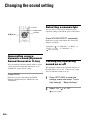
3
When the “Start setup?” display
appears, select “OK.”
The unit starts making the initial settings.
4
Getting started
When the unit is turned on for the first time after
you purchase it, initial setup operations are
required. The initial setup includes the initial
setting procedure for the unit (this will be
performed automatically), network settings, the
clock settings, and obtaining a service list (for the
Music Services function).
When you are indicated to set the network or the
clock, refer to the respective pages.
Entering characters will be required during the
setup operations. For details on entering
characters, see “Entering text” (page 19).
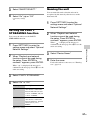
When the “Network Settings”
display appears, select “Yes.”
The “Connection” display appears.
Before you start setting up a network, check
the chart on page 25 to decide which
connection method you will use to connect
the unit to your home network. Then, refer to
the respective page (as follows) to perform
the setup operation for the connection method
chosen.
When you use a wireless
connection
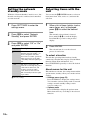
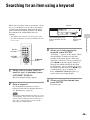
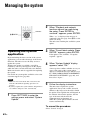
?/1
M/m/</,/
ENTER
1
Press ?/1 (power) to turn on the
unit.
• Access point scan method:
Go to step 3 of “Searching for an access
point and setting up a wireless network
(access point scan method)” (page 27).
• Manual connection method:
Go to step 3 of “If you cannot find the
desired network name (SSID) (manual
setup method)” (page 28).
• WPS push button configuration method:
Go to step 3 of “Setting up a wireless
network using the WPS push button
configuration method” (page 28).
• WPS PIN code method:
Go to step 3 of “Setting up a wireless
network using the WPS PIN code method”
(page 29).
When you use a wired connection
2
When “Set the items required to
use this unit. Press ENTER to
continue.” appears, press ENTER.
Go to step 4 of “Setting up a wired network”
(page 30).
Make sure that the network (LAN) cable has
been connected to the NETWORK port on
21GB