1
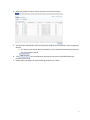
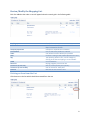
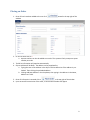
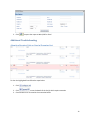
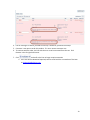
Prerequisite For the best experience, please be sure to use one of the following supported browsers: Internet Explorer Firefox Chrome ProExpress Conventions ProExpress has several basic conventions employed throughout the application. The following sections review these basic conventions. Required fields are text entry fields that require information in order for the system to operate. These field names are denoted by an (*) and are required fields. A user must provide information for these fields to continue building your Customer, Contact, Quote, etc. The Info Icon denotes entered information is either invalid or needs additional input. For example, if you enter alphabetical characters in a field that requires a numerical entry, the Info icon appears. Drop down menus (or option lists) display a menu when clicked. They allow the user to type information into the box or select an item from the list. For example, if you want to add a customer’s address, the State Option list allows you to choose the state or type it. As you type, the list scrolls based on the initial entry letters. Tool tips-briefly appear to display a tool name and function. Direct your mouse pointer above a tool to display the tool tip Inactive Options –When an option appears in gray, the option is inactive (not available for use). Inactive Options may mean that you need to enter more information in other areas to activate the grayed options. Immediate Save allows users to progress through the ProExpress application without manually saving Orders, or anything else. As soon as the user clicks off a field that field is saved. Seamlessly Create, Edit , or Navigate between entities while progress is saved automatically along the way 3