1
User Manual of Digital Video Recorder
3)
At least 100GB capacity must be configured for each virtual disk.
4)
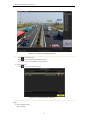
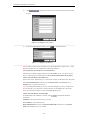
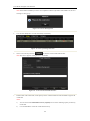
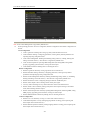
There are three initialization types, including Background, Foreground and Fast.
Fast (Not Recommended): The fast initialization usually takes short time and only initializes part of
the RAID, and cannot detect the bad sector.
Foreground (Recommended): By using foreground initialization, the RAID will be initialized totally
and the bad sector of the hard disks can be detected and repaired. The virtual disk can be used only
after the initialization is complete.
Background: The background initialization can synchronize the disks, and detect and repair the bad
sector of the disks. During the background initialization, the virtual disk is allowed to be used.
8.
9.
Click
to save the settings and click
to return to Array Settings interface
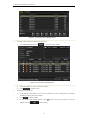
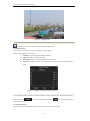
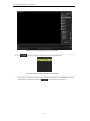
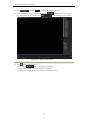
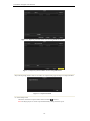
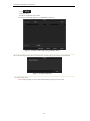
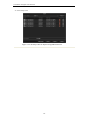
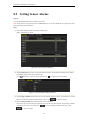
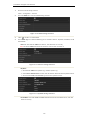
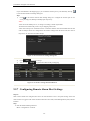
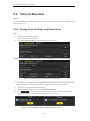
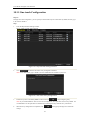
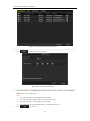
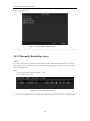
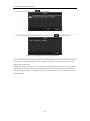
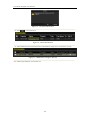
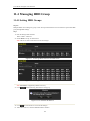
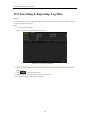
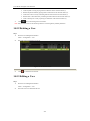
Click Virtual Disk tab to enter the Virtual Disk interface. The successfully created virtual disk will be listed
on the interface.
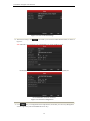
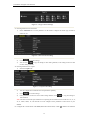
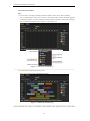
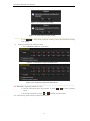
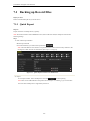
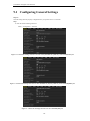
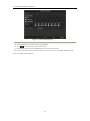
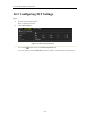
Figure 10. 11 Virtual Disk Interface
10.
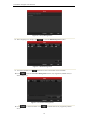
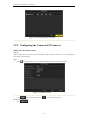
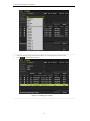
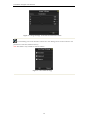
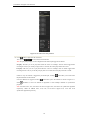
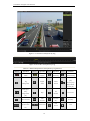
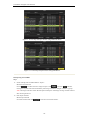
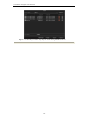
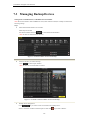
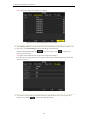
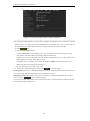
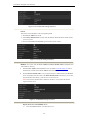
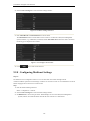
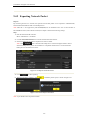
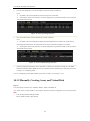
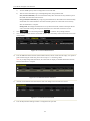
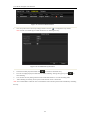
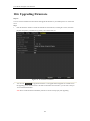
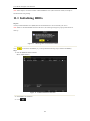
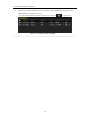
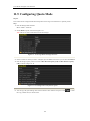
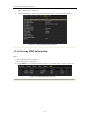
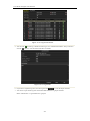
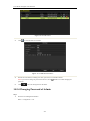
Enter the HDD Information interface (Menu>HDD>General) and the virtual disk will display. For operation
guide of initializing the virtual disk, please refer to Chapter 11.1 Initializing HDDs.
Note: If you adopt foreground initialization, the virtual disk will display in the HDD Information interface
after the initialization is complete.
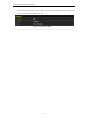
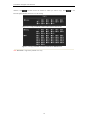
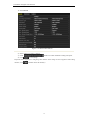
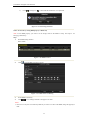
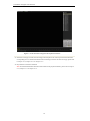
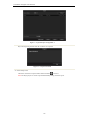
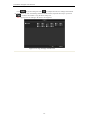
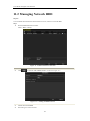
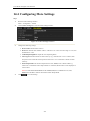
Figure 10. 12 HDD Information Interface
11.
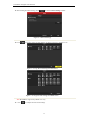
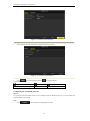
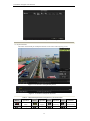
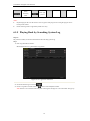
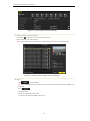
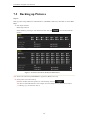
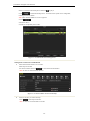
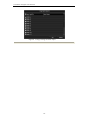
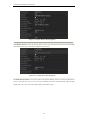
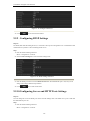
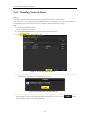
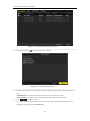
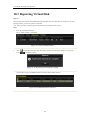
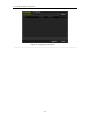
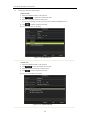
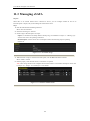
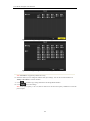
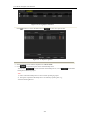
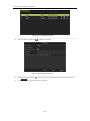
After the virtual disk has been initialized, the status will change from Uninitialized to Normal.
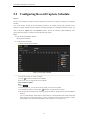
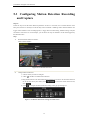
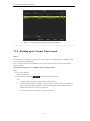
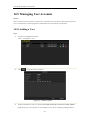
Figure 10. 13 Initialization Finished
12.
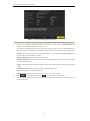
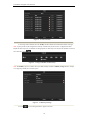
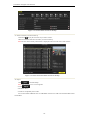
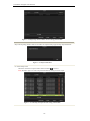
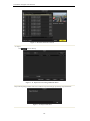
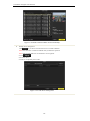
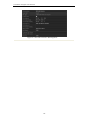
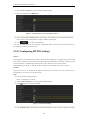
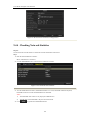
Enter the Physical Disk Settings interface to configure the hot spare disk.
175