1
User Manual OMNI960 Digital Video Recorders
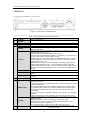
No.
Name
Description
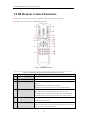
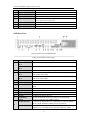
7
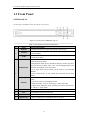
PLAY Button
Entering the All-day Playback menu.
8
INFO Button
Reserved.
9
VOIP/MON Button
Selecting all items on the list;
In live view or playback mode, it can be used to switch between main
and auxiliary video output.
10
MENU Button
Back to the Main menu (after successful login).
11
PREV Button
Switching between single screen and multi-screen mode.
12
DIRECTION/ENTER
Navigating between different fields and items in menus.
Buttons
In Playback mode, the Up and Down button are used to speed up and
slow down the playing of recorded video.
The Left and Right button will select the recorded video of 30 reverse
and 30s forward.
In live view mode, these buttons can be used to cycle through channels.
13
PTZ Button
Enter the PTZ Control mode.
14
ESC Button
Back to the previous menu
Pressing for arming/disarming the DVR in Live View mode.
15
RESERVED
Reserved.
16
F1 Button
Selecting all items on the list when used in a list field.
In PTZ Control mode, it will turn on/off PTZ light.
17
PTZ Control Buttons
Adjusting the iris, focus and zoom of a PTZ camera.
18
F2 Button
Cycle through tab pages.
Troubleshooting Remote Control:
Note: Make sure you have installed batteries properly in the remote control. It is important to aim the remote
control at the IR receiver on the front panel.
If there is no response after you press any button on the remote, follow the procedure below to troubleshoot.
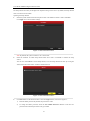
Steps:
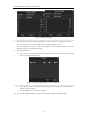
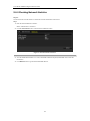
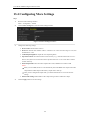
1. Go to Menu > Configuration > General > More Settings by operating the mouse.
2. Check and remember the device No. The default No. is 255. This device No. is valid for all the IR
remote controls.
3. Press the DEV button on the remote control.
4. Enter the device No. from step 2.
5. Press the ENTER button on the remote.
If the remote control is operating properly, but there is still no response from the remote, please check the
following:
1. Batteries are installed correctly and the polarities of the batteries are not reversed.
2. Batteries are fresh and not out of charge.
3. IR receiver is not obstructed.
If the remote still can’t function properly, please change a remote and try again, or contact the device provider.
16