1
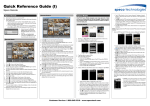
Quick Reference Guide (I) Speco Technologies D12LX, D20LX DVRs Congratulations on purchasing your new LX DVR. We hope that this Quick Reference Guide will help you quickly setup and configure your new Speco Technologies DVR. EZ Record EZ Network 1. If you selected the EZ Record, selecting the Next button starts the EZ Record. System Settings 1. If you selected the Go to EZ Network, select the Next button to start the EZ Network. NOTE: There is no record button on the unit. Please refer to the Record Setup section for the proper record settings. Thanks you! 2. Press the MENU button and then select (Setup) in the Live Monitoring menu, enter the password then press the button. There is no default password when logging in the admin user for the first time. To assure the secure management of the system, setting up a password is strongly recommended. Front Panel and Rear Panel Power LED Menu Button Play/Stop Button PTZ Button Enter Button USB Port Video Input Network Port RS232 Port Audio In/Out HDD LED Copy Button Alarm Button Mode Button Jog Dial Video Loop Through Video Out Factory Reset Switch Power Cord Connector 1. After connecting the power cord, the unit will be operational in 60 seconds. Camera Buttons Esc Button Sequence Button Arrow Buttons Shuttle Ring eSATA Port Alarm In/Out RS485 Port 2. Set the system Date/Time and select the date/time Format. 3. Set the Time Zone. It can be selected on the map. 4. Set the system to use Daylight Saving Time. 2. Select whether or not your DVR is connected to the Internet. 5. Select the desired recording mode from: Motion Event Record, Continuous & Motion Event Record, and Continuous Record. 3. Select between Auto Configuration and Manual Configuration for network configuration. 4. Select the Test button to test the network configuration you selected. 6. Select the desired video quality profile from: HVQPP, SRP and LRTPP. EZ Setup 1. Go to <System> <General EZ Setup> to display the EZ Setup screen. NOTE: The EZ Setup screen can only be accessed when logged on as the admin user. 2. Select either EZ Record or EZ Network and select the Next button to start the selected setup. HVQPP (High Video Quality Priority Profile, Very High (D1/960H) Resolution): 30.00 ips @ D1/960H for Time Record and Post-Event Record. SRP (Standard Recording Profile, High (2CIF/H960H) Resolution): 5.00 ips @ 2CIF/H960H for Time Record and 30.00 ips @ D1/960H for Post-Event Record. LRTPP (Longer Recording Time Priority Profile, Standard (CIF/Q960H) Resolution): 3.00 ips @ CIF/Q960H for Time Record and 5.00 ips @ 2CIF/H960H for Post-Event Record. NOTE: The network configuration you set should be tested by selecting Test, otherwise the Next button will cannot be selected, and you cannot move to the next step. 5. Set the DVR to use the DVRNS service. 6. Enter the DVR name to be registered on the DVRNS server. 7. Select the Test box to check whether or not the DVR Name you entered can be used. 8. Select the Finish button to finish the EZ Setup. 7. Select the Finish button to finish the EZ Record and select the Go to EZ Network button to start the EZ Network. System Device Record Display Event Status Network Camera System Setup 1. Go to <System> <General> to configure the general information, show the system log, clear all data, run the setup wizard, and shut down the system. 2. Go to <System Date/Time> to enter a new date and time. 3. Go to <System User> to add and delete groups and users. 4. Go to <System Storage> to display information about the DVR’s storage devices. 5. Go to <System Monitoring> to check the system events and set the actions the DVR will take when it detects system events. 6. Go to <System> <Capacity Estimator> to calculate the recordable time. Record Setup 1. Go to <Record General> to configure recording settings. Highlighting Recycle and pressing the button toggles between On and Off. In the Recycle mode, the DVR records over the oldest video data once all available storage space has been used. When Recycle is turned off, the DVR stops recording once all available storage space has been used. 2. Go to <Record General> to configure recording settings. Highlight Use Panic Recording and press the button to toggle between On and Off. When setting to On, set the length of time of the duration, images per second and quality for panic recording. 3. Go to <Record Schedule> to program the DVR to record only during certain times based on time, day of the week, and holidays. Highlight Schedule On and press the button to toggle between On and Off. In the Schedule On mode, the DVR records video based on the schedule established in the Schedule screen. When turning Schedule recording Off, you will be asked to confirm your decision. Panic recording will function even when Schedule is turned off. 4. Select the schedule mode between Simple Mode and Advanced Mode first. Highlight the + and press the button to add a schedule item, and highlight the box under the heading and press the button to delete the recording settings. NOTE: Refer to the User’s Manual for each schedule mode for details. Customer Service: 1.800.645.5516 • www.specotech.com Quick Reference Guide (II) Speco Technologies D12LX, D20LX DVRs Status Setup Record Table Search 1. Go to <Status Event> to display the status of the DVR’s systems and inputs. 2. Go to <Status Storage> to display the status of the DVR’s storage devices. 1. Go to <Search Menu> <Search ( ) Record Table Search>. Recording information about video images currently displayed on the screen displays on the recording status bar. Camera Setup 5. Go to <Record Pre-Event> to set up pre-event recording. You can turn individual cameras On or Off for pre-event recording and set the image speed, image quality, resolution and the amount of time to record prior to the event (dwell). When the DVR is in the Time or Time & Event mode, it ignores the pre-event settings and follows the time settings. 6. Go to <Record Archive> to set the archiving schedule and data ranges. If you have not set up a storage device for archiving, a message appears notifying you of this. Event Setup Go to <Event Motion, Alarm-In, Video Loss, Video Blind, Text-In and Network> to set up each event and set the actions the DVR will take when it detects the event. 1. Go to <Camera General > to turn the camera number On or Off, change the camera title, and determine which cameras will display on the monitors. 2. Go to <Camera PTZ> to configure the PTZ cameras. 3. Go to < Camera Network Camera> to scan the network devices and configure them. Device Setup 1. Go to <Device Audio and Network Audio> to set up local and network audio input and output. 2. Go to <Device Digital Deterrent> to set up the DVR to sound when events are detected. 3. Go to <Device Alarm-Out> to change the settings and establish a schedule for each alarm output from the DVR. 4. Go to <Device Remote Control> to configure correct settings for a remote keyboard. Display Setup The DVR can be set up to post a message via SNS (Social Network Service) when an event occurs. Go to <Network> <Notification> to add and edit notification schedules and SNS (Social Network Service) accounts. 1. Press the PLAY/STOP button to enter the Playback mode. If a user who has Search authority logs into the system, the user can view recorded images. 2. Press the MENU button while in the Search mode to display the Search Menu. Select the type of search using the arrow buttons and press the button. 1. Go to <Search Menu> <Search ( ) Event Log Search, Motion Search, Text-In Search>. The event log list will be shown on the screen. Highlight the event you would like to see and press the button. 1. Go to <Network General> to set the transfer condition for remote watch, limit bandwidth used to the remote site and configure the Speco Remote service. 2. Go to <Network IP Address> to select the type of network configuration first then set up LAN parameters for the selected network configuration. 3. Go to <Network DVRNS and RTSP> to configure the DVRNS and RTSP (Real-Time Streaming Protocol) functions. 4. Go to <Network Notification> to set the DVR to contact a computer running Speco Central (Remote Administration System), to send an email or to post a message via SNS when an event occurs. SNS Notification Standard View Playback and Search Event Search Network Setup Compact View For more specific search conditions, select <Option> and enter search parameters then select <Search>. The search results will be displayed in each screen. 2. Pressing the button will start playing the “event” video segment. Press the PLAY/STOP button to return to live monitoring. Expanded View 2. Selecting the and icon located at the bottom switches to other view modes. 3. Selecting displays eight hours (1-minute based), and selecting displays 24 hours (3-minute based) at once. 4. Selecting located at the bottom displays the Calendar Search screen. 5. Selecting Menu in the top-right corner displays the Search menu. 1. To add a notification schedule, highlight the + under the Schedule list and press the button. 2. To add an SNS account, highlight SNS Setup and press the button. Go To Search 1. Go to <Search Menu> <Search ( ) Go To>. Selecting <Go to the First> displays the first recorded image, selecting <Go to the Last> displays the last recorded image, and selecting <Go to the Date/Time> displays the Go to the Date/Time screen. 2. Enter a specific date and time and select OK by pressing the The button and arrow buttons to review the video. button. EZ Search 3. The SNS account can be turned On or Off by highlighting the boxes under the No. heading and pressing the button. 4. To add an SNS account, highlight the + and press the button. 5. Highlight the box beside Type and press the button. Select TWITTER from the Type allows you to post a tweet on Twitter when an event occurs. 6. Highlight the box beside User Name/Password and press the button. Go to <Search Menu> <Search EZ Search>. When entering the EZ Search mode for the first time, the DVR will play video in 4x4 display format starting with the first recorded image using the Day precision (default). NOTE: When There are there precision levels: Day, Hour and Minute. Clip Copy The Clip-Copy screen can be used to copy video to an internal DVD RW, or external USB hard disk or flash drives. The clip copy can be simply done by pressing the COPY button. 1. Go to <Display OSD> to select what information will be displayed on the monitor. 2. Go to < Display Primary Monitor and Spot Monitor> to set up each monitor. V1.0 Customer Service: 1.800.645.5516 • www.specotech.com