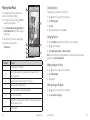
1
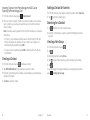
Opening Your Gallery
Gallery helps you view pictures and play
videos. You can also do some basic editing
of your pictures, set them as wallpaper or
contact photos, or share with friends.
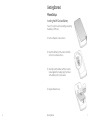
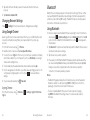
1From the home screen, tap
> Gallery.
2 Tap an album.
3 Tap a photo or video to view it.
4
1
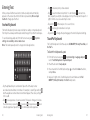
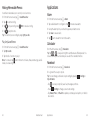
Shooting Video with Your Camcorder
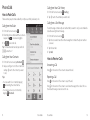
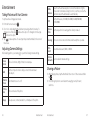
1From the home screen, tap
> Camera.
2Tap
to switch to the camcorder.
3Zoom in or out by dragging the slider bar. Tap
to begin recording and
to stop. Tap the video thumbnail in the corner of the screen to view the video
you’ve just taken.
Tip: Take a still photo while recording by tapping
.
2
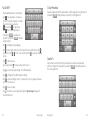
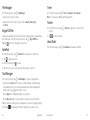
Adjusting Your Video Settings
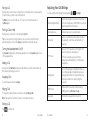
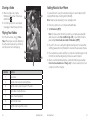
Before recording a video, you can tap
3
Number
38
Function
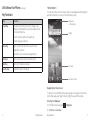
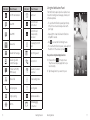
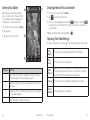
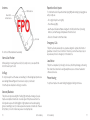
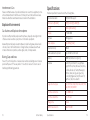
1
Tap to return to the album or thumbnails of all the pictures and
videos in the album, which are displayed in a grid.
2
Swipe horizontally to see more; double tap a picture to view it in
full screen.
3
Delete, edit, share, or set the picture as contact photo, wallpaper,
or lock screen wallpaper.
4
Browse the album contents in a slideshow.
Entertainment
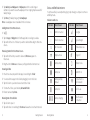
to open the following camcorder settings.
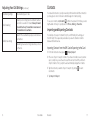
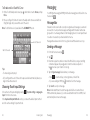
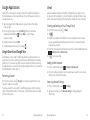
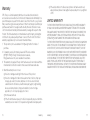
Video
Quality
Choose the video quality as 720P, 480P, VGA, or MMS Video.
Time
Lapse
Set the lapse time for recording video.
White
Balance
Select how the camcorder adjusts colors in different kinds of light to
achieve the most natural looking colors for your videos, or allow the
camcorder to adjust the white balance automatically.
Geo-tag
Choose to store location information with each video you take.
Restore
Defaults
Restore default camcorder settings.
Entertainment
39