1
N3520.book Page 45 Thursday, September 22, 2005 2:37 PM
Device Ports
Device Ports
Your LifeBook notebook comes equipped with multiple
ports to which you can connect external devices
including: disk drives, keyboards, modems, printers, etc.
your particular network. (To properly set up your LAN
environment, consult a networking professional. Refer to
your network administrator for information on your
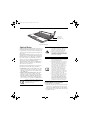
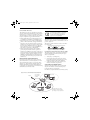
network configuration.) To connect the LAN cable follow
these easy steps: (Figure 4-12)
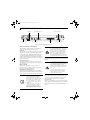
MODEM (RJ-11) TELEPHONE PORT
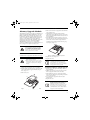
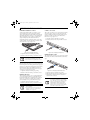
The modem (RJ-11) telephone port is used for an
internal modem. To connect the telephone cable follow
these easy steps: (Figure 4-11)
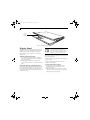
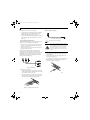
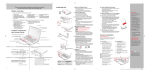
Figure 4-12. Connecting a LAN
Figure 4-11. Connecting a modem
1. Align the connector with the port opening.
2. Push the connector into the port until it is seated.
3. Plug the other end of the telephone cable into a
telephone outlet.
The internal modem is not intended for
use with Digital PBX systems. Do not
connect the internal modem to a Digital
PBX as it may cause serious damage to the
modem or your entire LifeBook notebook.
Consult your PBX manufacturer’s
documentation for details. Some hotels
have Digital PBX systems. Be sure to find
out BEFORE you connect your modem.
■
■
1. Align the connector with the port opening.
2. Push the connector into the port until it is seated.
3. Plug the other end of the cable into a LAN outlet.
IEEE 1394 PORT
The 4-pin 1394 port allows you to connect digital
devices that are compliant with IEEE 1394 standard
(also known as “FireWire”). The IEEE 1394 standard is
easy to use, connect, and disconnect. This port allows up
to 400 Mbps transfer rate. A third-party application may
be required to operate your device with the 1394 port.
The 1394 port used in this system uses a
four-pin configuration. If you intend to
interface with devices which use a six-pin
configuration, you will need to purchase
an adapter.
The internal modem is designed to the
ITU-T V.90 standard. Its maximum
speed of 53000bps is the highest
allowed by FCC, and its actual connection rate depends on the line conditions.
Maximum speed is 33600bps at upload.
The internal modem on all LifeBook
notebooks are certified for use in the
United States and Canada. The modem
may be certified in other countries.
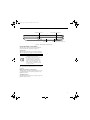
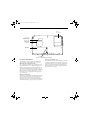
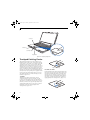
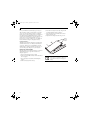
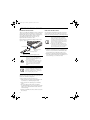
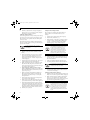
Figure 4-13. Connecting a IEEE 1394 device
INTERNAL LAN (RJ-45) PORT
The RJ-45 port is used to connect the internal Fast
Ethernet (10/100 Base-T/Tx) to a Local Area Network
(LAN) in your office or home, or broadband devices such
as a cable modem, DSL, or satellite internet. If your notebook has been configured with internal LAN capability
you will need to configure your notebook to work with
In order to connect a 1394 device, follow these
steps:(Figure 4-13)
1. Align the connector with the port opening.
2. Push the connector into the port until it is seated.
45