1
Teacher’s Management System
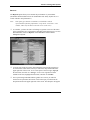
) You might find it useful or necessary to place one or more students in more than
one class. For example, you might want to create a special “advanced” group, or
a “remedial” group, in which particular learners would focus on specific aspects
of the program, while continuing with their regular work within their original
groups. To add students to several classes, click on “Add To” and follow the
procedure used for adding classes to modules.
Note:
When you add students to another group, their databases in the new
group will be empty until they begin working in their respective
groups.
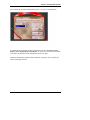
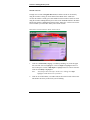
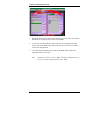
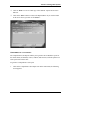
) The “Passwords” button in the Students’ table allows you to view or change the
password of every student in your class(es).
♦
♦
♦
♦
To change a student’s password, highlight the line with the student’s name.
Then click on the “Change Password” button.
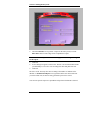
You will see the student’s old password in the top window. Type in the new
password in the bottom window. Click on “OK” or press the ENTER key to
enter the change, click on “Cancel” to cancel, or click on “Help” for help.
If you click on “OK,” you will be asked to retype the password. Click on
“OK” or press the ENTER key to continue, or click on “Cancel” to cancel.
To exit the Student Passwords Window and return to the Class List, click
on “OK.”
) To enter English Discoveries the first time, you will need to provide your
students with the passwords you have assigned them. They will need to
remember and use these same passwords each time they enter the program.
Note:
8
The maximum length possible for student and class names is twenty
(20) characters. The maximum length for passwords is ten (10)
characters.