1
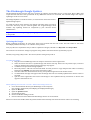
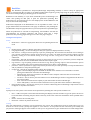
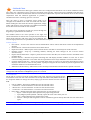
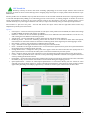
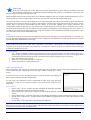
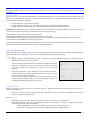
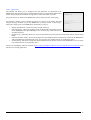
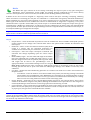
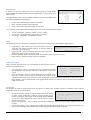
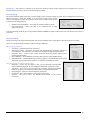
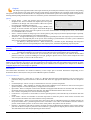
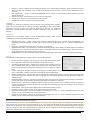
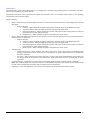
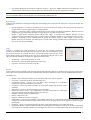
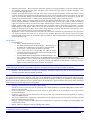
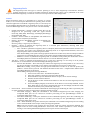
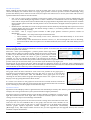
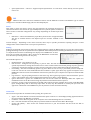
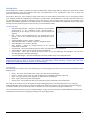
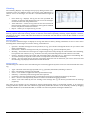
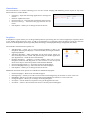
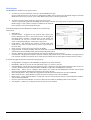
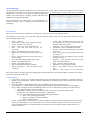
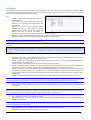
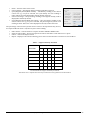
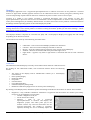
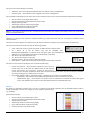
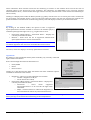
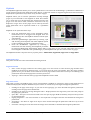
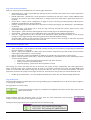
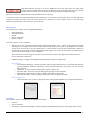
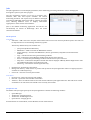
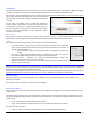
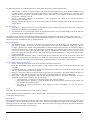
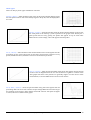
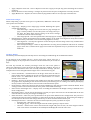
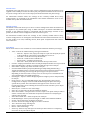
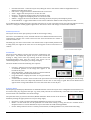
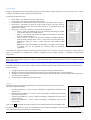
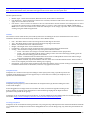
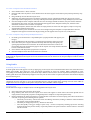
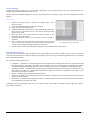
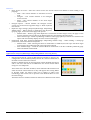
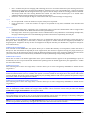
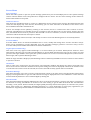
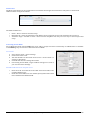
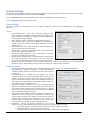
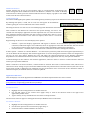
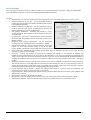
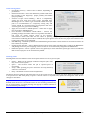
ClientLog The ClientLog displays any messages that pop up during normal Client operation. There are different levels of message, from informative to serious errors. All messages are held for a user-‐determined length of time. • • • Fetch back log – Displays the log for the time specified. For example, it retrieves and displays the last 4 hours of messages. Choose the time from the pull down list. Trim older lines – Trims the log based on the time selected in Fetch back log. If this is set to 60 minutes, the log file is trimmed back so only the last 60 minutes remain. Export – Allows you to export the log to a file. Note: When you export the log file you can choose to export everything in view or select entries to export. Use the filtering options and Fetch back log choice to limit the view before exporting. Selecting export displays a chooser, allowing you to enter a name and select the location to save the file. You can choose to save the file as html or as a tab delimited text file. Filtering Options You can choose which messages to display in the log and which to hide by ticking checkboxes for one or more of the following filters. All messages are saved to the log, even if filtered. • • • • • Question – Used for messages that ask questions, for e.g., “Job contains unassigned colours. Do you want to add them to VirtualPress.” Information – Used for messages that tell you something, for e.g., “Job has a duplicate plate.” Warning – Used where the message has a higher importance and (usually) the Client failed to do something, but operation can continue, for e.g., “Failed to save new password. Old password will continue to be used.” Critical – Used for serious errors that will most likely affect operation, for e.g., “Failed to load rendering .dll.” You will normally be required to take action to rectify these errors before continuing. Search – You can search the log for jobs or messages. Enter the text of characters you want to search for and the ClientLog only displays the lines that match the search. Display Options The following sort columns can be selected using the contextual (right click) menu on the sort column header bar in the log: • • • • • • • Type – The level of the message reported. For e.g., Question; Information; Warning or Critical. Date – The time the message was reported. Source – The module or application that reported the message. Summary – A summary of the message that was reported. Command – Internal command used to communicate messages to and from the Server by the Client. Error – An error code reported by the Server. This is useful for de-‐bugging problems. Action – The action taken by the user relating to the message. For e.g., the button pressed when the message popped up. The order of the columns can be changed by clicking and dragging them to the desired position, or by using the Configure Headers option under the contextual (right click) menu. The columns can be manually resized by dragging the header divider bar to the desired width, or resized to fit content by double-‐clicking the divider bar. Serendipity Blackmagic User Manual – Version 5.3 70