1
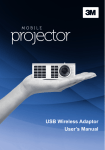
USB Wireless Adaptor User’s Manual 3M™ Mobile Projector MP410 English . . . . . . . . . . . . . . . . . . . . . . . . . . . . . . . . . . . . . . . . . . . . 1 French . . . . . . . . . . . . . . . . . . . . . . . . . . . . . . . . . . . . . . . . . . . 16 German . . . . . . . . . . . . . . . . . . . . . . . . . . . . . . . . . . . . . . . . . . 31 Spanish . . . . . . . . . . . . . . . . . . . . . . . . . . . . . . . . . . . . . . . . . . 46 Italian . . . . . . . . . . . . . . . . . . . . . . . . . . . . . . . . . . . . . . . . . . . . 61 Dutch . . . . . . . . . . . . . . . . . . . . . . . . . . . . . . . . . . . . . . . . . . . . 76 Swedish . . . . . . . . . . . . . . . . . . . . . . . . . . . . . . . . . . . . . . . . . . 91 Portuguese . . . . . . . . . . . . . . . . . . . . . . . . . . . . . . . . . . . . . . 106 Polish . . . . . . . . . . . . . . . . . . . . . . . . . . . . . . . . . . . . . . . . . . . 121 Russian . . . . . . . . . . . . . . . . . . . . . . . . . . . . . . . . . . . . . . . . . 136 Arabic . . . . . . . . . . . . . . . . . . . . . . . . . . . . . . . . . . . . . . . . . . 151 Chinese (Simplified) . . . . . . . . . . . . . . . . . . . . . . . . . . . . . . . 166 Chinese (Traditional) . . . . . . . . . . . . . . . . . . . . . . . . . . . . . . . 181 Japanese . . . . . . . . . . . . . . . . . . . . . . . . . . . . . . . . . . . . . . . . 196 iii © 3M 2012. All Rights Reserved. English 3M™ Mobile Projector MP410 Thank You Thank you for purchasing the 3M™ USB Wireless Adaptor for 3M™ MP410 Projectors. Customer Support For manuals, frequently asked questions and technical support, call 1-866-631-1656 (toll free in the US) or go to www.3MMP410.com. Intended Use Statement The 3M™ USB Wireless Adapter for the 3M MP410 is compatible with the 3M Mobile Projector MP410. 3M does not support other uses for the 3M USB Wireless Adaptor. Important Notice All statements, technical information, and recommendations related to 3M’s products are based on information believed to be reliable, but the accuracy or completeness is not guaranteed. Before using this product, you must evaluate it and determine if it is suitable for your intended application. You assume all risks and liability associated with such use. Any statements related to the product which are not contained in 3M’s current publications, or any contrary statements contained on your purchase order shall have no force or effect unless expressly set forth in a written agreement signed by an authorized officer of 3M. Trademarks And Copyrights The 3M logo and 3M are registered trademarks of 3M Company. All other trademarks or registered trademarks are property of their respective companies. © 3M 2012. All Rights Reserved. 1 3M™ Mobile Projector MP410 Warranty The 3M™ USB Wireless Adaptor for the MP410 Projector (the “3M Product”) is warranted to be free from defects in material or manufacture for a period of 1 year from the date or purchase. If the product does not conform to the warranty within the warranty period, 3M’s exclusive obligation is to repair, replace or refund the purchase price of the non‑conforming product. To the extent permitted by law, 3M will not be liable for indirect, incidental, special or consequential damages, irrespective of the legal theory asserted. If the product needs service, please call 1‑866‑631-1656. For the detailed terms and conditions of the warranty go to www.3mmp410.com, or contact us at 1-866-631-1656 or [email protected]. 2 © 3M 2012. All Rights Reserved. 3M™ Mobile Projector MP410 Wireless Installation Instruction NOTE: Your computer must have the following minimum system requirements: Operating System yy Windows Microsoft® Windows® XP Home or Professional Service pack 2 (32-bit recommended), Windows® Vista 32-bit or 64-bit, and Windows 7 Home or Professional 32-bit or 64-bit yy MAC OS, Mac OS x 10.5 and above Minimum Hardware a.Intel® Dual Core™ 1.8 MHz or greater b.256 MB of RAM required, 512 MB or more recommended c.10 MB of available hard-disk space d.nViDIA or ATI graphic card must with 64 MB VRAM or above e.Ethernet adapter (10 / 100 bps) for an Ethernet connection f. A supported WLAN adapter for a WLAN connection (any NDIScompliant 802.11b or 802.11g or 802.11n WiFi device) Web browser Microsoft Internet Explorer 6.0 or 7.0 (recommended) or 8.0, Firefox 2.0, Safari 3.0 and above NOTE: The USB wireless adapter is not shipped with your projector. Find out where to purchase the USB wireless adaptor at www.3mmp410.com. © 3M 2012. All Rights Reserved. 3 3M™ Mobile Projector MP410 Enable Wireless on the Projector 1. Install the optional wireless dongle. USB-A Micro SD Universal I/O HDMI A/V in DC in 2. Connect the power cord with AC adapter to the wall outlet and press the power button. 3. Press the Menu button on your projector control panel or remote control. NOTE: Use 4 , , and buttons to navigate and to select. © 3M 2012. All Rights Reserved. 3M™ Mobile Projector MP410 4. Select the input source as USB. The Wireless Guide Screen shown below appears: 5. Make a note of the LOGIN CODE, SSID, and IP ADDRESS. You will need this information to log in later. © 3M 2012. All Rights Reserved. 5 3M™ Mobile Projector MP410 Install the Wireless Application Software on Your Computer 6. Connect your computer to the MP410 wireless network. NOTE: 1. Your computer must have wireless network function to detect the connection. 2. When you connect to the MP410 wireless network, you will lose wireless connectivity with other wireless networks. NOTE: It is recommended that all proxies are turned off. (In Microsoft® Windows 7: Click Control Panel Internet Options Connections LAN Settings) 6 © 3M 2012. All Rights Reserved. 3M™ Mobile Projector MP410 7. “Wireless Application Software” is required if used for wireless display. Please download and install the software for first-time use. If it is already installed, skip Steps 7 - 12. NOTE: You only need to install the "Wireless Application Software" once. 8. Open the Internet browser on your computer then enter the default IP Address 192.168.100.10 in the browser’s address bar. 9. The MP410 web management page opens. Click <Download> to install the software. © 3M 2012. All Rights Reserved. 7 3M™ Mobile Projector MP410 10. Select the appropriate operating system, and then click <Download>. 11. Click <Run> to proceed with the installation of the Mirror OP Lite software file. 8 © 3M 2012. All Rights Reserved. 3M™ Mobile Projector MP410 Click <Run> to proceed with the installation. Click <Yes> to allow the program to run on your computer. Do you want to allow the following program from an unknown publisher to make changes to this computer? < Yes > < No > NOTE: If you are unable to install the application because of inadequate rights on the computer, please contact your network administrator. 12. The installation software will launch. Click <NEXT> and follow the on-screen instructions to complete the setup. © 3M 2012. All Rights Reserved. 9 3M™ Mobile Projector MP410 Launch the Wireless Application 13. When the installation is complete, an icon, labeled Mirror Op Lite will appear on your computer desktop. Double-click this icon to start the application. The Benchmark Configuration Tool screens will only display the first time you start the application. Click <Next> to automatically configure the Mirror Op Lite software based on your computer’s hardware. Click <Finish> to complete the configuation screens and display the logon screen. 10 © 3M 2012. All Rights Reserved. 3M™ Mobile Projector MP410 Login 14. To connect with your projector, select 3M MP410 and click <Connect>. 15. To connect with your computer, enter the Login Code (see Step 5) and click <Connect>. Important Note: If the IP Address is blank or filled with zeros, enter the default IP Address 192.168.100.10. © 3M 2012. All Rights Reserved. 11 3M™ Mobile Projector MP410 Understanding the Buttons After a successful log in, the following screen appears: 1 2 Item Status Bar Menu Description Display IP and LOGIN CODE information. Click to activate the application menu. Minimize button Click to minimize the application. Close button Click to exit the application. Control Toolbar Full screen Stop Pause 3 Click to project the image in full screen. Click to stop projection. Click to pause projection. Connection Status Connection Icon Blinks when projection is in progress. Projecting the Presentation • To project the presentation, click . • To pause the presentation, click . The icon turns green. again. • To continue the presentation, click • To stop the presentation, click . NOTE: The following information is for wireless data presentation mode only. Image display could be slow or not displayed smoothly if displaying a video clip or animation. Refer to the frame-rate table below for reference: 12 © 3M 2012. All Rights Reserved. 3M™ Mobile Projector MP410 Screen Variation %1 Estimated frames per second2 <5 % 303 <10 % 283 <20 % 263 <40 % 233 <75 % 193 <=100 % 183 NOTE: 1. The percentage of screen variation is based on 1024 x 768. Example, to display a 320 x 240 video clip on 1024 x 768 desktop, the screen variation is 9.8%. 2. Actual frame rate could be different depending on factors such as network environment, image content, signal conditions, locations, and CPU performance. 3. Under clean WLAN environment using 802.11g connection, and no screen stretching. NOTE: Your computer will not enter S1 (standby mode) / S3 (sleep mode) / S4 (hibernate mode) when running a wireless Display presentation. Using the Menu Click to display the menu. © 3M 2012. All Rights Reserved. 13 3M™ Mobile Projector MP410 Search Remote Box — Select this option and then click <Rescan> to connect to another MirrorOp. The system remembers the last MirrorOp connection. Projection Quality — Select this option and click <Normal> (default) or <Best> to adjust the image quality. The <Best> setting requires more bandwidth and may decrease computer speed and perfomance. Auto Power Management — Click this option to turn the PC’s windows power scheme from current settings to “highest performance”. Click again to restore your PC to the normal power scheme. Auto WiFi Connect — Check box to automatically connect to WiFi. Uncheck box to manually connect to the projector’s wireless network each time you project your computer’s display over wireless. Advanced Screen Capture — Click to enable tip windows and other layered windows (including the main UI) on the connected display. Note: The mouse cursor may blink when you are projecting your PC screen! About — Click to display the application version. Exit — Click to close the application. 14 © 3M 2012. All Rights Reserved. 3M™ Mobile Projector MP410 Regulatory Notices FCC STATEMENT–CLASS B This equipment generates, uses and can radiate radio frequency energy, and if not installed and used in accordance with the instruction manual may cause interference to radio communications. It has been tested and found to comply with the limits for a Class “B” computing device pursuant to Subpart B of Part 15 of the FCC Rules, which are designed to provide reasonable protection against such interference when operated in a residential installation. However, there is no guarantee that interference will not occur in a particular installation. If this equipment does cause harmful interference to radio or television reception, which can be determined by turning the equipment off and on, the user is encouraged to try to correct the interference by one or more of the following measures: • Reorient or relocate the receiving antenna. • Increase the separation between the equipment and receiver. • Connect the equipment into an outlet on a circuit different from that to which the receiver is connected. • Consult the dealer or an experienced radio/TV technician for help. NOTICE: This Class B digital apparatus complies with Canadian ICES-003. Cet appareil numérique de la classe B est conforme à la norme NMB-003 du Canada. Instructions To Users: This equipment complies with the requirements of FCC equipment provided that the following conditions are met. If the cables include an EMI ferrite core, attach the ferrite core end of the cable to the projector. Use the cables which are included with the projector or specified. Note: Changes or modifications not expressly approved by the party responsible for compliance could void the user’s authority to operate the equipment. WEEE Statement The following information is only for EU-members States: The mark shown to the right is in compliance with Waste Electrical and Electronic Equipment Directive 2002/96/ EC (WEEE). The mark indicates the requirement NOT to dispose the equipment as unsorted municipal waste, but use the return and collection systems according to local law. © 3M 2012. All Rights Reserved. 15 3M is a trademark of 3M Company Mobile Interactive Solutions 3M Austin Center 6801 River Place Blvd. Austin, TX 78726-9000 866-631-1656 www.3MPocketProjector.com [email protected] © 3M 2012. All Rights Reserved. 78-6971-1616-4 Rev A.1