1
HP LASER GAMING MOUSE
USER MANUAL
v1.0.EN
Part number: 513192-001
Contents
Selecting a User Profile ............................................................................................................. 1
Customizing a User Profile ......................................................................................................... 2
Customizing DPI Profiles ............................................................................................................ 3
Selecting a DPI Profile ............................................................................................................... 3
Changing Other Mouse Settings ................................................................................................. 4
Adjusting the Weight of Your Mouse........................................................................................... 5
Resetting Your Mouse................................................................................................................ 5
Selecting a User Profile
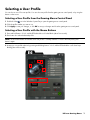
You can choose one of five user profiles. You can choose a profile from the gaming mouse control panel, or by using the
buttons on the mouse.
Selecting a User Profile from the Gaming Mouse Control Panel
1 Double-click the
icon in the Windows System Tray to open the gaming mouse control panel.
2 Click the profile number you want to use.
3 Click Apply to save your changes, or click OK to save your changes and close the gaming mouse control panel.
Selecting a User Profile with the Mouse Buttons
1 Press and hold buttons 1+2+3 until the LED behind the scroll wheel blinks (about five seconds).
2 Press button 8 to select the desired profile.
NOTE: The LED behind button 8 indicates which user profile is currently selected. To move to the next profile, press
button 8 again.
3 Accept your user profile selection by pressing and holding buttons 1+2+3 until the LED behind the scroll wheel stops
blinking (about five seconds).
HP Laser Gaming Mouse
1
Customizing a User Profile
You can customize and save the settings for each of the five user profiles. Each profile includes button assignments and DPI
settings.
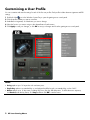
1 Double-click the
icon in the Windows System Tray to open the gaming mouse control panel.
2 Click the profile number you want to customize.
3 Under Button Assignment, click the button you want to change.
4 Select the function you want to assign to the selected button from the menu.
5 Click Apply to save your changes, or click OK to save your changes and close the gaming mouse control panel.
NOTES:
• String replaces up to 16 keystrokes with one button press.
• Single key replaces one standard key or one keyboard modifier key plus one standard key, such as Ctrl+C.
• Macro replaces up to 16 key events, including Key Down, Key Up, and delay times. To define the macro sequence,
click Record, enter the key events, click Stop, and then click OK to save the macro.
2
HP Laser Gaming Mouse
Customizing DPI Profiles
You can customize and save the settings for each of the five DPI profiles. When you select a user profile, the corresponding
DPI profile also becomes active. For example, when you select user profile 3, DPI profile 3 becomes active.
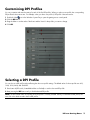
1 Double-click the
icon in the Windows System Tray to open the gaming mouse control panel.
2 Click the DPI button.
3 Drag the sliders to set the value of the X-axis and the Y-axis for the profiles you want to change.
4 Click OK.
Selecting a DPI Profile
You can choose a DPI profile without affecting the other user profile settings. The default values for these profiles are: 810,
1260, 1620, 2430, and 5040 DPI.
1 Press button 8 (DPI switch, located behind the scroll wheel) to switch to the next DPI profile.
2 Keep pressing the DPI button until you find the desired DPI profile.
NOTE: The LED behind button 8 indicates which DPI profile is currently selected. When you reach the last DPI profile, the
next click circles back around to the first DPI profile.
HP Laser Gaming Mouse
3
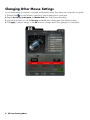
Changing Other Mouse Settings
You can change settings for Sensitivity, Scroll-speed, and Double-click speed. These settings are not part of the user profiles.
1 Double-click the
icon in the Windows System Tray to open the gaming mouse control panel.
2 Drag the Sensitivity, Scroll-speed, and Double-click sliders to adjust the profile settings.
3 (Optional) Position the cursor over the Test area and double-click to test the speed of the double-click setting.
4 Click Apply to save your changes, or click OK to save your changes and close the gaming mouse control panel.
4
HP Laser Gaming Mouse
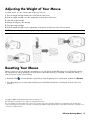
Adjusting the Weight of Your Mouse
For better control, you can customize the weight of your mouse.
1 Press the weight cartridge release lever on the bottom of the mouse.
2 Slide the weight cartridge out of the compartment on the bottom of the mouse.
3 Open the weight cartridge.
4 Arrange the weights in the cartridge.
5 Close the weight cartridge.
6 Slide the weight cartridge into the compartment on the bottom of the mouse until it clicks into place.
NOTE: You can mix and match the 1.7 g and 4.5 g weights to achieve the desired weight.
Resetting Your Mouse
When you reset your mouse, the button assignments in your user profiles and the DPI settings in your DPI profiles return to
the original factory settings. Resetting your mouse does not affect the Sensitivity, Scroll-speed, or Double-click settings. To
reset your mouse, do one of the following:
• Double-click the
icon in the Windows System Tray to open the gaming mouse control panel, and then click Restore.
• Close the gaming mouse control panel, and then press and hold the Reset button on the bottom of the mouse for five
seconds.
Copyright © 2009 Hewlett-Packard Development Company, L.P.
The information contained herein is subject to change without notice.
The only warranties for HP products and services are set forth in the express warranty statements accompanying such products and
services. Nothing herein should be construed as constituting an additional warranty. HP shall not be liable for technical or editorial errors
or omissions contained herein.
HP Laser Gaming Mouse
5