1
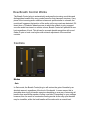
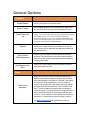
General Options
Graphics
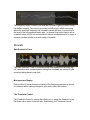
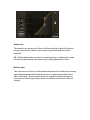
Enable Meters
Allows you to quickly turn on/off all meters
Show Tooltips
When enabled this allows informational notes to appear when
the cursor/pointer is hovering on top of the features' controls
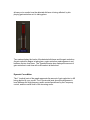
Frame Rate Limiter
Allows you to set the speed (frames per second) used to display
and update meters. You can increase the frame rate for
smoother animation. If you notice graphics performance problems in your host application, you can set the FPS value lower
to limit the amount of CPU used fordrawing.
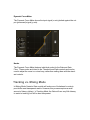
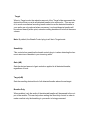
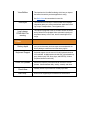
Opacity
Allows you to control the opacity or transparency of the interface. The slider will be disabled in host applications that do not
support this feature.
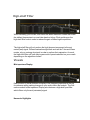
Dim Controls
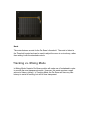
When Bypassed
When this option is enabled, modules will be dimmed when
bypassed. This feature helps to remind you when a module is
bypassed, so that you don't make adjustments to a bypassed
module unintentionally.
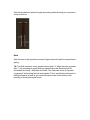
Solo/Bypass Indicators
Allows you to set the behavior of the Solo/bypass indicators.
Options are Blinking or Solid.
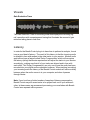
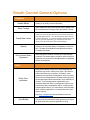
Host
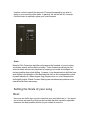
Delay Compensation
Using some of Nectar 's more CPU intensive settings and
algorithms may result in a delay of the signal. This causes a
delay when listening or mixing down. Fortunately, many applications provide "delay compensation" which is a means for
Nectar to tell the application it has delayed the signal, and the
host application should automatically "undo" the delay on the
track. If your host application supports delay compensation,
enable this option.If your application doesn't support Nectar 's
delay compensation feature, or skips/stutters with this option
turned on, you can manually correct the delay offset in the host
application (i.e. manually edit out the short delay of silence).
See Delay Compensation documentation for more info.