1
1
2
3
4
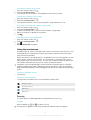
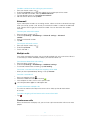
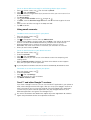
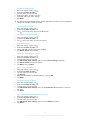
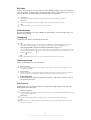
To use a photo as a contact picture
When you are viewing a photo, press , then tap Use as > Contact picture.
Select the contact you want to associate with the photo.
Crop the photo, if required.
Tap Crop.
1
2
3
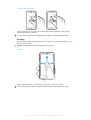
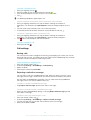
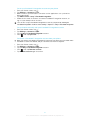
To use a photo as wallpaper
When you are viewing a photo, press
Crop the photo, if required.
Tap Crop.
•
To edit a photo
When you are viewing a photo, press
1
2
1
2
3
4
, then tap Use as > Wallpaper.
, then tap Edit photo.
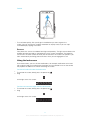
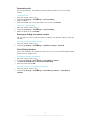
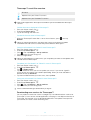
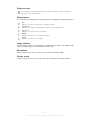
To share a photo
When you are viewing a photo, tap the screen to display the toolbars, then tap
In the menu that opens, tap the application that you want to use to share the
photo, then follow the steps to send it.
.
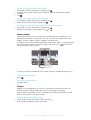
To add a geotag to a photo
When you are viewing a photo, tap the screen to display the toolbars, then tap
to open the map screen.
Find and tap the desired location to put the photo on the map.
To adjust the location of the photo, tap the location on the map to where you want
to move the photo.
When you are done, tap OK to save the geotag and return to the photo viewer.
appears along with location information. You can tap this
When a photo is geotagged,
icon to view the photo on a map.
1
2
To delete a photo
When you are viewing a photo, tap the screen to display the toolbars, then tap
Tap OK.
.
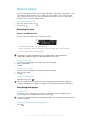
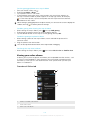
Working with videos in Album
Use Album to watch videos that you’ve taken with the camera, downloaded, or copied
to your memory card. You can also share your videos with friends, or upload them to
YouTube™.
1
2
3
4
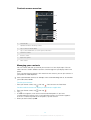
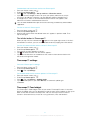
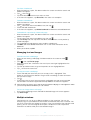
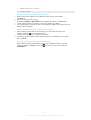
To play a video
Open the Pictures tab in Album.
Using grid view or list view, locate the video that you want to open.
Tap the video to play it.
If the playback controls are not displayed, tap the screen to display them. To hide
the controls, tap the screen again.
1
2
To pause a video
When a video is playing, tap the screen to display the controls.
Tap .
1
2
To fast forward and rewind a video
When a video is playing, tap the screen to display the controls.
Drag the progress bar marker left to rewind, or right to fast forward.
•
To adjust the volume of a video
Press the volume key.
104
This is an Internet version of this publication. © Print only for private use.