1
Basic Operations
1 Getting Started
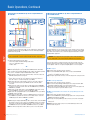
To begin using your HDTV service, turn on power to both the set top box and your
HDTV:
Step 1: Using the Mediacom remote, turn on the set top box by pressing the CABLE
button to set it in cable mode, then the POWER button.
Step 2: With the Mediacom remote, turn on the HDTV by pressing the TV button, then
the POWER button, or, using your HDTV remote, follow your TV manufacturer’s
instructions for turning on your HDTV.
NOTE: Not all TVs are compatible with the Mediacom remote.
2 To View a High-Definition Channel
Step 1: On your TV’s remote, press the VIDEO INPUT MODE button (refer to your TV’s
manual for clarification) as necessary until you reach the HDTV Video Input noted
on the previous page.
Step 2: On the Mediacom remote, press the CABLE button to set the remote in cable
mode.
Step 3: Use the remote to access high-definition channels in any of the following ways:
a. Press the CHANNEL UP/DOWN buttons to scroll to a high-definition channel.
b. Press the applicable number keys to go to a specific channel number.
c. Browse, using the Interactive Program Guide (IPG).
3 Important Safety Instructions
4 Important Information to Protect Your HDTV Display
Sidebars
When a standard-definition
program is viewed on a
wide-screen HDTV, the HDTV
may center the image on
the screen with black, gray
or white margins (known as
sidebars) on either side in
order to retain the 4:3 aspect
ratio.
Letterboxing
In a similar fashion, when
wide-screen (16:9 aspect
ratio) content is transmitted to
a 4:3 TV screen, the content
provider may add black
margins on the top and bottom
of the screen to ensure that
the entire width of the picture
is visible. This is known as
“letterboxing.”
A
Publication
Persistent viewing of programs
with sidebars or letterboxing over
long periods of time may degrade
the picture quality of your HDTV
by reducing your HDTV’s ability to
display colors evenly across the
screen.
With your TV’s remote, press
the FORMAT (aspect ratio) button
(if available) as needed, stretching
or zooming to adjust the picture
display until any black (or gray/
white) sidebars are eliminated.
(Since letterboxing is done by
the content provider, letterboxed
programs cannot always be
completely zoomed to fill the
screen. (See your TV’s manual for
details.) Pausing DVDs or videos
for extended periods of time can
also cause burn-in. Mediacom will
not be held responsible for any
burn-in on your HDTV set.
The On-Screen Menu
Use the On-Screen Menu* to tailor your HD set top box to the capabilities of your
HDTV. This allows the HD set top box to automatically optimize both standard and
high-definition video, based on your HDTV and personal preferences. To access the
On-Screen Menu, power ON your HDTV and power OFF the HD set top box. Press the
MENU button on either your remote control or the HD set top box front panel to call
up the On-Screen Display.* You may use either the HD set top box front panel or the
remote control to navigate the display.
• The arrow on the left indicates the position of the cursor.
• Press the5and6buttons to select the setting you wish to change.
• Press the4button to select an option for that setting.
• To exit the setting and move to another setting, use the5and6buttons.
• Press the POWER or MENU button to exit the menu and save your settings.
TV TYPE
The first user setting is TV TYPE. Your selection tells the HD set top box what type of
TV you have and how you prefer to watch widescreen programming.Your choices are
16:9, 4:3 Letterbox or 4:3 Pan Scan.
• Choose 16:9 if you have a wide screen HDTV.
• Choose 4:3 Letterbox if you have a standard TV and you prefer to watch
widescreen programming in its original aspect ratio.
• Choose 4:3 Pan Scan if you have a standard screen TV and you prefer that
widescreen programming is cropped to fill your screen. Think of this last choice
as watching a theater-style movie that has been reformatted to fit your standard
screen TV.
Y Pb Pr OUTPUT
Next, use the down arrow to select Y Pb Pr OUTPUT. This setting indicates the
picture resolution you prefer when watching high-definition programming. The
choices, listed in order of highest to lowest picture resolution, are 1080i, 720p, 480p
and 480i. Your selection will depend on which format(s) your HDTV supports. To
maximize your high-definition viewing experience, refer to your television set owner’s
manual and use the4button to choose the setting that indicates the highest picture
resolution that your television will support.
4:3 OVERRIDE
Finally, use the down button arrow to select 4:3 OVERRIDE. By selecting 480i or
480p, you are telling the HD set top box to send standard-definition programming
to your TV in its original broadcast format. Select OFF and the HD set top box will
default to the resolution selected in the Y Pb Pr OUTPUT setting above. To exit and
save changes, press the POWER or MENU button. For more details on configuring
your HD set top box output settings, including setting closed caption preferences, see
the Motorola HD set top box user guide or visit www.motorola.com/broadband.
HDTV
Ventilate
The high-definition set top box has been designed to operate reliably in a well ventilated household environment. Slots and openings in the unit cabinet are provided for
ventilation. These openings should never be blocked by placing the product on a bed,
sofa, rug or similar surface. The unit should be positioned with at least two inches of
space above and on all sides.
Safety Instructions
Step 1: Position the set top box with at least two inches of space above and on all sides.
Step 2: Do not block the slots and openings in the set top box.
Step 3: Do not place anything on top of the set top box.
Step 4: Do not position the set top box in an enclosed space that would restrict air
flow around the unit.
Step 5: Do not position the set top box near any external heat source that could raise
the temperature around the unit.
5 Avoiding Sidebar or Letterbox Damage (Burn-In)
*If the On-Screen Menu does not appear on your HDTV screen, your TV may not support the default, standard-definition
setting (480i). Use the HD set top box front panel LED to view and change your settings.
PAUSE | SPRING/SUMMER 2008
41